01
Reporting categories
Split a Briefcase Ledger client's profit and loss by what matters to the business: a site, a department, a service line or a project. Add categories and their options in Business settings → Reporting categories, then pick an option from each on bills, receipts, bank lines, sales invoices, manual journals and schedules. They're for limited companies, with up to 10 active categories per client.
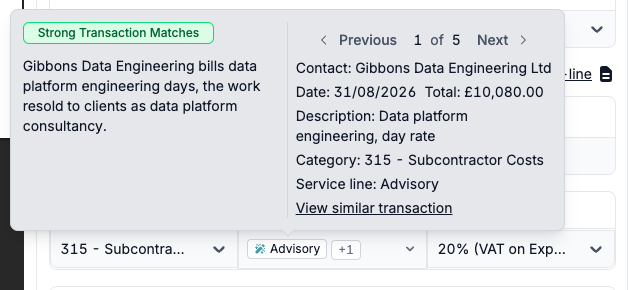
Briefcase predicts them on bills, receipts and bank lines from how similar ones were coded before. Hover over a predicted option to see why it was chosen and which earlier transactions it learned from. Change an option on a posted document and Briefcase reverses and reposts its journal at the same date. Reporting categories covers the details.
02
Custom reports and KPIs
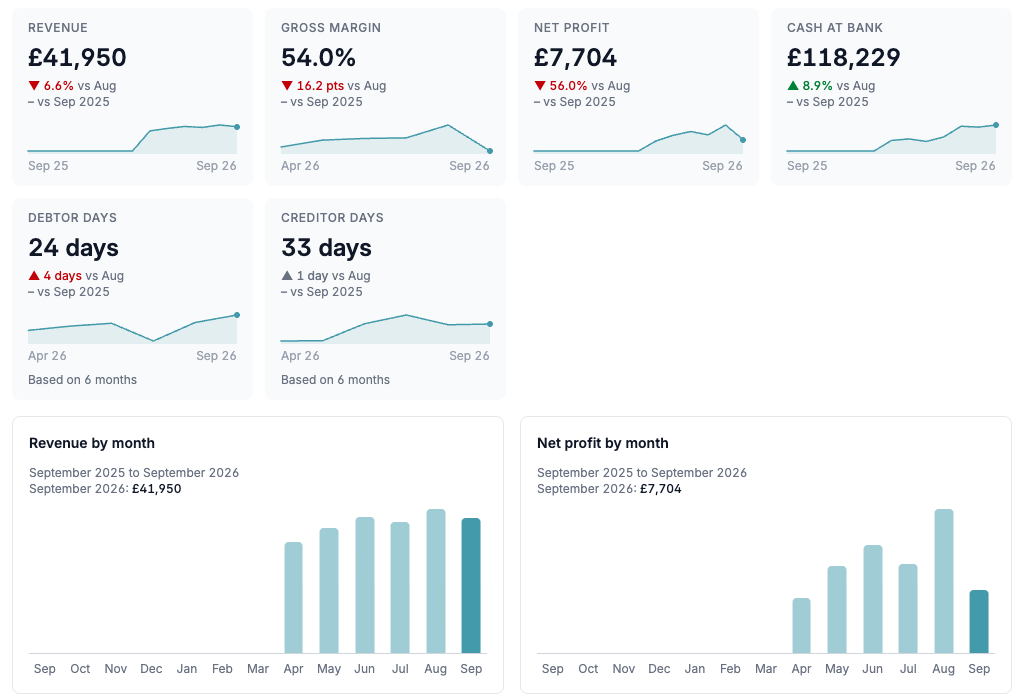
Go to Reports → New report and start from a template: a monthly management pack, performance by site, department or project, cash and working capital, or a blank report. Every report recalculates from the ledger each time it's opened, and Save as new keeps a copy with your changes.
Add KPIs, monthly trends, profit and cash bridges, the profit and loss, the balance sheet, aged debtors and creditors, and your own commentary, written in the report itself. Each KPI compares with the previous period and last year, and reads account roles such as Payroll and Loans and finance, set in Chart of accounts → Account roles. Custom reports and KPIs lists every widget and KPI.
03
What each part of the business earns
The performance template ranks each option of a category by its contribution: its revenue less its own costs, before central costs. Costs with no option aren't shared out, so the rows add up to net profit, and each option gets a card with its last 13 months.
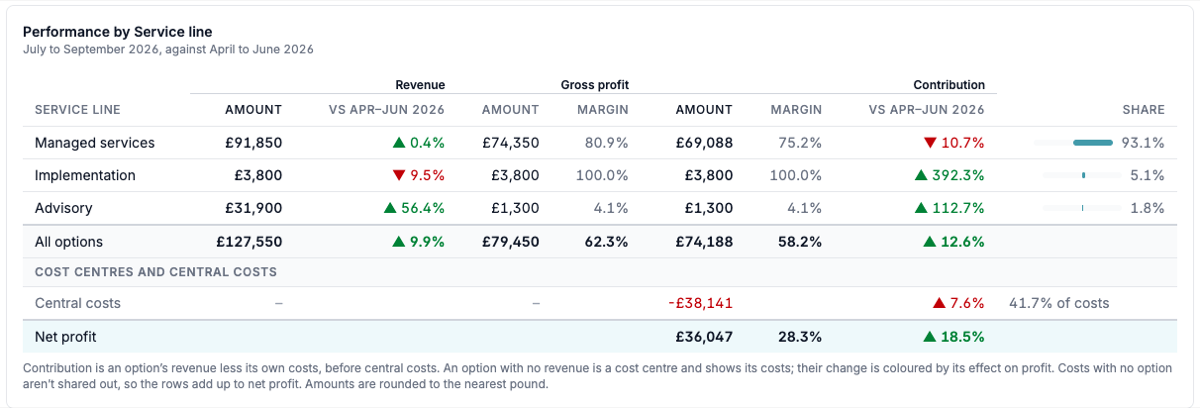
The profit and loss can also show a column for each option, or be filtered to some options. Save any view as a report, star it to keep it in your sidebar, and share it with colleagues who can view or edit it. Profit and loss by reporting category and saved reports walks through it.
04
Report PDFs in your branding
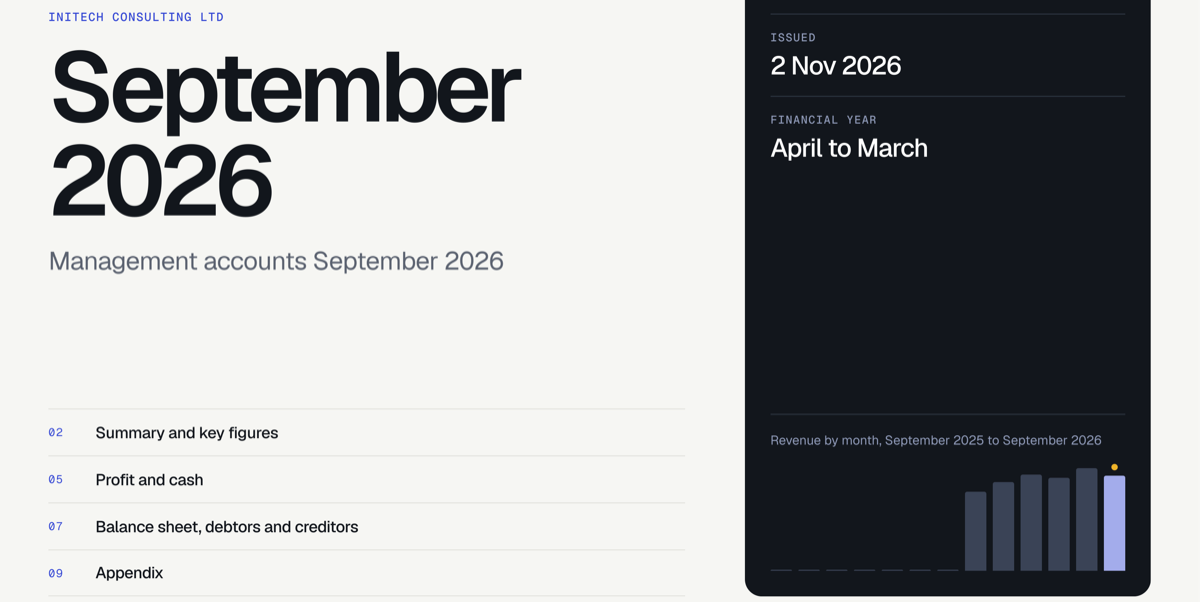
Download any report as a PDF with a cover, its contents and a back page with your contact and the client's next HMRC dates. Set your logo, colours and one of five themes once in Settings → Branding, and every client's reports follow it.
For a business that sends reports to its own board or lender, open its Business settings → Reports and use its branding, or its and yours together. Branding your clients' reports covers each setting.
05
Reports from Claude and ChatGPT
A connected assistant can now create a custom report, or change one you can edit: rename it, move it to a new period, rewrite its summary, or add, remove and reorder widgets. It shows you what will change and saves only once you agree. How do I connect Claude or ChatGPT to Briefcase?
06
Bulk edit after posting
Select posted documents in the Briefcase Ledger Costs or Sales inbox and press Bulk edit to change their date, due date, supplier or customer, category, VAT rate or reporting categories. Briefcase reposts each one, reapplies payments when the contact changes, and skips any in a locked month.
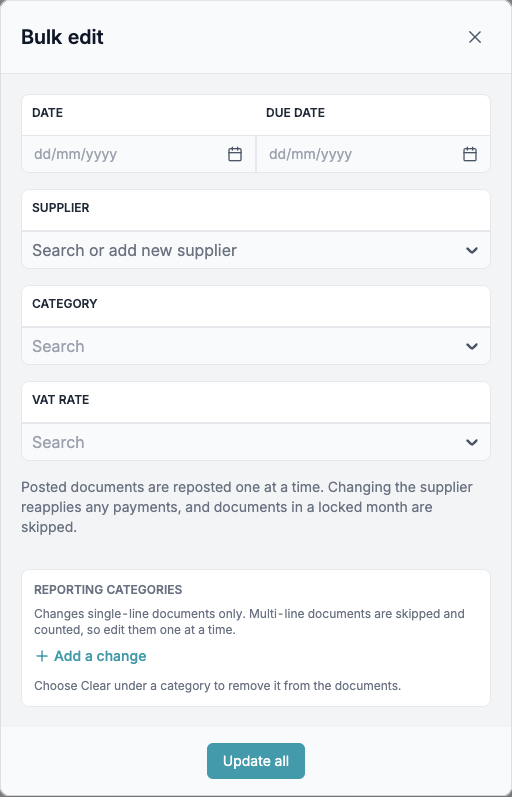
In the bank feed, bulk editing lines matched to a bill or invoice now recodes the document too. The bank page also filters by category, so you can recode many lines at once.
07
Every request and reminder in one place
Open a request in Tasks to see each email Briefcase sent for it, as the client received it and whether it was delivered, plus when the next reminder goes out and the full schedule. Send reminder now chases straight away, at most once a day. Reminder emails list the outstanding items in a numbered table, and long lists link to a page with every item.