Reporting categories split a Briefcase Ledger client's profit and loss by what matters to the business: a site, a department, a service line or a project. Each category has options. A Service line category might have Advisory, Implementation and Managed services. Every line in the books can carry one option from each category, and the reports can then show a column for each option, filter to some of them or rank them by what they earn.
Reporting categories are for limited companies on Briefcase Ledger. They work like tracking categories in Xero and classes in QuickBooks.
Setting up categories and options
Open the client and go to Business settings → Reporting categories.
Press Add reporting category and name it, for example Department or Site.
Add its options. Press Enter after each one, or paste a list to add one option per line.
A client can have up to 10 active categories. Drag a category to reorder it: Briefcase uses the same order everywhere. The table shows how many lines used each category in the last 12 months and when one was last used.
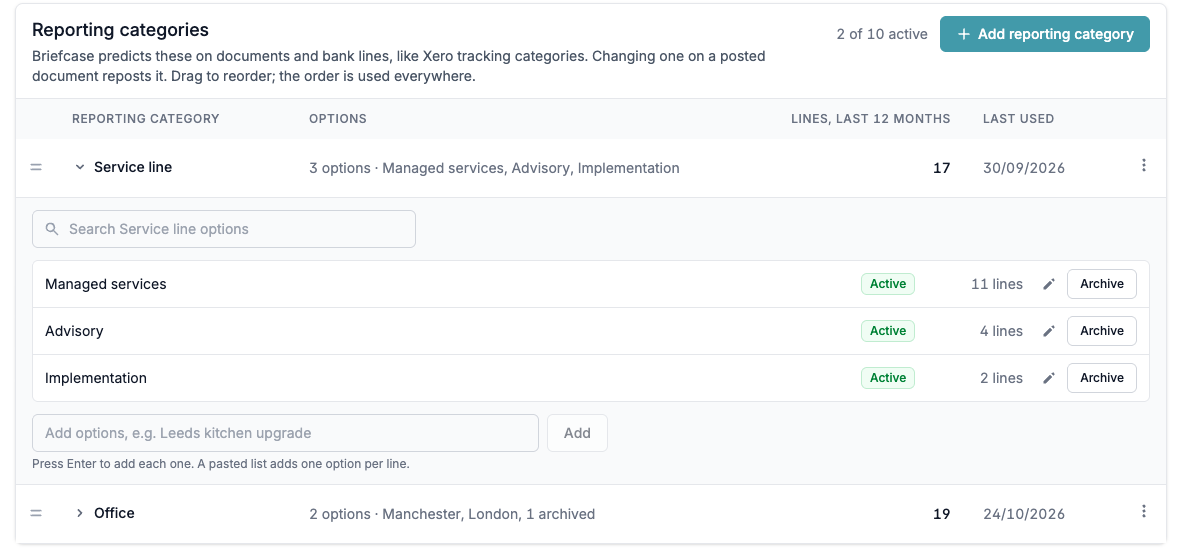
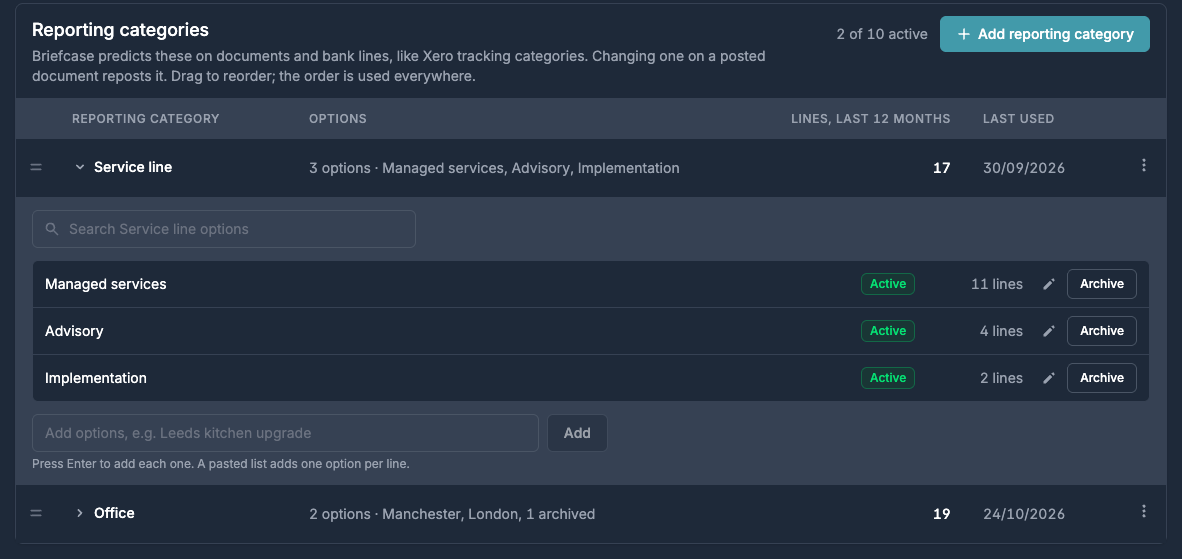
Rename a category from its menu. To rename or archive an option, open the category's options. An archived option stays on the lines that already have it, and you can restore it at any time, but it can't be chosen for new lines. A document still waiting to be posted with an archived option posts without it, and Briefcase shows a notice so you can choose another.
Choosing options
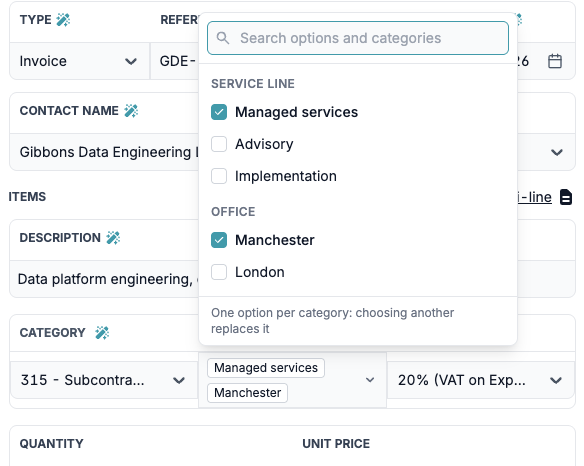
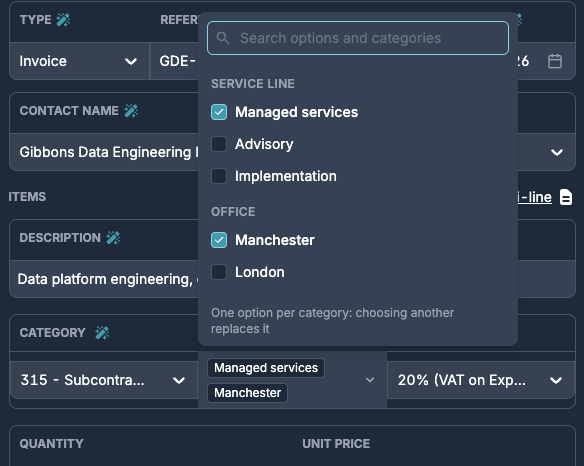
Pick one option from each category on a line. Choosing another option in the same category replaces the first.
Bills, receipts and other documents: each line has a Reporting categories field.
Bank lines: each coding line has the same field when you code a bank line.
Raising a sales invoice: each line has its own field, and Set reporting categories on all lines fills every line at once.
Manual journals, prepayments, deferred income, fixed assets and accruals: the same field, on each journal line or on the schedule.
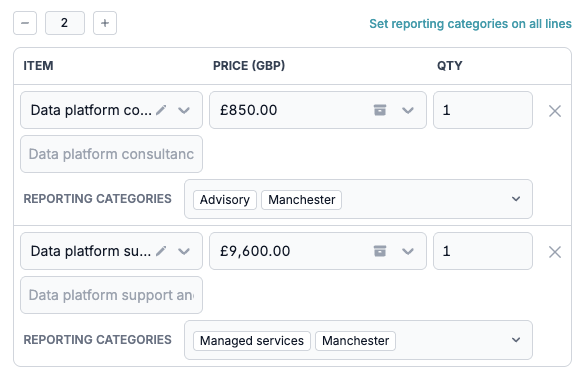
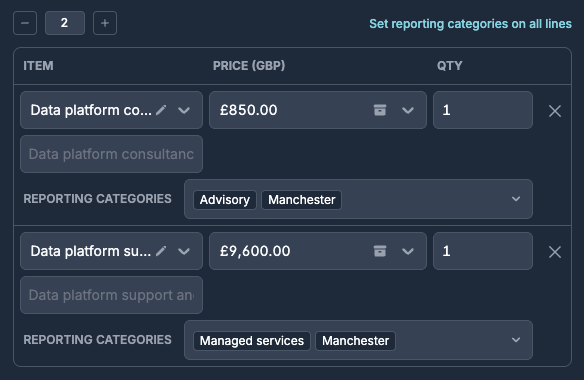
Lines on control accounts, such as the bank, VAT and opening balances, don't take reporting categories, so the field shows as unavailable on them.
What Briefcase predicts
Briefcase predicts reporting categories on bills, receipts and bank lines from how similar ones were coded before, and marks its choice with the wand. Raised sales invoices aren't predicted: you choose their options when you raise them. Documents that were already waiting or posted when you added a category stay empty until someone edits them.
Changing options after posting
Changing an option on a posted line reverses its journal and posts it again with the new options at the same date, as Xero does. Nothing else about the document changes.
Bills, receipts and other documents: change the options, then open the menu next to the main button at the top and choose Update.
Bank lines coded straight to an account: change the options on the bank line and save it.
Prepayments, deferred income and fixed assets: change the Reporting categories field at the top of the schedule and press Save. Briefcase says how many posted periods it will repost. Periods not posted yet take the new options when they post.
Raised sales invoices: archive the invoice, restore it as a draft from the Archive, change its options and raise it again. It gets a new invoice number. Archiving reverses its payments too, so check they're matched again afterwards.
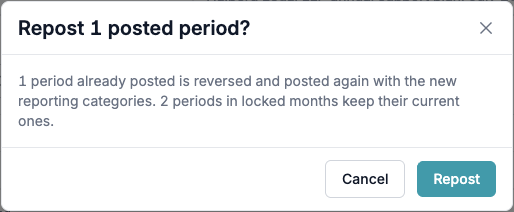
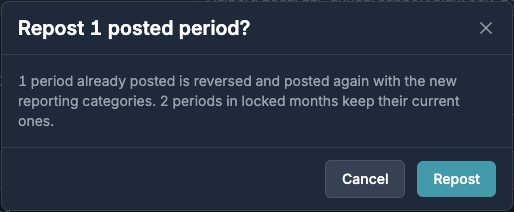
Options on lines in a locked period can't be changed, and a schedule's periods in locked months keep their options.
Seeing the results
The profit and loss can show a column for each option or be filtered to some options, and custom reports can rank the options by what they earn. See Profit and loss by reporting category and saved reports and Custom reports and KPIs.