Custom reports bring KPIs, charts and statements for a Briefcase Ledger client together on one page that you can read in Briefcase, download as a PDF or share. Start from a template, change what's on it, and it recalculates from the ledger every time it's opened.
Creating a custom report
Go to Reports and press New report.
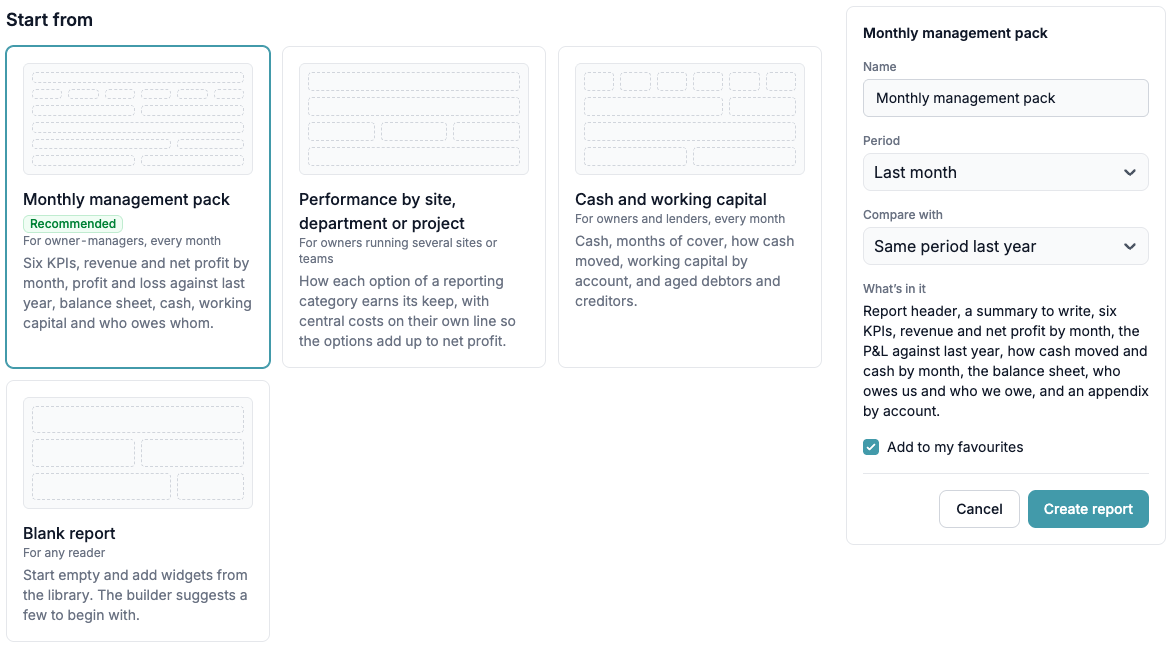
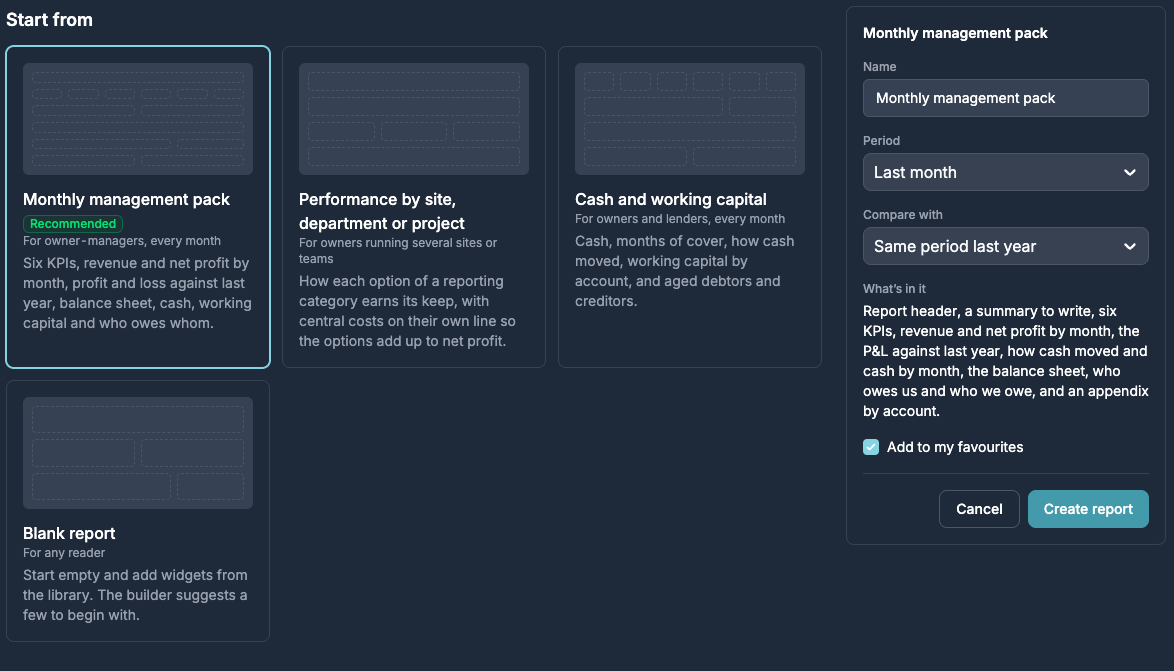
Choose a template:
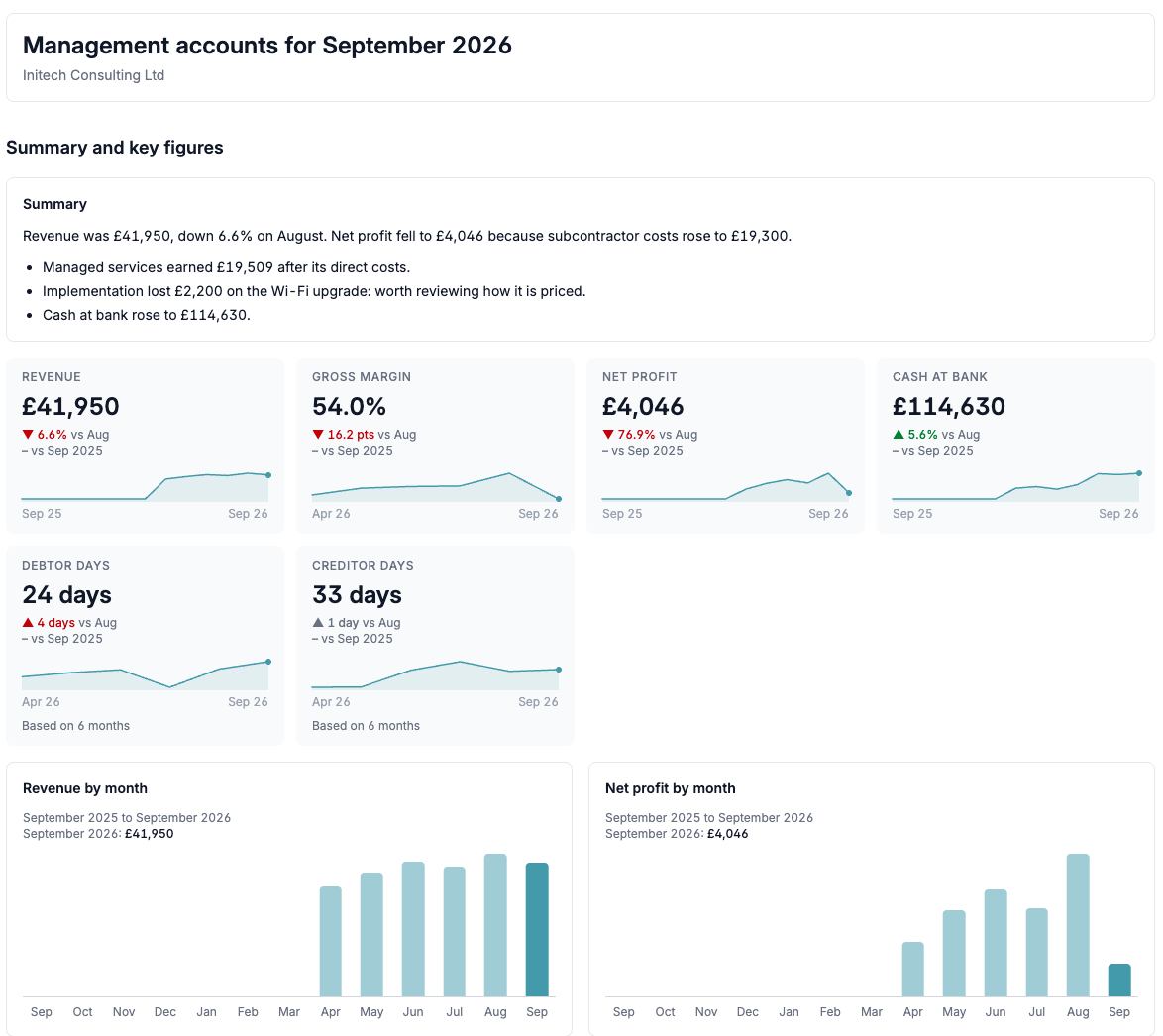
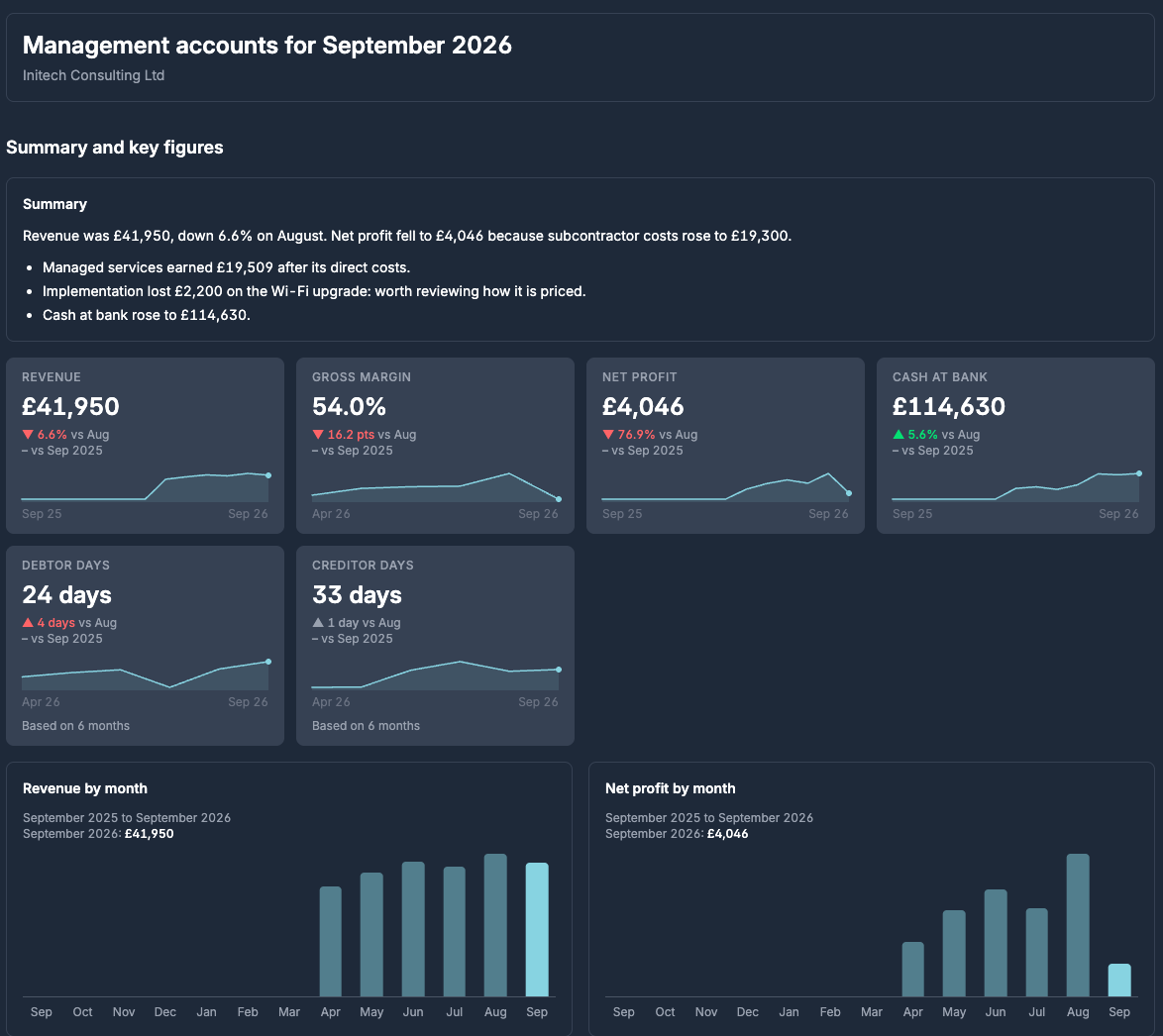
Monthly management pack: six KPIs, revenue and net profit by month, the profit and loss against last year, the balance sheet, how cash moved, and who owes the business and whom it owes.
Performance by site, department or project: how each option of a reporting category earns its keep, with central costs on their own line. It needs a reporting category.
Cash and working capital: cash, months of cover, how cash moved, working capital by account, and aged debtors and creditors.
Blank report: start empty and add widgets from the library.
Name it, choose the period and what to compare with, and press Create report.
While reading a report you can change its period, comparison and filters without editing it. Save as new keeps a copy with your changes.
Changing a report
Press Edit report.
Add widget opens the library: report header, KPIs, notes, trend, profit bridge, cash bridge, ranked bars, profit and loss, balance sheet, working capital, by reporting category, and aged debtors and creditors.
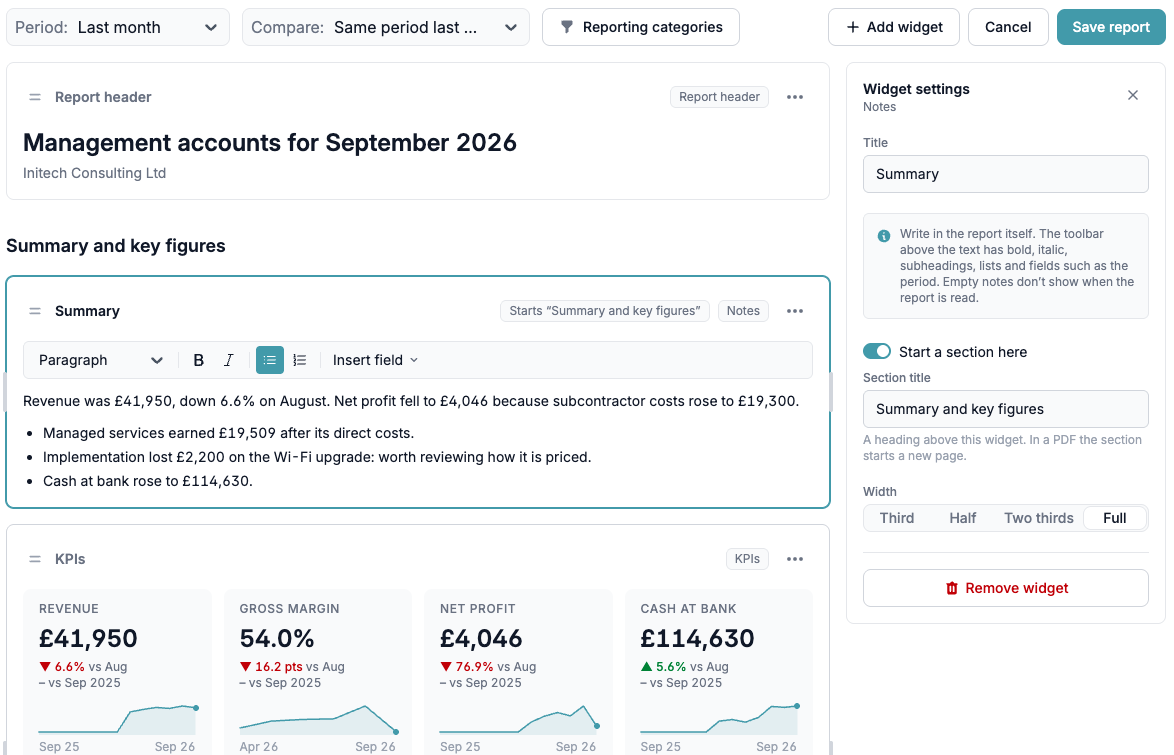
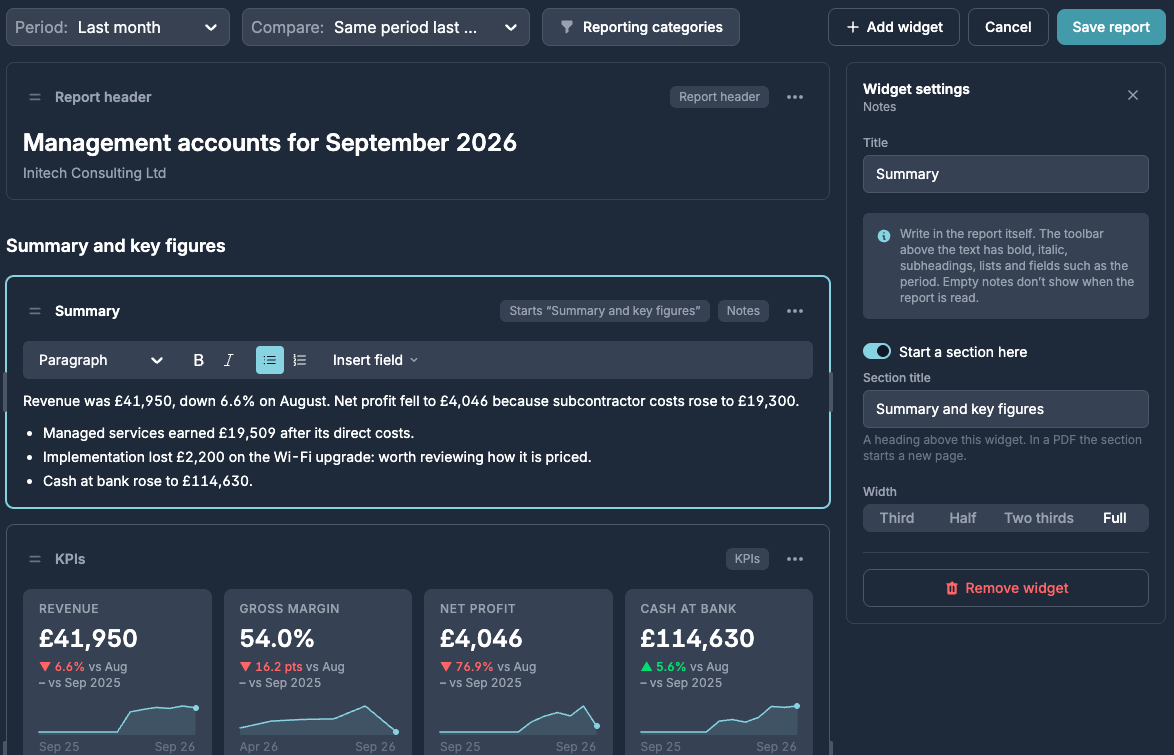
Select a widget to change its settings on the right, including its width: a third, a half, two thirds or full. You can also drag a widget's side to resize it, and drag its handle to move it.
Write notes in the report itself. The toolbar has bold, italic, subheadings, lists and fields such as the period. Empty notes don't show when the report is read.
Start a section here puts a heading above a widget. In a PDF, each section starts a new page.
Press Save report when you're done.
Performance by reporting category
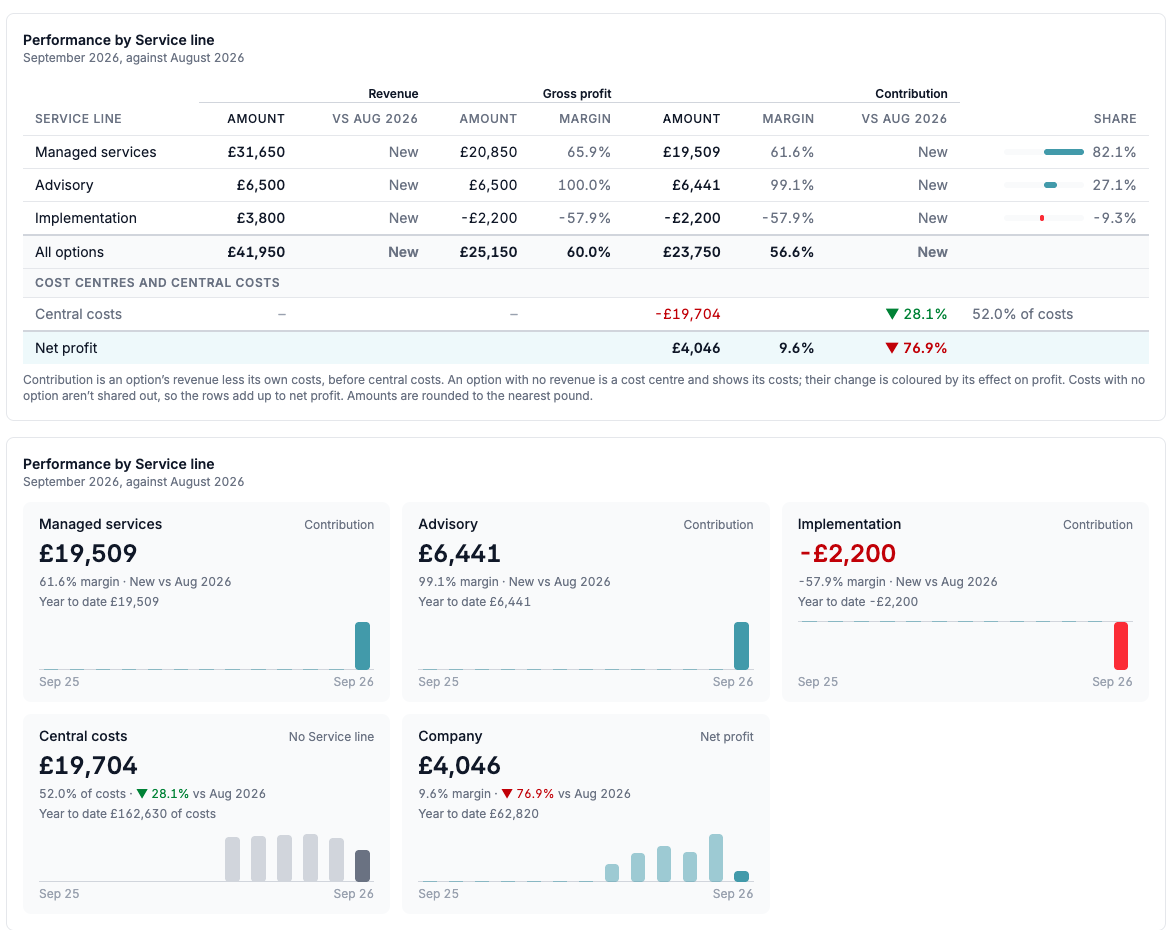
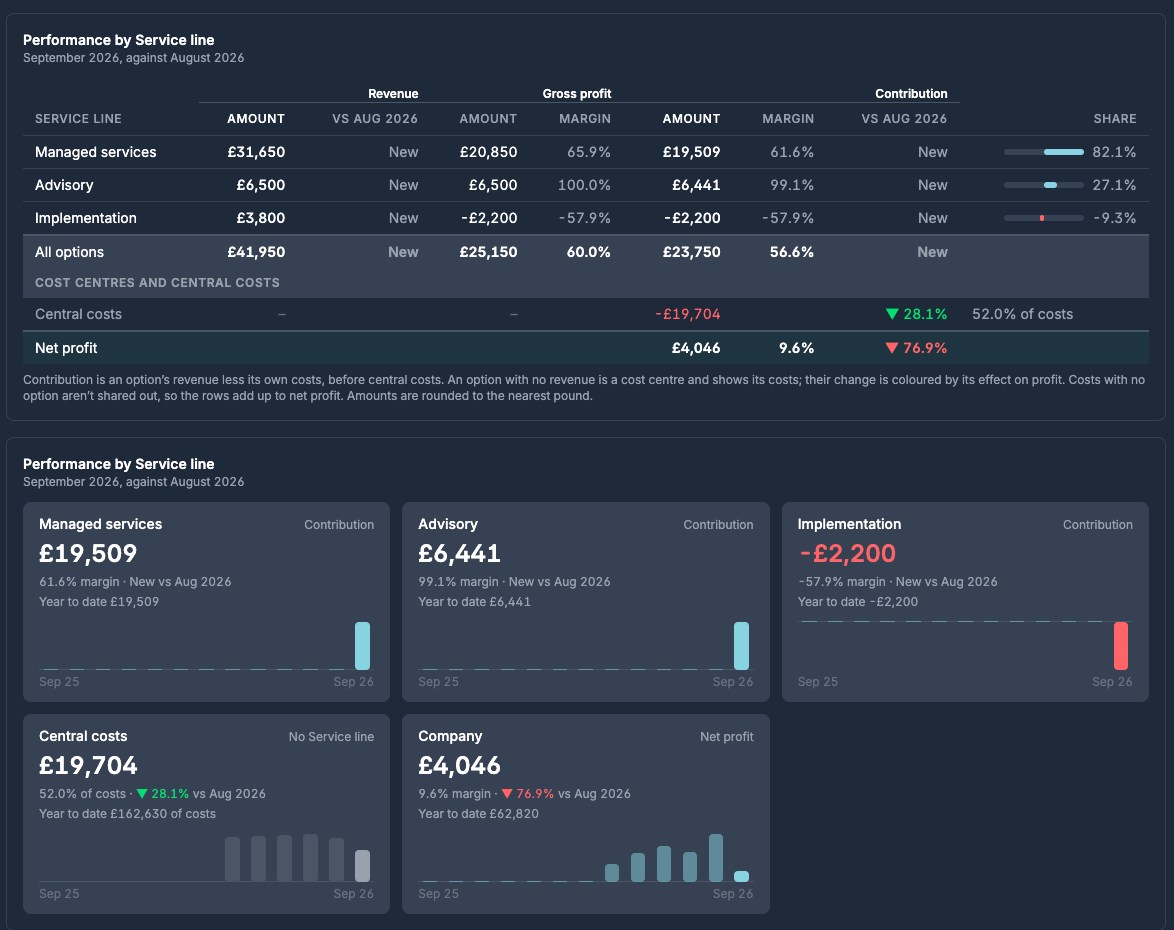
The performance template ranks each option by its contribution: its revenue less its own cost of sales and overheads, before central costs. Costs with no option aren't shared out. They show as central costs, so the rows add up to net profit. An option with no revenue is a cost centre and shows its costs. Below the table, a card for each option shows 13 months, and the profit and loss has a column per option.
KPIs
Each KPI shows its change on the previous period and on the same period last year, and a trend by month.
KPI | How it's worked out |
|---|---|
Revenue | Revenue as on the profit and loss. |
Gross profit, gross margin | Revenue less cost of sales; as a percentage of revenue. |
Overheads % of revenue | Overheads as a percentage of revenue. |
Payroll % of revenue | Accounts with the Payroll role, as a percentage of revenue. |
Prime cost | Cost of sales plus payroll not already in cost of sales, as a percentage of revenue. |
EBITDA, EBITDA margin | Net profit plus interest, corporation tax and depreciation; as a percentage of revenue. |
Net profit, net margin | Revenue less all costs; as a percentage of revenue. |
Cash at bank | The bank account balances. An overdraft counts as negative. |
Months of cover | Cash at bank divided by average monthly overheads, without depreciation, over the last three months. |
Net current assets, current ratio | Current assets less current liabilities; current assets divided by current liabilities. |
Debtor days | What customers owe, without VAT, divided by the last 12 months' revenue, times 365. |
Creditor days | What the business owes suppliers, without VAT, divided by the last 12 months' cost of sales and overheads without payroll and depreciation, times 365. |
Stock days | Accounts with the Stock role, divided by the last 12 months' cost of sales, times 365. |
Net cash | Cash at bank less accounts with the Loans and finance role. |
Net assets | Assets less liabilities. |
Gearing | Loans and finance plus overdrafts, as a percentage of net assets. |
Debtor and creditor days leave VAT out of what's owed, so they compare like with like. When the books are less than 12 months old, the yearly figures use the months there are and say Based on how many. A KPI shows "–" when there's nothing to divide by, such as gearing when net assets are nil or negative.
Account roles
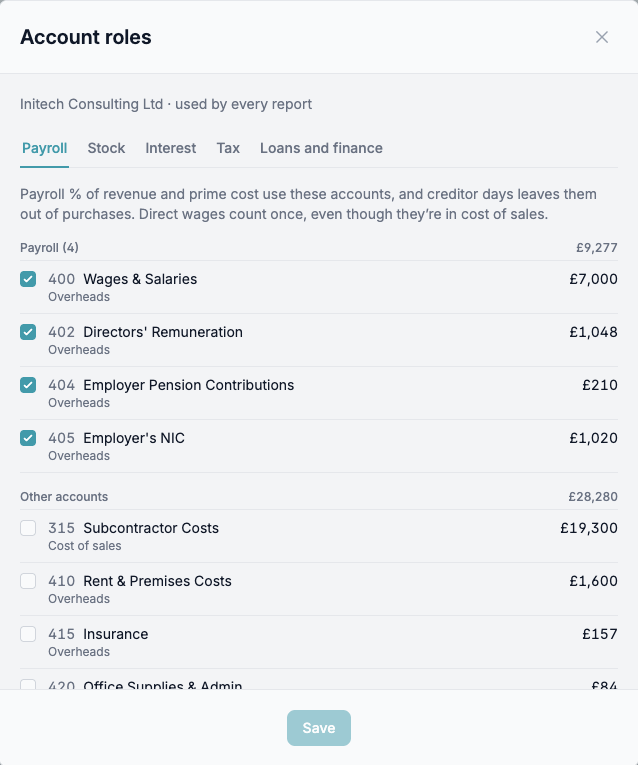
KPIs read each account's role, never its name. There are five roles: Payroll, Stock, Interest, Tax (corporation tax), and Loans and finance. New company ledgers come with roles on the default accounts. A role shows in the account's type, for example Overheads · payroll.
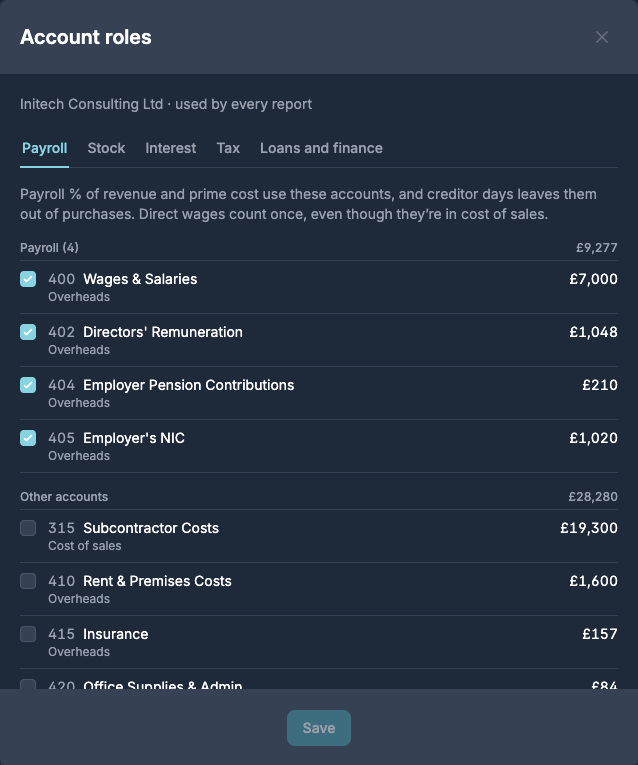
To change roles, go to Chart of accounts → Account roles, choose a role, tick the accounts that belong to it and press Save. Accounts Briefcase thinks belong to a role are marked Suggested. You can also change an account's role from its edit button, and the Role filter on Chart of accounts lists the accounts with each role.
When a liability or asset is due
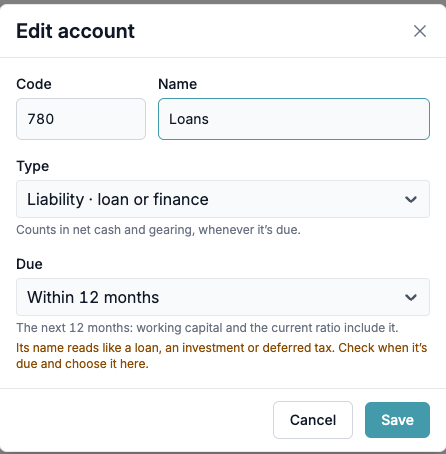
Each asset and liability has a Due setting: within 12 months or after 12 months. It decides whether the account is current, so it changes net current assets and the current ratio. Loans and finance count in net cash and gearing whenever they're due.
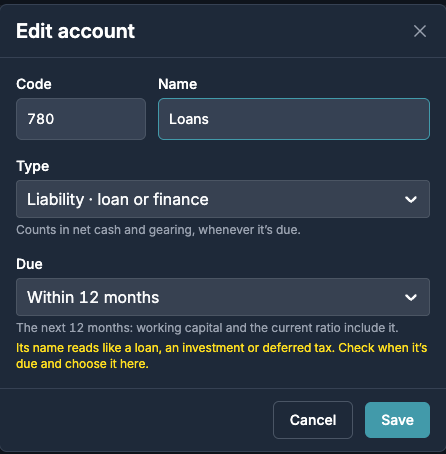
Accounts whose names read like a loan, an investment or deferred tax but are still due within 12 months show Check when this is due. Open the account, choose when it's due and save. The flag clears whichever you choose.
A loan repaid over several years can stay due after 12 months in management reports. To show the next 12 months' repayments as current, add a second loan account due within 12 months and move them with a journal. Give both accounts the Loans and finance role, so net cash and gearing don't change.