Report PDFs carry your practice's branding: your logo, your colours and a theme, with an optional cover and back page. Set it once for every client, and change it for any client who needs something different.
Your practice's branding
Workspace admins set it in Settings → Branding.
Logo: a PNG or JPEG at least 300 px wide, up to 1 MB. Until you upload one, reports print your practice's name.
Theme: Quiet Clinic, Halyard (the default), Recap, Outlook or Spatial, which is dark.
Colours: your main colour is the theme's highlight: the current month, totals and the cover. The accent only draws thin rules and marks, never text. Leave them empty to use the theme's own colours.
Pages: a cover page with the client, the period, the report's details and its contents, and a back page with your contact for the report, the client's next HMRC dates and how the pack was prepared.
Contact line: printed on the back page under the report's contact, for example your office, phone and website.
Footer note: up to 200 characters, printed at the foot of every page.
The preview shows the cover, an inside page and the back page as you change things. Press Save branding to apply it to every client's reports.
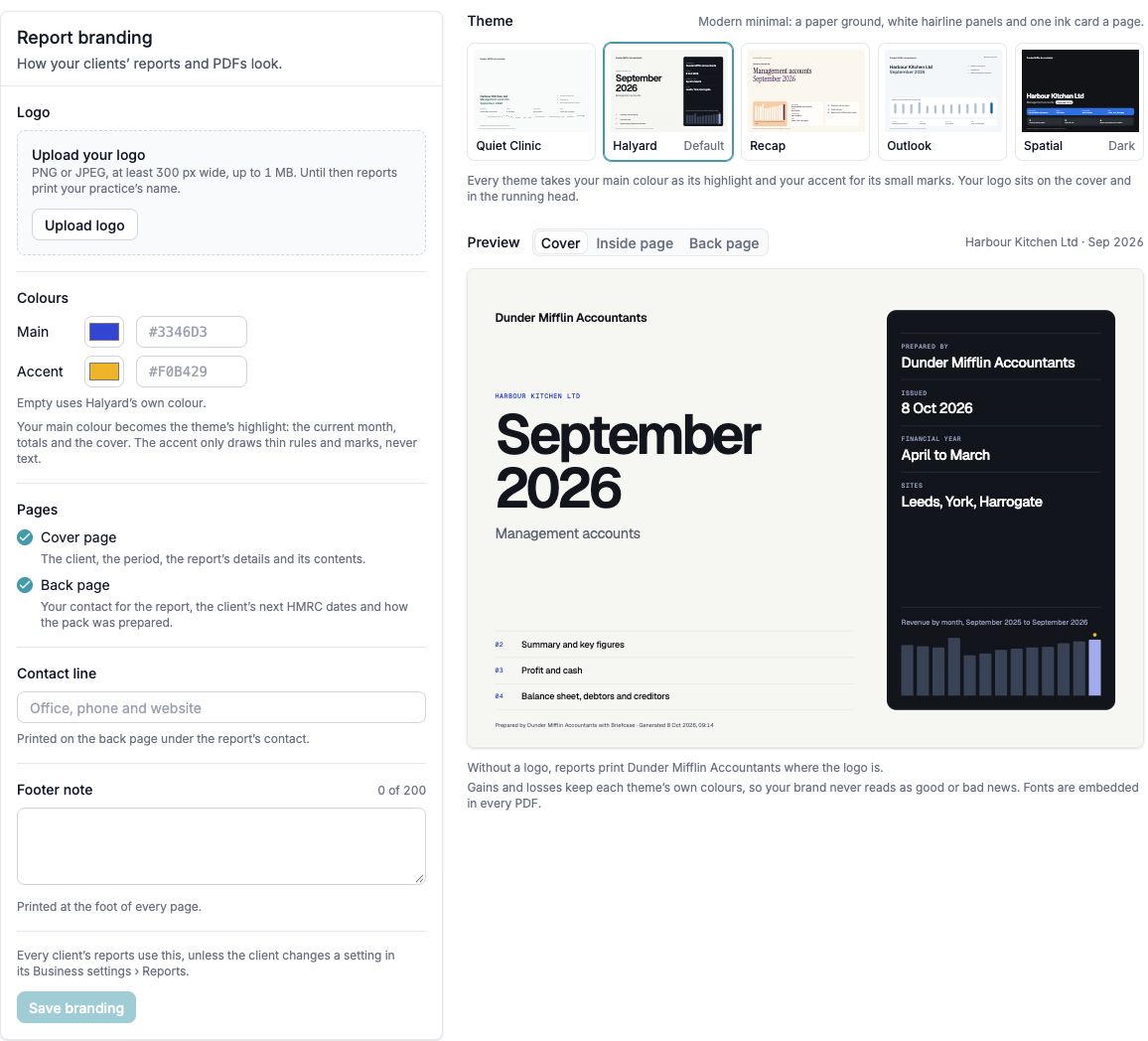
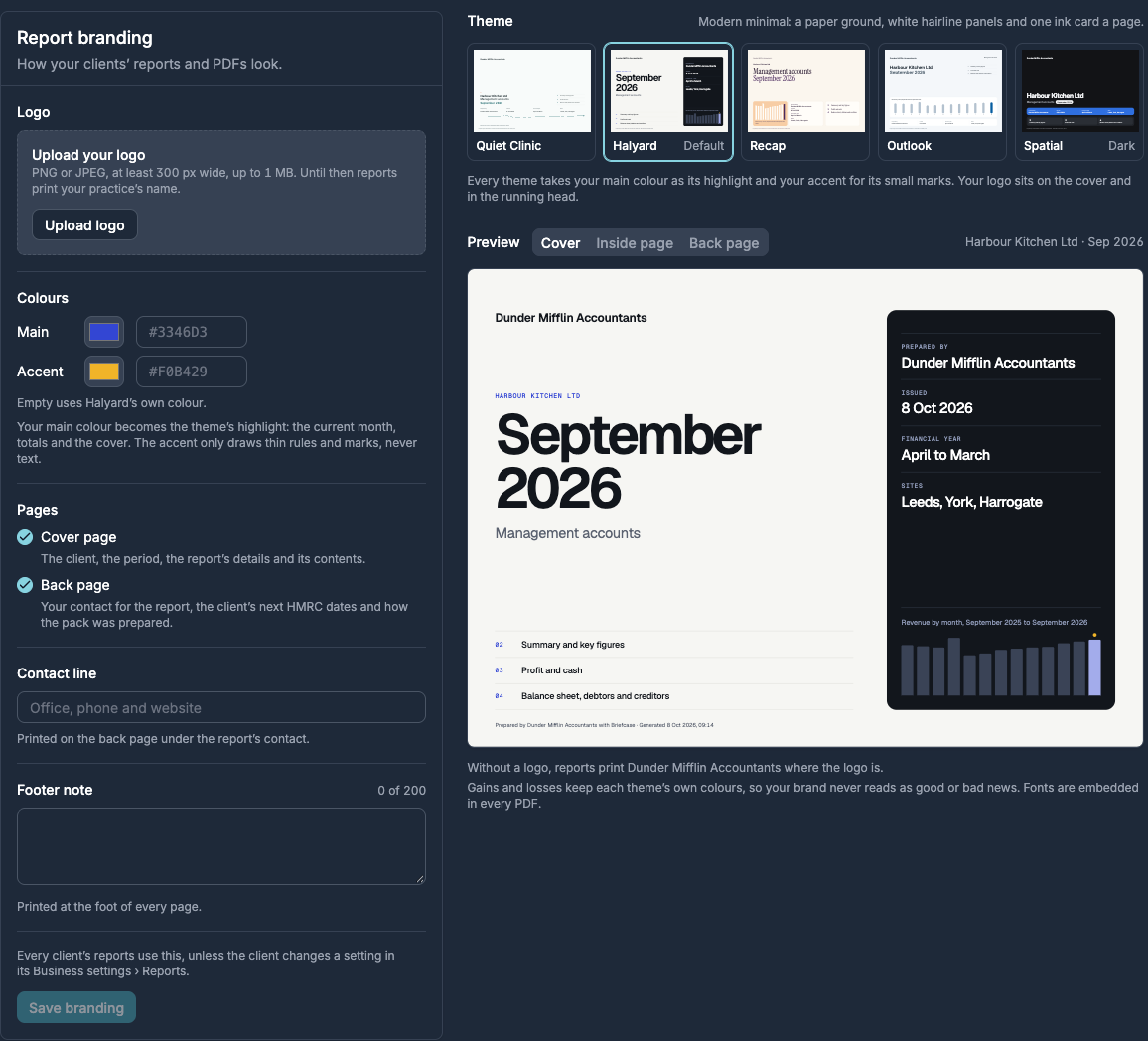
Gains and losses keep each theme's own colours, so your brand never reads as good or bad news. Fonts are embedded in every PDF.
A client's own branding
Open the client's Business settings → Reports and choose whose branding its reports carry:
Your practice: your logo, colours, theme, contact line and footer note. This is the default.
The client: the client's invoice logo and colour on your theme, set under Invoicing → Branding. Useful for businesses that send reports to their own board or lender.
Both: the client's logo and colour lead the cover, with "Prepared by" your practice and your logo smaller under it.
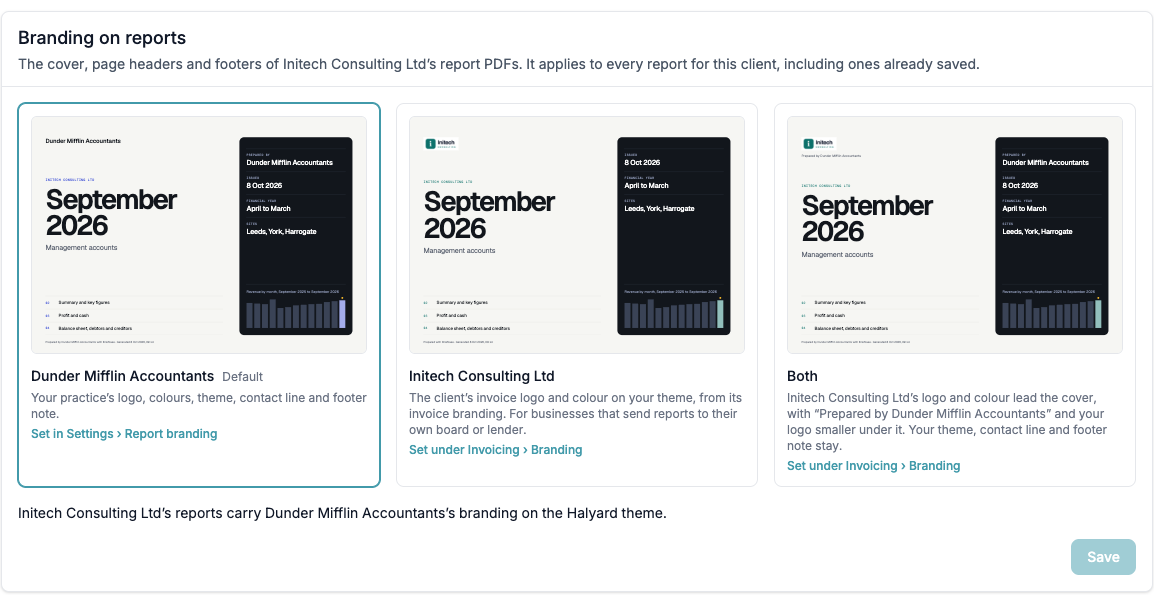
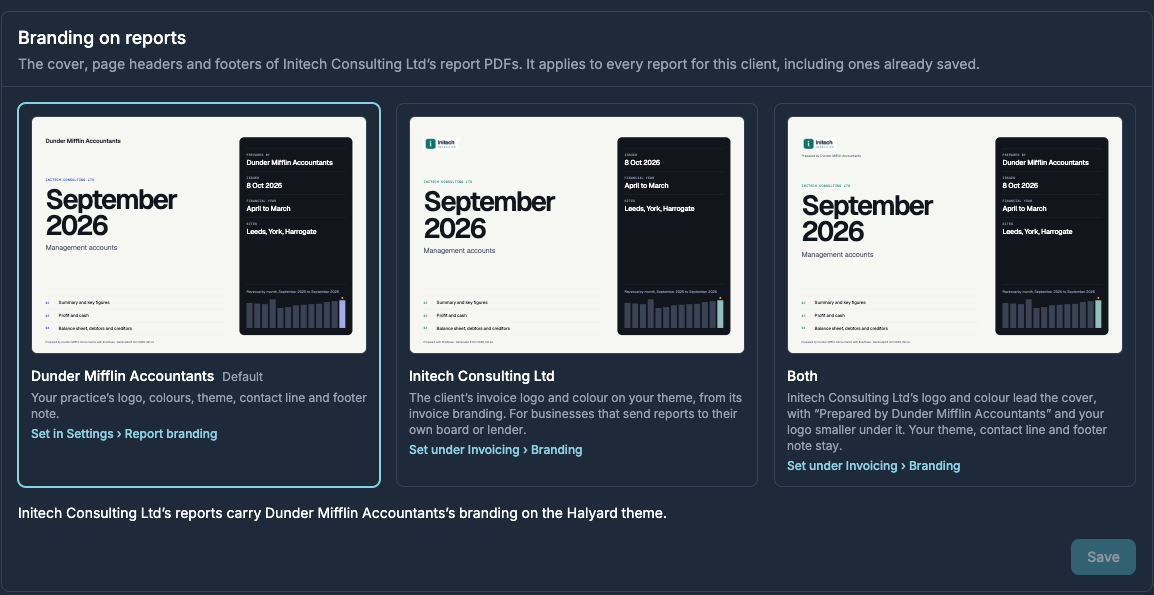
Under This client's settings you can change any other setting for this client only, such as the theme, the pages or the footer note. Everything you don't change follows your practice's branding. The choice applies to every report for the client, including saved ones.
Settings → Branding lists the clients with their own settings. Anyone who can create in a client's Ledger can change its settings.