Every report in Briefcase Ledger downloads as a PDF: the profit and loss, balance sheet, trial balance, aged debtors and creditors, and saved and custom reports.
Downloading a PDF
Standard and saved reports: press Export and choose PDF. The profit and loss can also export as CSV or Excel.
Custom reports: open the … menu next to Edit report and choose Download PDF.
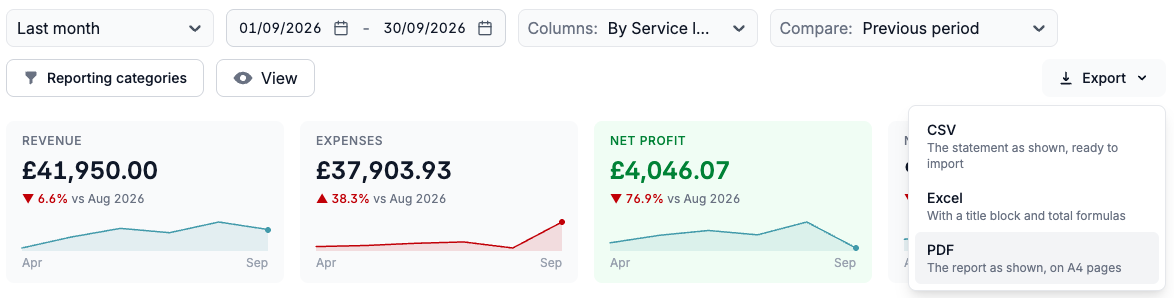
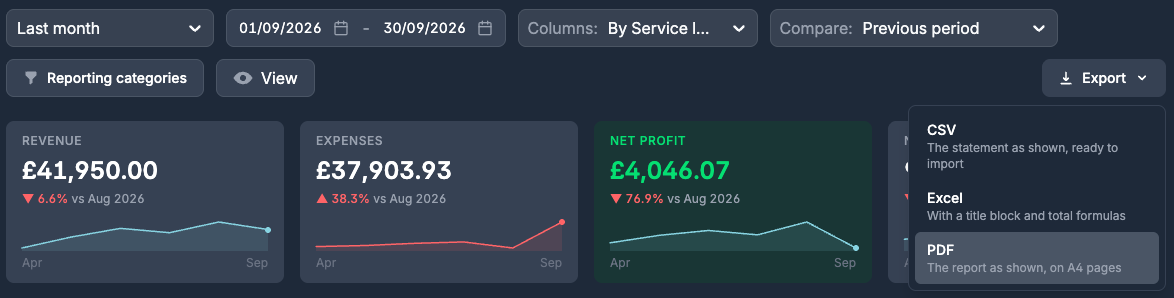
Briefcase prepares the PDF in a few seconds and downloads it. The file name is the client, the report and the period, for example Initech Consulting Ltd – Profit and loss by service line – September 2026.pdf.
What's in the PDF
The report as shown on screen: the same period, columns, comparison and filters, with nil rows left out if you hid them.
Landscape A4 pages, with the client and report at the top of each page and a page number.
A cover page with the client, the period and the report's details, and a back page with your contact for the report and the client's next HMRC dates, unless your branding turns them off.
In a custom report, each section starts a new page.
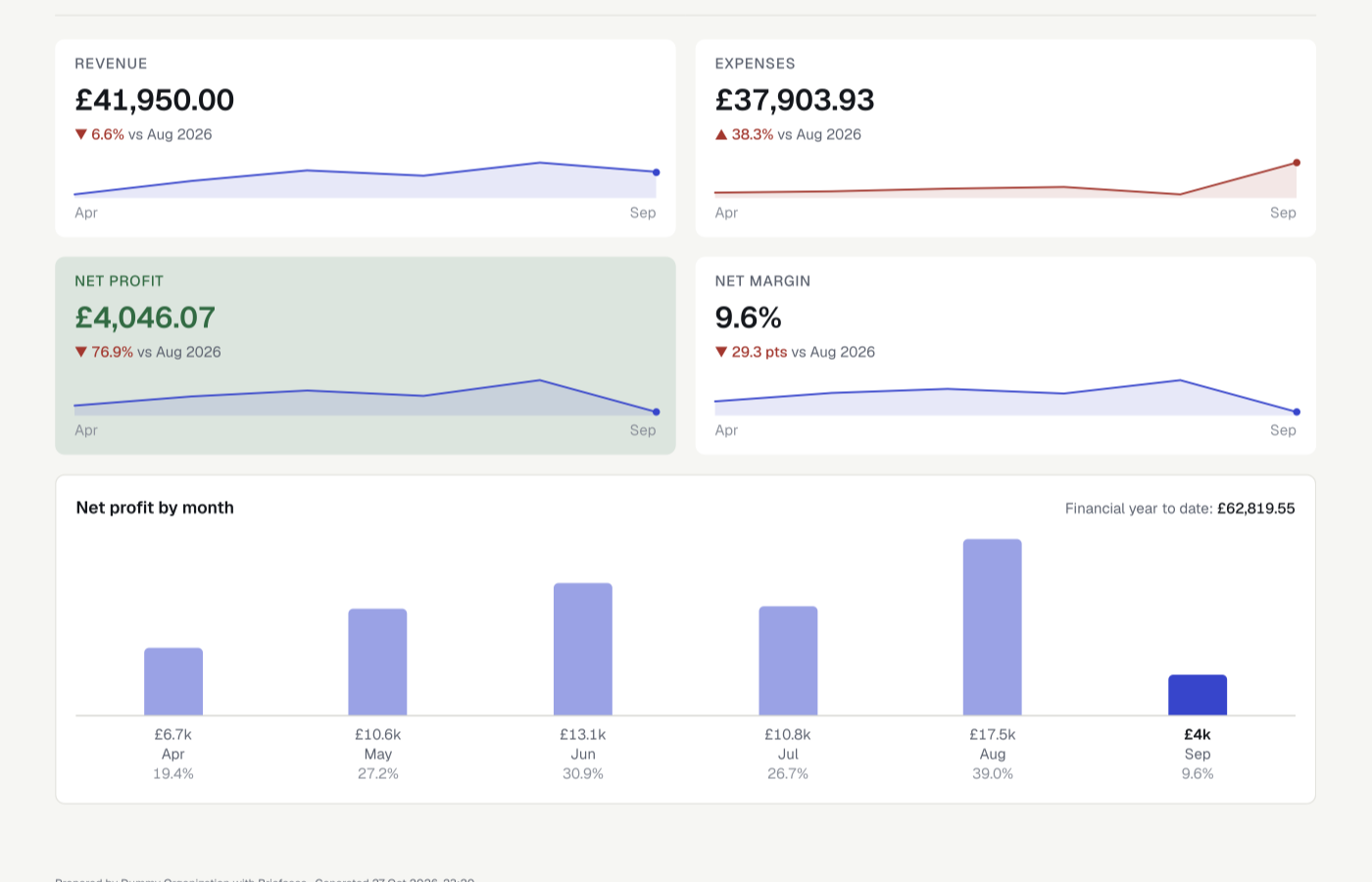
The PDF uses your practice's branding: its logo, colours and theme. With the Spatial theme you choose an edition when you download: For screen has dark pages for sharing and presenting, and For printing has light pages for paper. See Branding your clients' reports.