The profit and loss for a Briefcase Ledger client can show a column for each option of a reporting category, or be filtered to some options. Any view you set up can be saved as a report, kept in your favourites and shared with colleagues.
A column for each option
Open Reports → Profit & Loss and choose the period.
In Columns, under By reporting category, choose a category.
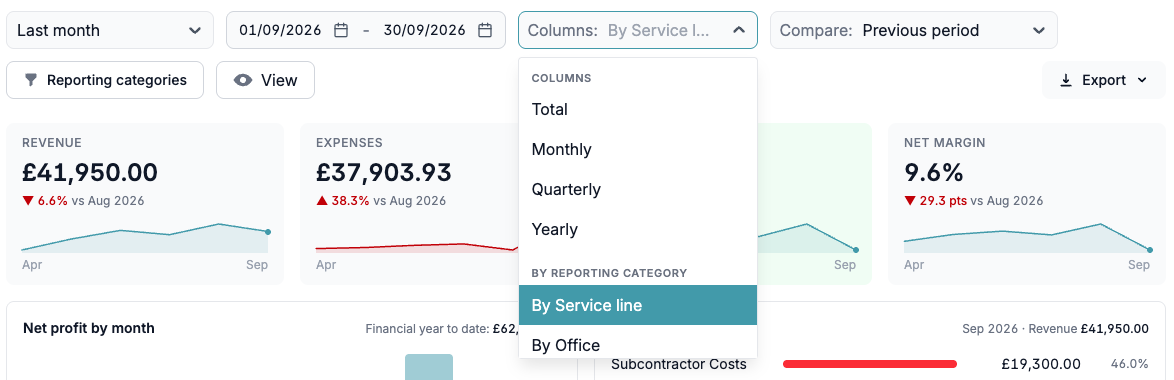
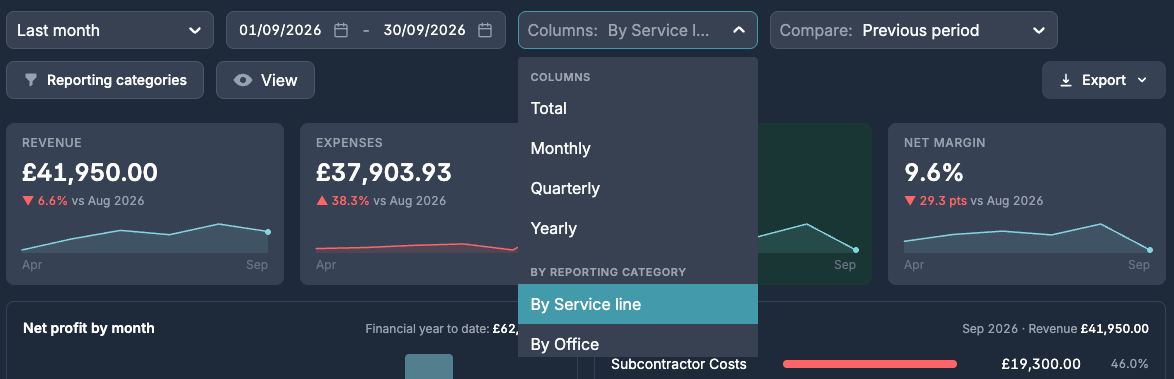
The report shows a column for each option, then Unassigned for lines with no option in that category, then the total. Each column has the report's sections: revenue, cost of sales, gross profit and margin, overheads and net profit. With more than 50 options, the 50 with the largest figures get their own column and the rest are added together under Other.
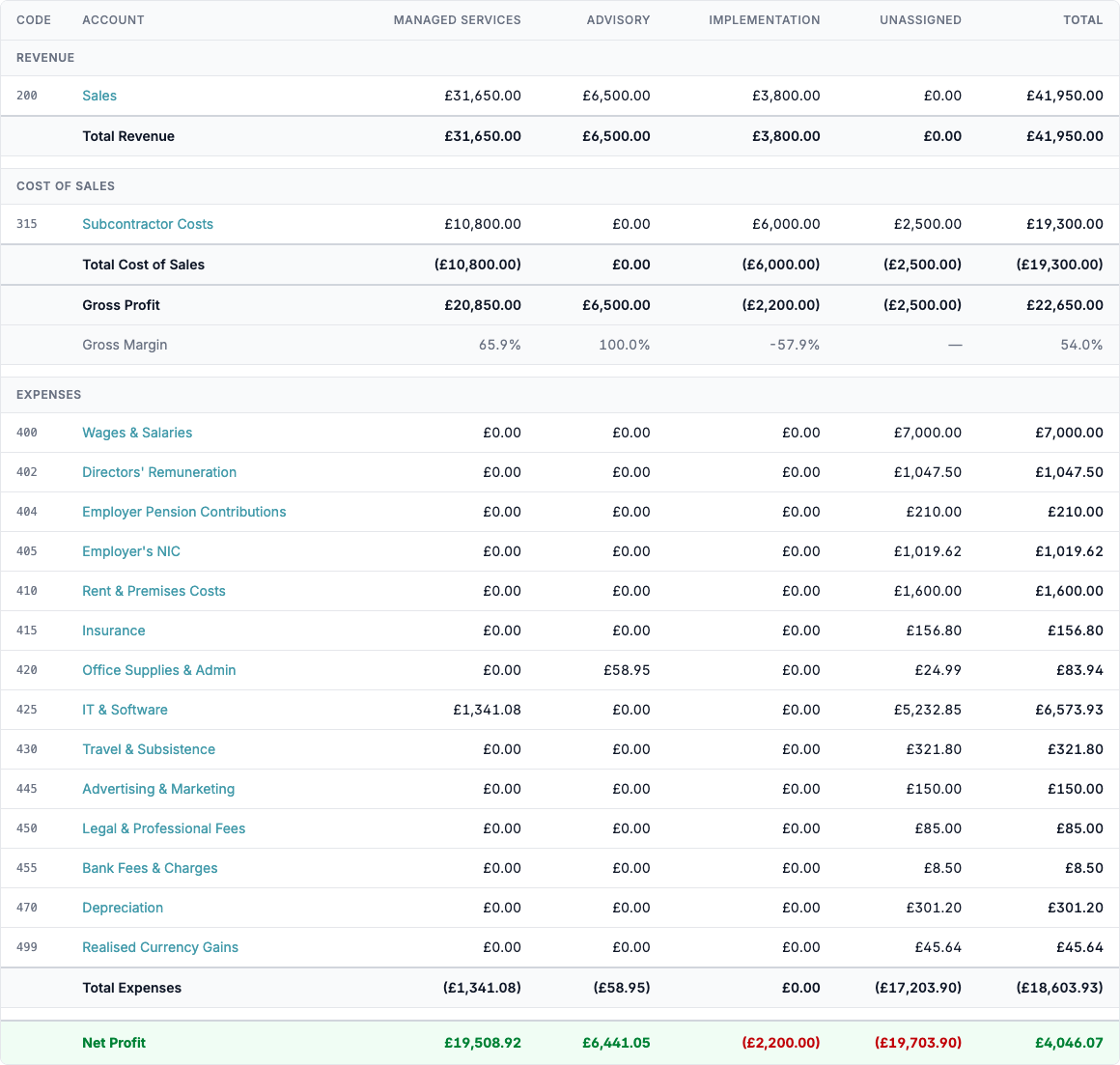
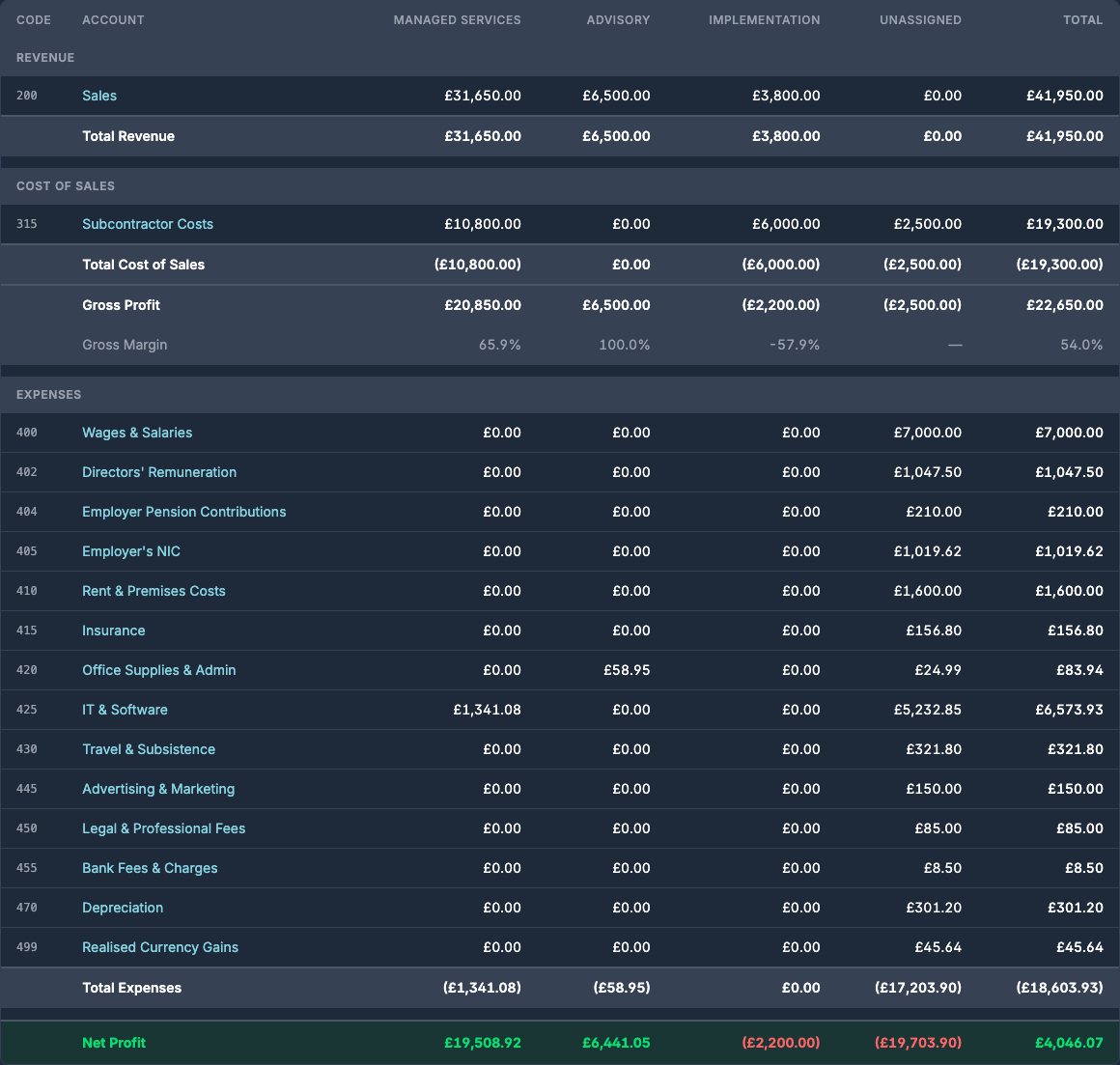
Unassigned often holds central costs, such as salaries and rent, that no single option causes. A large Unassigned figure can also mean lines still need an option.
Use View → Hide nil rows to leave out accounts with nothing in the period, and click an account to see the journals behind its figure.
Filtering to some options
Press Reporting categories and tick the options you want. A line is included when it carries any ticked option, in every category you filter on. Tick Unassigned to include lines with no option in that category. Each filter shows next to the button; press × on it to remove it. The figures, charts and columns all follow the filter.
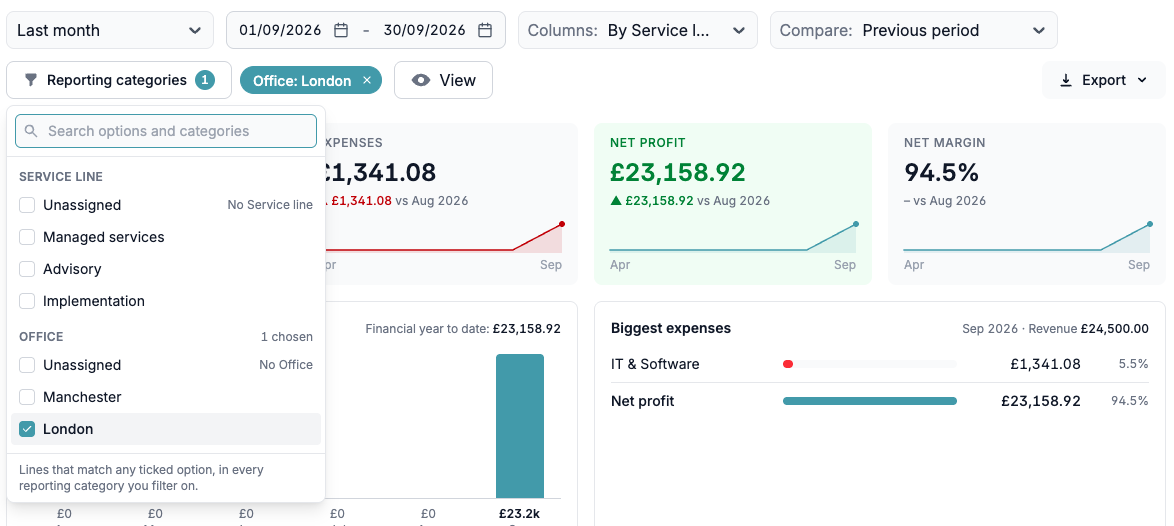
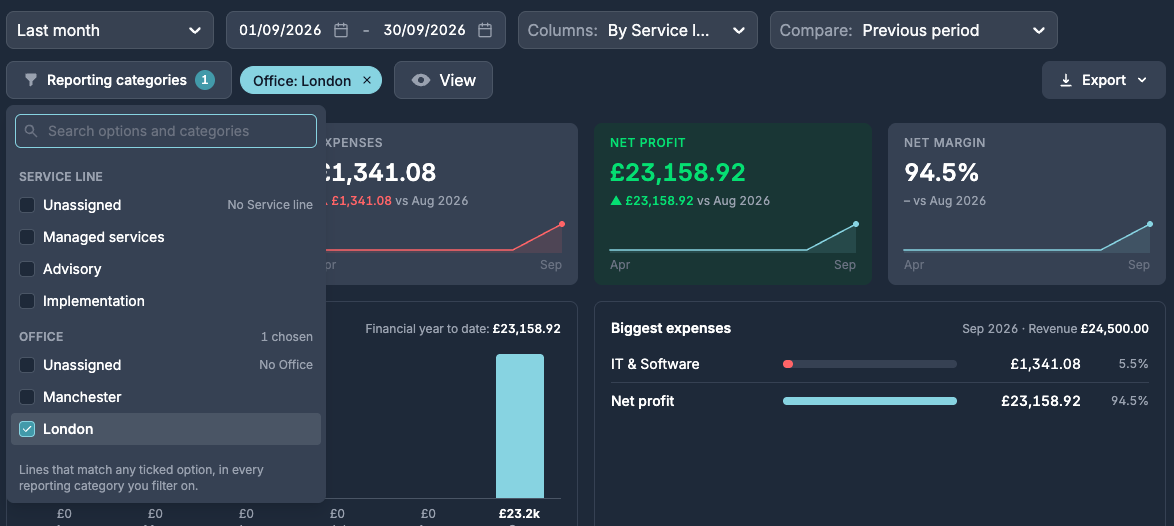
Only the profit and loss is split or filtered this way. The balance sheet, trial balance and aged reports cover the whole company.
Saving a report
Press Save report, name it and choose whether to add it to your favourites, so it shows in your sidebar. The dialog lists what gets saved: the period, columns, comparison, filters and view. A period such as Last month moves on each month. The figures aren't saved: the report recalculates from the ledger each time it's opened.
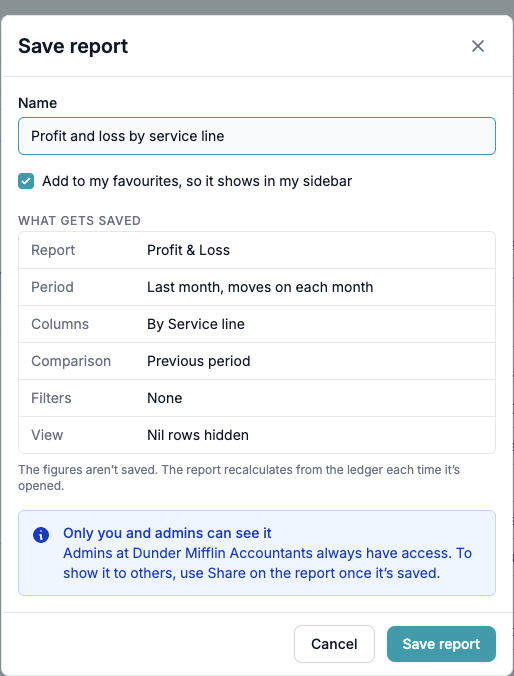
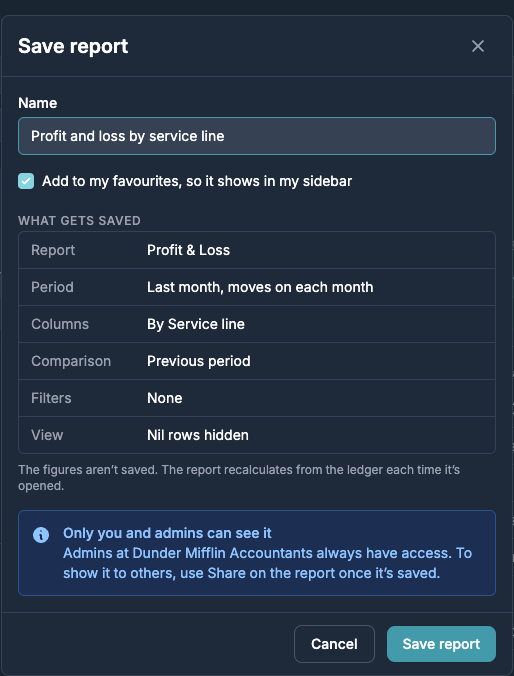
On a saved report, Save changes updates it and Save as new keeps the original and saves a copy.
Finding and sharing saved reports
Reports (All reports in the sidebar) lists the standard reports, then every saved and custom report you can see. Star a report to add it to your sidebar, or search by name. Favourites are personal.
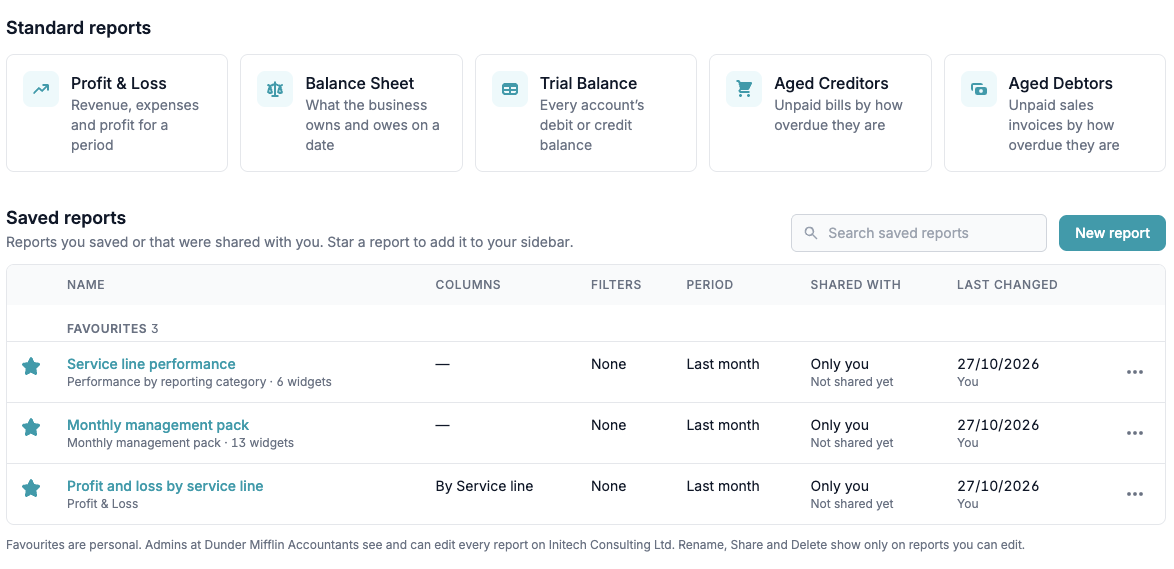
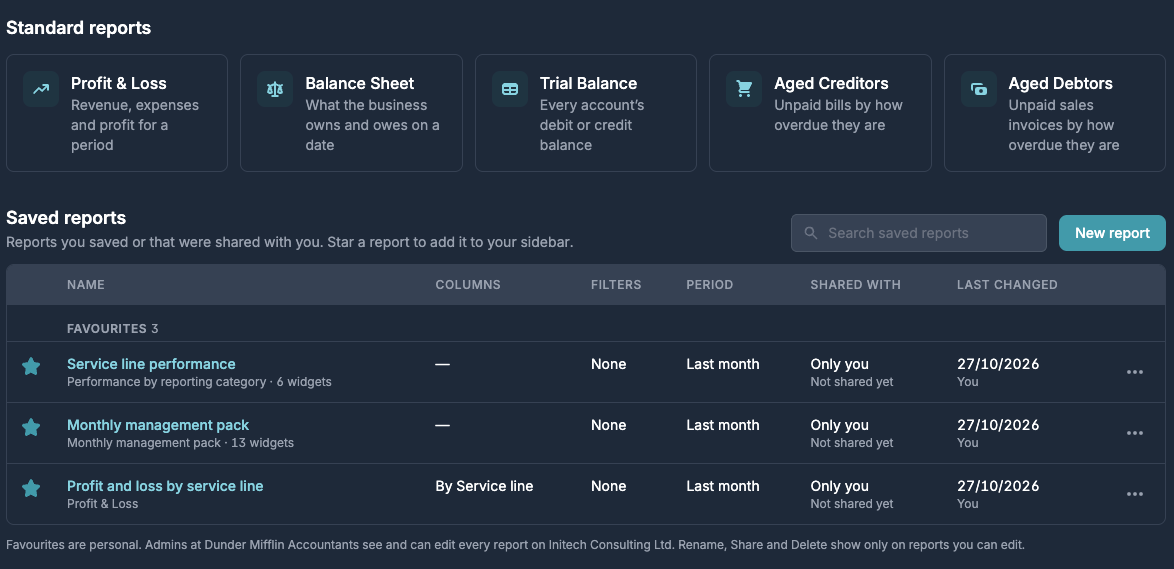
A new report is visible only to you and to your workspace's admins, who can see and edit every report for the client. To show it to others, open it and press Share. Only people who already have access to the client are listed, and each gets Can view or Can edit. Rename, Share and Delete only show on reports you can edit.