This guide is for staff who pay for something themselves and need to claim it back. You send Briefcase a photo of the receipt by WhatsApp, email or the website. Briefcase reads it and adds it to your claim for that month, ready for your company to approve. There is no form to fill in.
You need an invite first. Your company or its accountant sends it by email. If you haven't had one, ask them for an Expenses only login.
1. Create your account
Open the email from Briefcase. Its subject starts "Welcome to Briefcase".
Click Accept invitation.
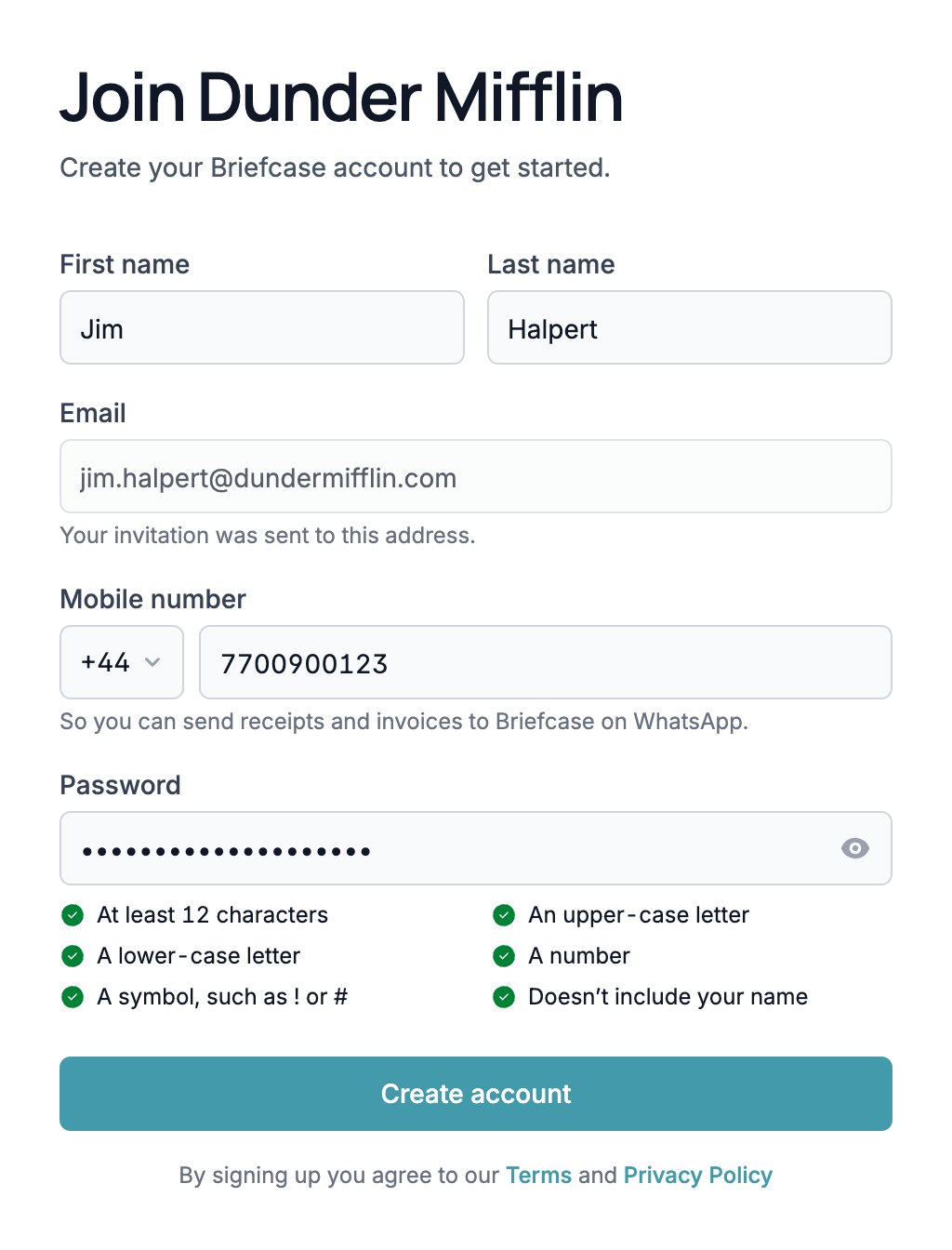
Enter your name, your mobile number and a password, then click Create account.
Give the mobile number your WhatsApp is on. That is how Briefcase knows a WhatsApp message is from you.
2. Set up WhatsApp
As soon as your account is created, the Getting started with Briefcase window opens.
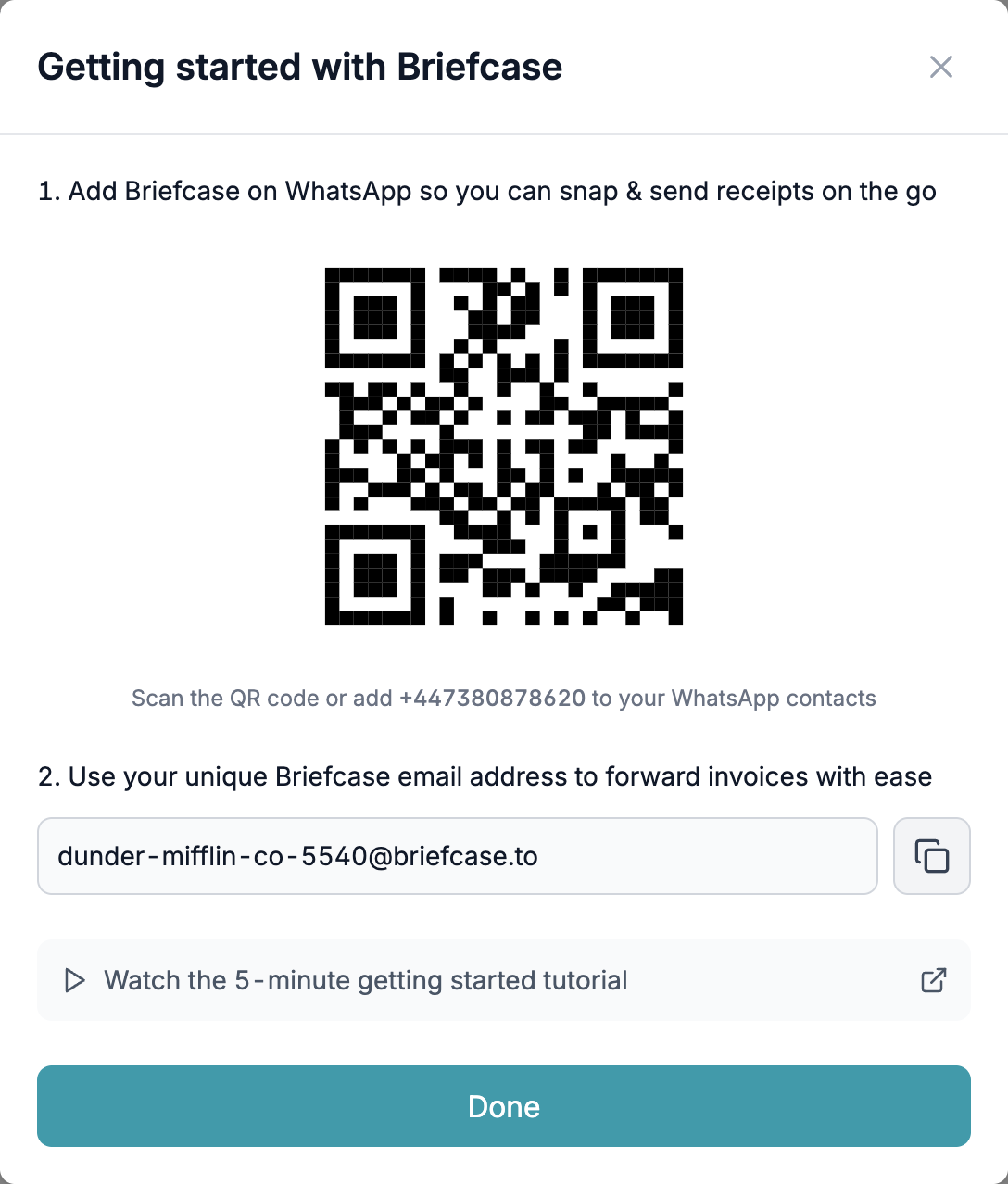
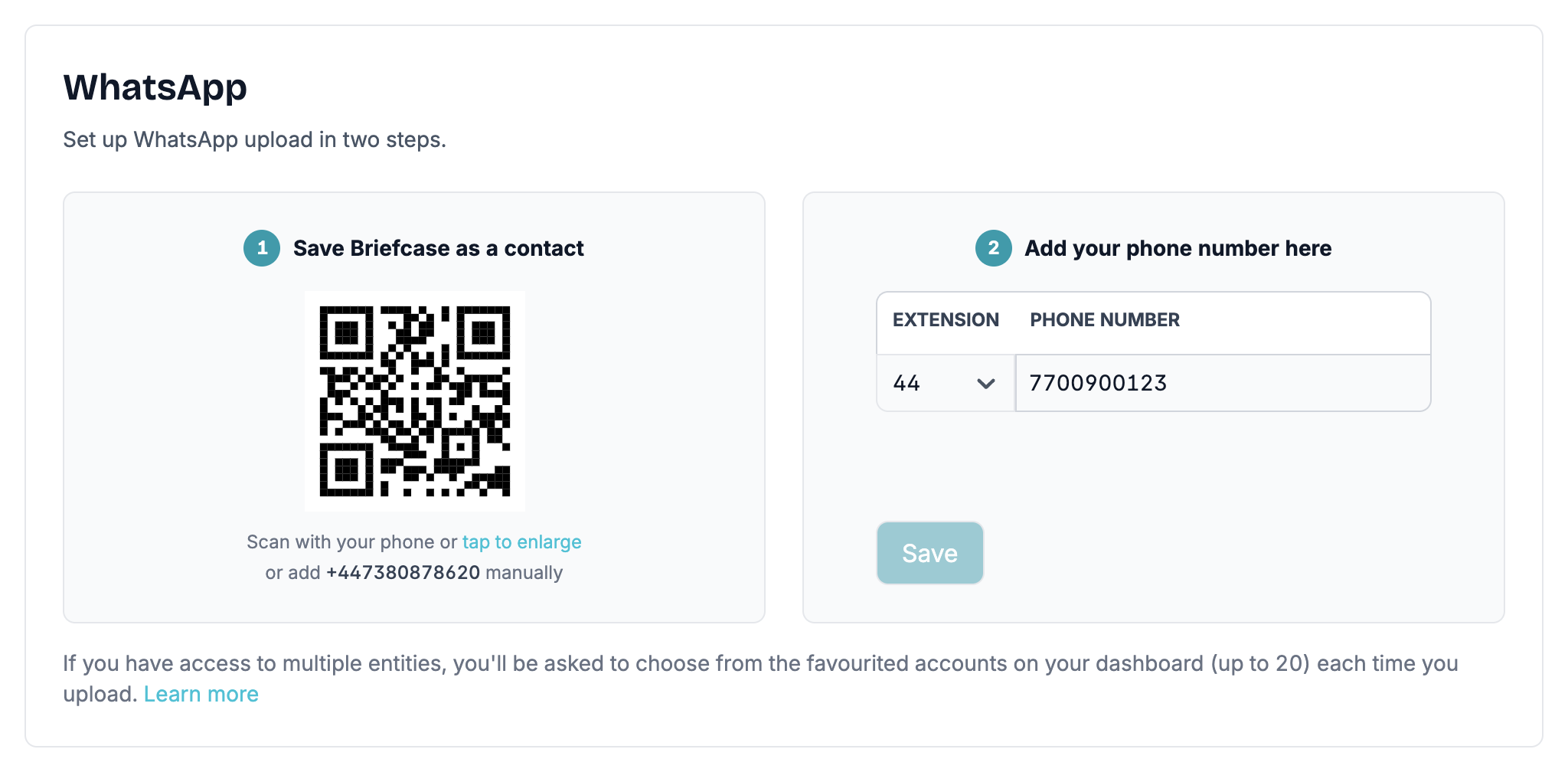
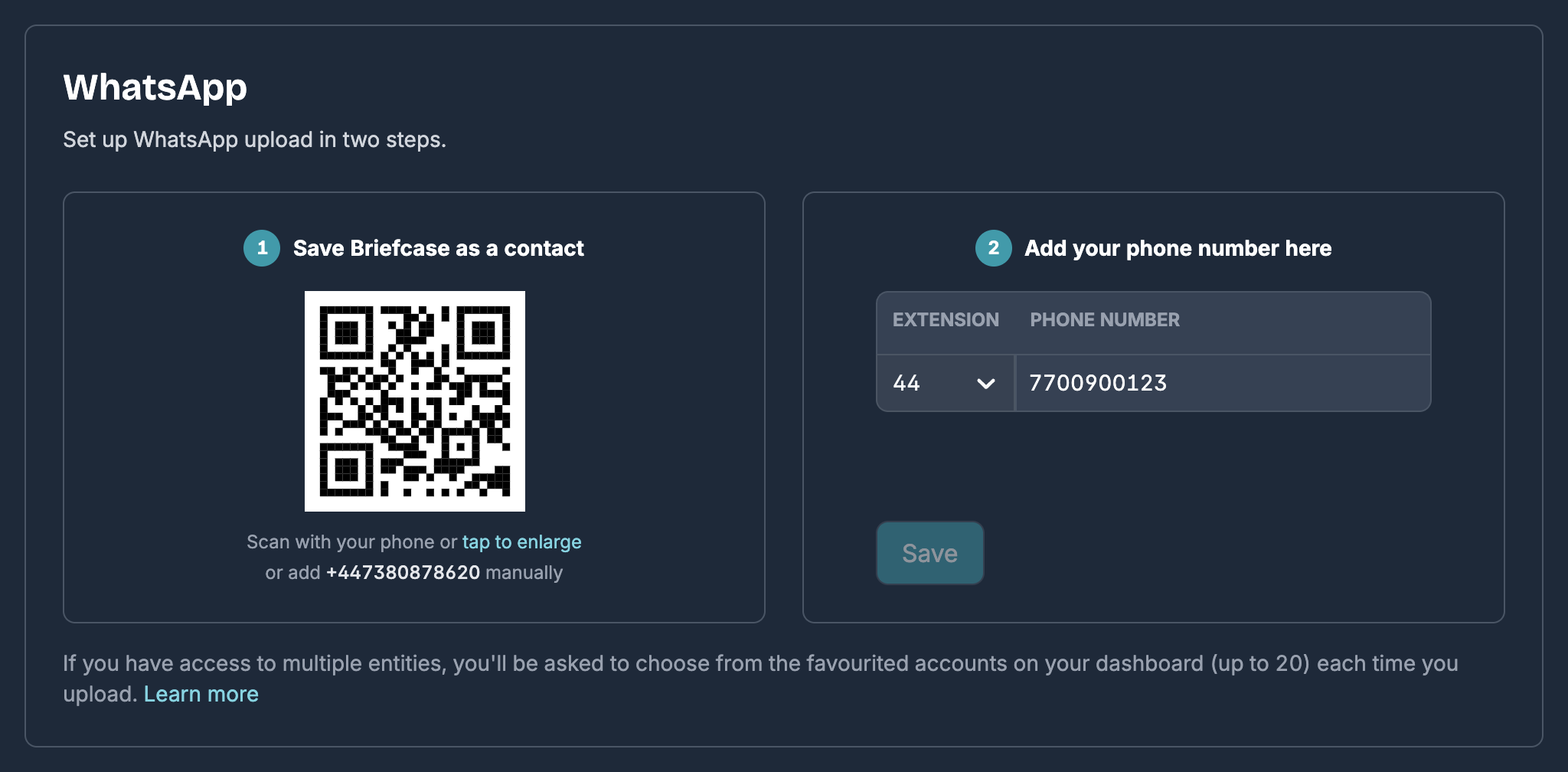
Scan the QR code with your phone's camera to add Briefcase on WhatsApp. You can also save +44 7380 878620 as a contact yourself.
Click Done.
That is all the setup WhatsApp needs. Use your personal WhatsApp account. WhatsApp Business accounts are not supported.
Closed the window, or left your mobile number blank?
Click the cog at the top right to open Settings, then choose User. The WhatsApp box shows the same QR code under step 1. Add or change your mobile number under step 2 and click Save.
3. Send your receipts
Use whichever way is handiest. Send each receipt as its own photo or file.
By WhatsApp
Open your chat with Briefcase and send a photo of the receipt. You can send several in a row.
Wait for the photos to finish sending.
Briefcase replies with your company's name. Check it and tap Submit.
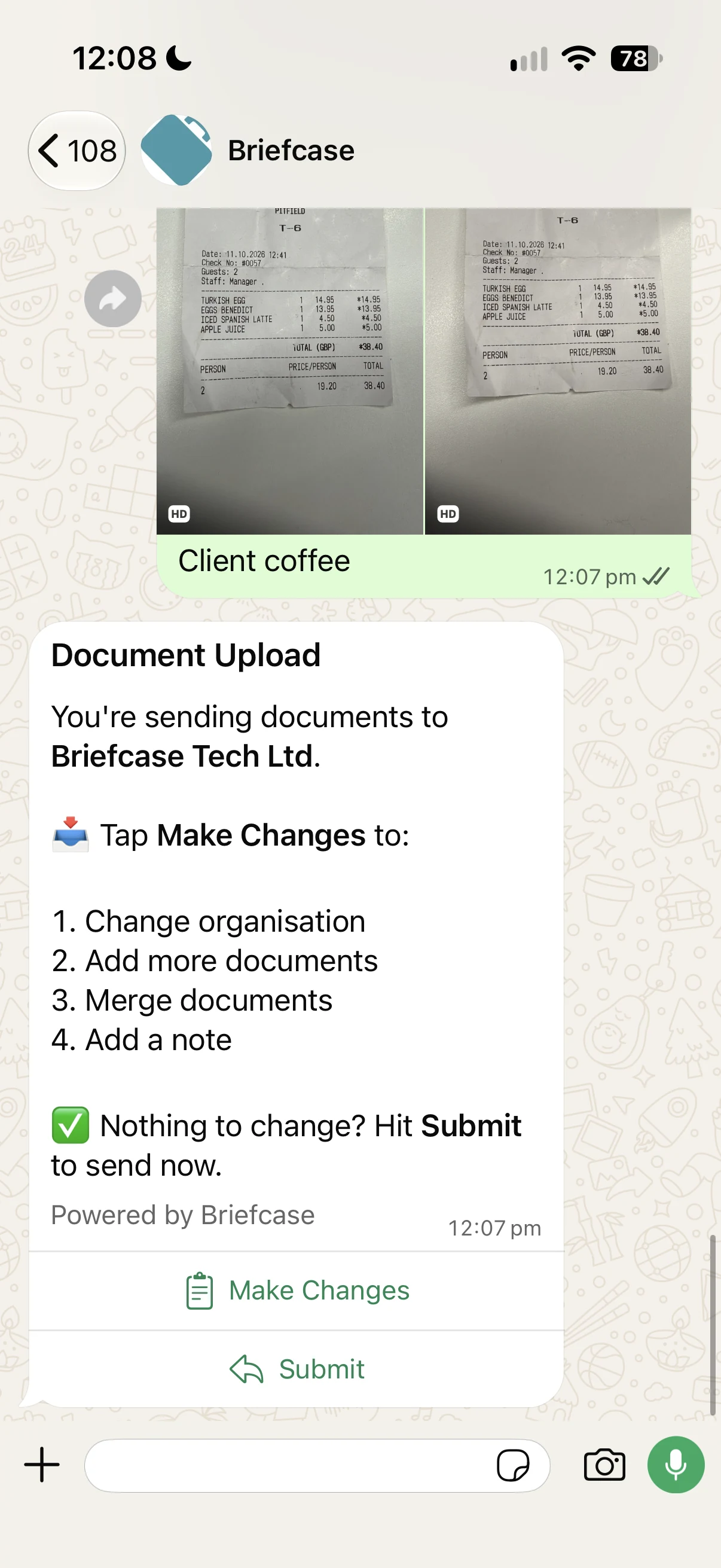
Your receipts are only sent on once you tap Submit. For more detail, see How to upload receipts and invoices to Briefcase via WhatsApp.
By email
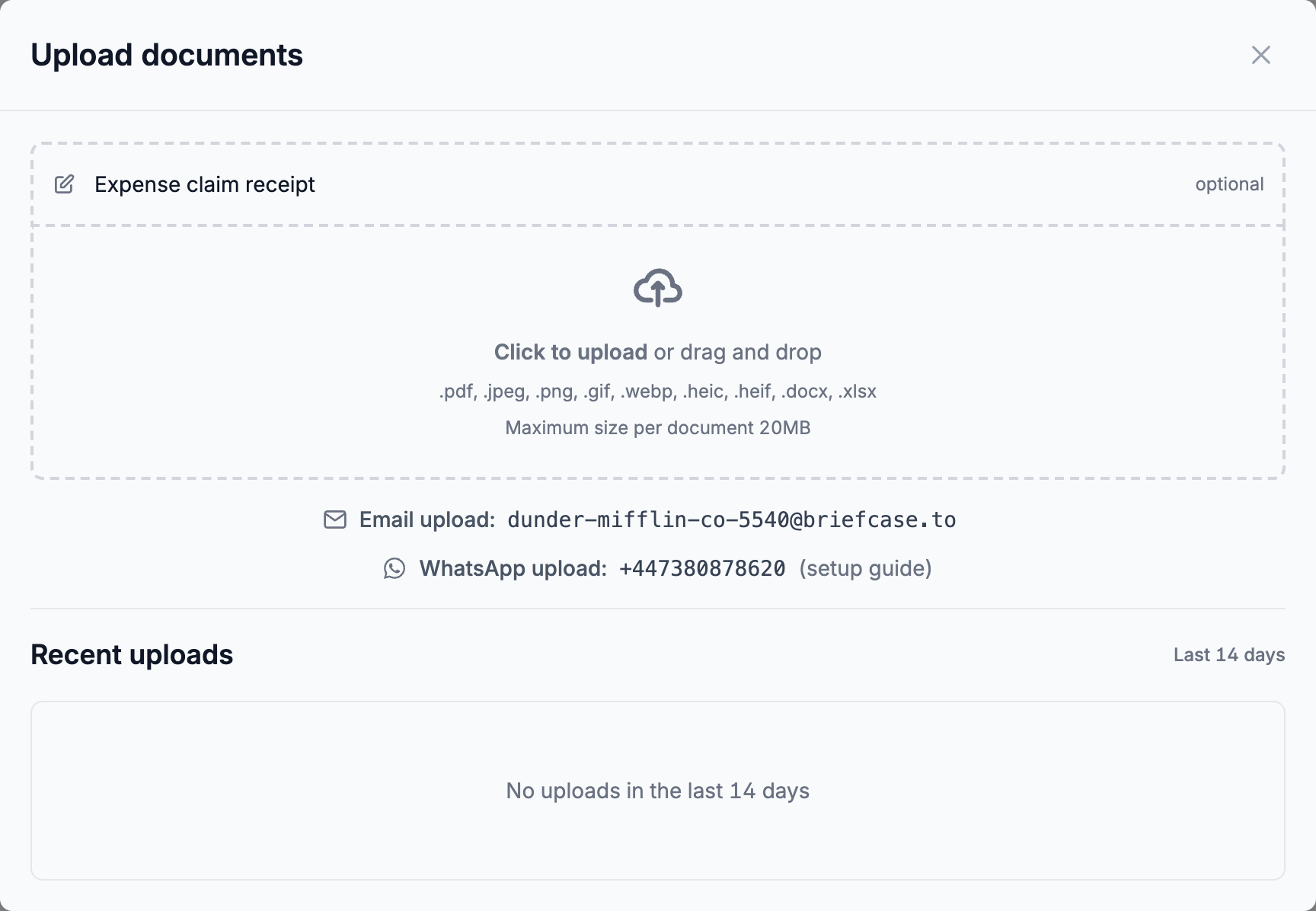
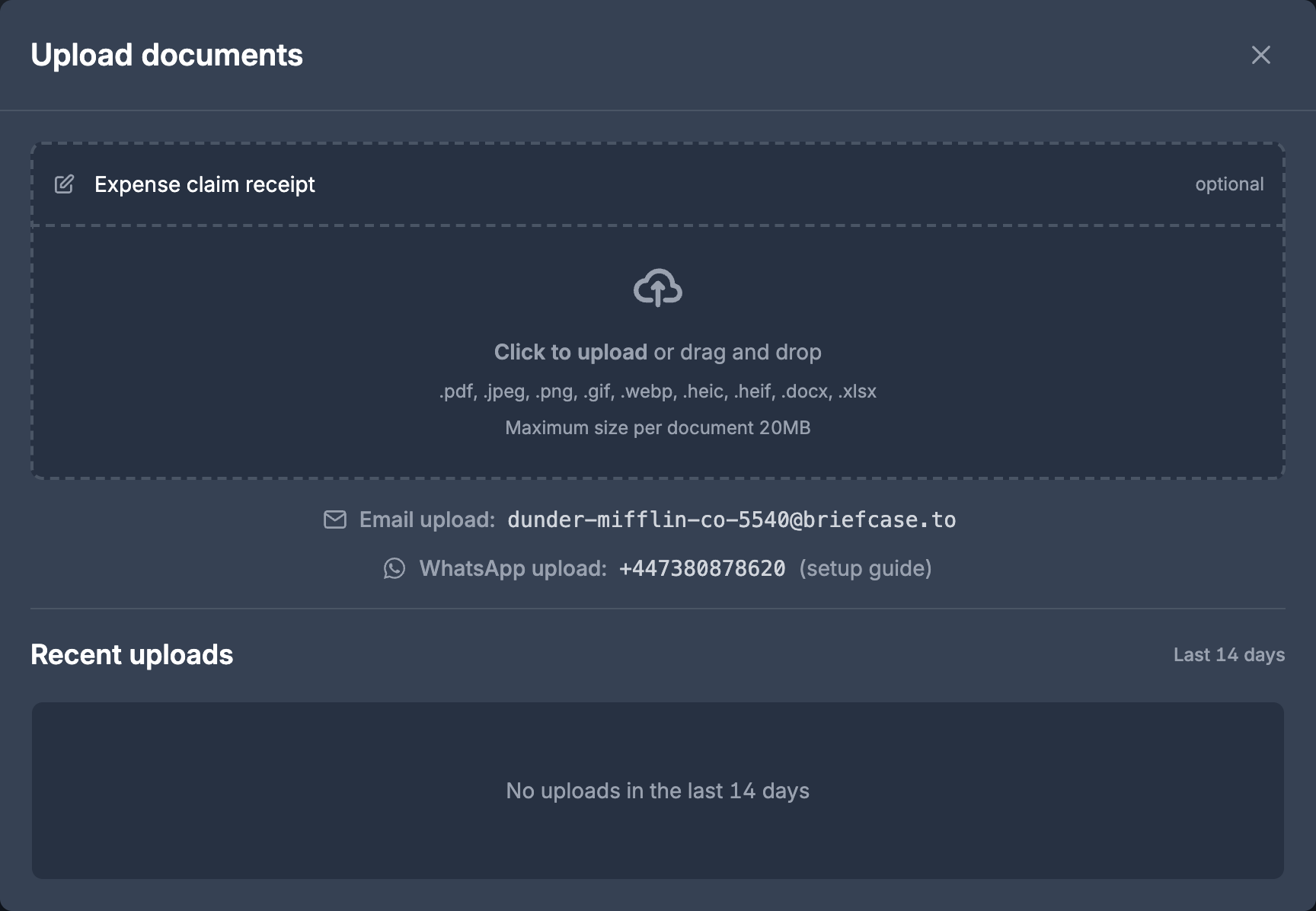
Copy your company's Briefcase email address. It is in the Getting started window above, and next to Email upload in the upload window shown below.
Send the receipt to that address from the email address you log in to Briefcase with. Attach the photo or PDF. If the email itself is the receipt, such as a train booking, just forward it.
Briefcase knows a receipt is yours from the address it was sent from, so always send from the email address you log in with.
On the website
On a computer
Log in at app.briefcase.so and click your company's name. It opens on Expense claims.
Click + Expense claim at the top right.
Drag your receipts into the window, or click to choose them. They upload straight away.
On your phone
Open app.briefcase.so in your phone's browser, log in and open your company.
On the Claims screen, tap Add receipt.
Tap Take photo to use the camera, or Choose files to pick a photo or PDF you already have.
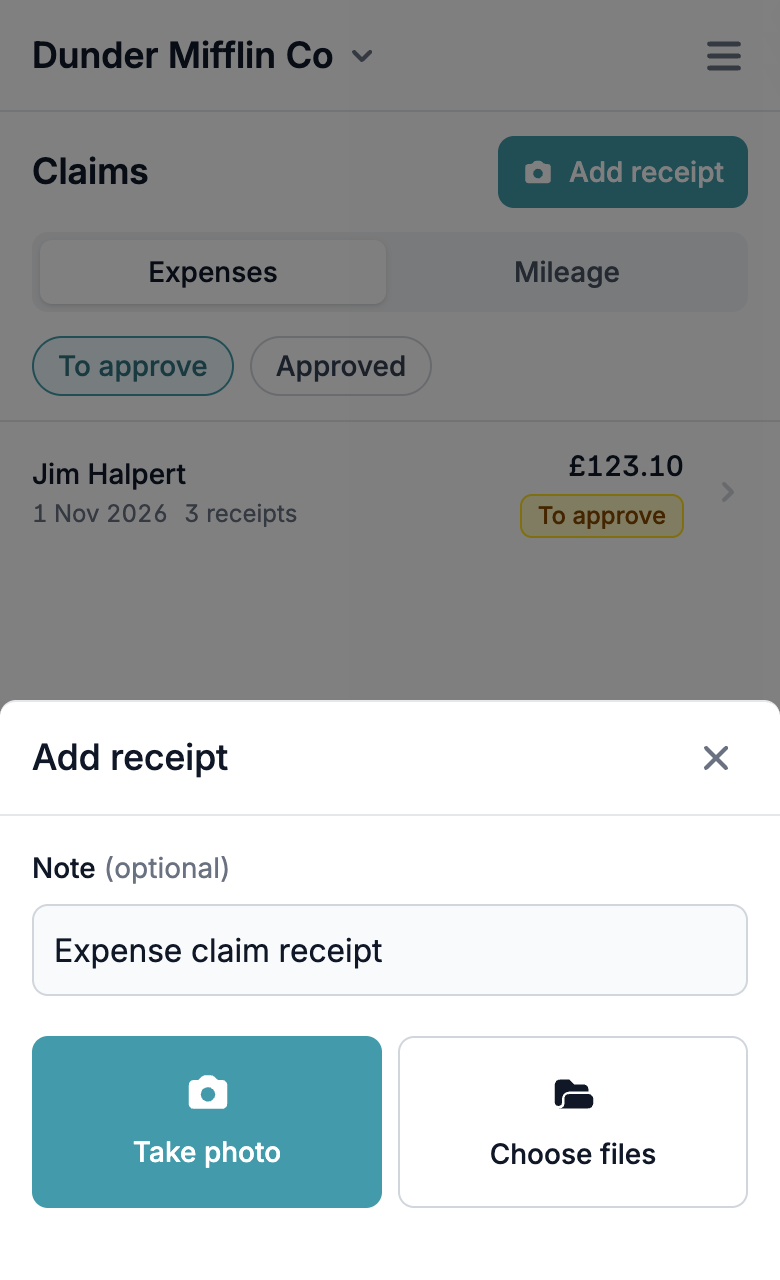
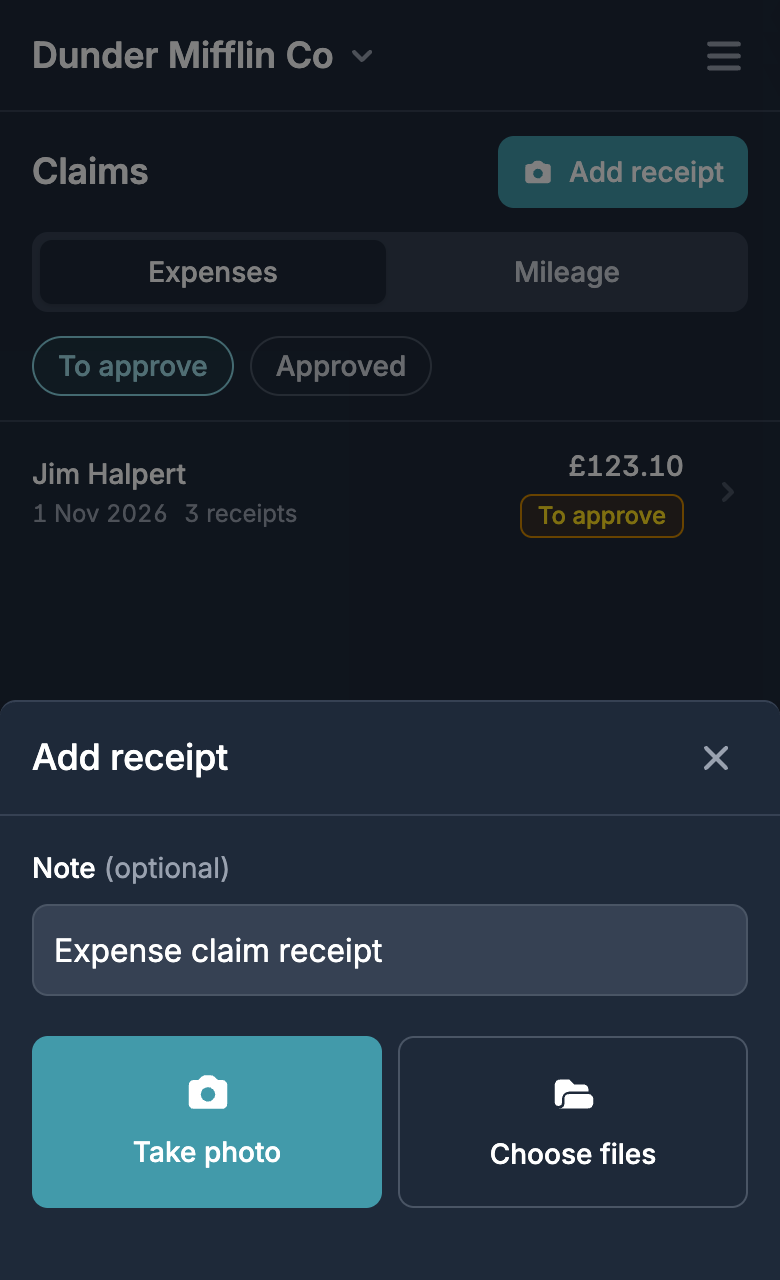
Leave the note Expense claim receipt in place. You can add to it, for example "Expense claim receipt, lunch with a client". To open Briefcase from your home screen like an app, see Using Briefcase on your phone like an app.
4. Check your claim
Briefcase reads each receipt within a few minutes and adds it to your claim. You get one claim per month, based on the date on each receipt, so a receipt you send late still lands in the right month.
Open Expense claims to see it. A new claim sits under Awaiting review with the number of receipts and the total. You only see your own claims.
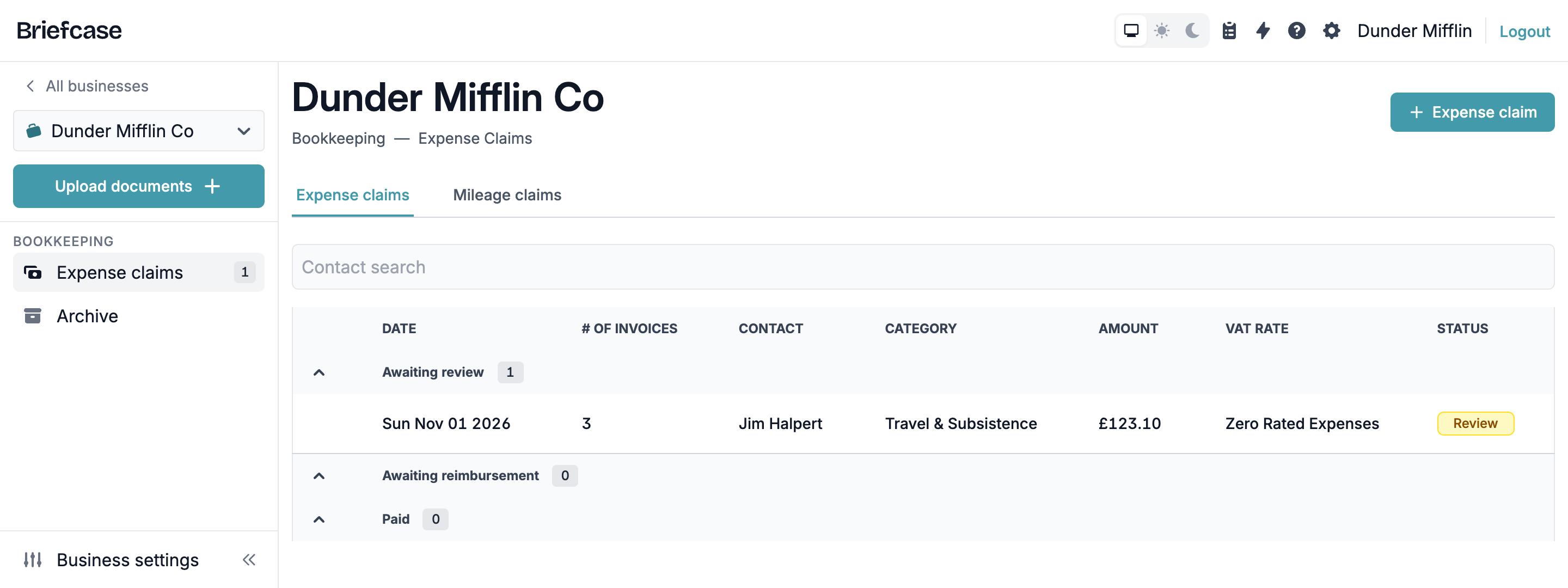
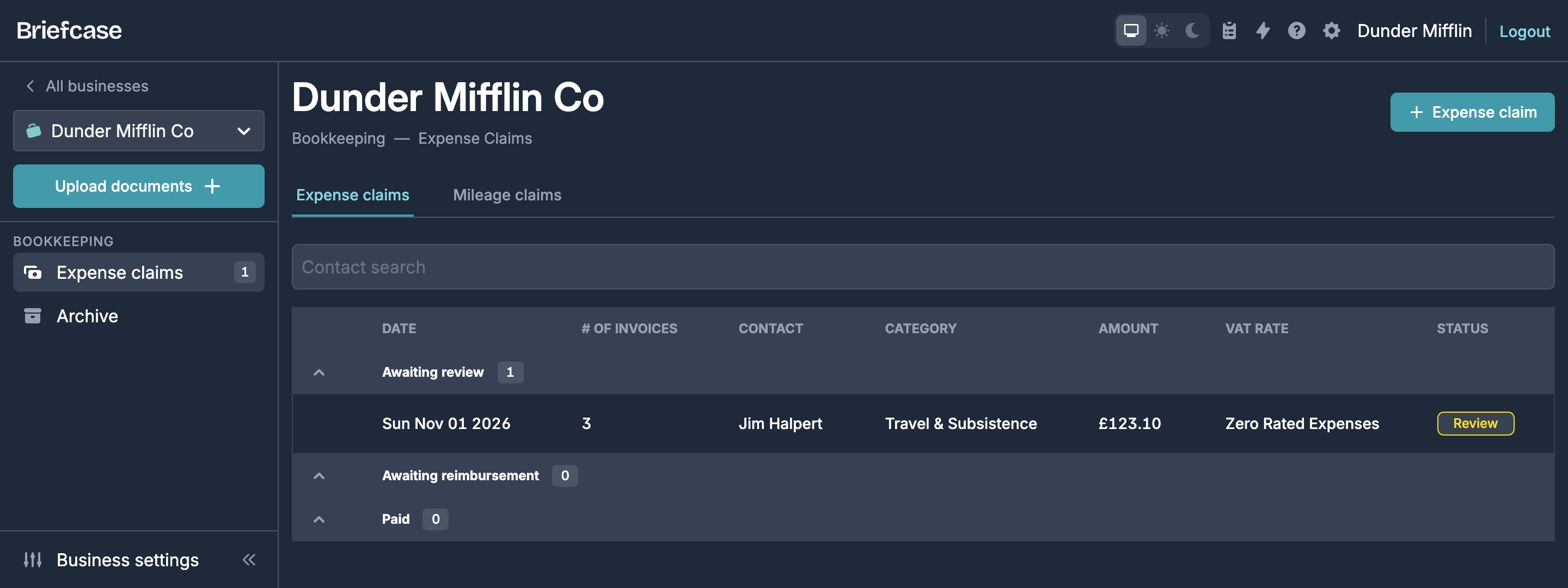
Click the claim to see each receipt with its date, vendor and amount. The person who approves expenses at your company reviews it from here, so there is nothing more for you to do.
Questions
I haven't had an invite email. What should I do?
Check your spam or junk folder. If it isn't there, ask your company or its accountant to invite you again.
WhatsApp says it can't find an account for my phone number.
Briefcase recognises you by your mobile number. Go to Settings, then User, and check the number under step 2 is the one your WhatsApp uses. Then send the receipt again.
Do I need to write "expense" on what I send?
Not with an Expenses only login: everything you send is treated as an expense claim. If your login can also see the company's bills and sales, add a note saying "expense" so Briefcase files the receipt as a claim. On WhatsApp, tap Make Changes and write it under Additional context. By email, write it in the email. On the website, + Expense claim fills the note in for you.
How do I claim mileage?
Who do I ask about a claim?
Whoever approves expenses at your company, or its accountant. If something in Briefcase isn't working, email support@briefcase.so.
Setting this up for your staff? Invite each person from Settings, Organisation, Team and choose Expenses only on the Person step. See How to add users to Briefcase and How do I manage expense claims in Briefcase?