You can add and track employee mileage claims directly in Briefcase, so business journeys are captured against the right driver and vehicle. You can create a mileage claim on both web and WhatsApp.
Submit Mileage claims via Web

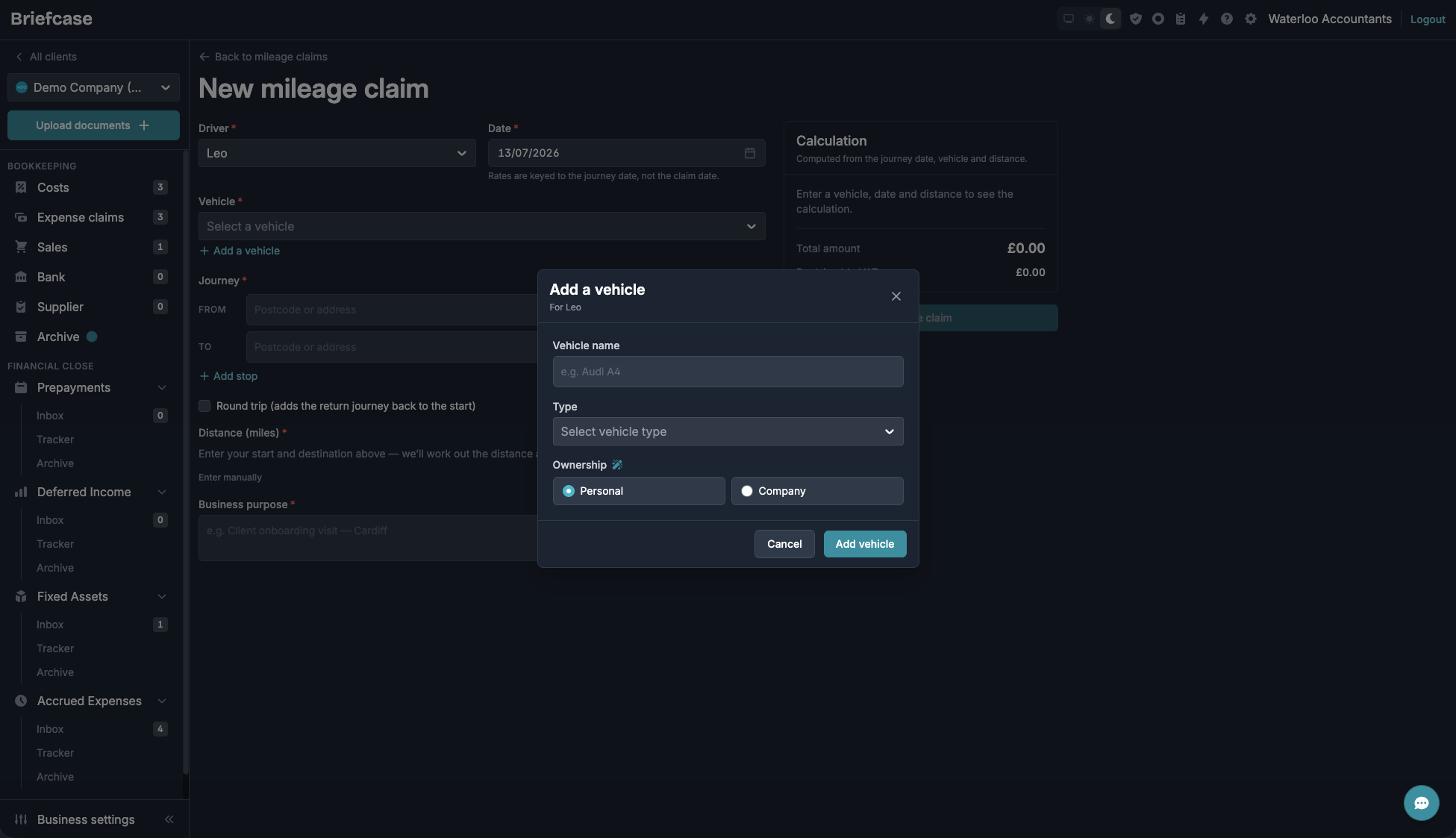

Submit Mileage claims via WhatsApp
Drivers can log a mileage claim straight from WhatsApp — a plain text message is all it takes, no photo and no Briefcase login. Describe the journey in your own words, then confirm the details in a short form.
One-time setup
Save Briefcase's number (+44 7380 878620) to your contacts by clicking here, and make sure your mobile number is saved on your Briefcase profile
Ask whoever manages Briefcase for the business to add you as a driver and assign your vehicle — this can only be done in the web app, under Business settings → Mileage
Send a message describing the journey
Mention where you drove from and to, the distance, the date, the business reason and who was driving. For example:
Mileage claim for Jan, London to Manchester, 200 miles, business meeting with John
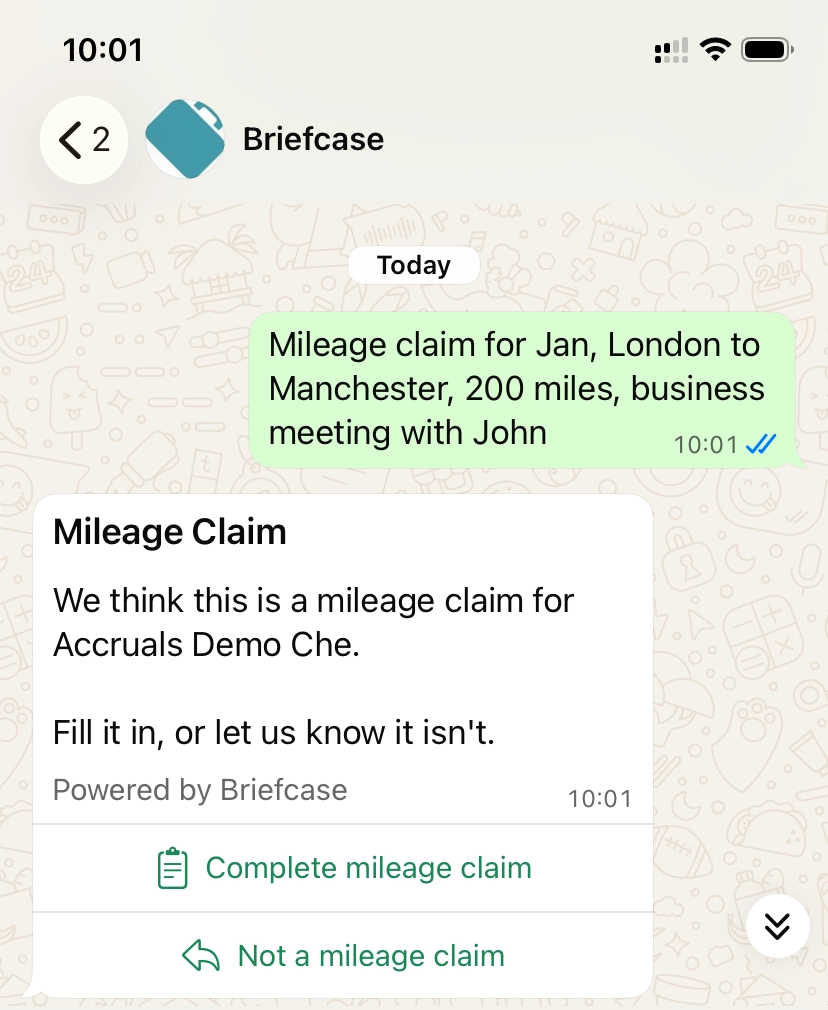
Include a mileage word — "mileage", "miles" or "drove". Without one, Briefcase treats the message as a document upload instead.
Check the form and submit
Tap Complete mileage claim in Briefcase's reply. The form opens with everything picked up from your message already filled in. Depending on your setup it may first ask you to pick the business (only if you have access to more than one), the driver, and the vehicle (skipped when the driver has just one). Check the date, start, destination, distance and business purpose, then submit.
Open the form within 15 minutes of sending your message — after that the pre-filled details are cleared and the form starts blank.
Good to know
Enter the total distance driven, in whole miles, including the return leg — Briefcase does not double a round trip for you.
Company electric vehicles ask for the split between home-charged and public-charged miles. Personal vehicles show a passenger count when Pay the passenger rate is switched on under Business settings → Mileage.
Company bicycles are not claimable, and company motorcycles are reimbursed at actual fuel cost — submit those as a standard expense claim.
What happens next
The journey appears immediately under Mileage claims in Briefcase, ready for whoever manages the books to review and publish — nothing more for you to do.
Approving mileage claims
You can use permissions to create a simple review process, with publishing acting as the approval step. A claim only reaches Xero or QuickBooks after someone with permission to publish it has reviewed it.
For the person submitting claims:
Go to Settings → Organisation → Team and select Permissions beside their name.
Choose Custom access.
Under Expense Claims, turn on View Own Only and Create. Leave Publish off.
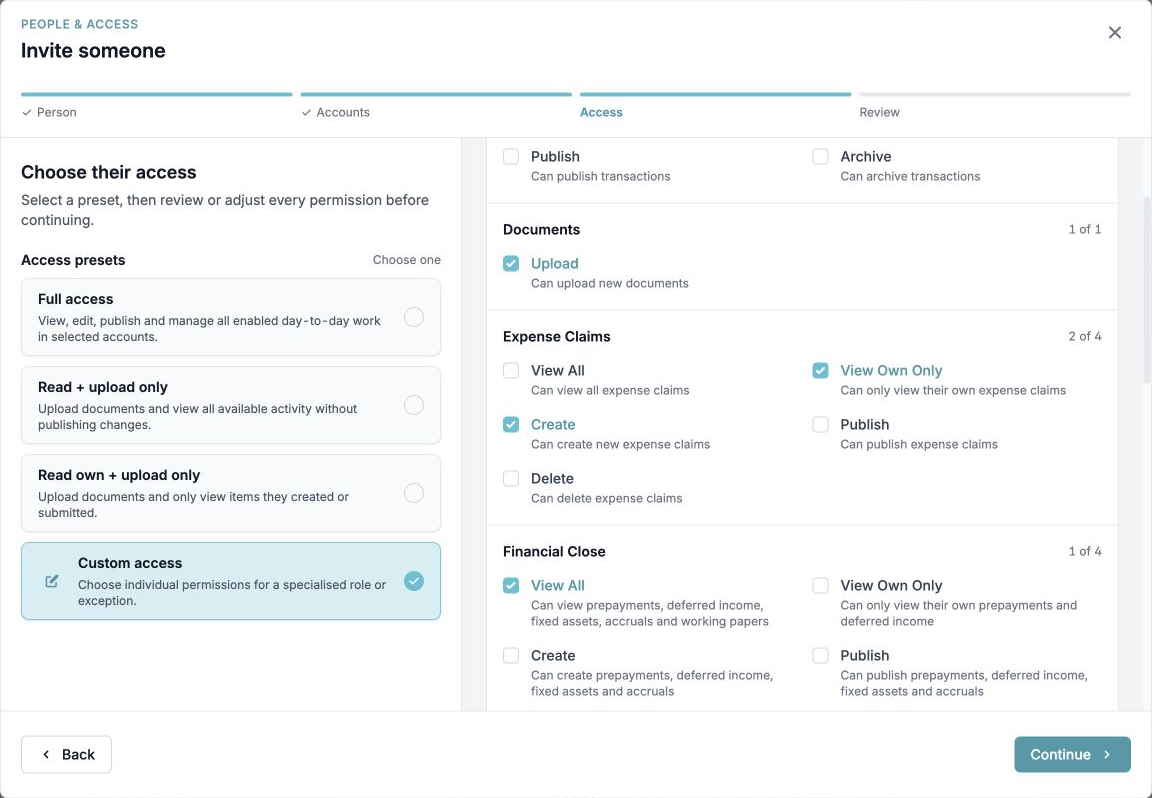
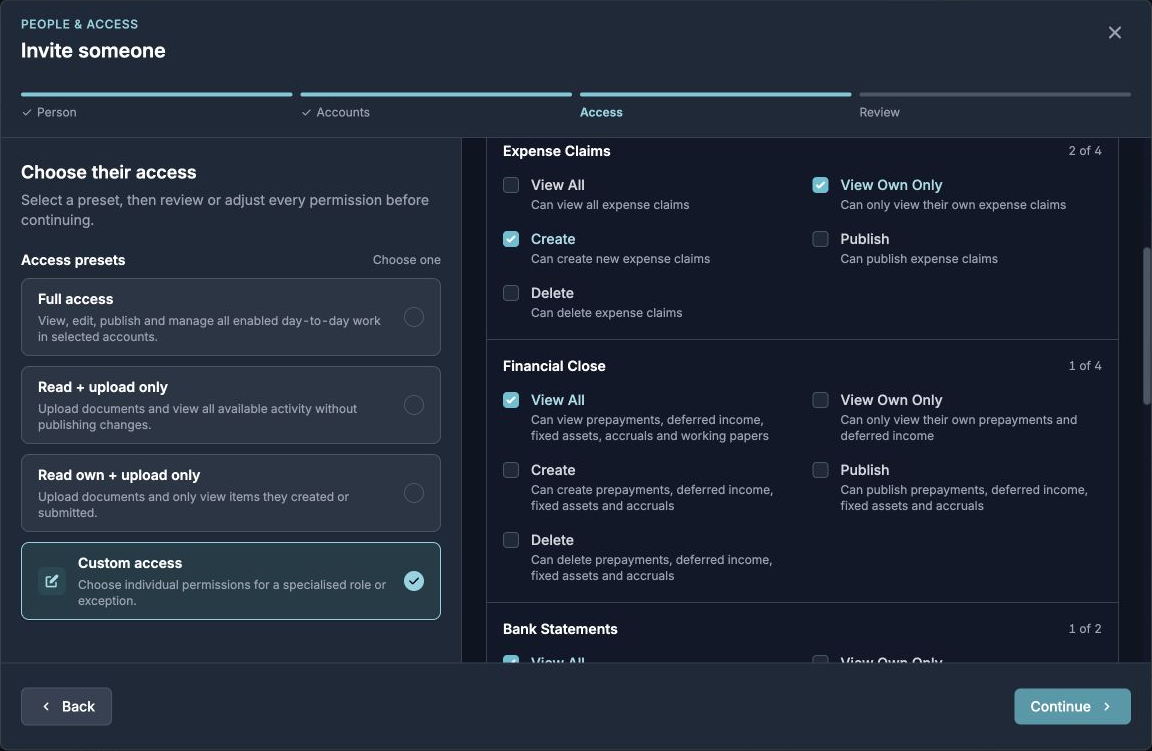
For the approver, turn on View All and Publish under Expense Claims.