Permissions control what someone can do in Briefcase. Client access controls which client accounts they can use. You can manage both from Settings → Organisation → Team.
Adding someone new? Start with how to invite team members and clients, then use this guide to choose their access.
Organisation admins can:
Change permissions and client access for existing users
Invite team members and client users
Team members can:
Invite other team members and client users
Choosing permissions
When you invite someone, choose the closest access preset:
Full access: for people who need to manage day-to-day work.
Read + upload only: for people who need to upload documents and see activity, without publishing changes.
Read own + upload only: for people who should only see items they have submitted.
Custom access: for anyone who needs a different combination of permissions.
Team members can also be made an Organisation admin. Organisation admins can access all current and future client accounts.
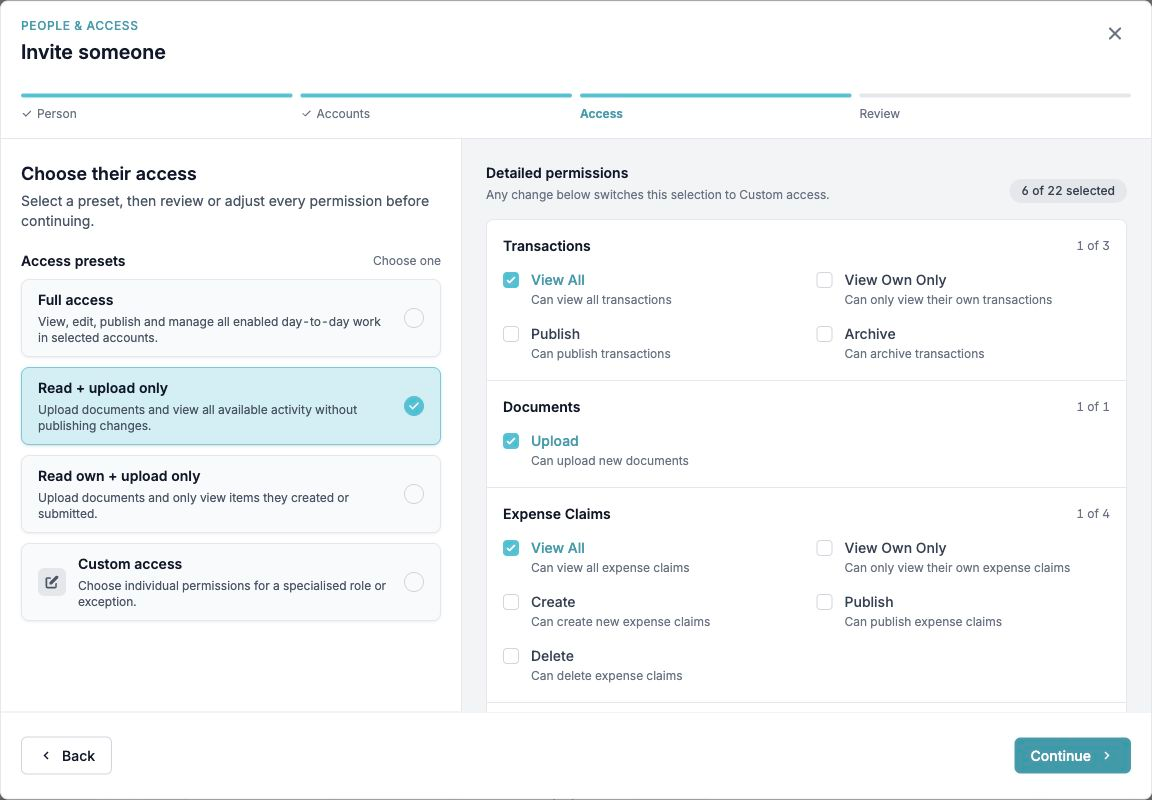
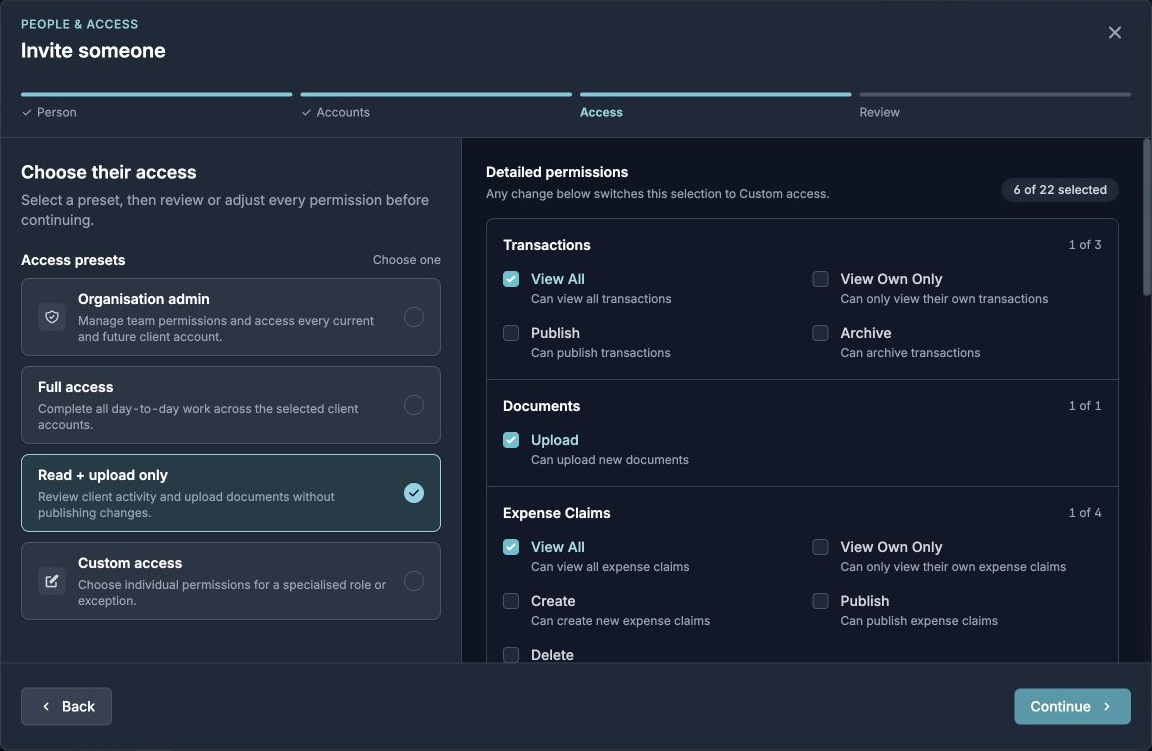
You can review the individual permissions before sending the invitation. If you change one, the selection becomes Custom access.
Managing client account access
Find the person in Your Team or Your Clients.
Select Permissions to change what they can do.
Select Clients to change which client accounts they can access.
Review the changes, then save them.
Common user configurations
Adding client employees for expense claims only
Invite the employee as a Client user.
Choose Custom access. Under Expense Claims, turn on View Own Only and Create, and leave Publish off.
Adding clients for upload only
Invite the client as a Client user.
Choose Read + upload only, then review the permissions before sending the invitation.
Adding clients who should only see their own uploads
Invite the client as a Client user.
Choose Read own + upload only, then review the permissions before sending the invitation.
For the wider practice setup, see how to get started with Briefcase as an accountant.