Add team members and clients from Settings → Organisation → Team. Choose Invite team member or Invite client, select their accounts and permissions, then send the invitation.
This guide is for accounting and bookkeeping firms. Organisation admins and team members can invite people; only organisation admins can invite other admins. If you are a client of a firm, see how to ask your accountant to add someone.
Open Organisation Settings
Click the cog icon in the top-right corner next to your practice name to go to Settings.
Select the Organisation tab. You'll see the Team section with a list of all connected users, their roles, permissions, and access levels.
Use the Your Team and Your Clients sub-tabs to switch between viewing team members and clients.
For firms: invite team members
Click Invite team member.
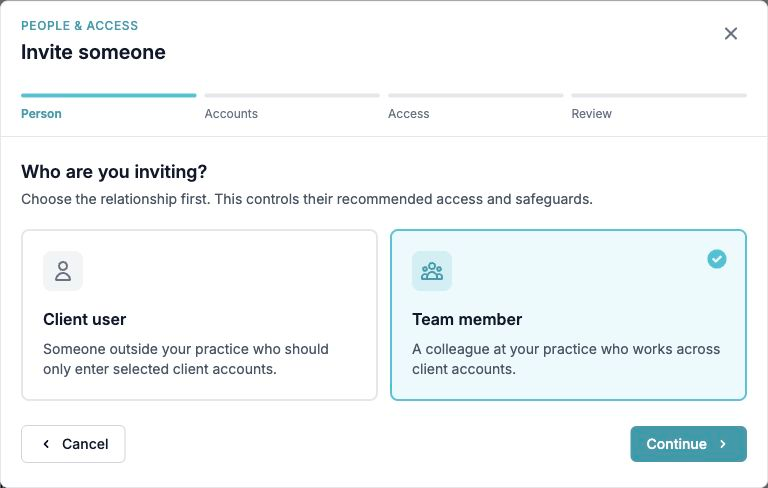
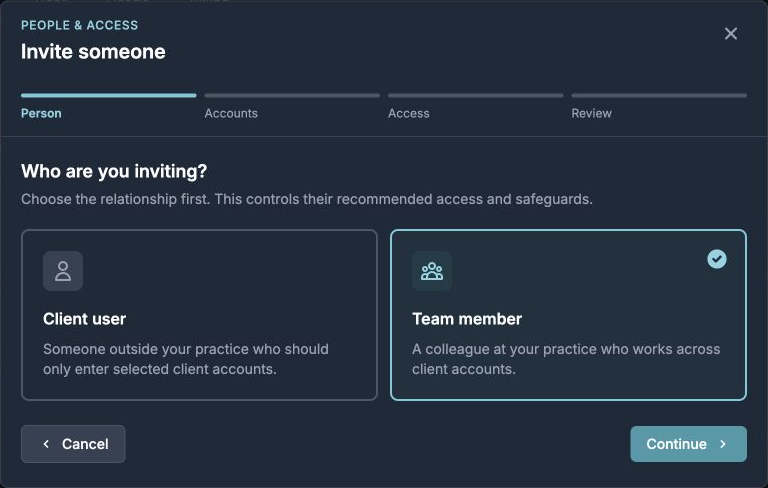
On the Person step, choose Team member, then select Continue.
Choose the client accounts they should be able to access. You can skip this step if they do not need access yet. Organisation admins automatically receive access to all current and future accounts.
Choose the access they need, then review the individual permissions. See how to choose and manage user permissions for help.
Review the invitation and either send it by email or create a link to share yourself.
For firms: invite client users
Open Your Clients and click Invite client.
On the Person step, choose Client user, then select Continue.
Select at least one client account for them to access.
Choose the access they need, then review the individual permissions. See how to choose and manage user permissions for help.
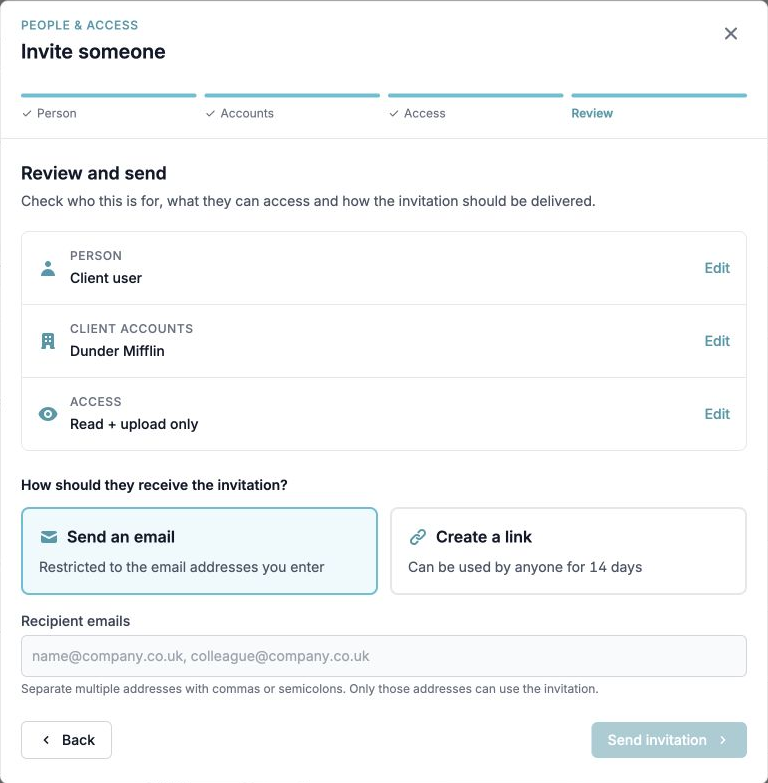
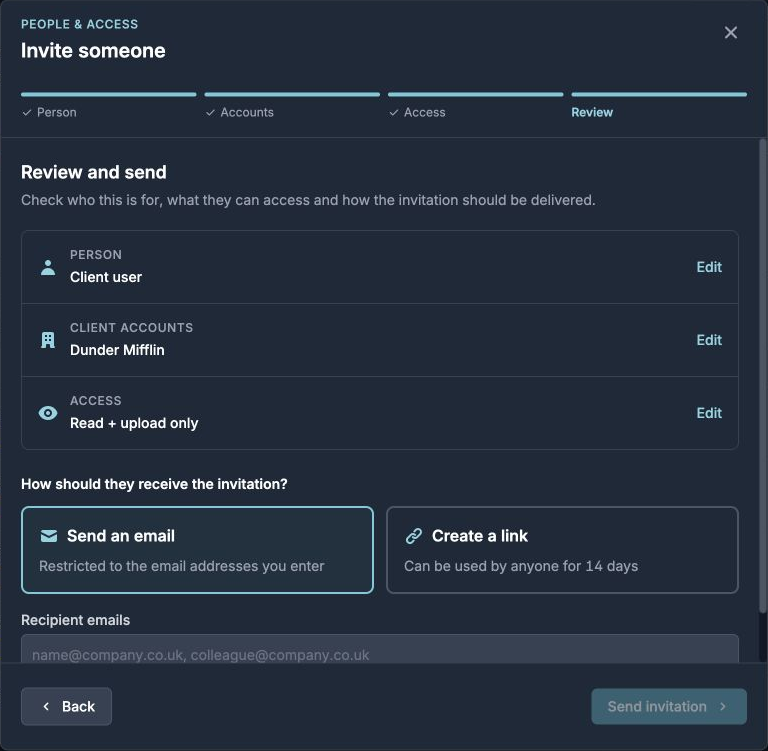
Review the invitation and either send it by email or create a link to share yourself.
Manage pending invitations
Pending invites appear above active users in Your Team or Your Clients. Organisation admins can:
Select Permissions to change what the person will be able to do.
Select Clients to change which client accounts they will be able to access.
Revoke the invitation if it is no longer needed.
Invite links are valid for 2 weeks. After that, you'll need to generate a new invite. Expired invites are shown with an "Expired" badge.
Only Admins can invite other Admins.
Setting up your practice for the first time? Follow our getting-started guide for accountants.