Sending a photo is the first step. Wait for your uploads to finish, then tap Submit in Briefcase’s reply.
Set up WhatsApp once
- Add the mobile number you use for WhatsApp to your Briefcase profile settings.
- Open a chat with Briefcase, or save +44 7380 878620 as a contact.

Use your personal WhatsApp account. WhatsApp Business accounts are not supported for uploads.
Prefer to keep WhatsApp media out of Photos or Gallery? In WhatsApp’s chat settings, turn off Save to Photos on iPhone or Media visibility on Android. This is separate from taking several photos quickly. See the steps and what these settings cover.
Send your first documents
- Send. Open the Briefcase chat and send your photos or files. You can send more than one before submitting.
- Wait. Let every upload finish before continuing.
- Submit. Check the company in Briefcase’s reply, then tap Submit.
Taking several photos? Use the camera-again shortcut to build a batch inside WhatsApp.
You do not need to type a caption or submit each photo separately. Keep documents for different companies in separate submissions.
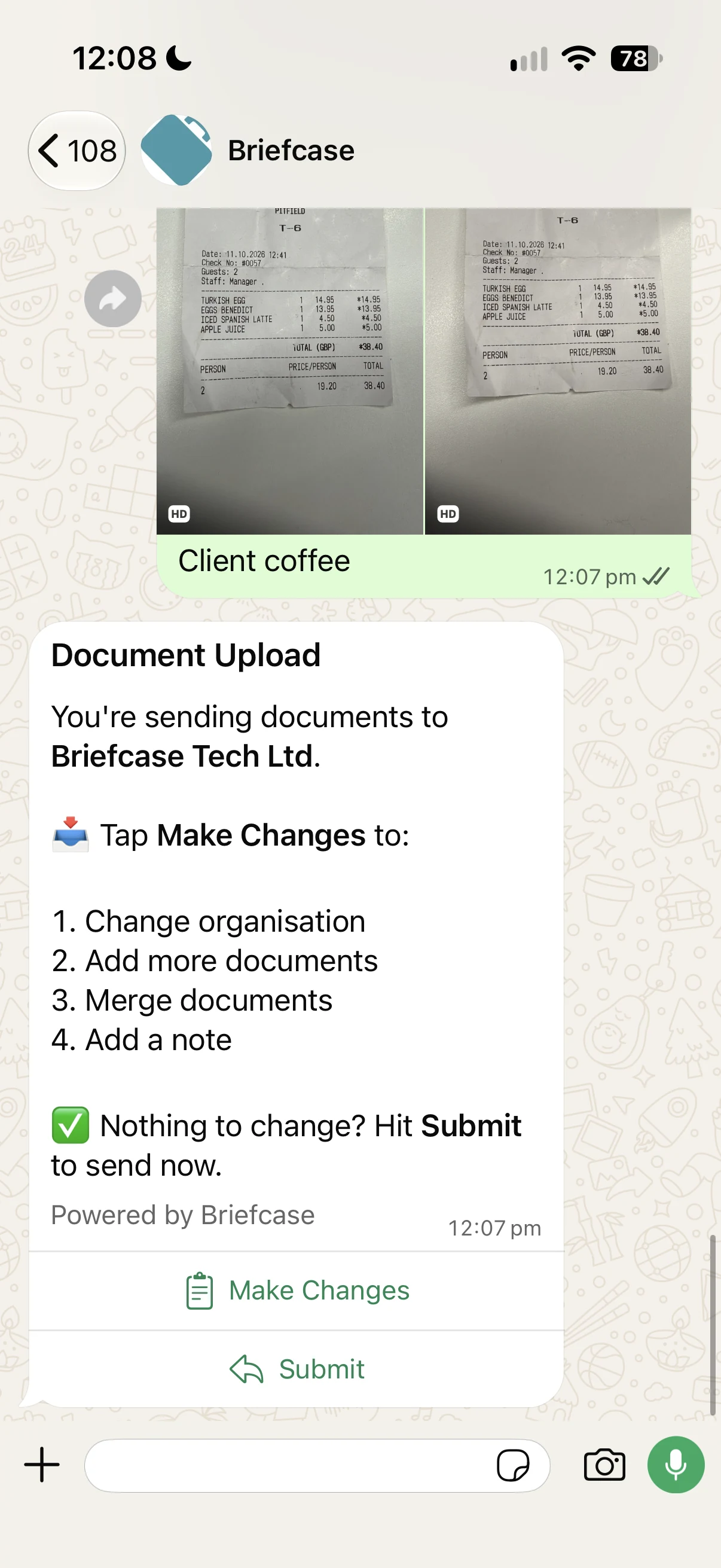
Make changes if you need to
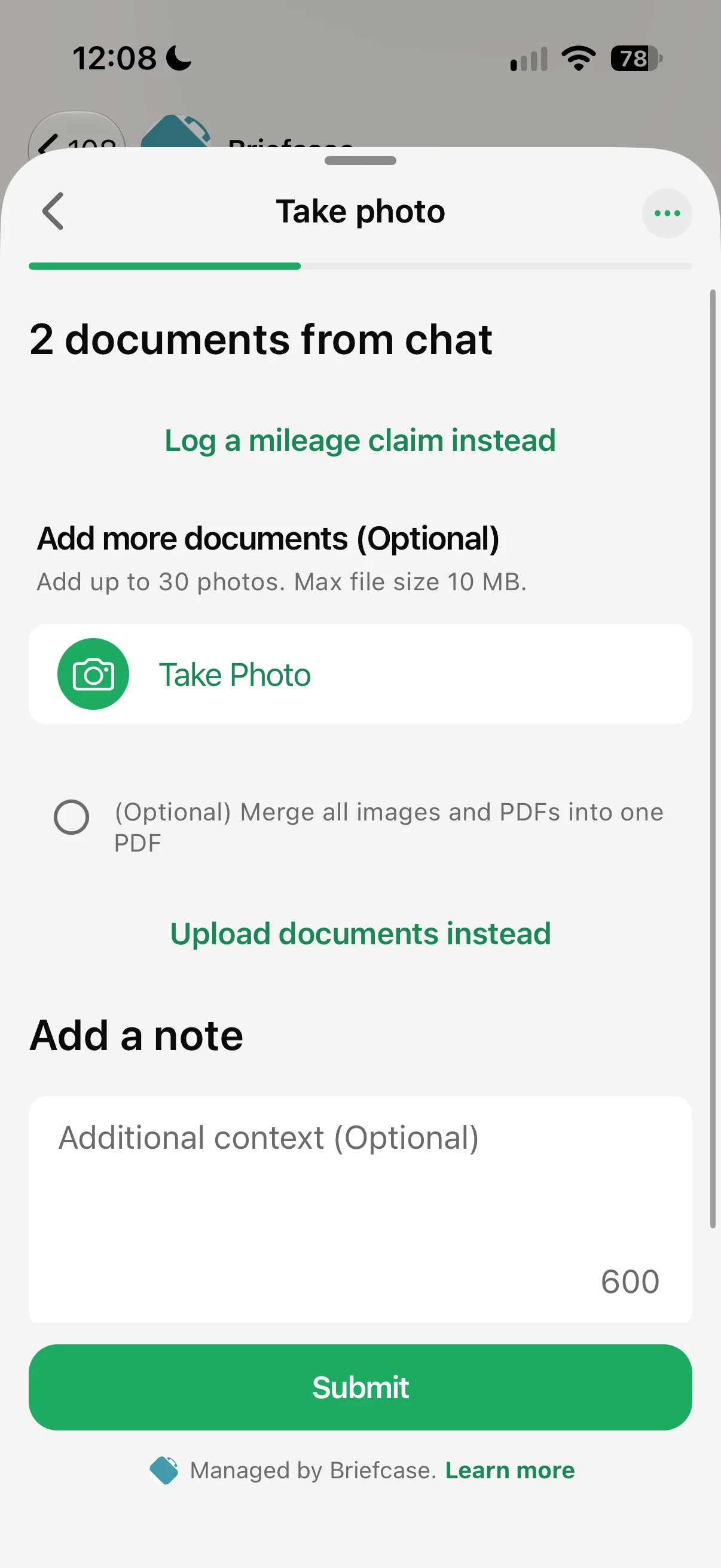
Choose Make Changes in the chat, confirm the company, then tap Continue. The next screen lets you add photos, merge documents or add a note.
Take Photo opens the camera to add more photos. To choose files, use Upload documents instead.
Additional context is optional. Use it for information that helps explain the documents. A note applies to the submission, so send separate batches when documents need different instructions.
Leave the merge option unticked for separate receipts. Only select it for pages that belong to one document.
When you are ready, tap Submit.
Choose another company
Briefcase suggests the last company you used. To change it, open Make Changes, tap Change organisation, choose the company and tap Continue.
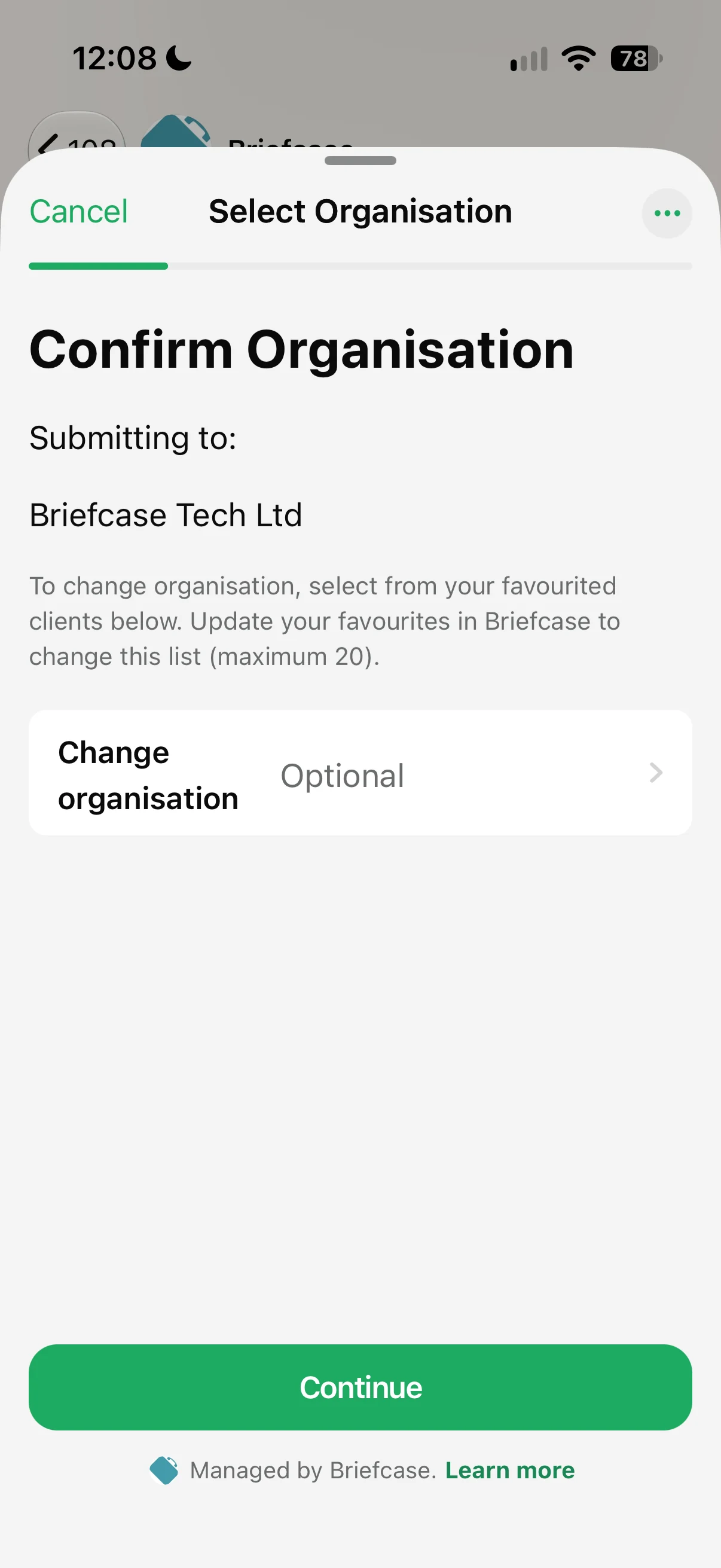
The list contains companies you have favourited in Briefcase, up to a maximum of 20. If you change your favourites, send another document to refresh the WhatsApp list. With one favourited company, there is no company-selection choice.
After submitting
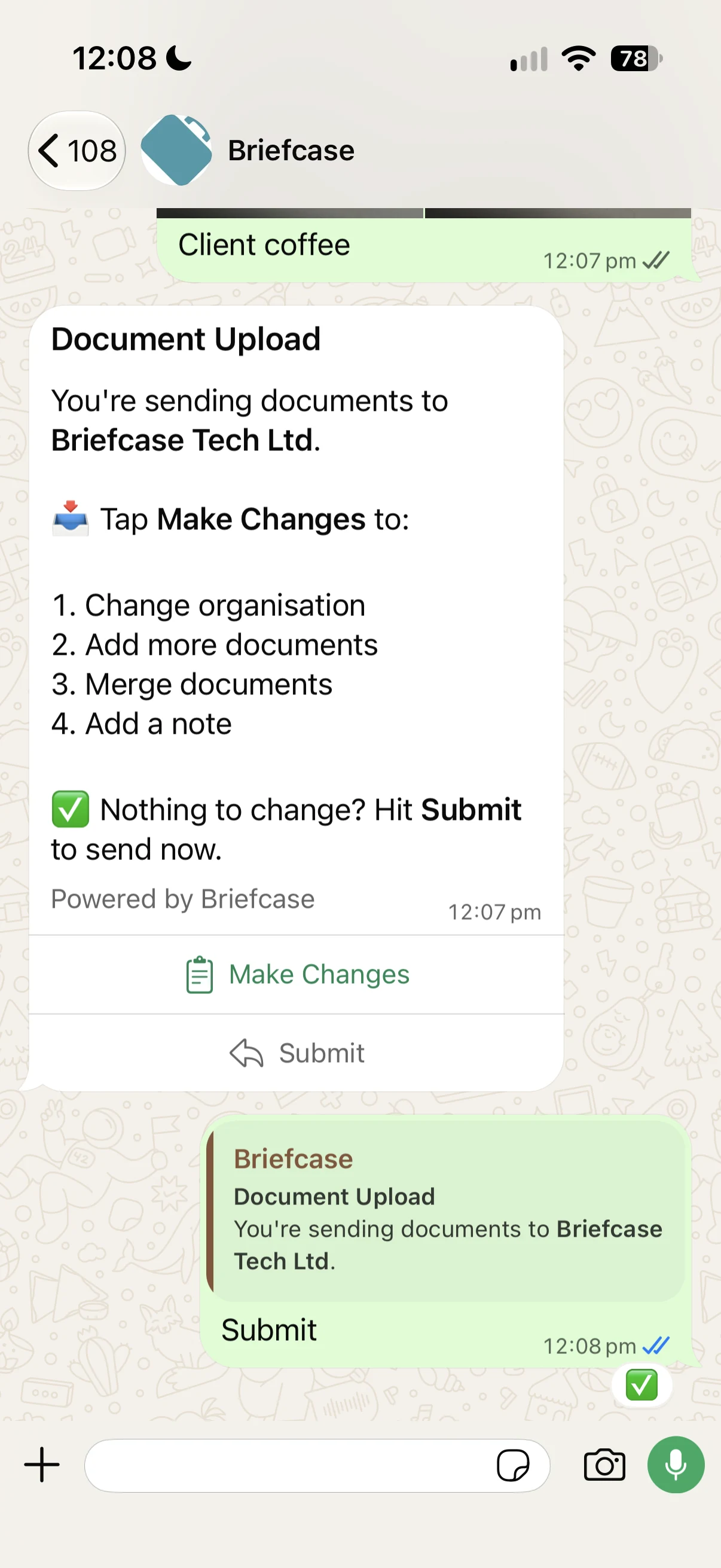
Your chat records the Submit action. To check the resulting documents, open the company’s inbox in Briefcase.
If you are unsure whether a document arrived, contact support with the company name and approximate upload time before sending another copy.