You can send several photos before submitting. Keep each batch to one company, and leave merging off for separate receipts.
First time using WhatsApp with Briefcase? Set it up here.
Take several photos quickly on iPhone
On iPhone, open the Briefcase chat, tap the camera beside the message box and take your first photo. Then use the small camera button on the photo preview to add another.
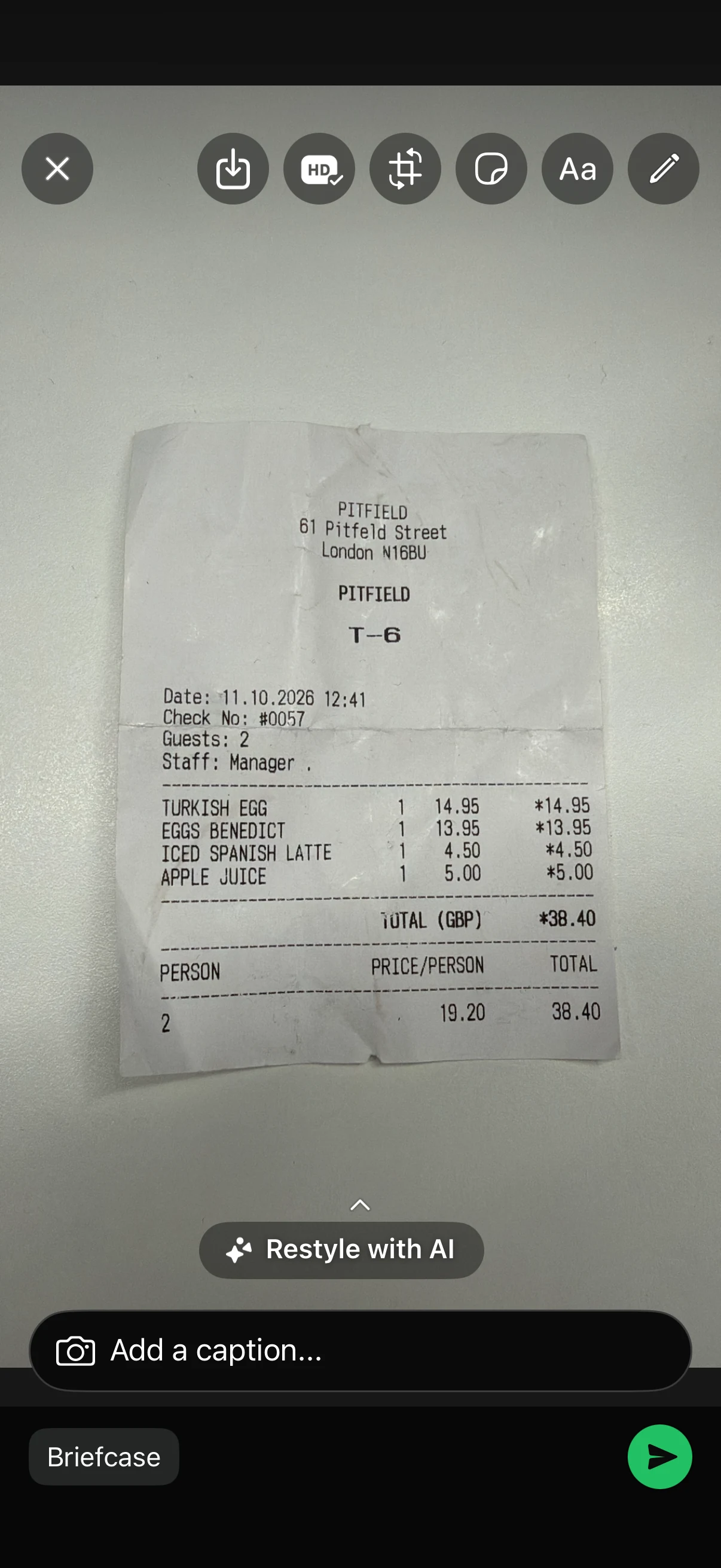
1. Tap the camera again
On the preview, tap the camera to the left of Add a caption…. Take the next photo and repeat as needed.
2. Check the batch and send
Your photos appear as thumbnails above the caption box. Check the selection, then tap the green send arrow. A caption is optional.
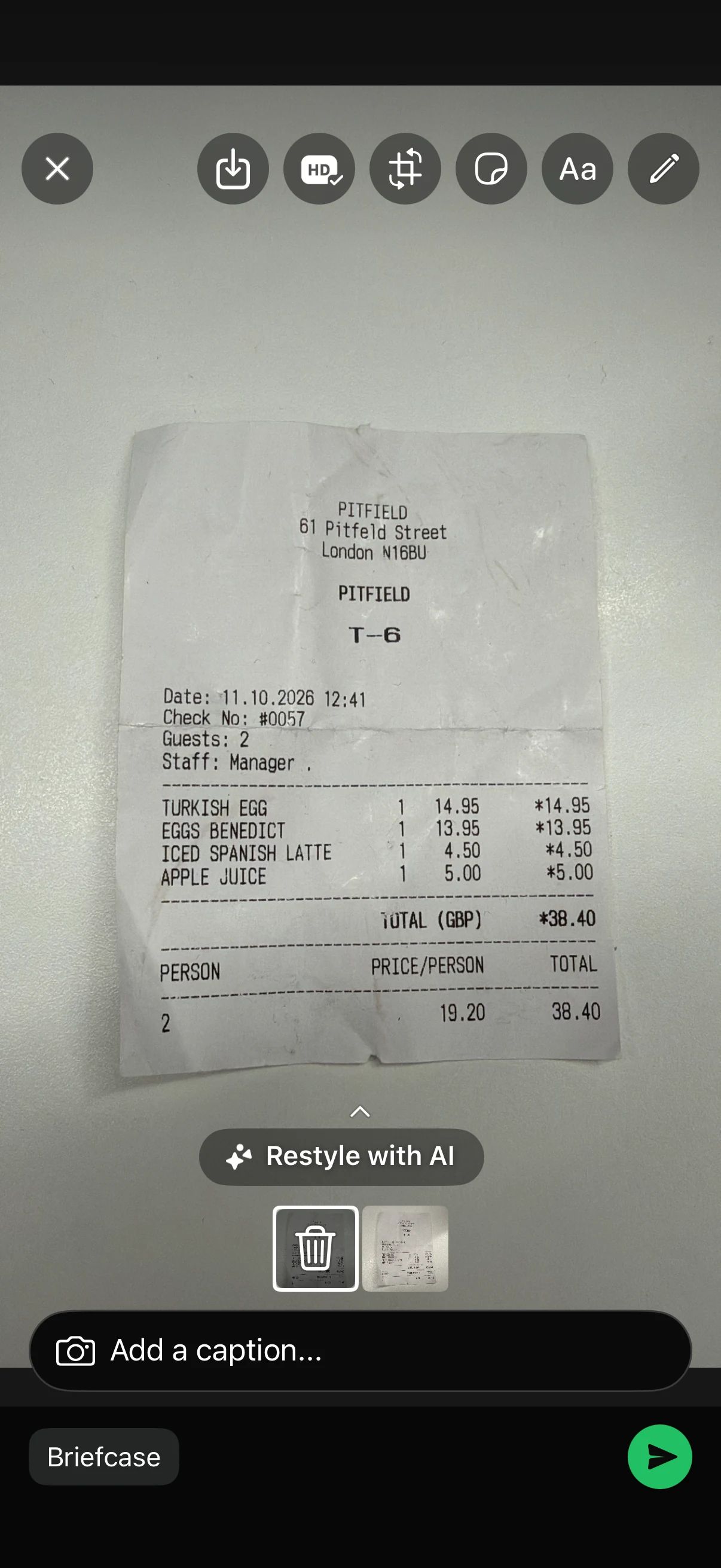
A shortcut for capturing a batch. Taking photos this way lets you move quickly from one receipt to the next. It does not switch off saving to your phone’s photo library. Check the settings below separately.
The screenshots demonstrate the controls using two photos of the same receipt. For your own uploads, photograph each receipt once, unless you need extra images to capture the whole document.
Check your photo-saving settings
If you want to keep WhatsApp media out of your photo library, change the setting inside WhatsApp. This is separate from the camera shortcut above.
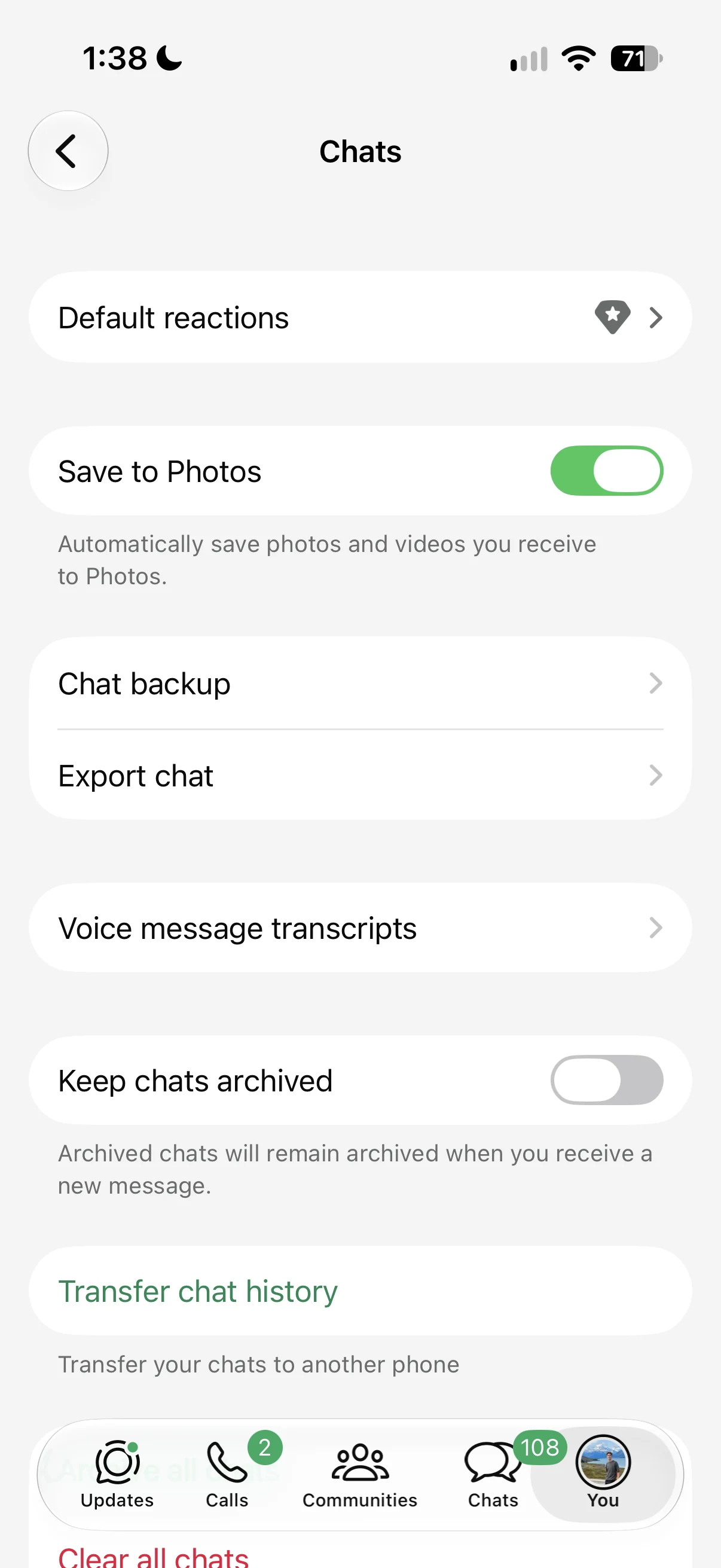
iPhone: turn off Save to Photos
- Open WhatsApp.
- Tap Settings or your profile picture, then Chats.
- Turn off Save to Photos.
Android: turn off Media visibility
- Open WhatsApp and tap the three-dot menu.
- Go to Settings → Chats.
- Turn off Media visibility.
On Android, this controls whether incoming WhatsApp media appears in your gallery. Hiding it from the gallery does not mean it has been deleted from WhatsApp.
Try one photo before a large batch. WhatsApp documents these settings for incoming media. If you are taking photos to send, check Photos or Gallery after a test upload rather than assuming every phone behaves the same way. The Android camera controls may also differ from the iPhone screenshots above.
If a chat has its own saving preference, check that too: open the chat and tap the contact’s name. On iPhone, choose Save to Photos → Never; on Android, choose Media visibility → No → OK. These chat settings apply to incoming media.
Photos taken in your phone’s Camera app are already in your photo library. Changing WhatsApp’s settings does not remove those originals.
WhatsApp’s instructions: iPhone photo saving · Android media visibility.
Wait for every upload, then tap Submit once
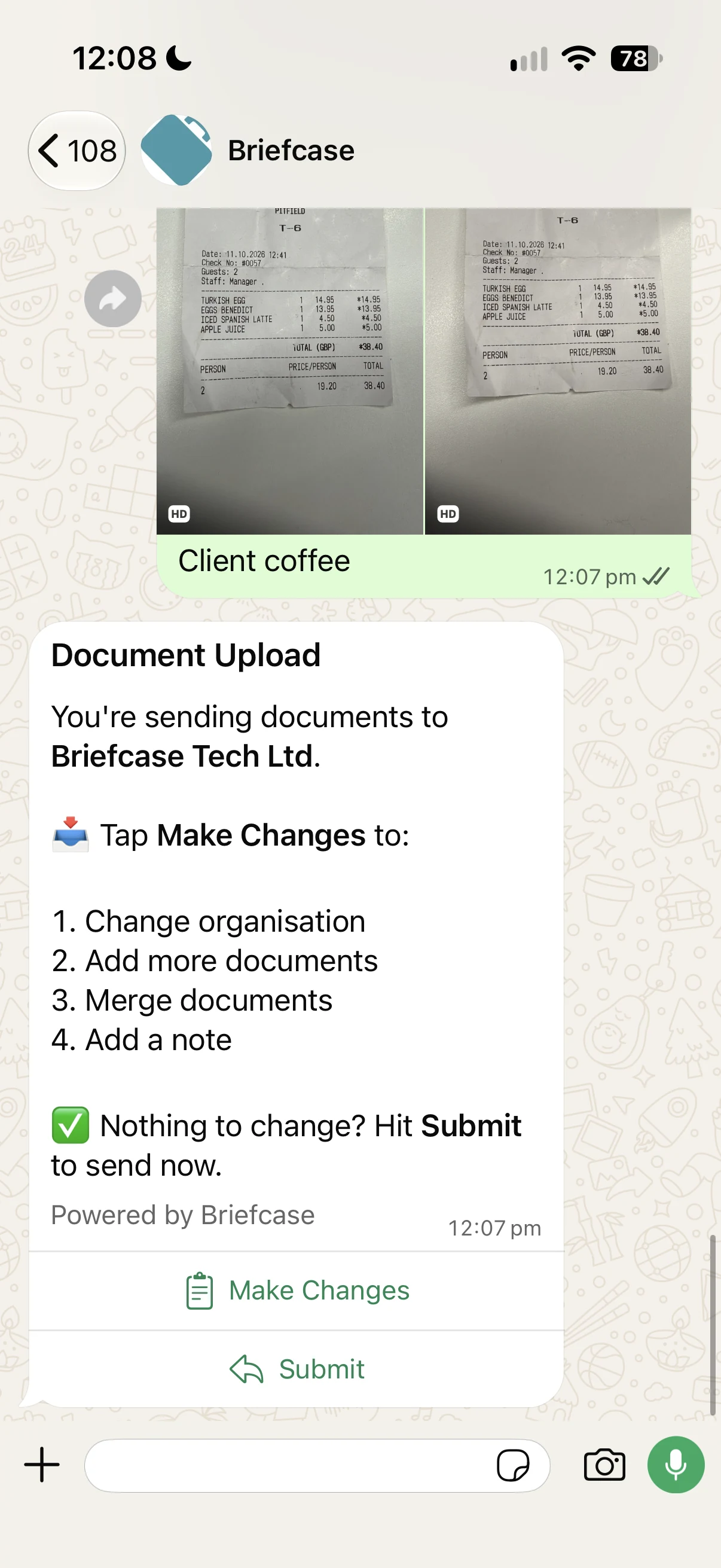
Finish sending all the photos you want in this batch. Wait until every upload has finished, even if Briefcase has already replied.
Check the company in Briefcase’s reply, then tap Submit once. You do not need to open Make Changes or add a note for separate receipts.
To change company, add a note or merge pages, choose Make Changes before submitting.
Sending several pages of one invoice?
Send only the pages of that invoice, then tap Make Changes. Confirm the company and tap Continue. On the next screen, select Merge all images and PDFs into one PDF, then tap Submit.
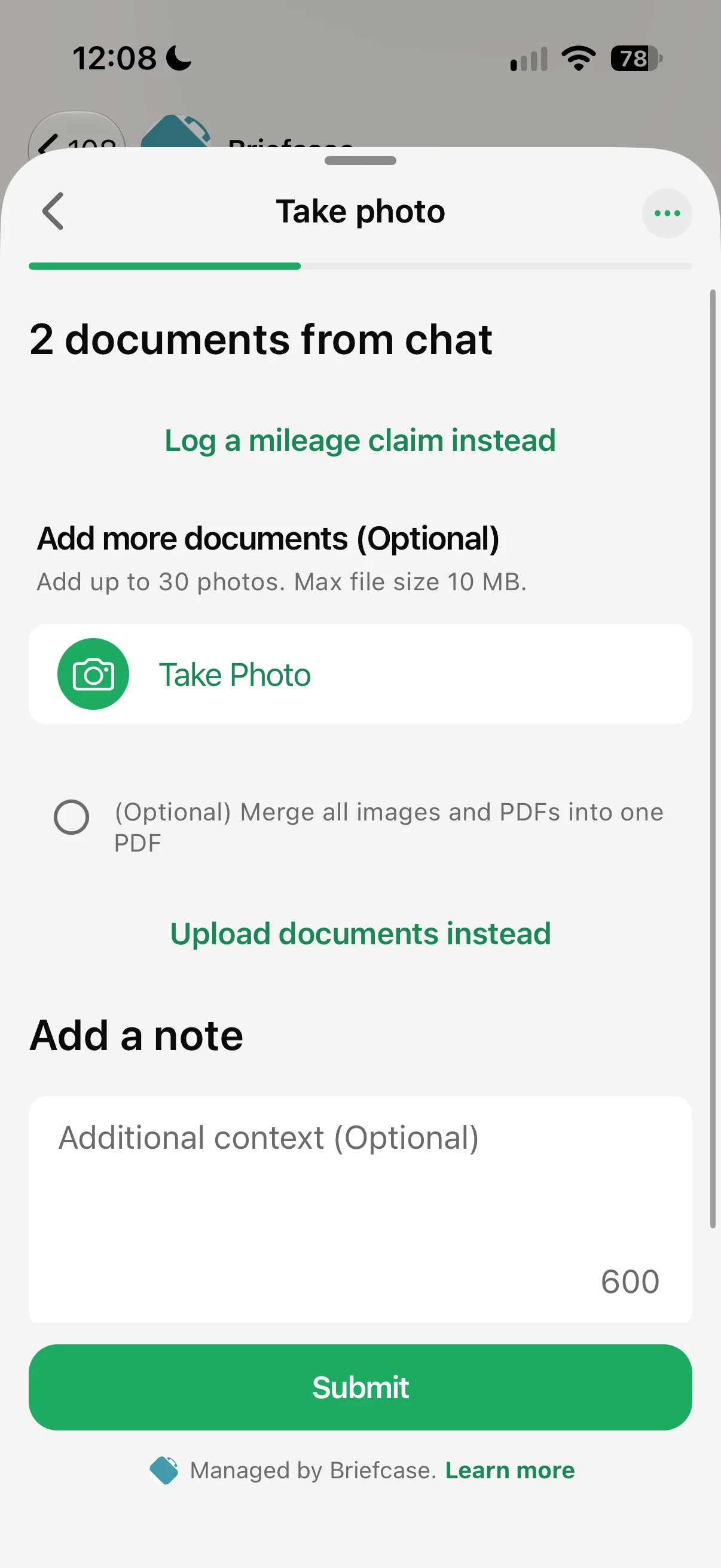
Merging combines the whole submission. Do not include unrelated receipts in a batch you intend to merge.
Use photos already on your phone
Choose the photos from the photo picker in your WhatsApp chat and send them. You can send more photos before tapping Submit; they do not need to arrive in one message.
If you take photos in your iPhone’s Camera app first, they will already be in Photos.
Need to change company or add a note? See the main WhatsApp guide.