Sometimes a bill, sales invoice or expense claim is settled without the money passing through the business bank account. A director pays a supplier on their own card. A customer pays with tax already withheld. An expense claim is added to what the company owes its director instead of being paid out.
In Briefcase Ledger you record these when you mark the document as paid. Under Paid from or Received into, choose the ledger account the money went through instead of a bank account. You don't need a journal or a stand-in bank account.
Pay a bill from the director's loan
In this example, Michael Scott paid Dunder Mifflin's £120.00 software bill on his own card on 23 November.
- Open the bill and choose Mark as, then Paid.
- Under Paid from, choose Directors' Loan Account.
- Set Payment date to the day the supplier was paid.
- Choose Mark as paid.
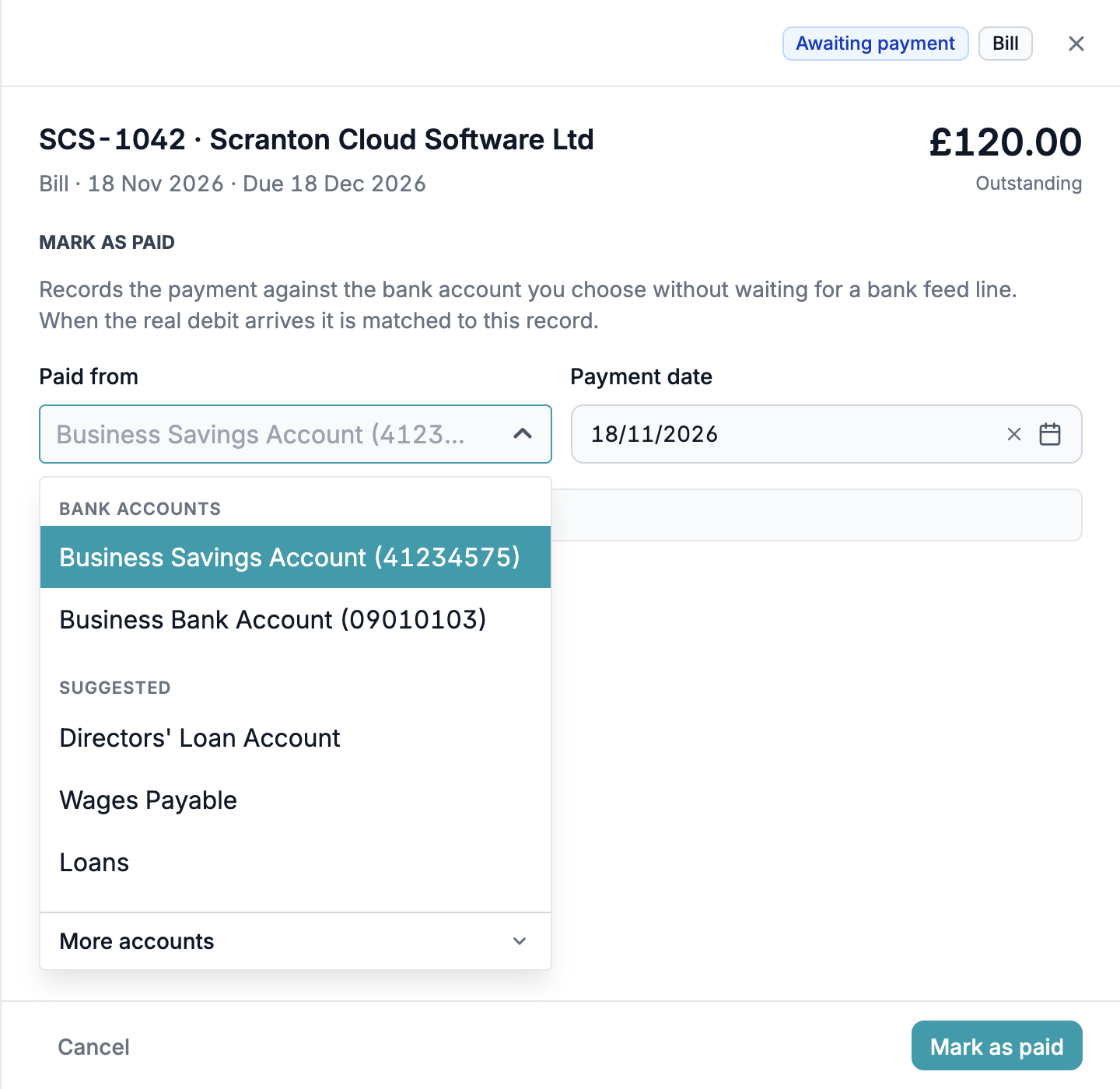
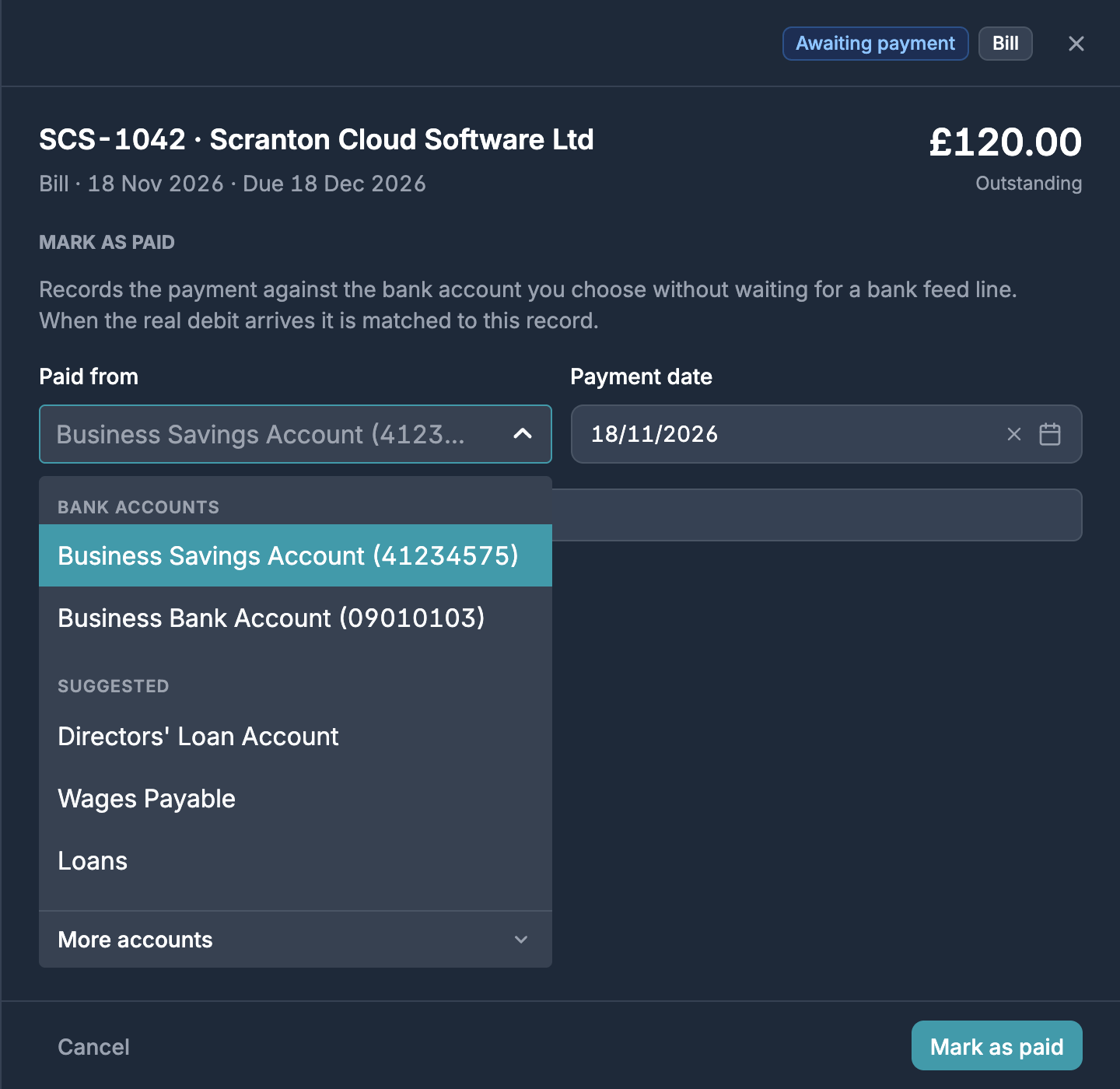
If the bill is still waiting for review, the same steps approve it and pay it together. The button then reads Approve and mark as paid.
The bill shows as paid, and its Payments section names the account.
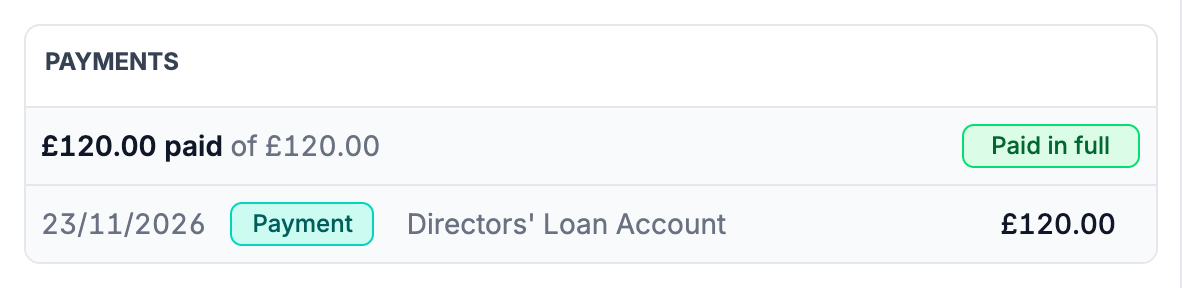
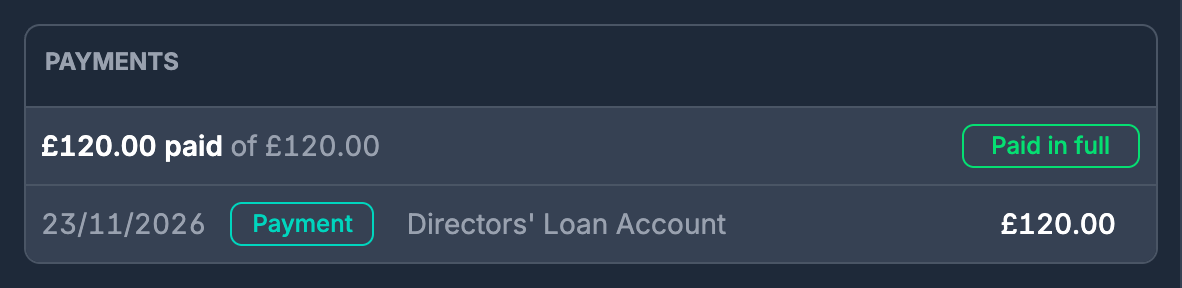
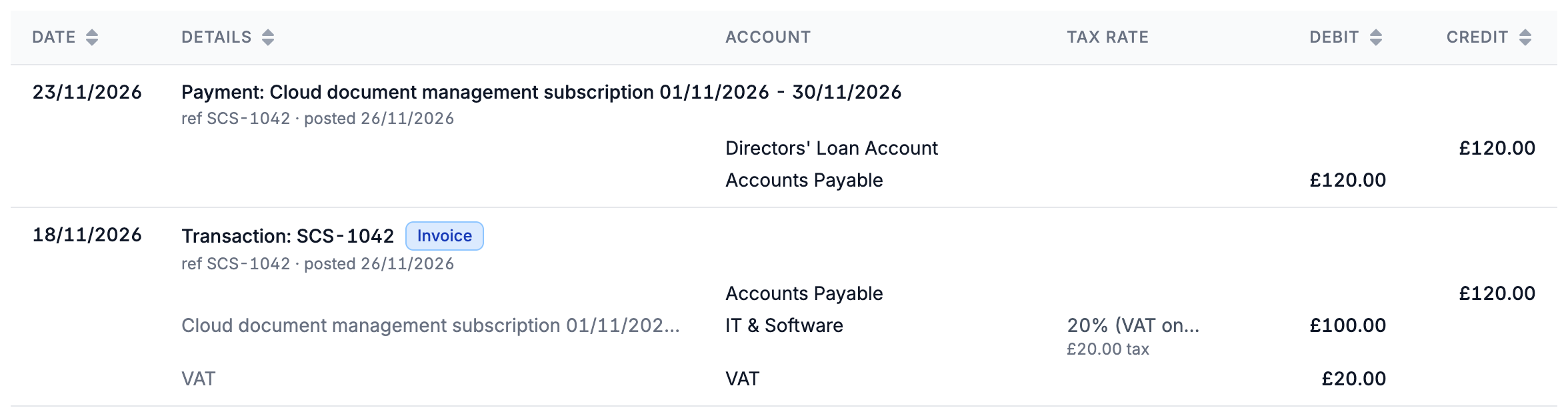
Briefcase posts the journal it would post for a bank payment, with your account in place of the bank. Here it debits Accounts Payable and credits the Directors' Loan Account with £120.00, so the company owes nothing to the supplier and £120.00 to Michael. The payment doesn't appear on a bank account or in bank reconciliation.
Which accounts you can choose
The list has three groups:
- Bank accounts: your bank accounts, as before.
- Suggested: accounts whose type says payments go through them. These are a director's loan (or owner's funds for a sole trader), a connected business, money owed to staff, tax withheld, a loan or finance account, and cash or clearing accounts. An account you have already paid from is suggested too.
- More accounts: your other asset and liability accounts and, for sole traders and landlords, equity accounts. Choose More accounts to open the group.
Briefcase never picks an account outside your bank accounts for you. Income, cost, fixed asset and stock accounts aren't offered, and neither are the accounts Briefcase keeps itself, such as Accounts Payable, Accounts Receivable and VAT.
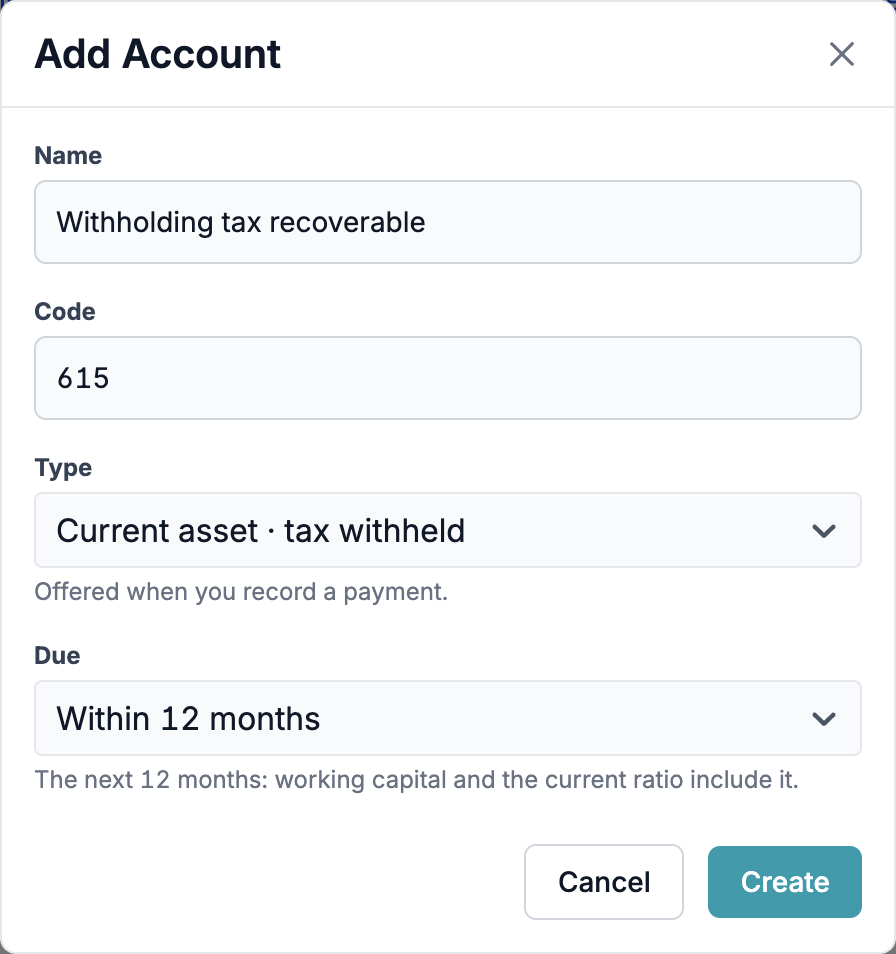
Briefcase works out the type of most accounts for you. To change one, or to add an account, go to General Ledger, then Chart of Accounts. Under Type, choose the row that says what the account is for, such as Liability · director's loan or Current asset · tax withheld. The line under the field then reads "Offered when you record a payment."
Record income received net of tax
In this example, Dunder Mifflin invoiced an overseas customer £1,000.00. The customer withheld £200.00 in tax and paid £800.00 into the bank.
If you don't have an account for the tax yet, add one first: in Chart of Accounts, choose Add Account and pick the type Current asset · tax withheld, as shown above.
For an invoice you raised in Briefcase:
- On the bank account, choose Match on the £800.00 line and tick the invoice. Under Difference, choose More to come, then Match and post. The invoice shows as partially paid, with £200.00 outstanding.
- Open the invoice and choose Record payment, then Record receipt in bank account.
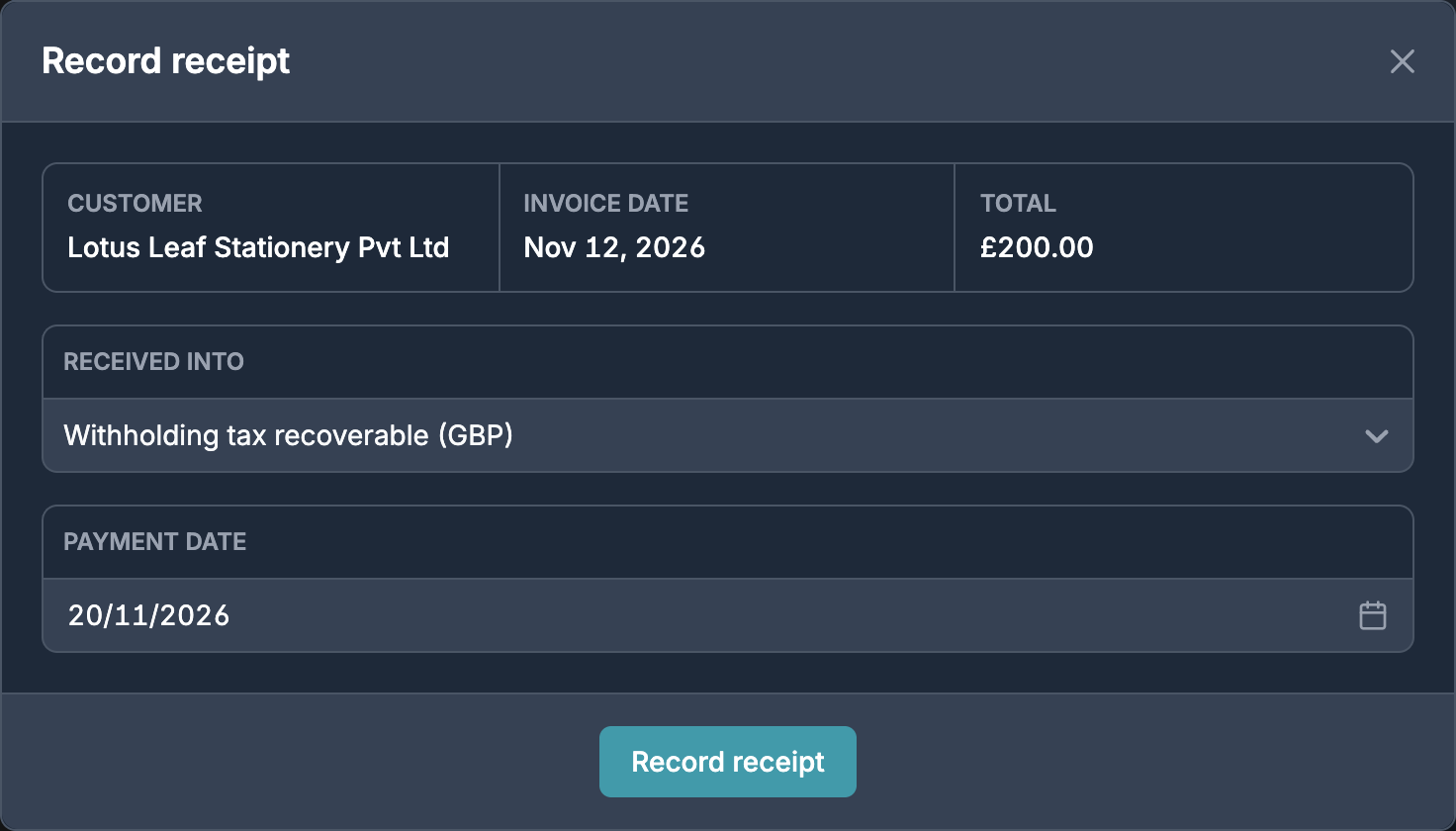
- Under Received into, choose your withholding tax account.
- Check the Payment date, then choose Record receipt.
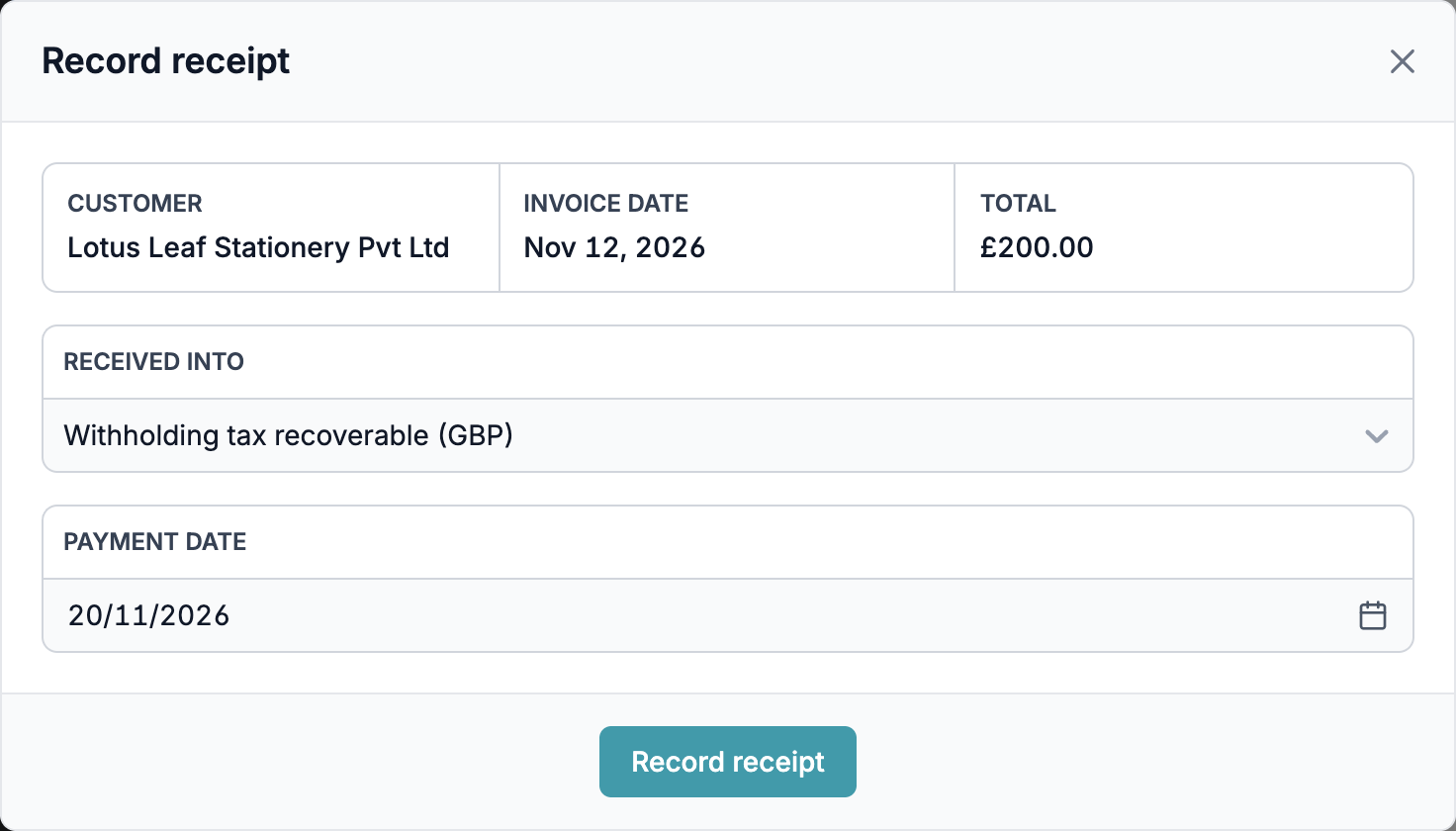
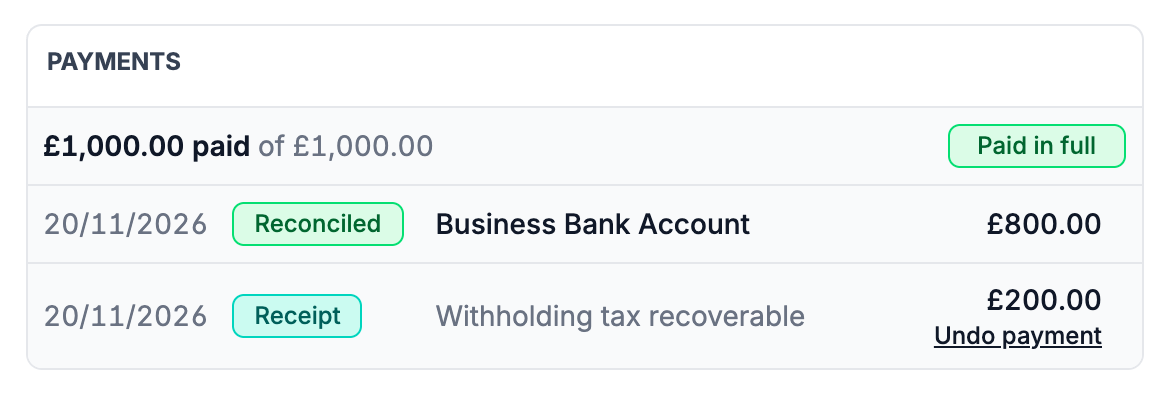
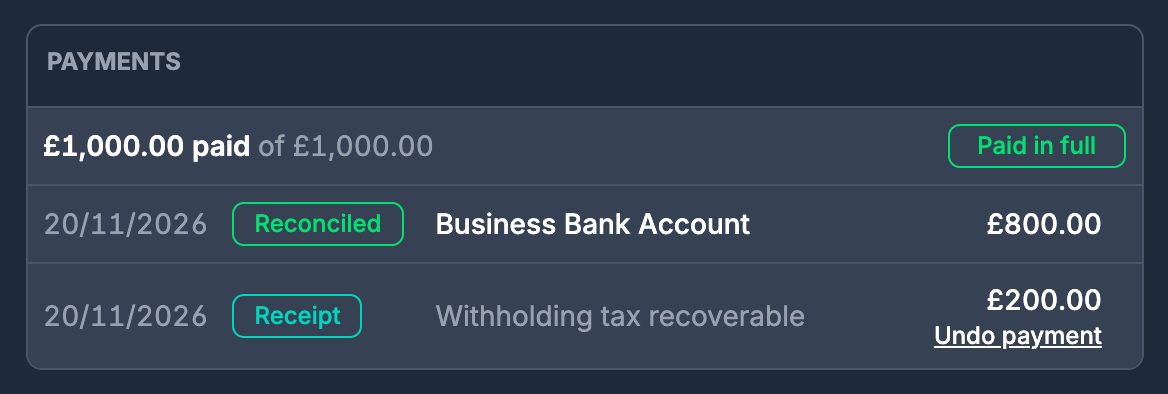
The invoice is paid in full: £800.00 from the bank and £200.00 in the withholding tax account, where it stays until you set it against your tax bill or write it off.
For a sales invoice you uploaded as a document, record the whole invoice against the tax account, then take the bank payment off it:
- Open the invoice and choose Mark as, then Received.
- Under Received into, choose your withholding tax account. Set the Receipt date and choose Mark as received.
- On the bank account, click the £800.00 line itself. Don't use its Create button, which accepts the coding Briefcase suggested.
- Set Category to your withholding tax account and VAT rate to No VAT, then choose Create cash payment.
The withholding tax account is left holding the £200.00, as in the first route.
Pay an expense claim through the director's loan
In this example, Michael Scott claimed a £48.00 train fare. Dunder Mifflin adds it to his director's loan instead of paying it out.
- Open the claim and go to the buttons at the bottom of the page.
- Open the menu beside Approve and choose Approve & pay from Directors' Loan Account.
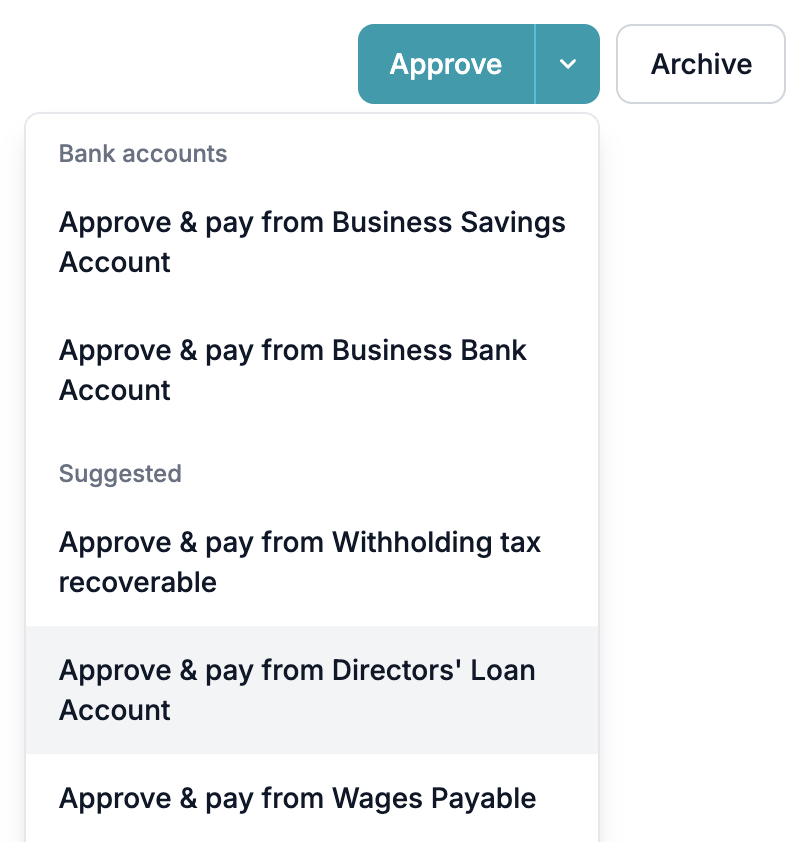
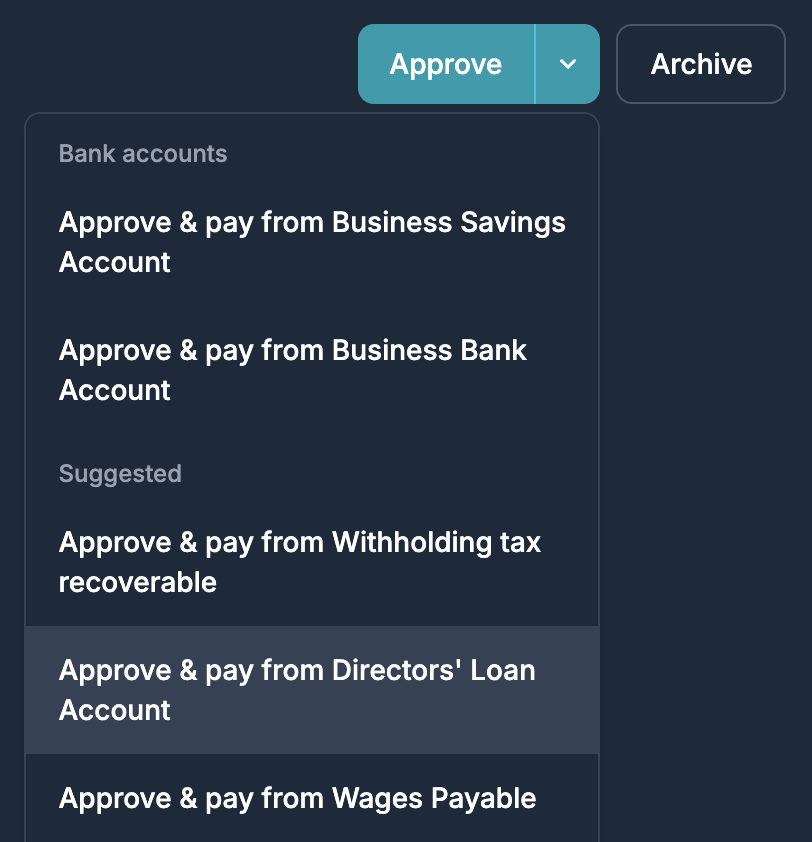
The claim is published and paid in one step, and the payment takes the claim's date. The top of the claim shows what it was paid from.


For a claim that is already published, choose Mark as paid at the bottom of the page. Pick the account under Paid from and check the Payment date, which starts on today's date.
If a claim is repaid with the claimant's wages, choose Wages Payable instead. Mileage claims work the same way.
Undo a payment
- Bill or uploaded sales invoice: open it and choose Undo posting. A bill you approved and paid in one step goes back to Review, so approve it again.
- Sales invoice raised in Briefcase: in its Payments section, choose Undo payment under the amount.
- Expense or mileage claim: choose Undo payment at the bottom of the claim.
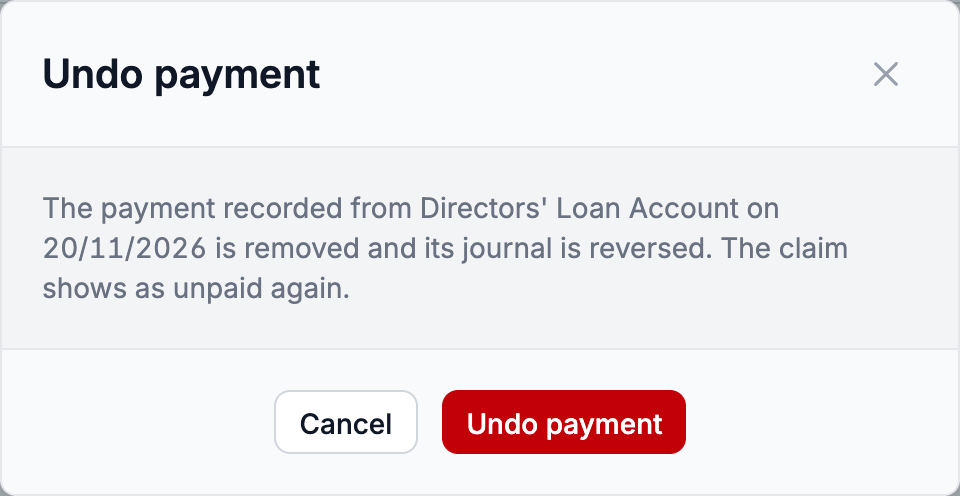
Briefcase removes the payment and reverses its journal. You can then record the payment again against the right account.
VAT
Paying from another account doesn't change the VAT on a document. On standard VAT accounting, the VAT stays in the period of the bill or invoice. On cash accounting, it falls in the period of the payment date, as it does for a bank payment. So use the day the money really changed hands.
Good to know
- A payment recorded this way settles everything still owed on the document. For a part payment, match a bank line instead: see How do I match a payment that doesn't equal the invoice in Briefcase Ledger?
- Sole traders and landlords: to record a bill you paid from your own pocket, add an account with the type Equity · owner's funds in Chart of Accounts, for example "Capital introduced", and choose it under Paid from.
- This is available for clients on Briefcase Ledger.