Bill the same customer on a schedule, such as a monthly retainer, rent or an annual support plan. Set it up once and Briefcase raises each invoice on its date.
Set one up
Turn on Repeat this invoice on the Raise invoice page. You can also press New recurring invoice on the Recurring tab, or Repeat… on an invoice you have already approved. Fill in the customer and lines as usual, pick the First invoice date, then choose:
- Repeats: monthly, quarterly, every 6 months or yearly, on the same day of the month as the first invoice. If that day is the 31st, shorter months use their last day.
- Bills for: this period or the previous one, for invoices raised in arrears.
- Ends: never, or on a date.
- Payment terms: how many days each invoice is due after it is raised.
- Each invoice: Approve and email the customer, Approve without emailing (useful for customers paying by direct debit), or Draft for review, which puts it in Awaiting review and emails you to check and approve it.
The panel shows the next three invoice dates. Press Create recurring invoice.
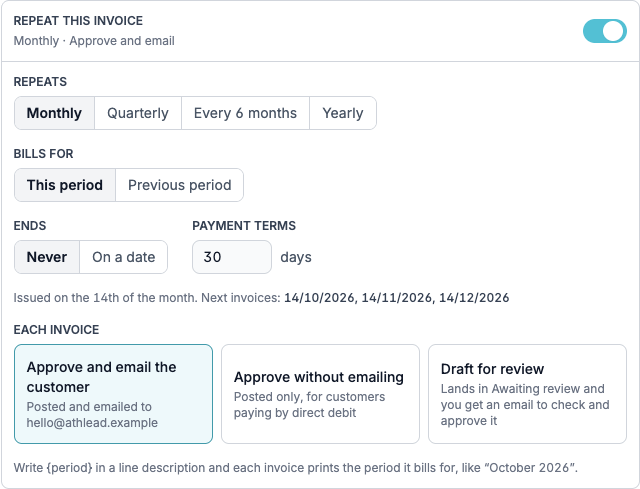
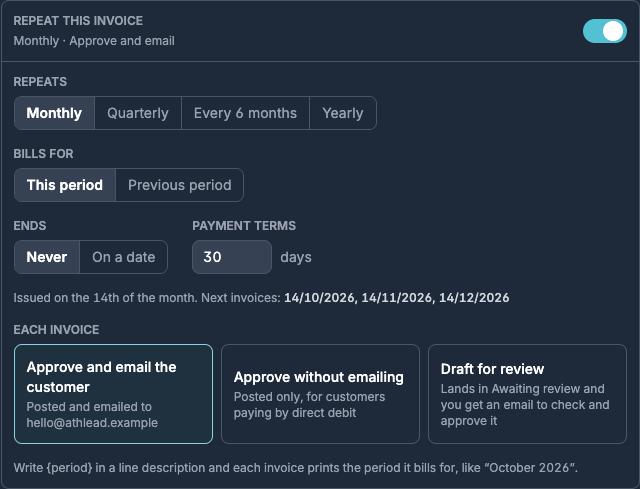
Write {period} in a line description, for example "Support for {period}", and each invoice prints the period it bills for, like "October 2026".
Manage your recurring invoices
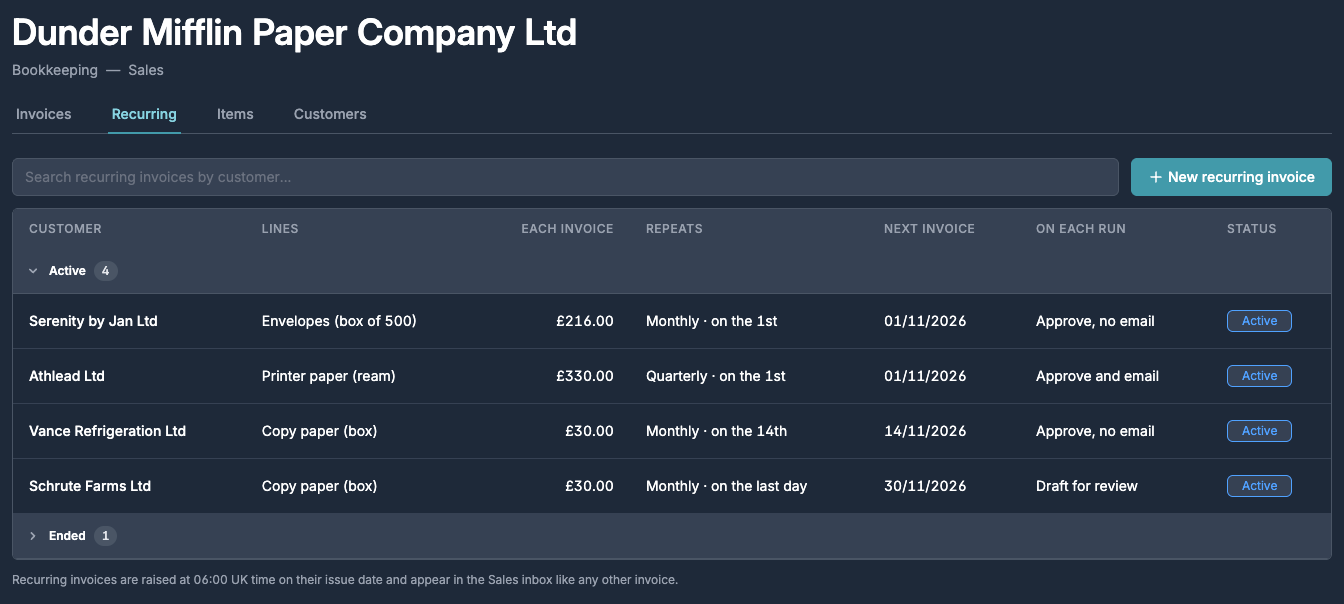
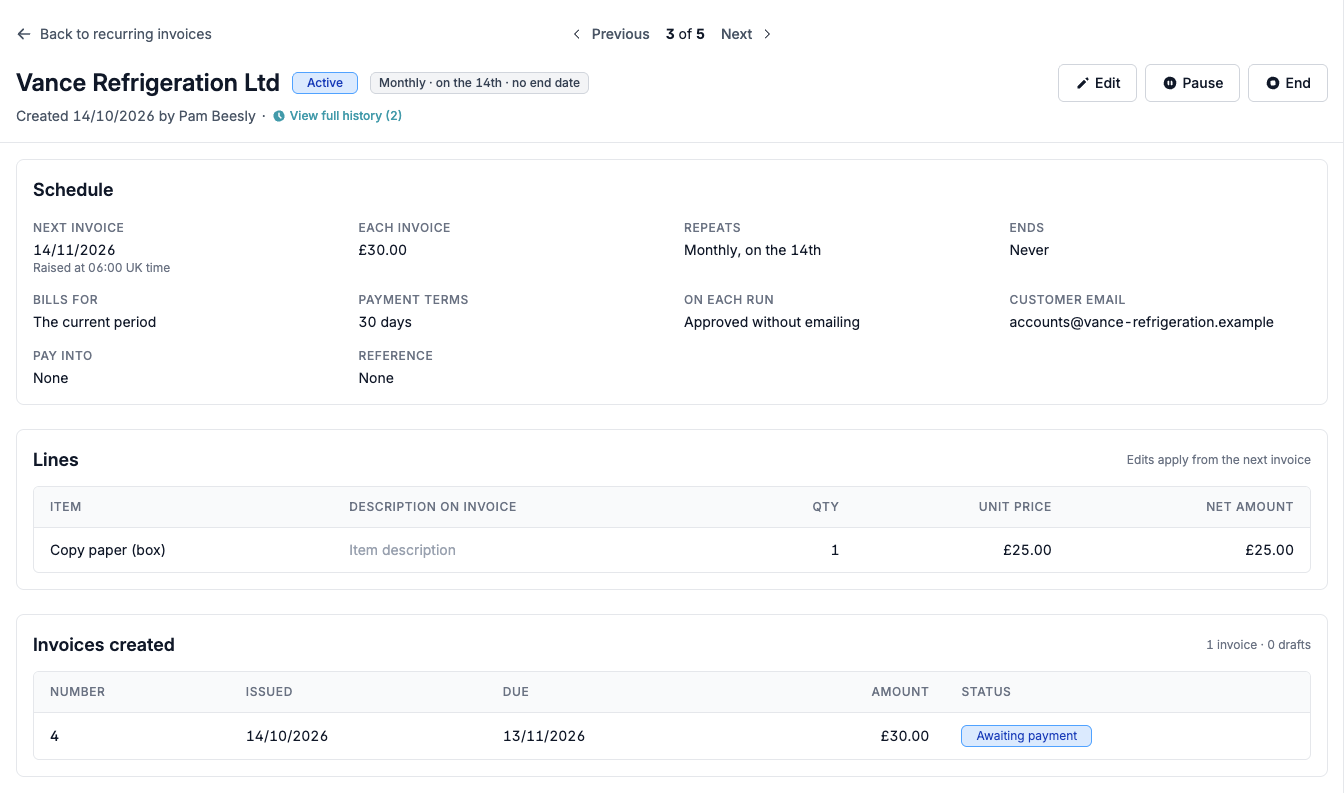
The Recurring tab lists every recurring invoice with its next date and what happens on each run, grouped into Needs attention, Active and Ended. Invoices are raised at 06:00 UK time on their date and appear in the Sales inbox like any other invoice.
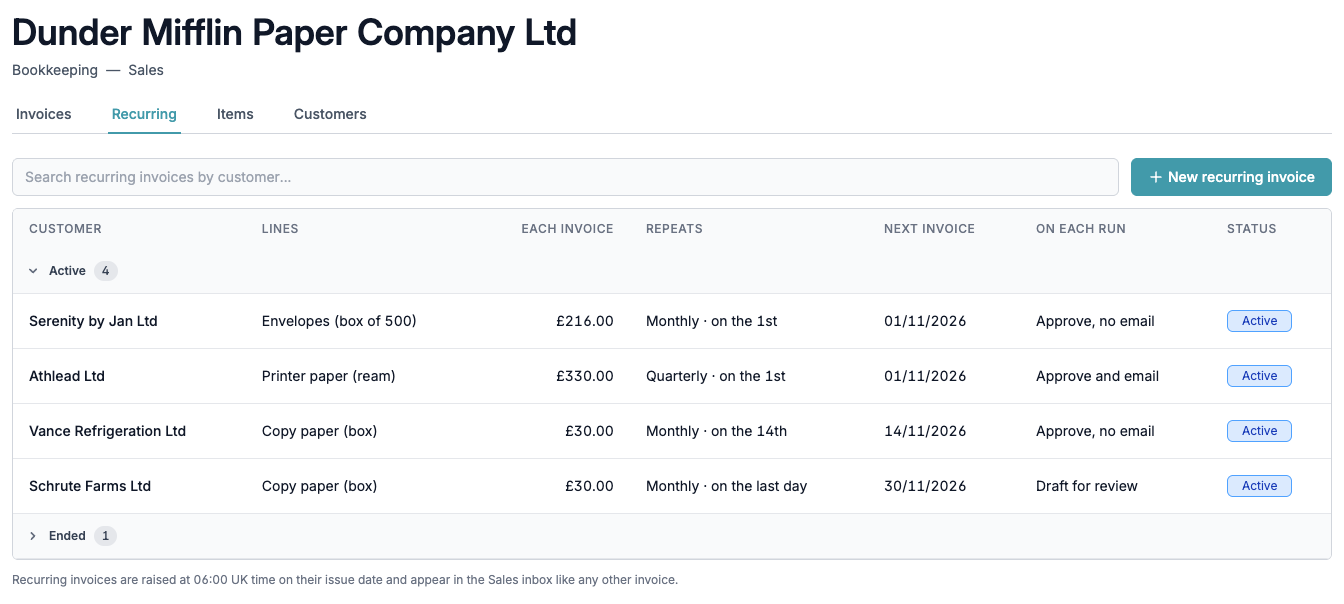
Open one to see its schedule, its lines and the invoices it has created. From there you can:
- Edit it. Changes apply from the next invoice; invoices already raised don't change.
- Pause it and Resume it later from a date you choose.
- End it. No more invoices are raised.
If an invoice can't be raised
If something blocks a run, for example a locked period, an archived customer or item, or a missing email address when the invoice is set to be emailed, Briefcase pauses the recurring invoice, shows the reason under Needs attention and emails the person who set it up. Fix the problem, then press Resume.