Raise sales invoices from Sales in the sidebar of a Briefcase Ledger business. You need the Ledger Post permission.
Before your first invoice, add your address and payment details, your customers under the Customers tab, and the products or services you sell under the Items tab. Each item has a price, a VAT rate and a revenue account.
Fill in the invoice
Press Raise invoice, then fill in:
Customer and Pay into. Pay into starts with your default bank account.
Date, Due date (30 days after the date unless you change it) and Supply date.
Reference (optional): your customer's PO number or reference.
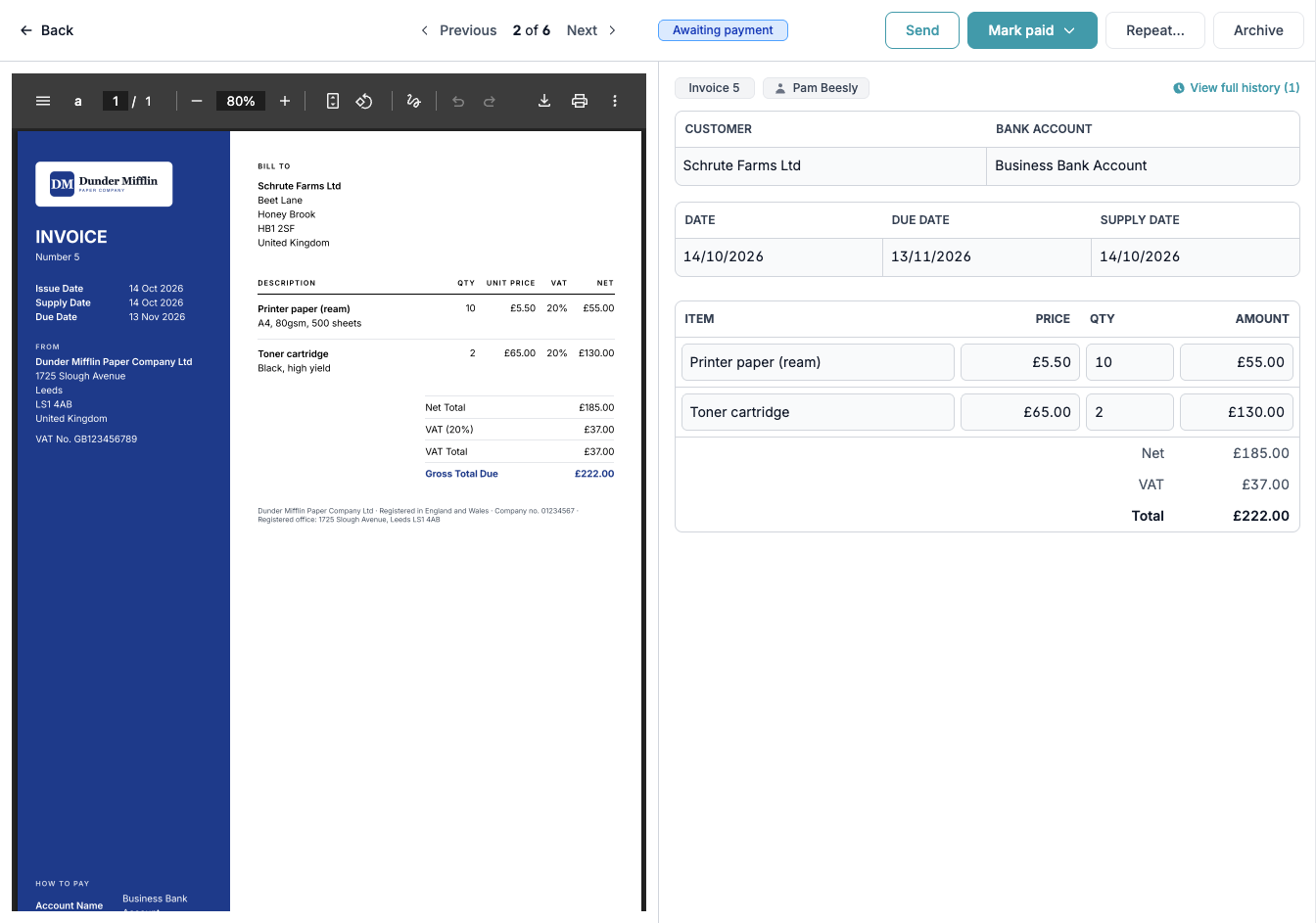
The lines: an item, its price and the quantity. Add a description to a line to print your own text instead of the item's description.
The preview on the left shows the PDF exactly as your customer will see it.
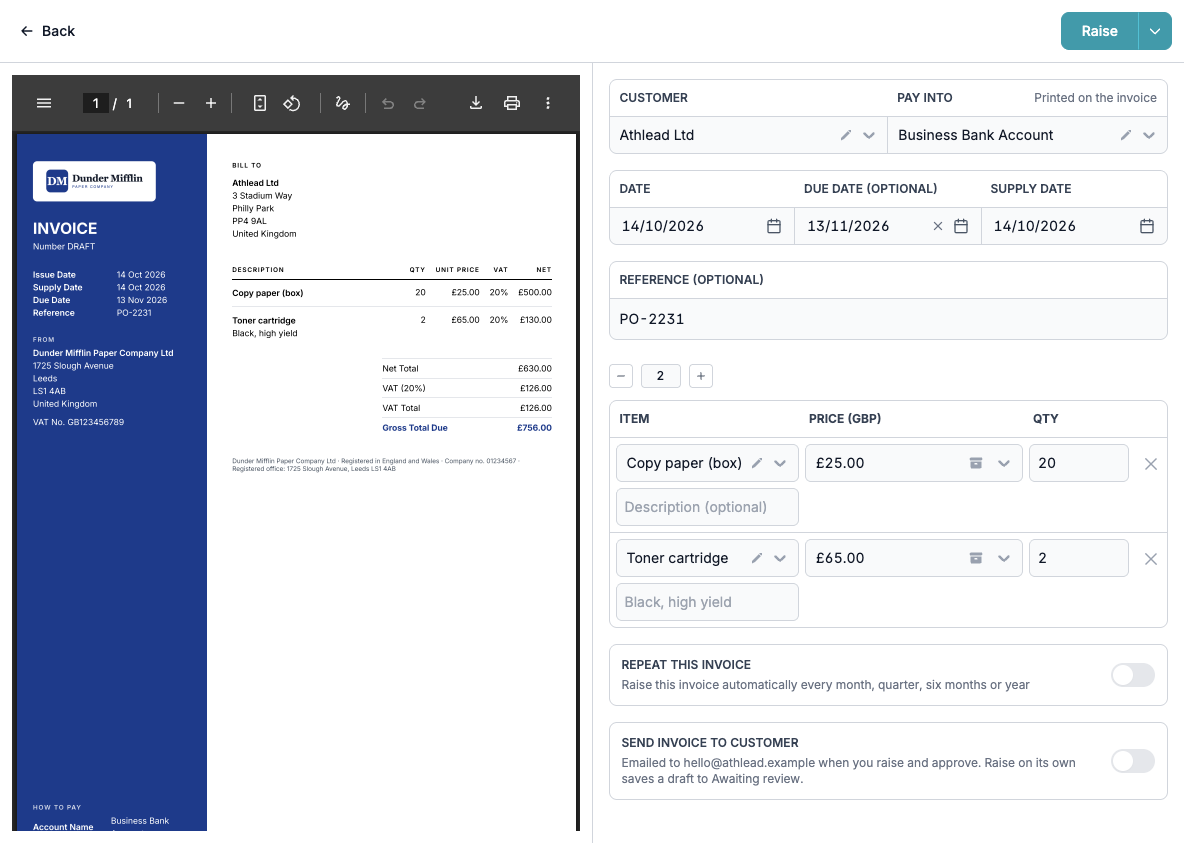
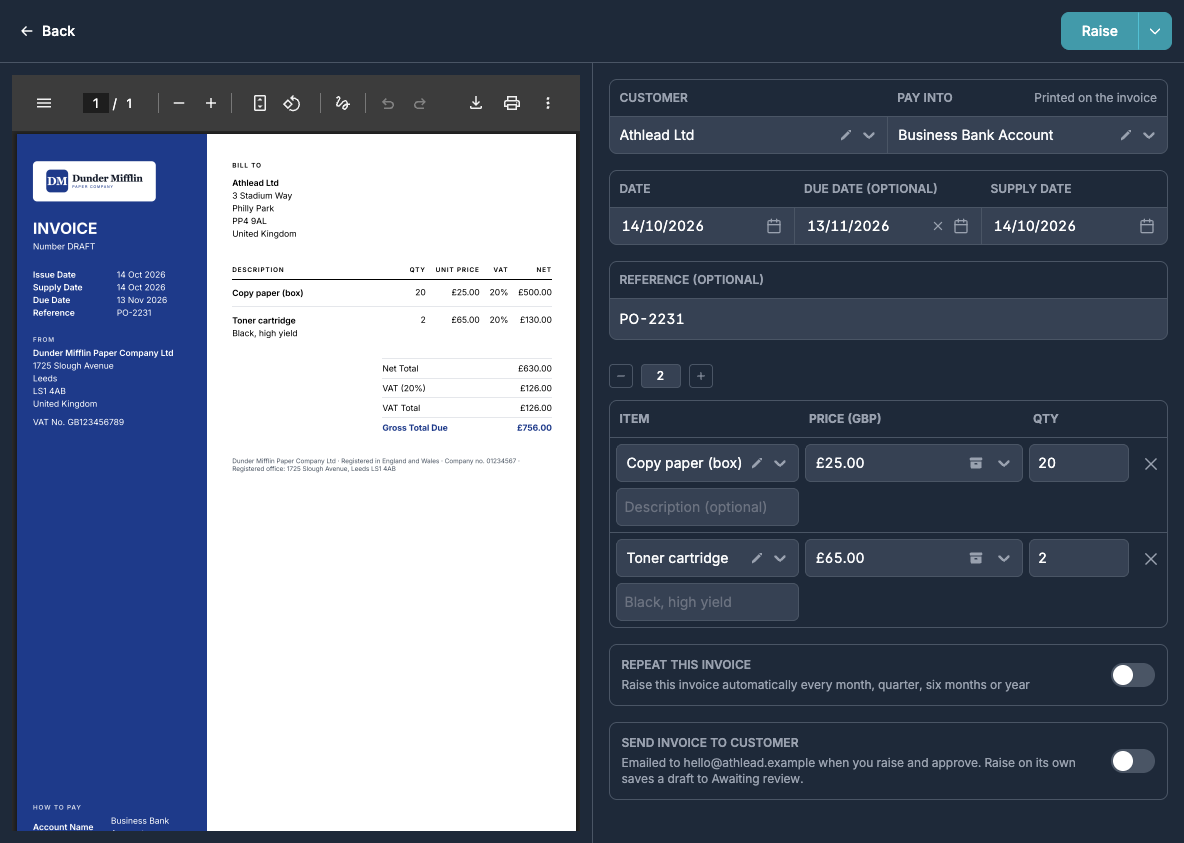
Raise, or raise and approve
Raise saves the invoice as a draft in Awaiting review. It has no number yet and nothing is posted to your books, so you can edit or delete it.
Raise & approve (the arrow next to Raise) numbers the invoice, posts it and moves it to Awaiting payment in one step. Turn on Send invoice to customer to email it at the same time. The same menu can also reconcile it with a bank transaction or record a receipt straight away.
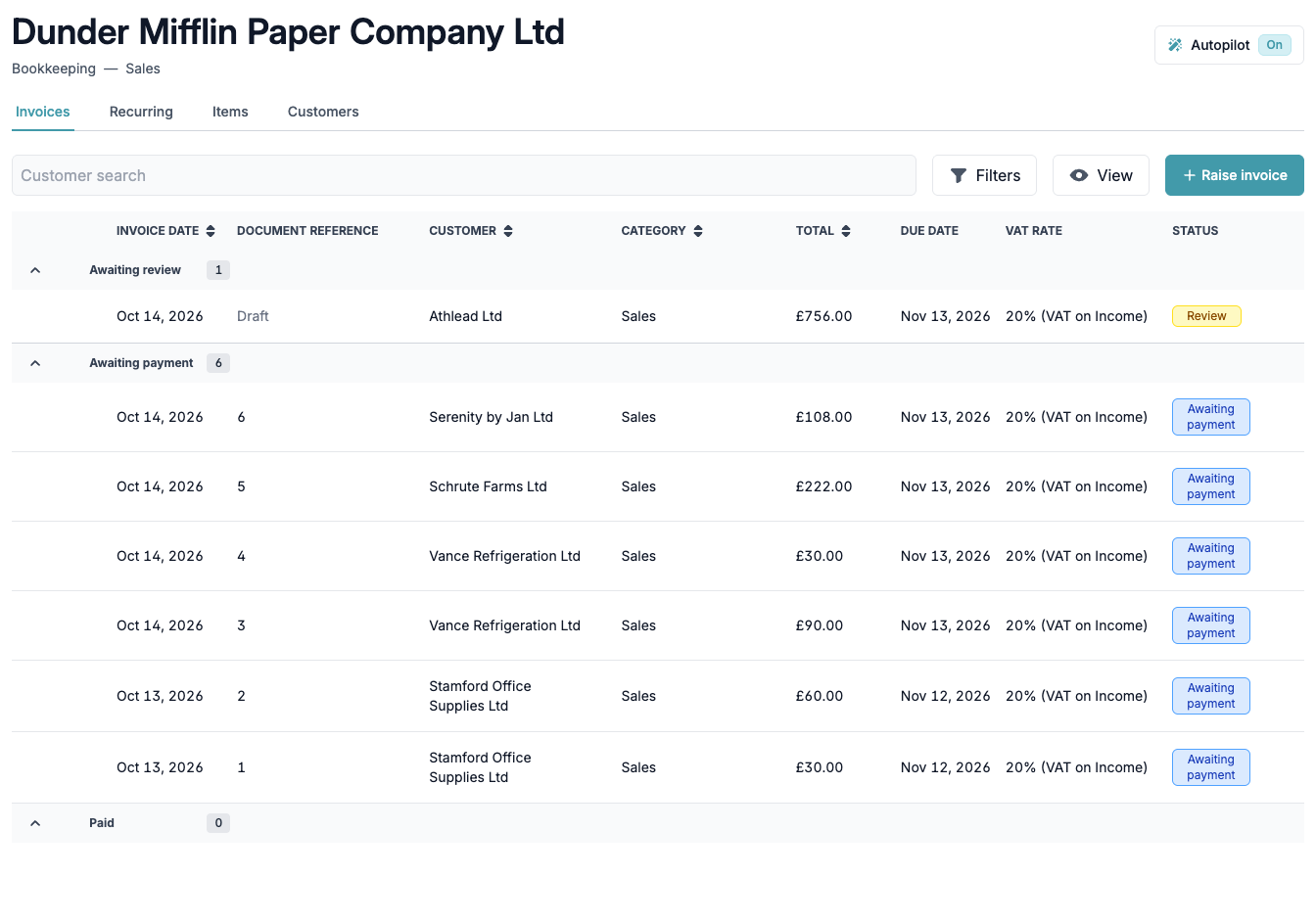
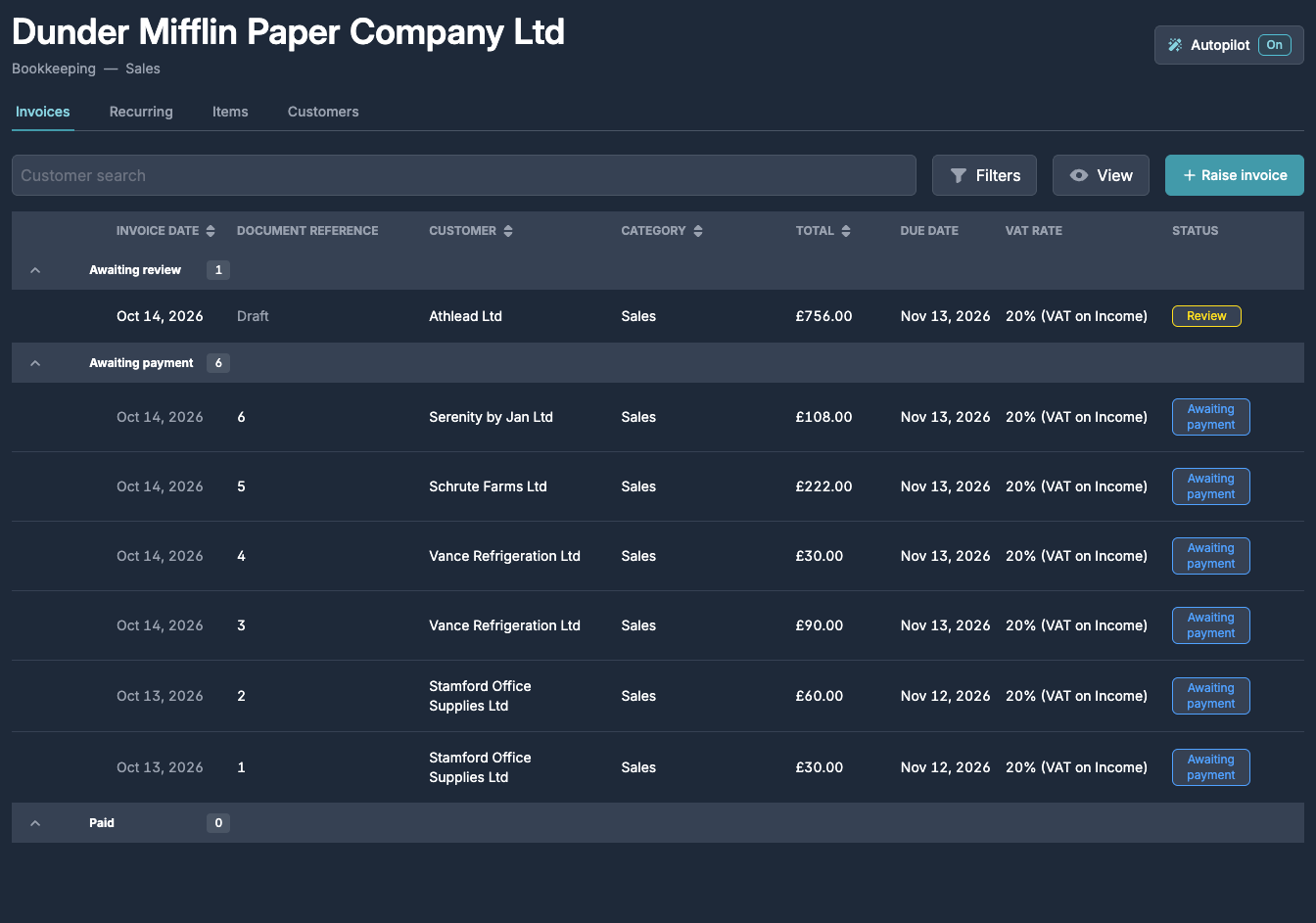
Approve a draft
Open the draft from Awaiting review. You can Save changes, Delete draft or Approve. Use the arrow next to Approve for Approve & send. If something stops it being approved, such as a locked period or a missing VAT number, the draft tells you what to fix.


After approval
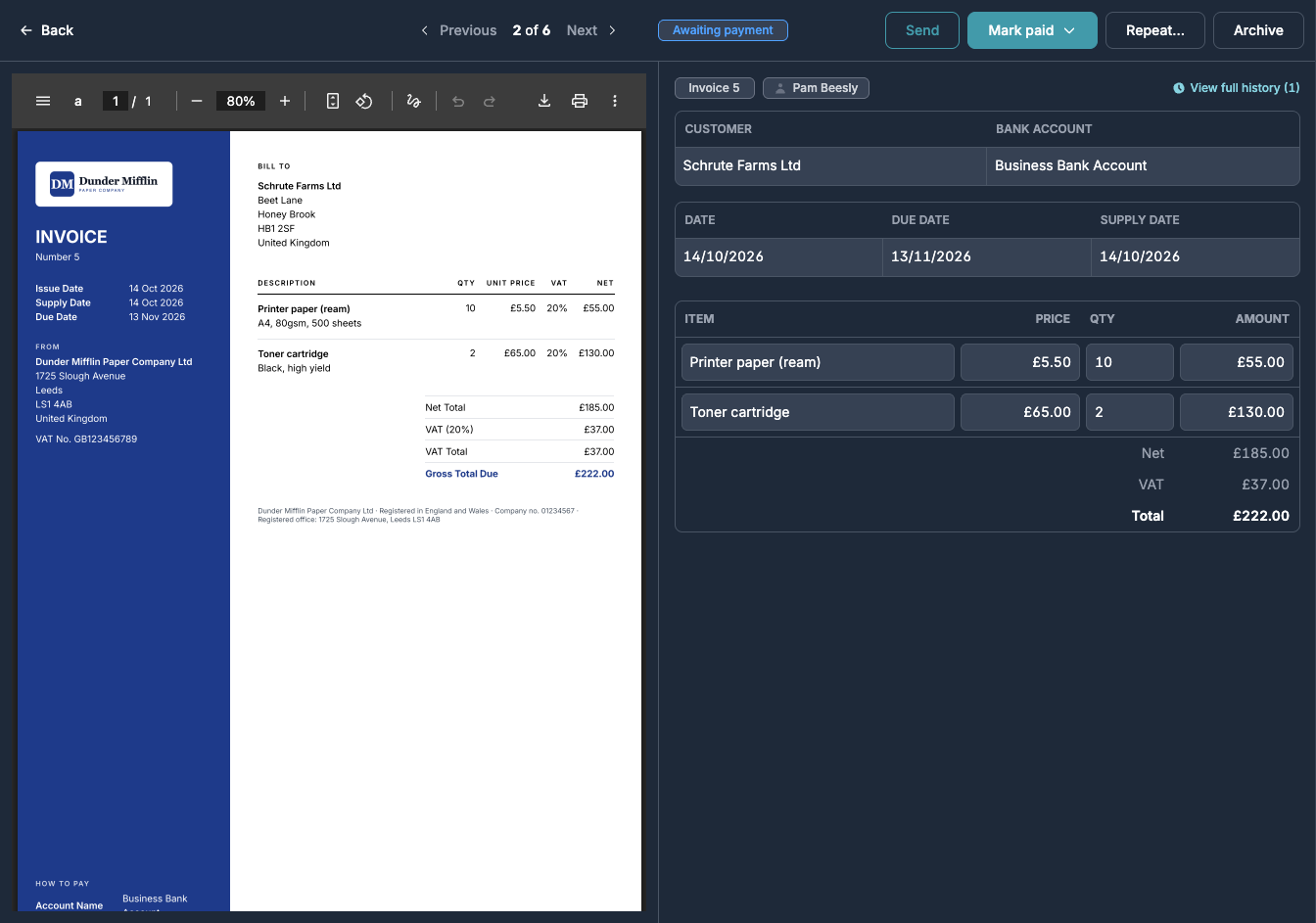
An approved invoice gets the next invoice number and its PDF, and is posted to your debtors, revenue and VAT return. From its page you can Send it to the customer, Mark paid, turn it into a recurring invoice with Repeat…, or Archive it. View full history shows who drafted, approved, emailed and settled it.
Fixing a mistake
An approved invoice can't be edited. Archive it, which reverses its journals and any linked payments. Then open it from Archive in the sidebar and press Restore as draft. A copy appears in Awaiting review for you to correct, and it gets a new number when you approve it.
If your customer already has the original invoice, let them know it has been replaced by the new number.