Briefcase Ledger builds a limited company's VAT return from the books, shows what is behind each box, and files it with HMRC. You can also ask your client to approve the return before you file it.
Before you start
The client's VAT number is in Business settings → Tax.
Business settings → HMRC shows Connected. If not, choose Connect to HMRC and sign in to HMRC.
You need the VAT Return Submissions: Submit permission. See How do I manage user permissions in Briefcase?
1. Open the return
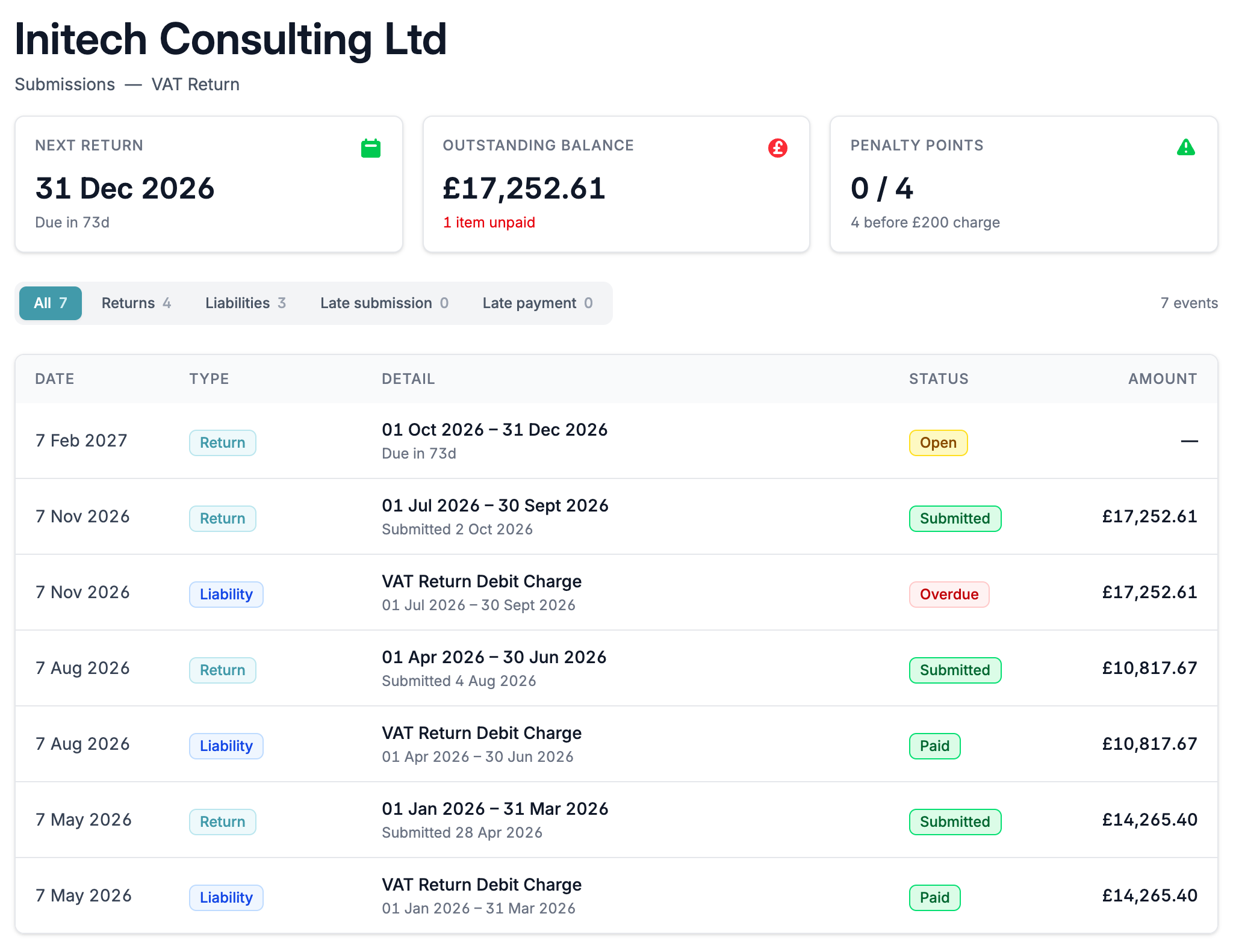
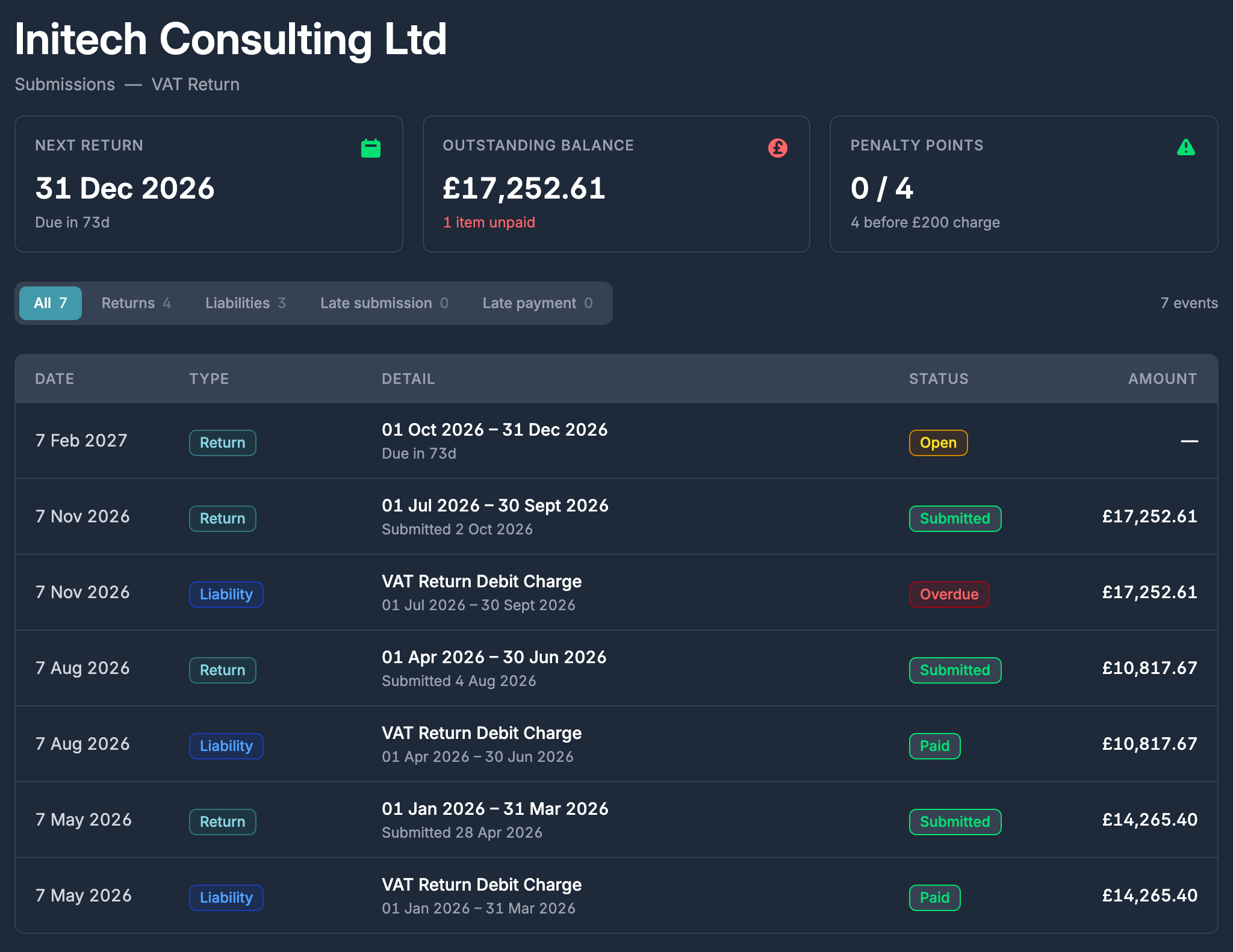
Open the client and choose VAT Return under Submissions in the left menu.
The page lists each VAT period with its due date and status, and the liabilities and penalties HMRC holds for the client.
Click the open period.
2. Check the figures
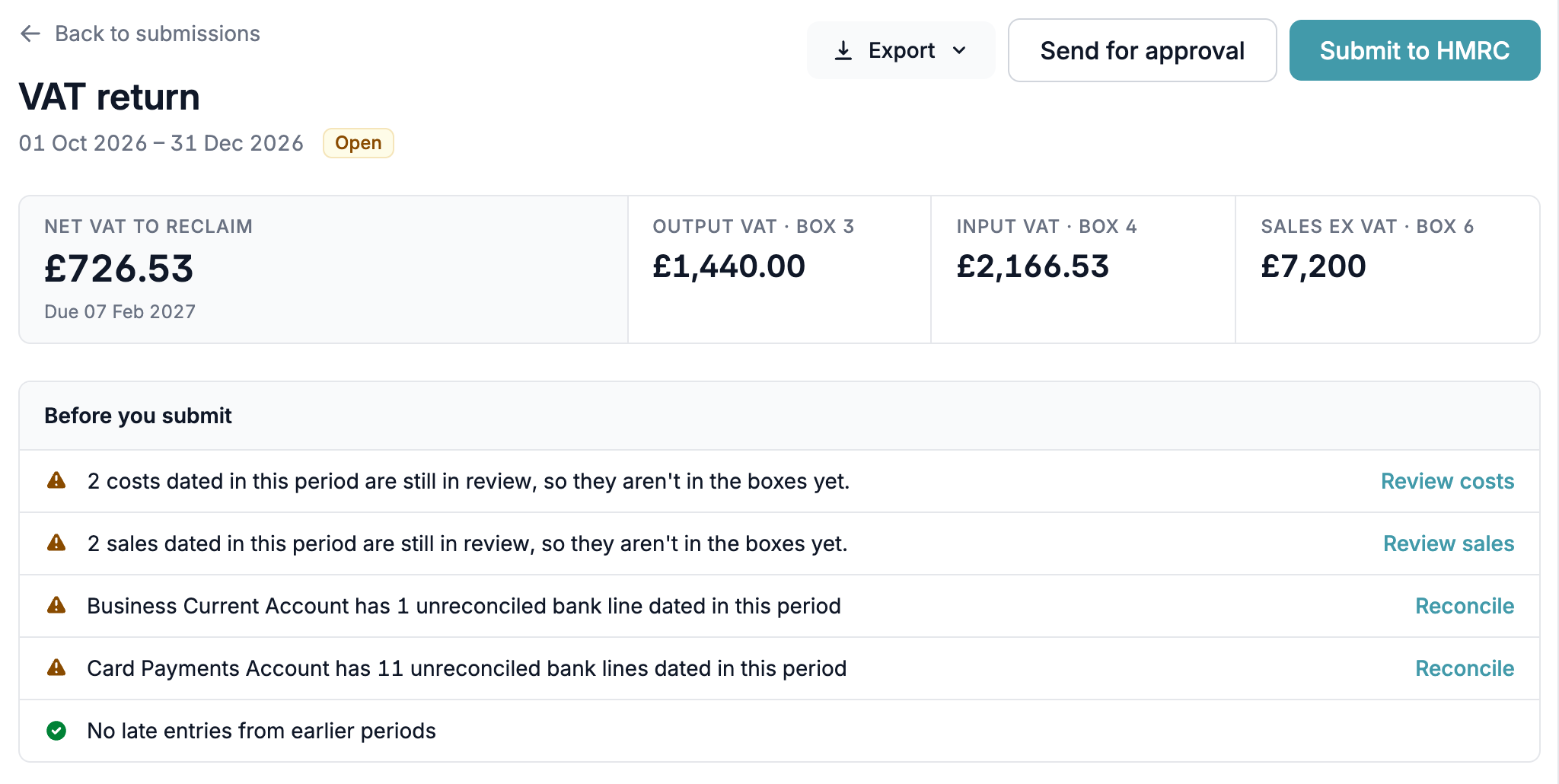
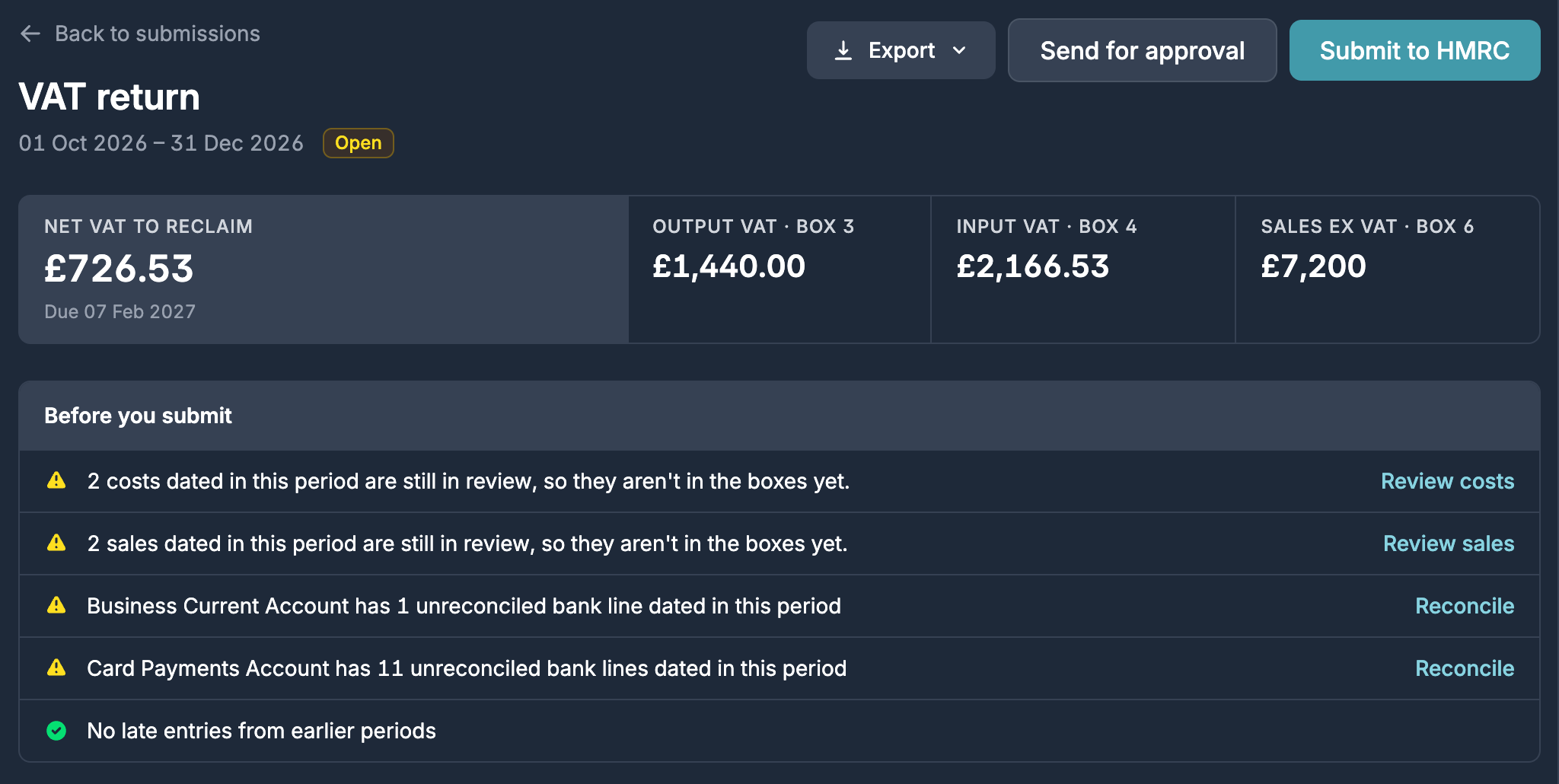
Before you submit lists what could still change the figures: costs and sales still in review, unreconciled bank lines, and late entries. Review costs, Review sales and Reconcile open those items for the period. These are warnings: they don't stop you submitting.
In Box breakdown, click a box to see the invoices, bills and journals behind it. Export CSV downloads those lines.
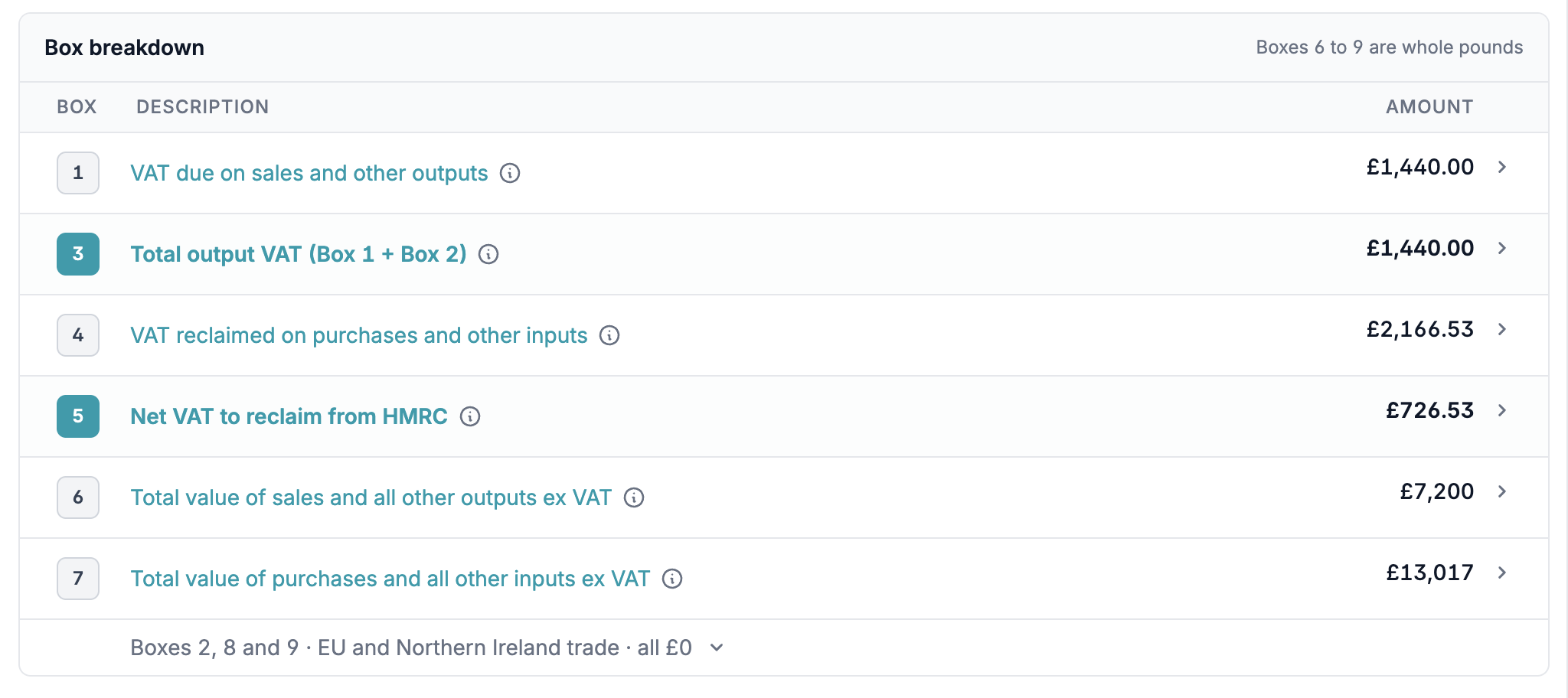
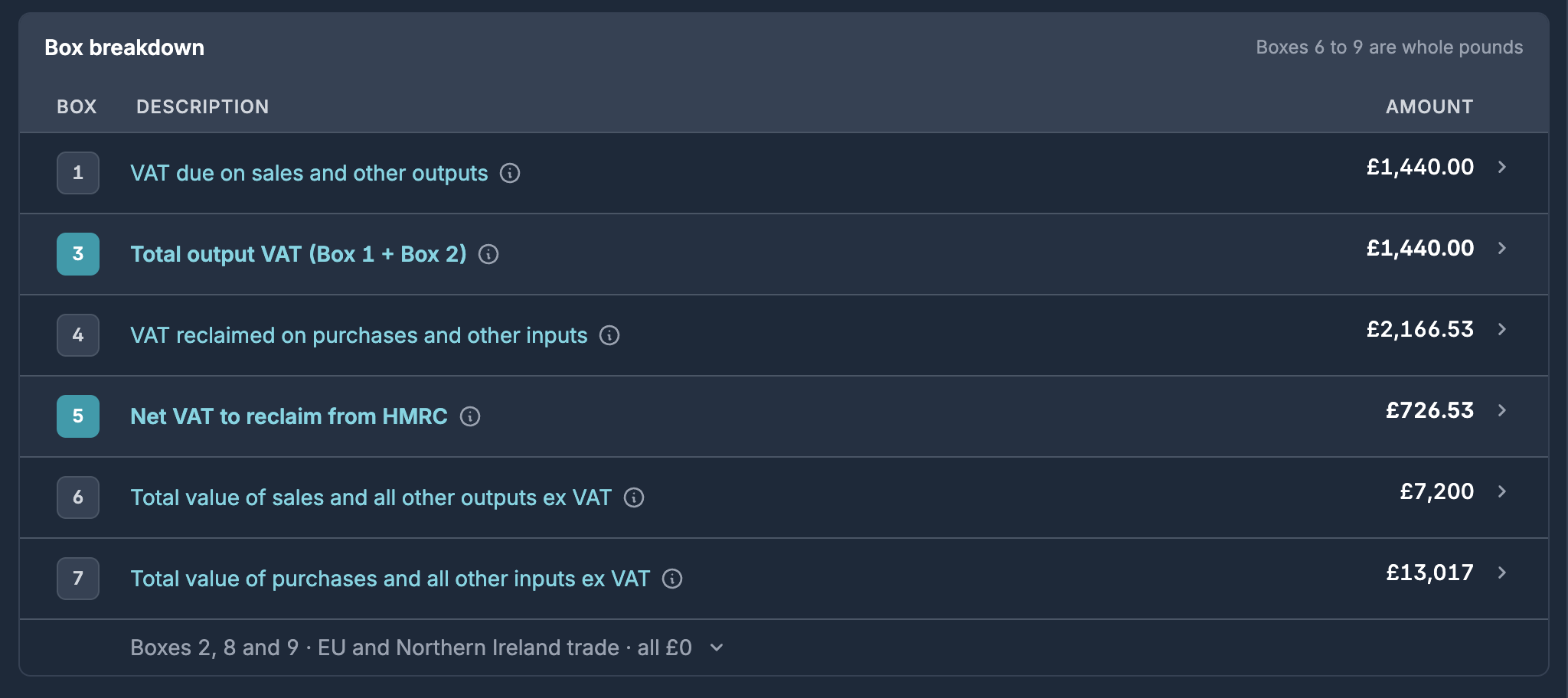
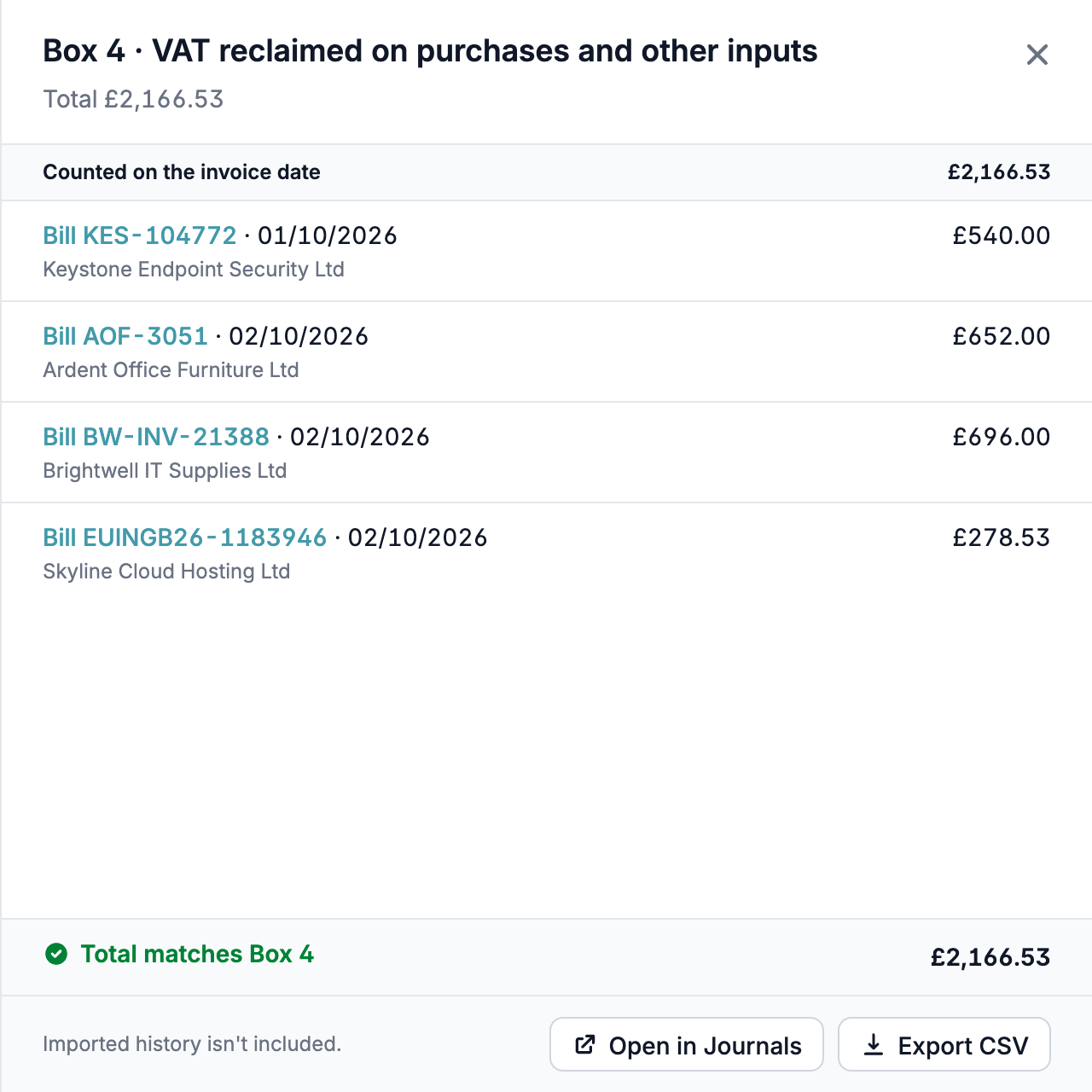
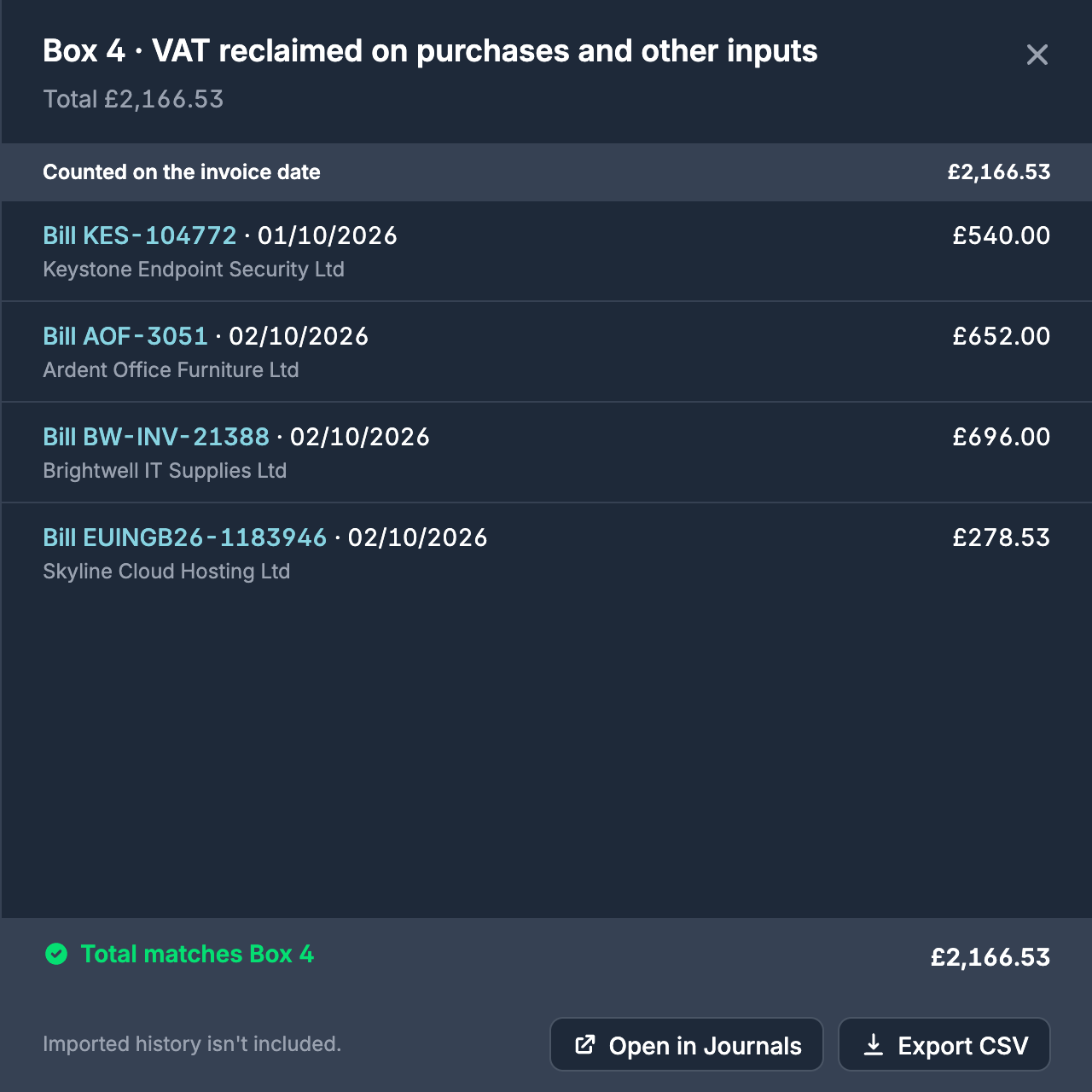
On cash accounting for VAT, the page has an extra Cash accounting section. See How does cash accounting for VAT work in Briefcase Ledger?
3. Late entries and adjustments
Late entries are entries dated in a period already filed, posted after that return was submitted. Briefcase adds them to the open return and lists them here.
An adjustment corrects an amount the ledger doesn't hold, such as an error on a filed return:
Choose Add adjustment.
Pick the box, choose Increase the box or Decrease the box, and enter the amount.
Give a reason. It is kept with the return.
To remove an adjustment, click the bin beside it and say why.
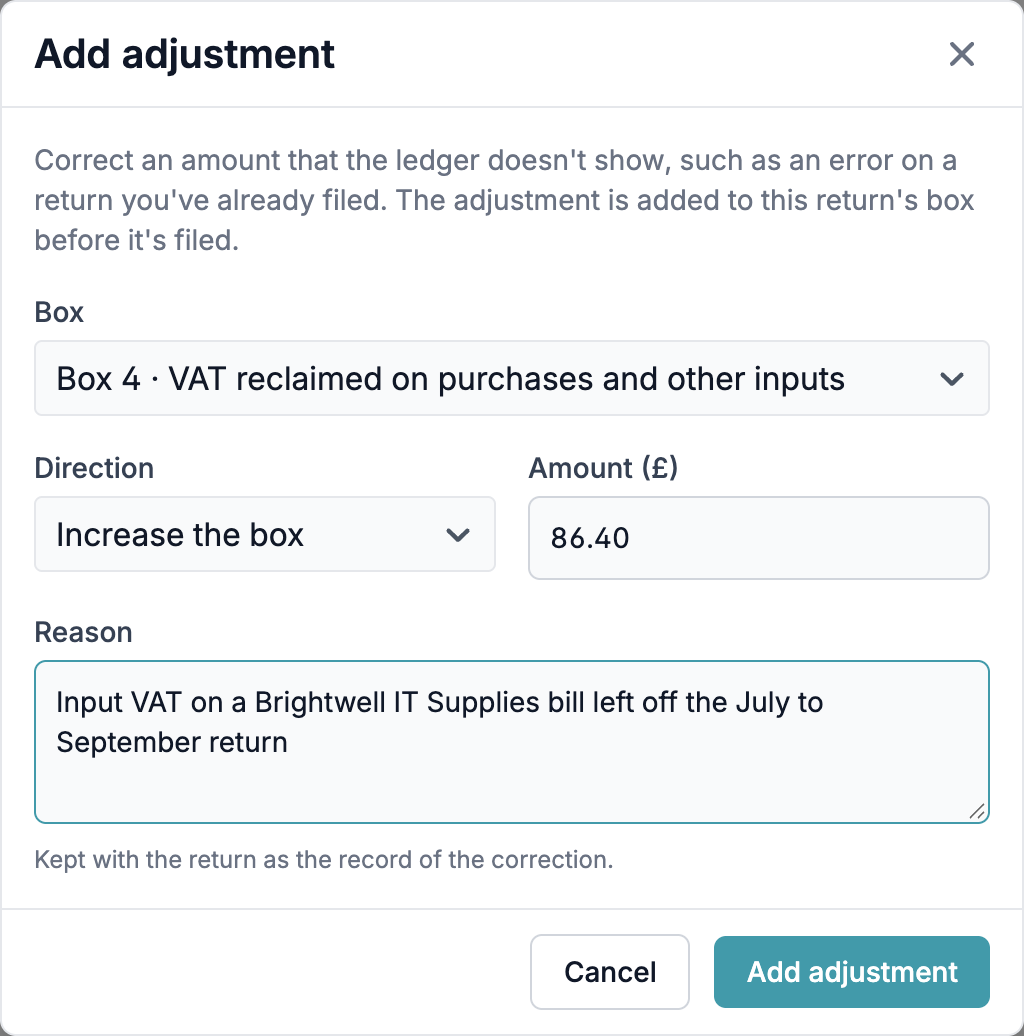
The page warns you when late entries and adjustments change box 1 or box 4 by more than £10,000. Errors over HMRC's limit must be disclosed on form VAT652 instead of being corrected on the return (VAT Notice 700/45).
4. Download a copy
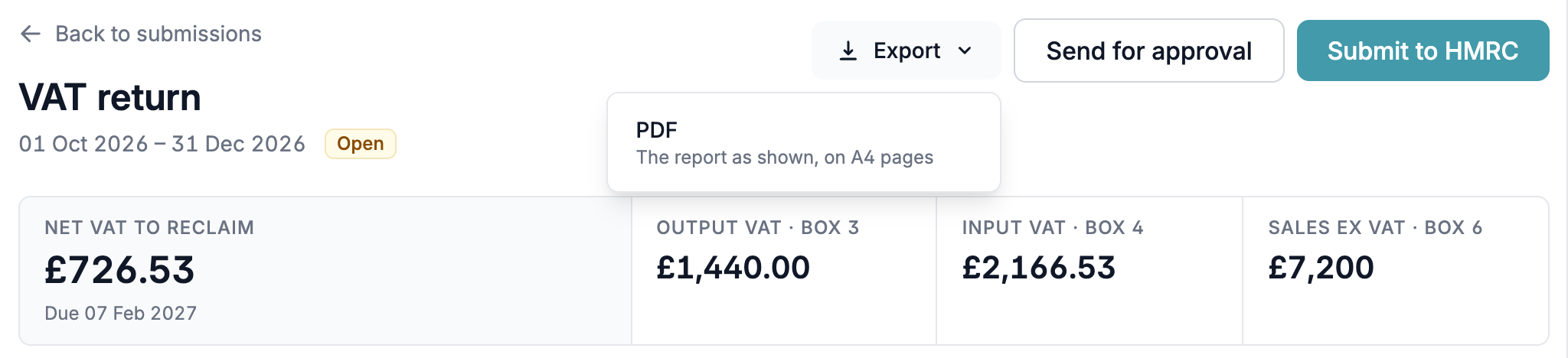
Export → PDF gives you the nine boxes on A4, in your practice's branding. An open return is marked as a draft. A filed one shows when it was submitted and by whom. See Branding your clients' reports.
5. Ask your client to approve first (optional)
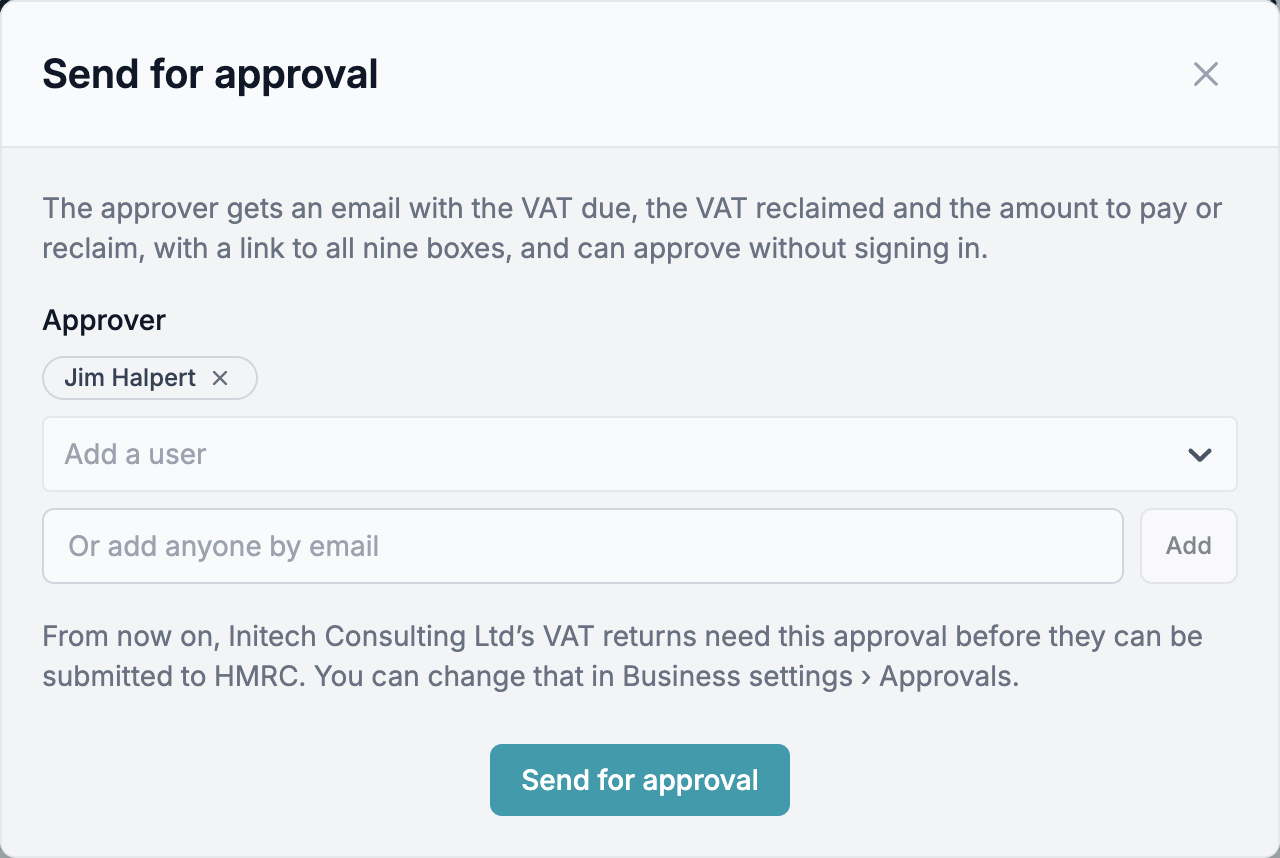
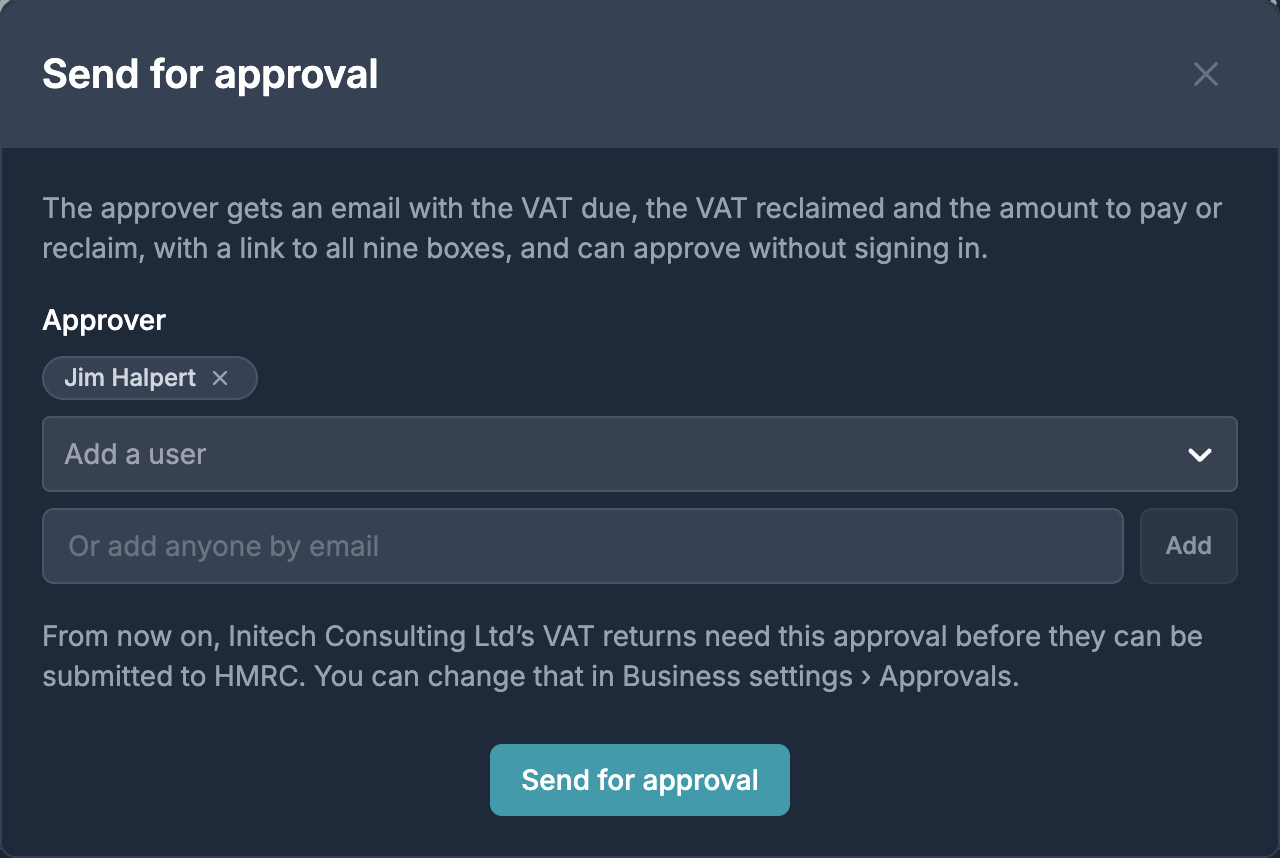
Choose Send for approval at the top of the return.
Pick a user, or type any email address, such as a director's, and choose Add.
Choose Send for approval.
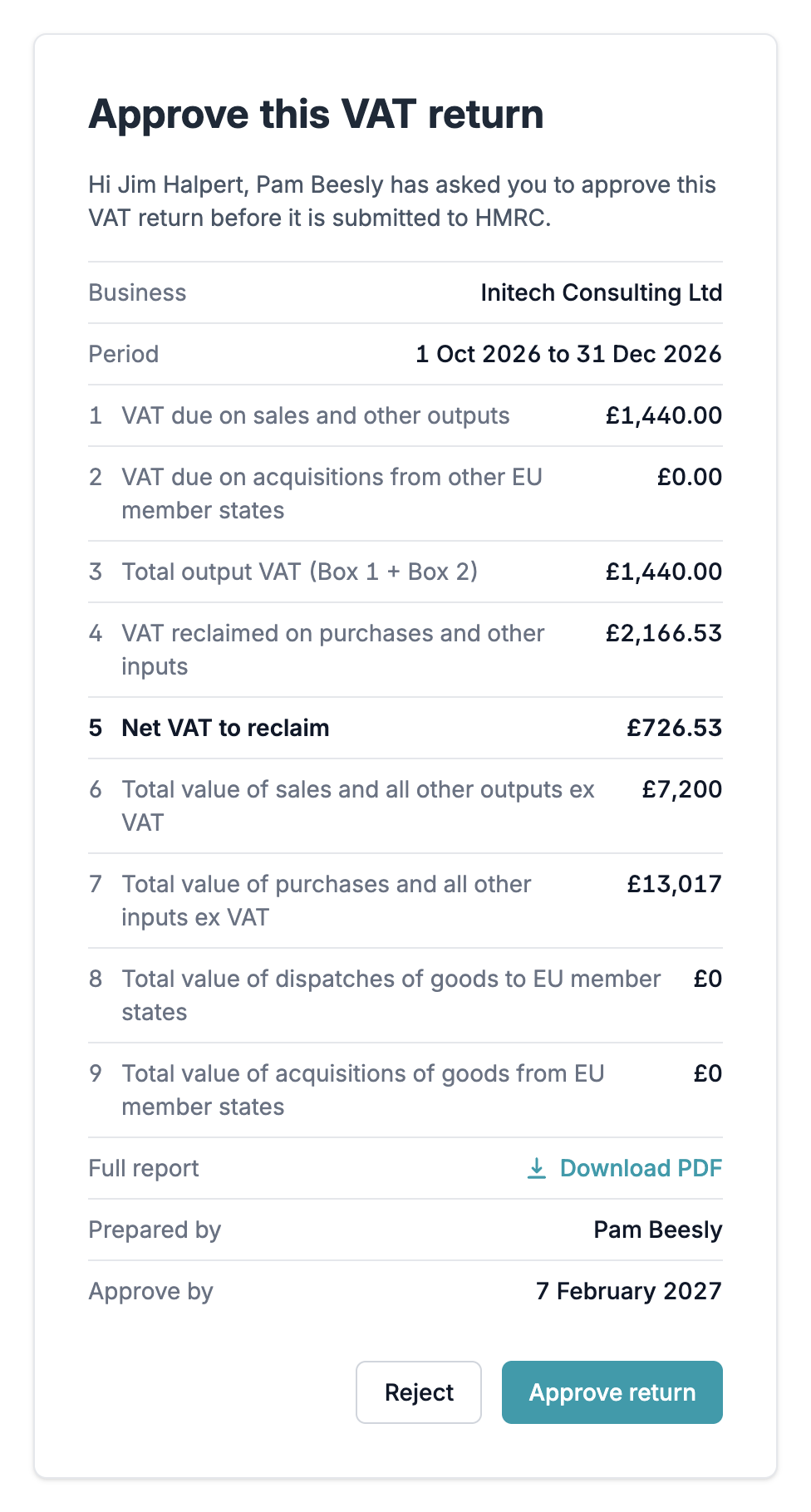
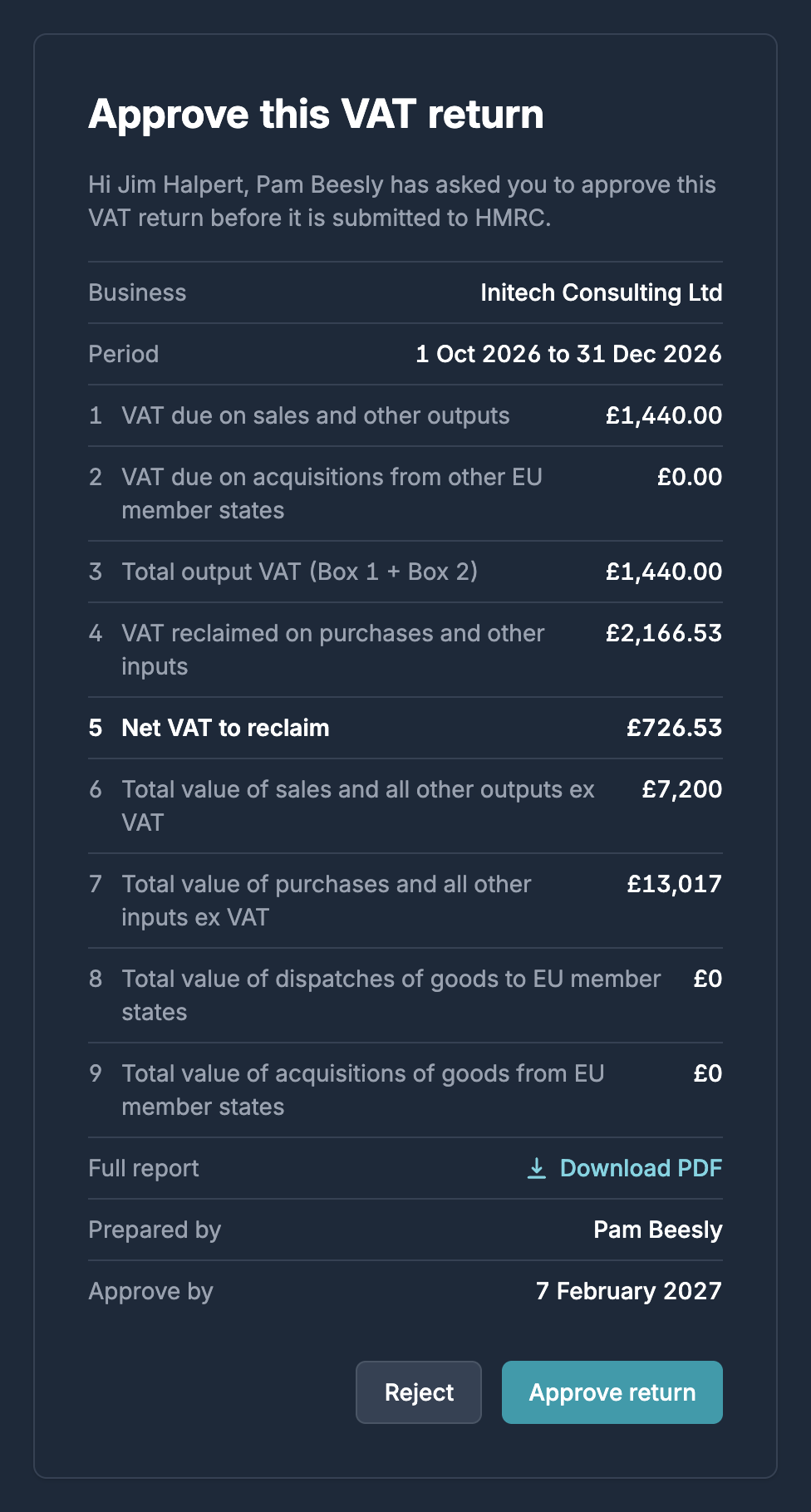
The approver gets an email with the VAT due, the VAT reclaimed and the net amount to pay or reclaim. Its Approve and Reject buttons, and its link to review the return, open the page below. There they can see all nine boxes, download the PDF and decide, without signing in. Approvers with a Briefcase login can also decide from Tasks.
From then on, this client's VAT returns need approval. The return shows where it stands:
Waiting for approval: Briefcase reminds the approver by email. You can also choose Send reminder now, or Withdraw request.
Approved: Submit to HMRC is unlocked.
Rejected: the approver's reason is shown. Fix the return and choose Send for approval again.
The figures changed after approval: a change to any box means approving again. The banner lists each changed box.
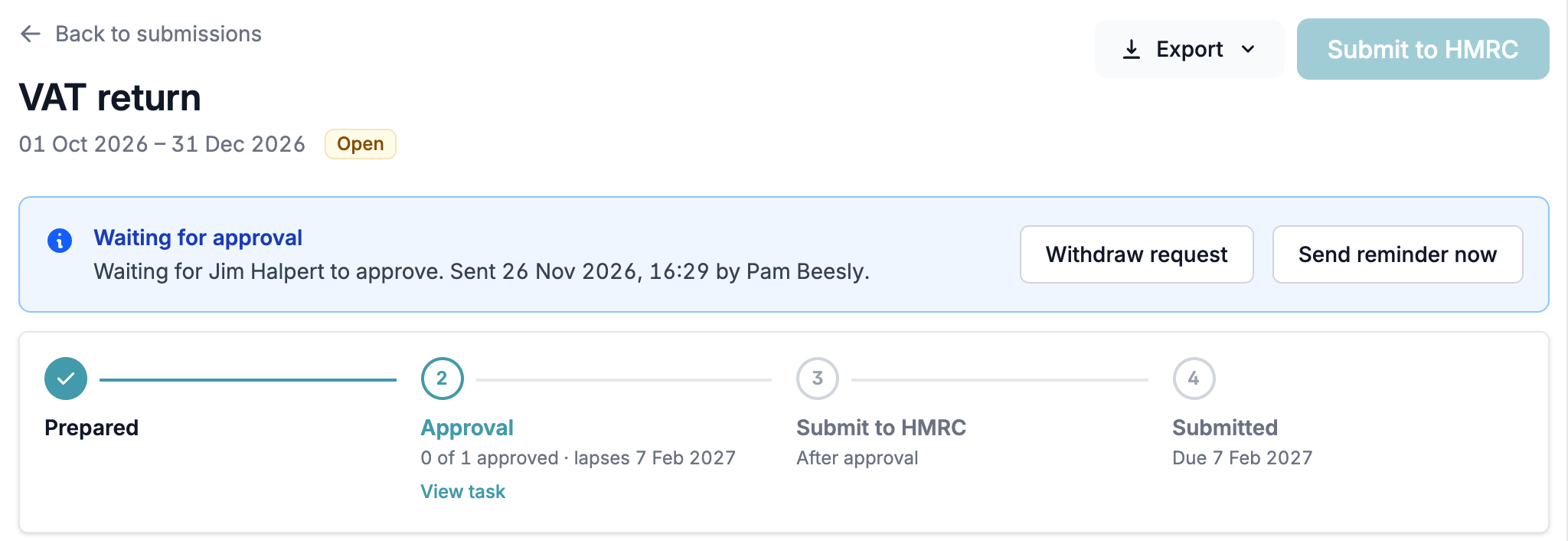
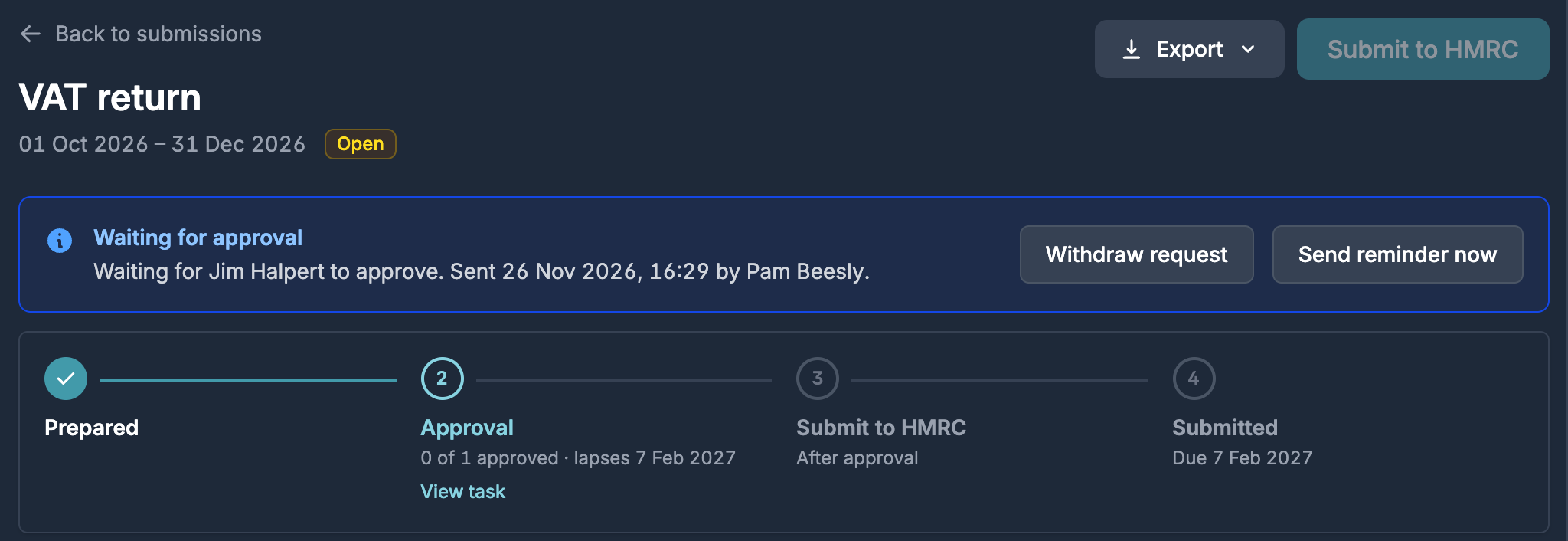
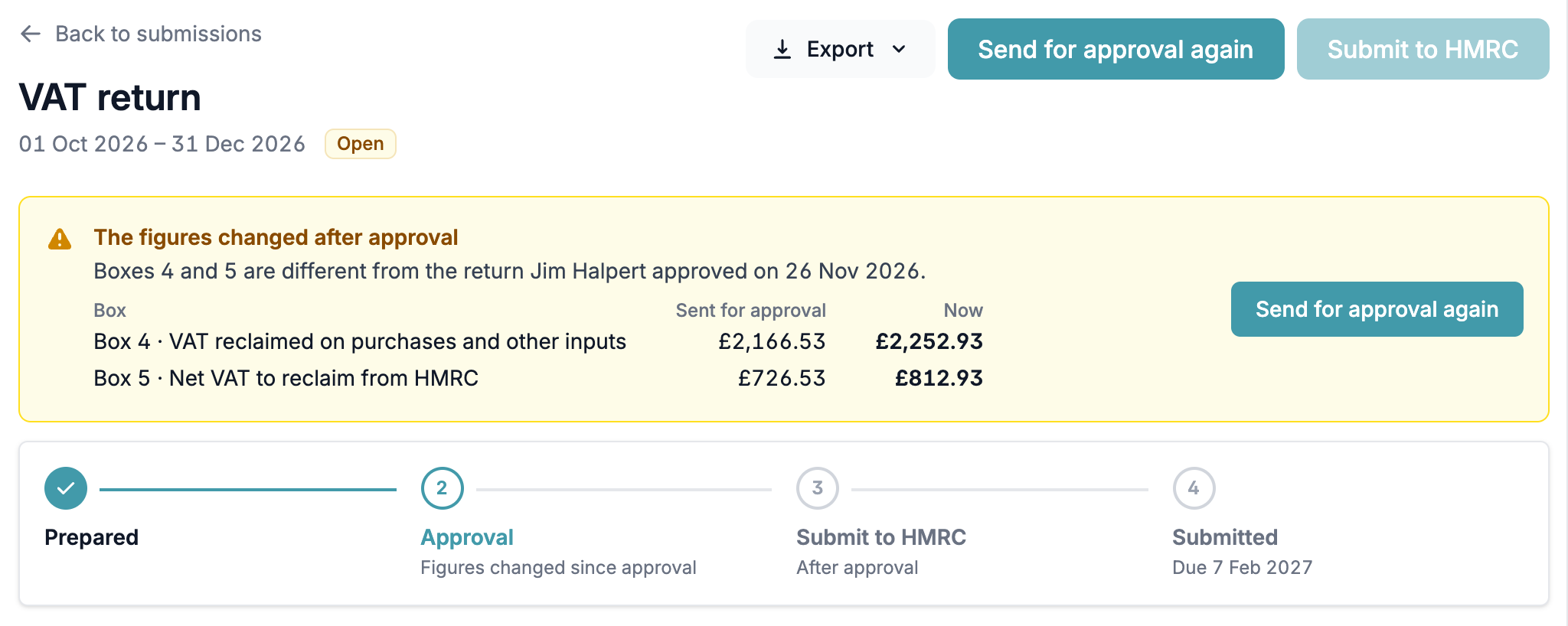
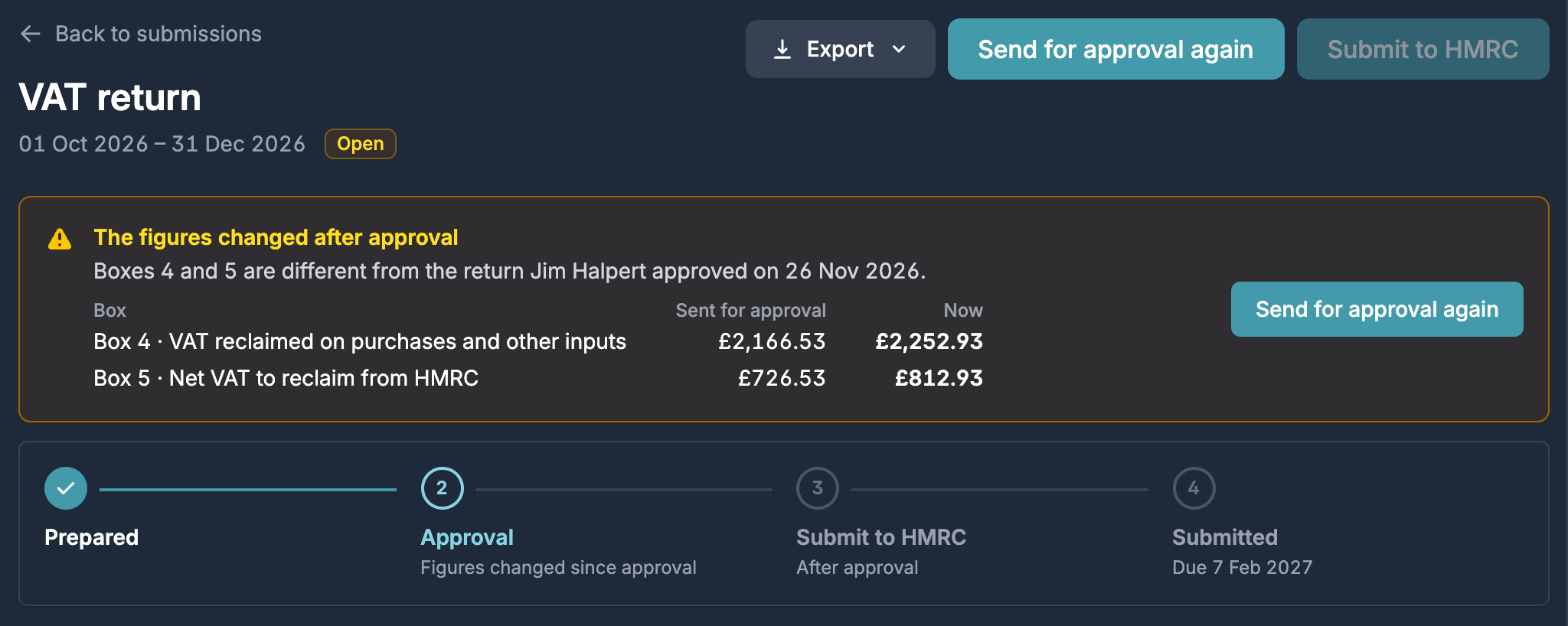
Until the current figures are approved, Submit to HMRC is greyed out.
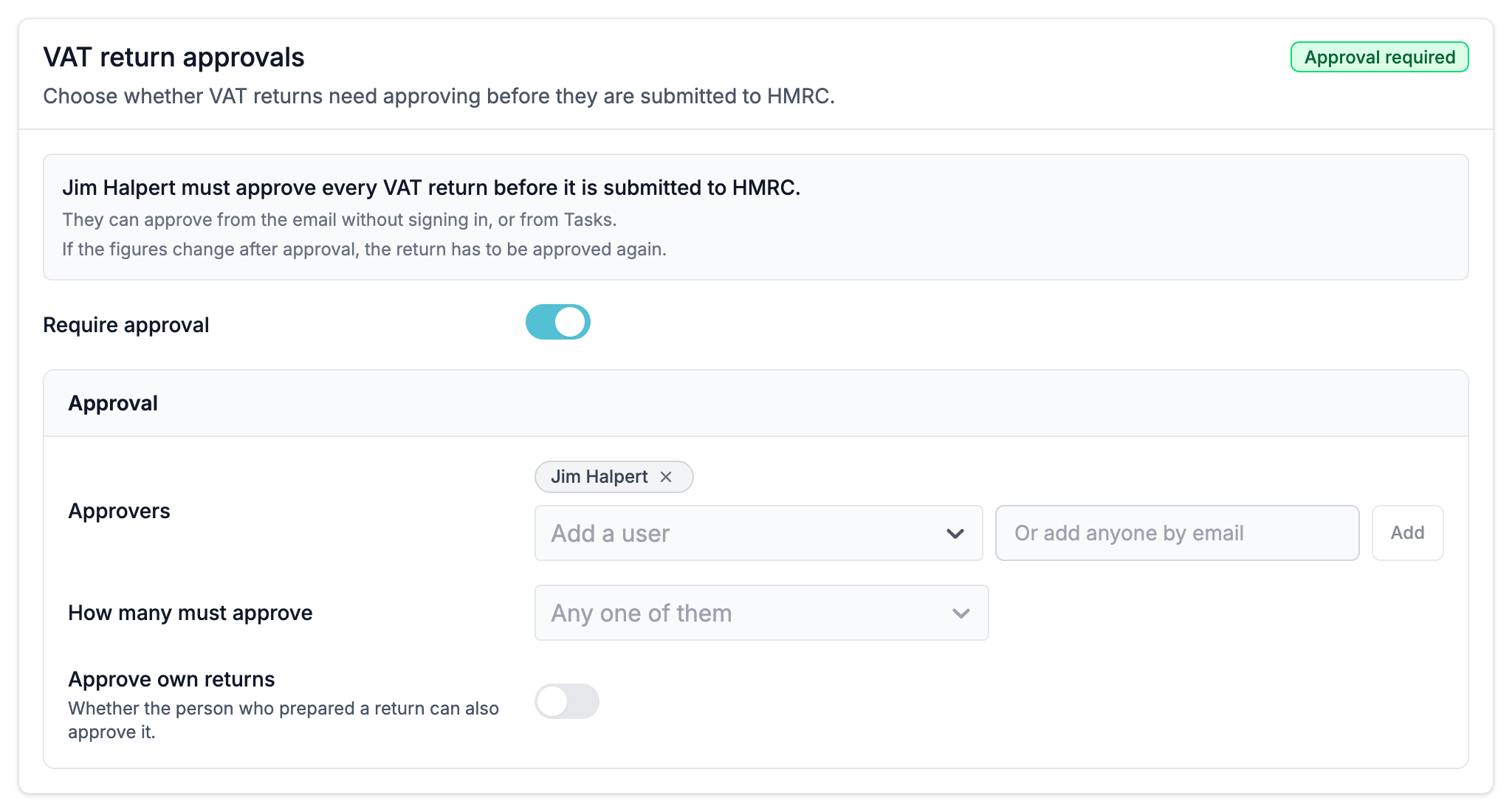
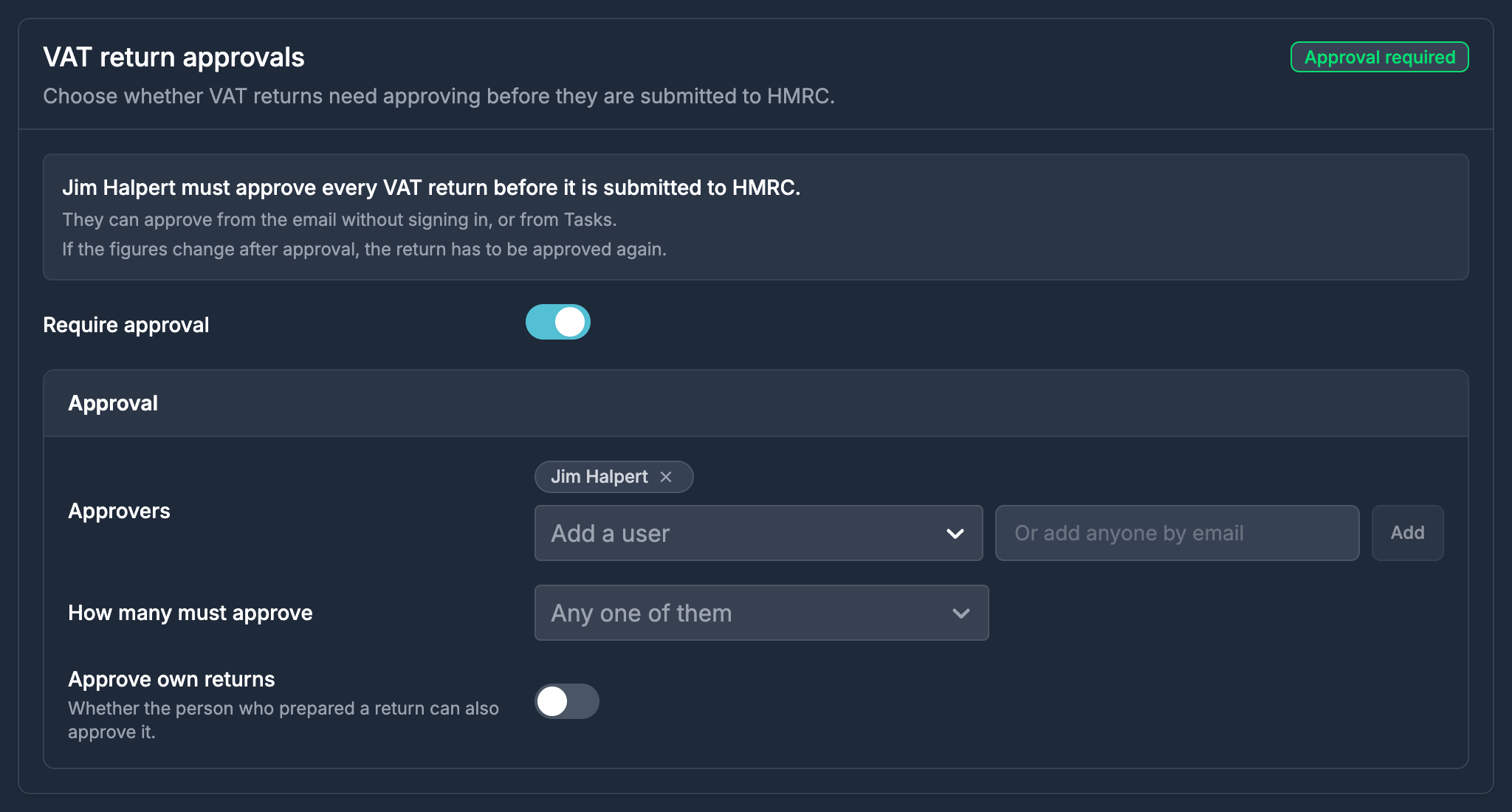
To change the approvers or turn approval off, go to Business settings → Approvals. Saving a change withdraws any open request, and approved returns need approving again.
6. Submit to HMRC
Choose Submit to HMRC.
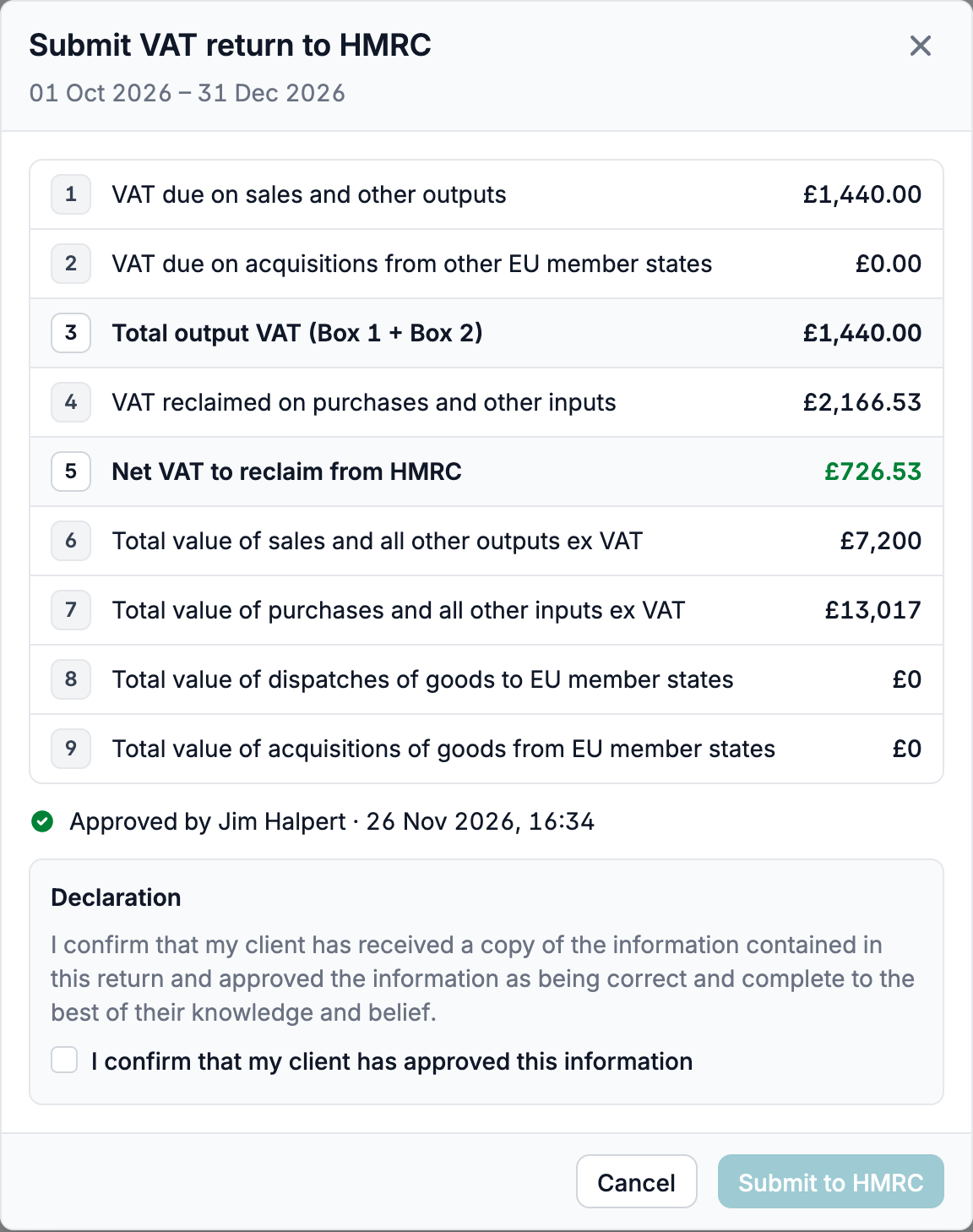
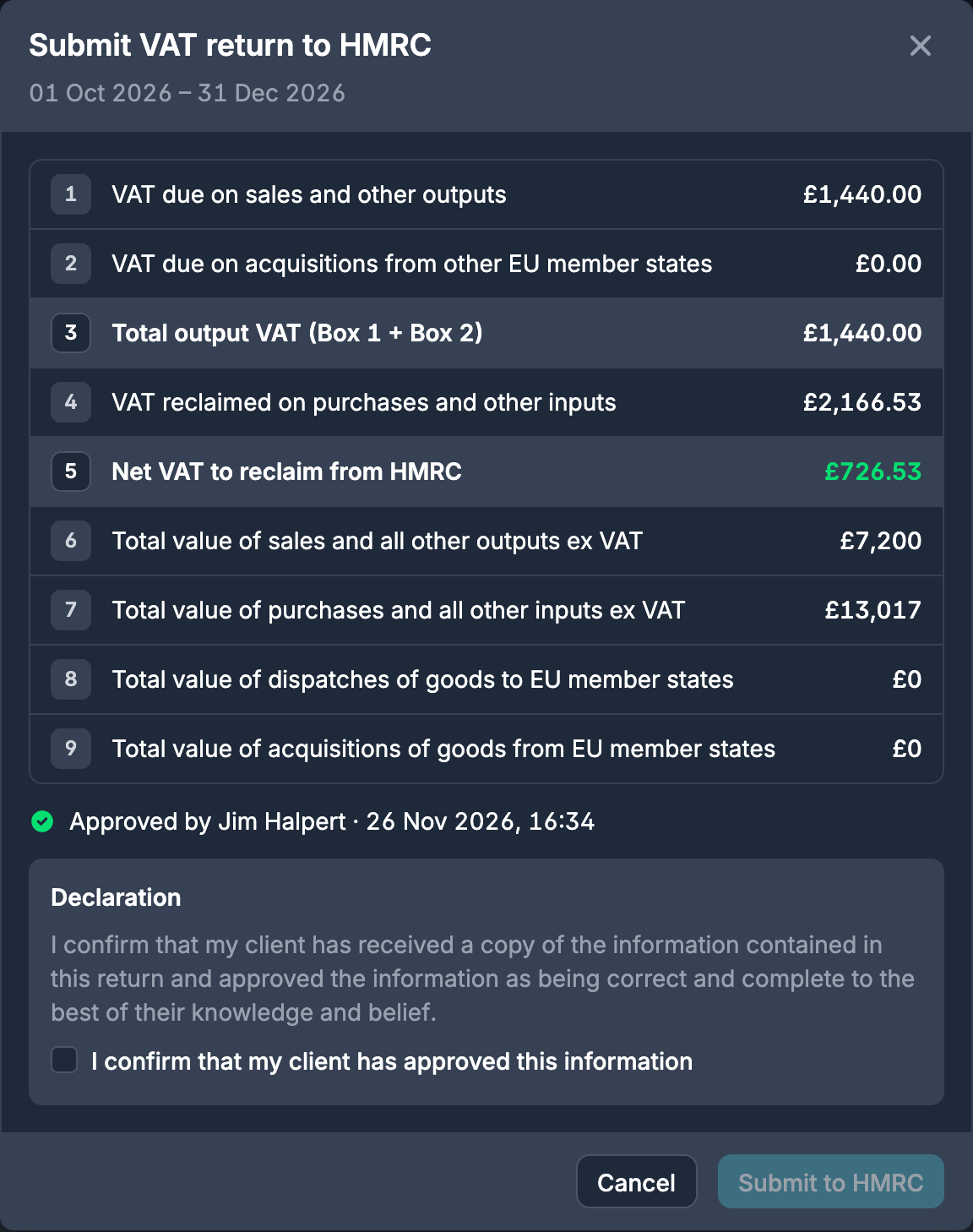
Check the nine boxes in the window. If the return was approved, it shows who approved it and when.
Tick the declaration and choose Submit to HMRC.
This files the return straight away. A filed return can't be changed or sent again.
You land back on the list, where the period shows Submitted. If the submission fails, the window says why.
After you submit
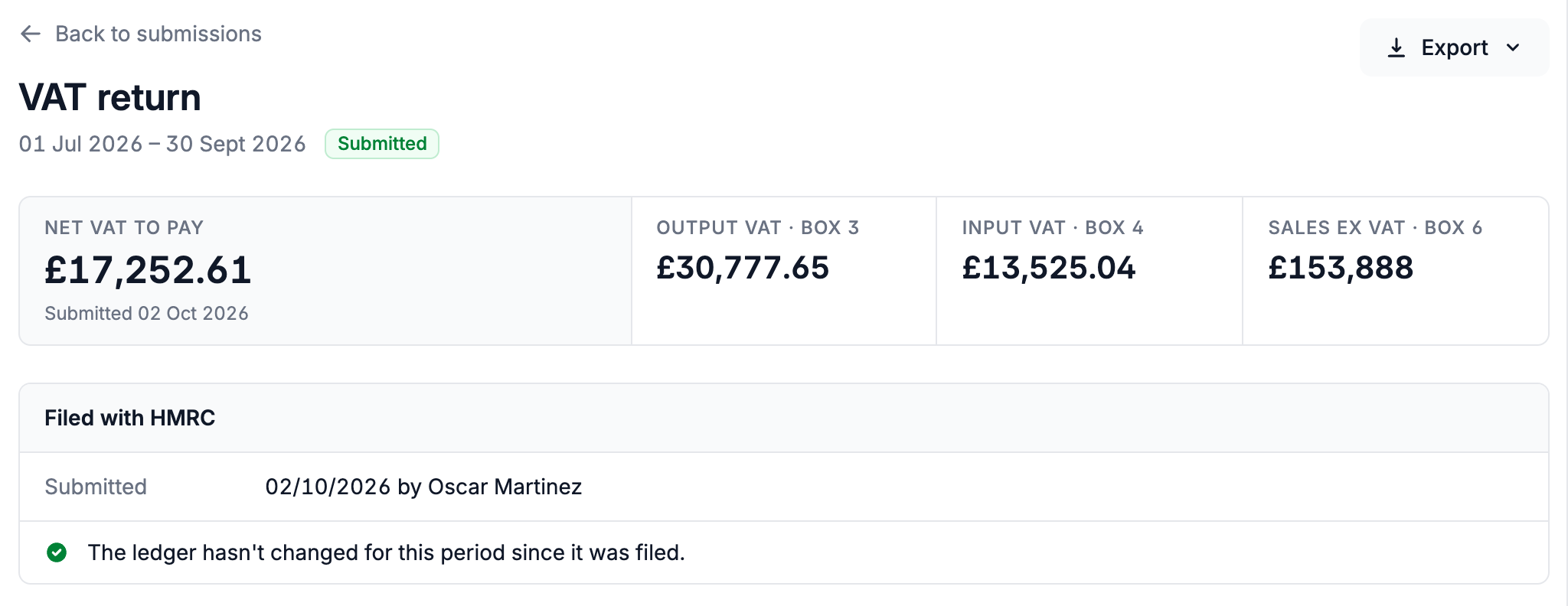
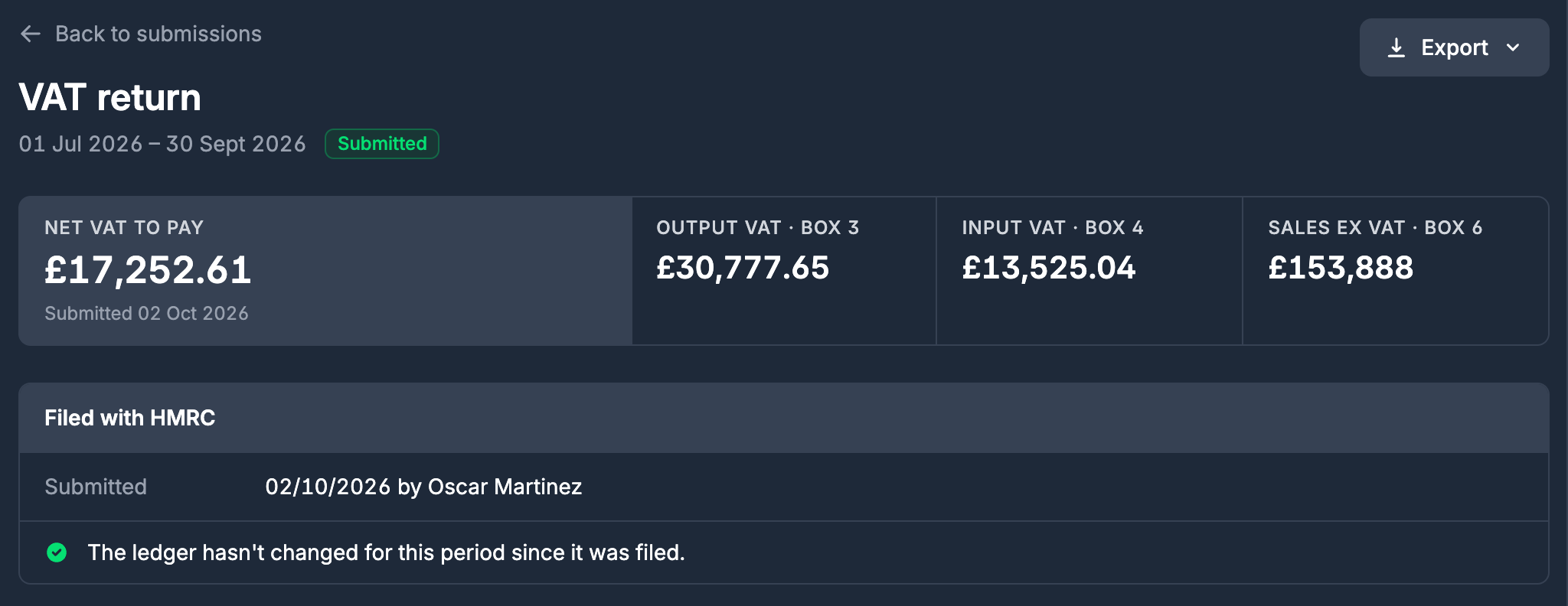
Open a filed period to see its Filed with HMRC card: when it was submitted and by whom, who approved it if it was sent for approval, and HMRC's receipt number. Export still gives you the PDF.
If the books change for that period afterwards, the card lists the boxes that moved. The difference goes on the next return as late entries.
Q&A
Can I change a return after it has been filed?
No. Correct the books, and the change goes on the next return as a late entry. Or add an adjustment to the next return.
Why is Submit to HMRC greyed out?
Hover over it, or read the notice at the top of the return:
You don't have the VAT Return Submissions: Submit permission.
The current figures aren't approved.
You aren't the business owner or an authorised agent for this client. Ask your admin to update your access.
It is the client's last return on cash accounting and some VAT is still to settle up.
A period was filed outside Briefcase. What do I see?
It shows as Submitted, because HMRC tells Briefcase which periods it has received. Briefcase shows the figures HMRC holds, marked "filed outside Briefcase".
Who can approve a return?
Any user with access to the client, a practice admin, or anyone you add by email. You can't be the only approver of a return you send, unless Approve own returns is on.
What happens if nobody approves in time?
The request lapses at the end of the filing deadline day, or seven days after you sent it if that is later. Nothing is filed: choose Send for approval again.
Questions? Email support@briefcase.so.