Connect your Stripe account to a Briefcase Ledger business and Briefcase imports your Stripe balance as a bank account: card payments, refunds, Stripe fees and payouts, ready to reconcile. Briefcase only reads your Stripe data. It can't take payments, issue refunds, move money or change anything in Stripe.
Found Briefcase on the Stripe App Marketplace? The connection always starts in Briefcase, so it knows which business your Stripe data belongs to. Sign in to Briefcase and follow the steps below. If you don't use Briefcase yet, you can sign up at briefcase.so.
Before you start
Stripe connects to businesses on Briefcase Ledger.
In Briefcase, you need the Bank Account Connections → Manage permission for the business.
In Stripe, you need to be allowed to install apps on the account. If Stripe says you don't have permission, ask the owner or an Administrator of your Stripe account to do the Stripe step, or to give you a role that can.
Connect Stripe
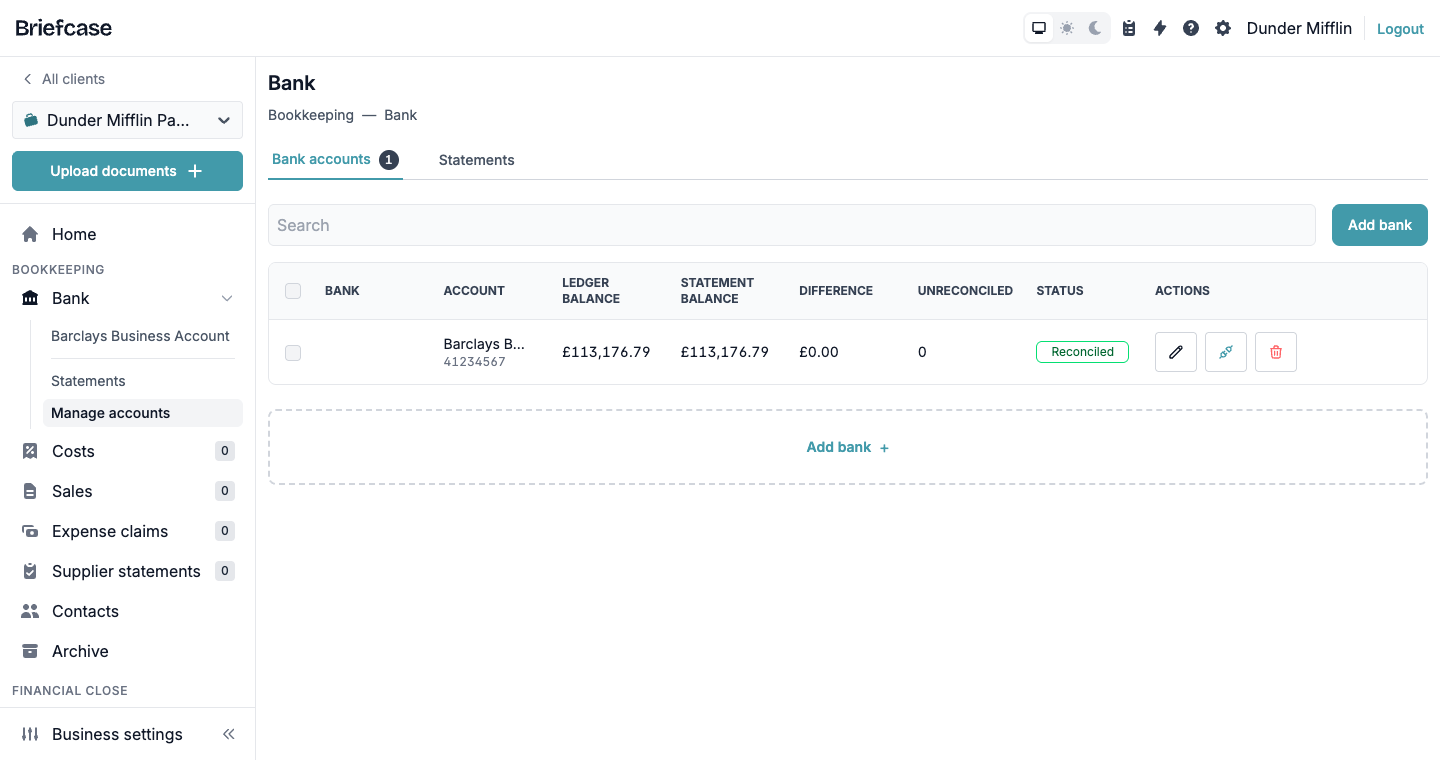
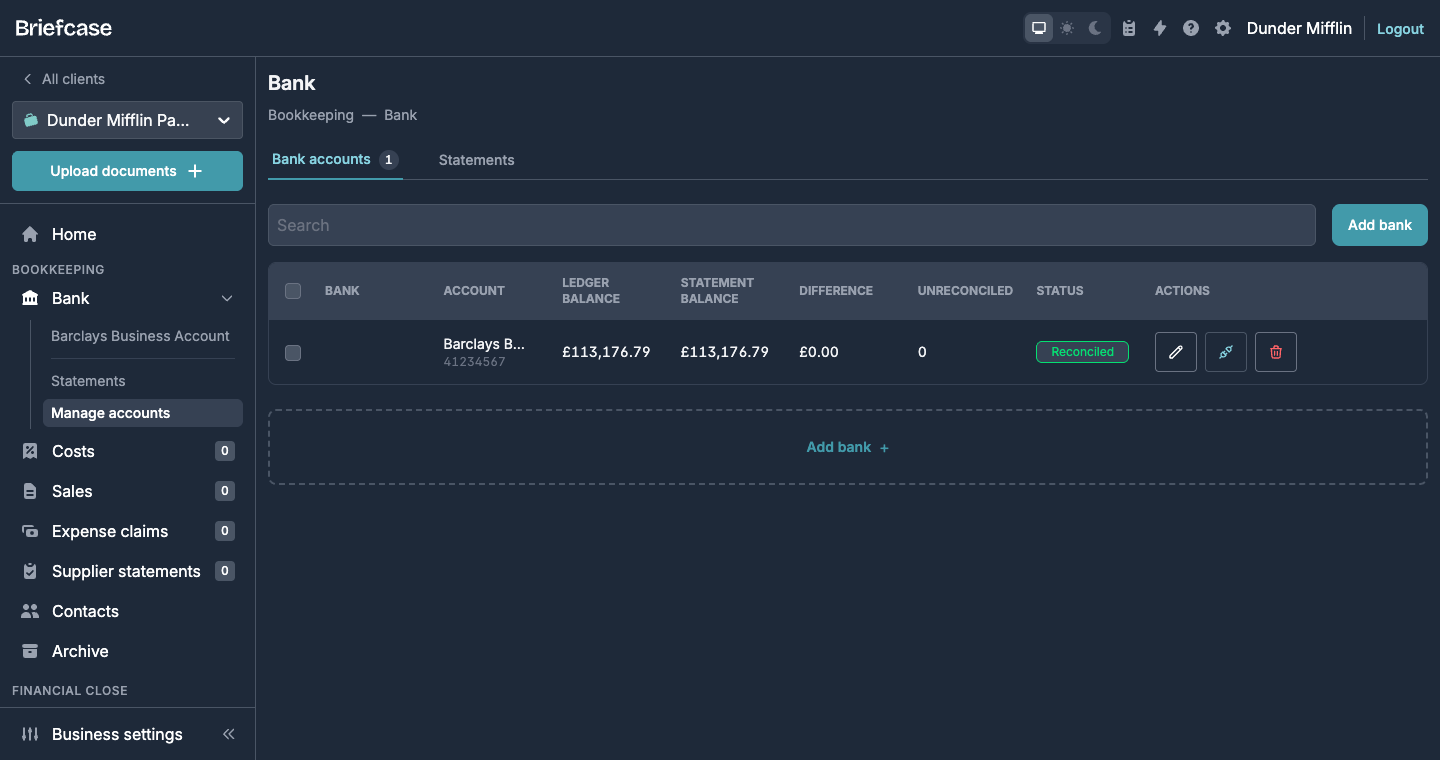
1. Go to Bank and click Add bank
In Briefcase, open the business and go to Bank in the left-hand menu. Click Add bank.
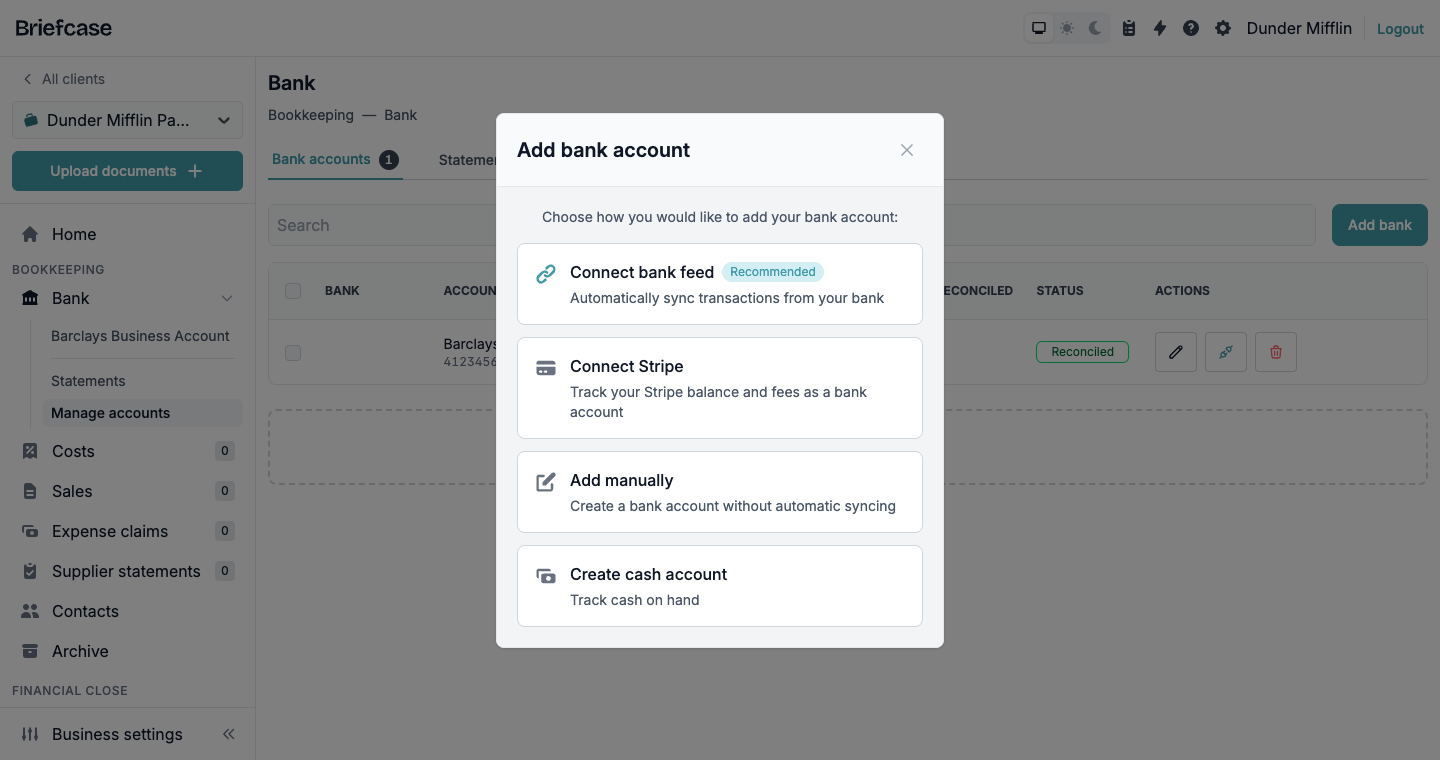
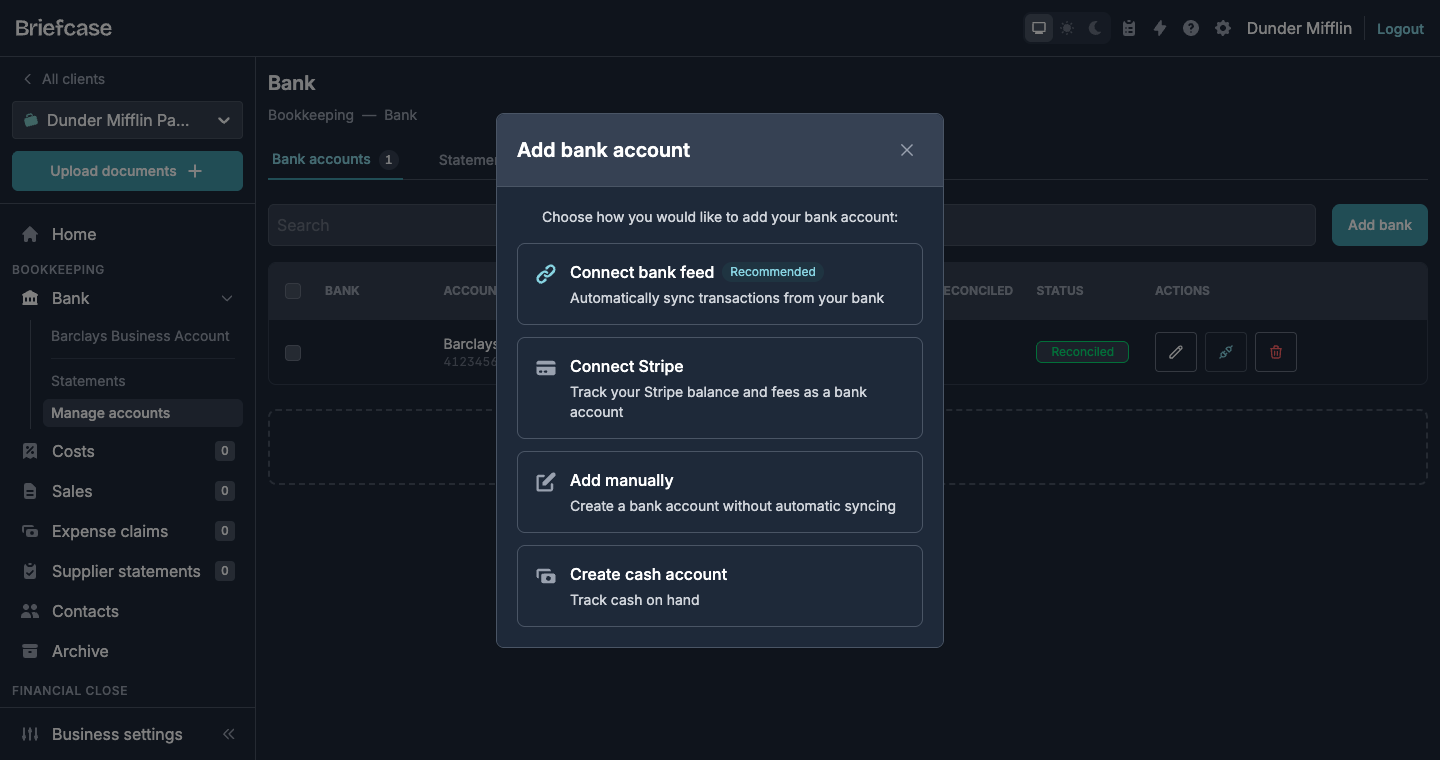
2. Choose Connect Stripe
3. Install the Briefcase app in Stripe
Stripe opens and shows the Briefcase app. Sign in to Stripe if asked. If you have more than one Stripe account, pick the one to connect. Check the read-only permissions Briefcase asks for, then confirm the install. Stripe takes you back to Briefcase.
4. Choose where to import from
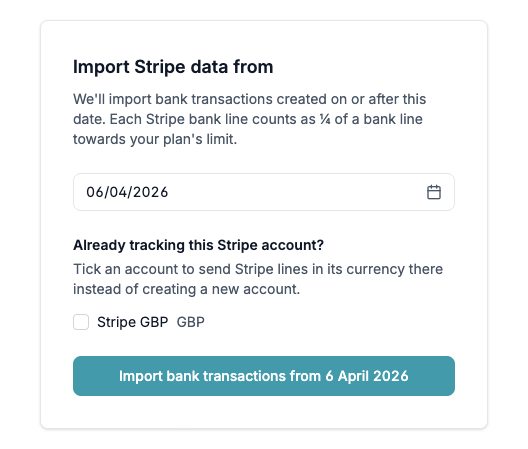
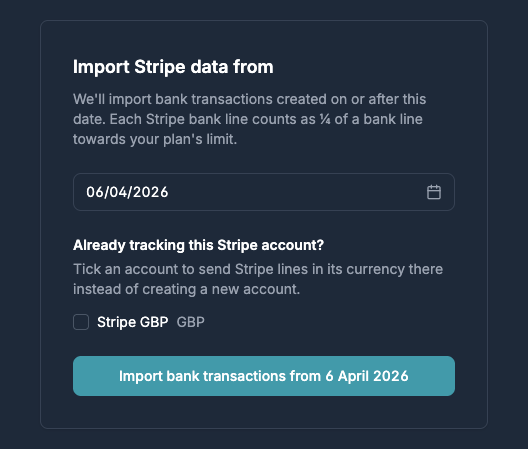
Pick the date to import from. Briefcase imports Stripe transactions created on or after this date, and suggests the start of the current tax year.
If you already track this Stripe account in a bank account you added yourself, for example from uploaded statements, tick it under Already tracking this Stripe account?. Stripe lines in that currency then go into it instead of a new account. Otherwise leave it unticked.
Click Import bank transactions from your chosen date.
5. Your Stripe account appears in Bank
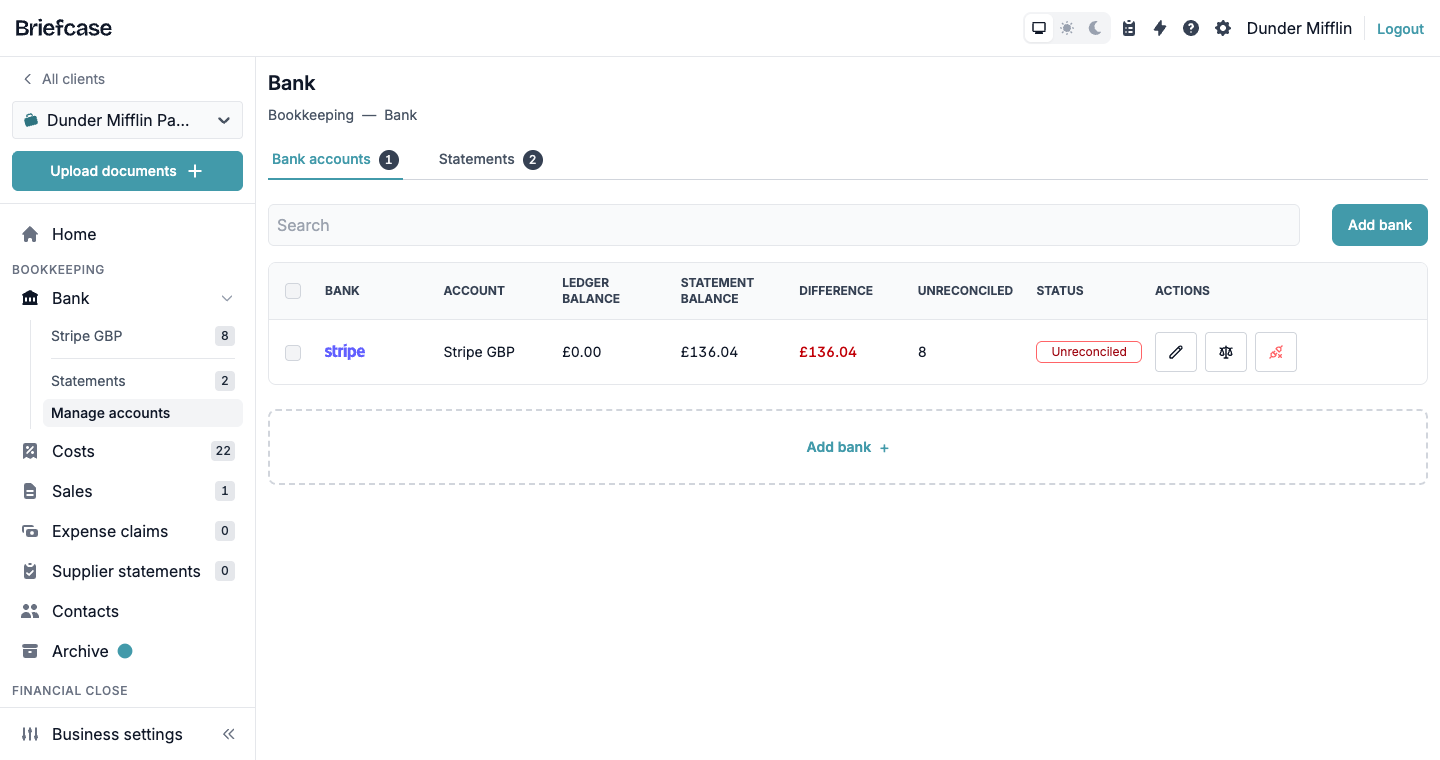
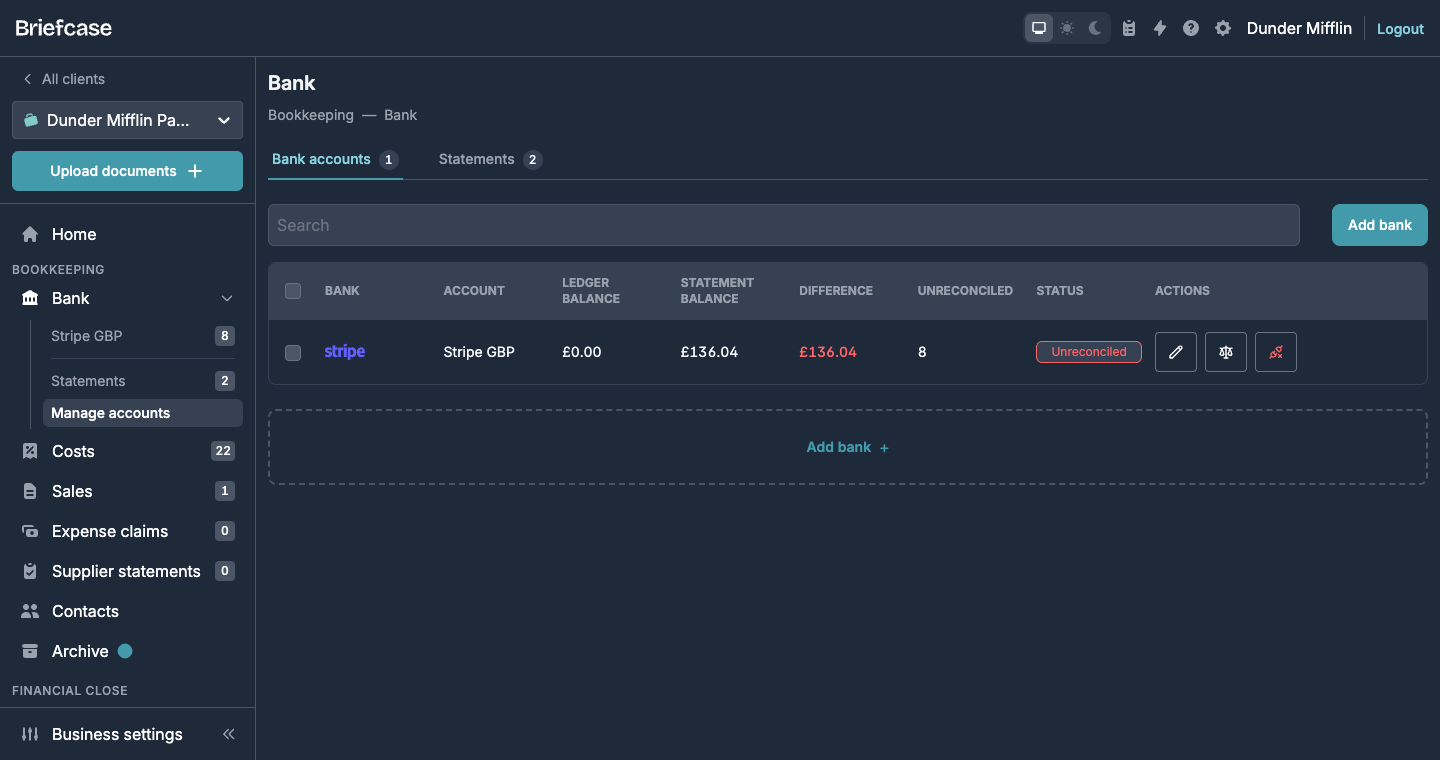
Briefcase starts the import and takes you back to Bank. A bank account appears for each currency in your Stripe balance, for example Stripe GBP, marked with the Stripe logo. A long history can take a few minutes to arrive.
What Briefcase imports
Every movement in your Stripe balance becomes a bank line at its full amount: payments, refunds, disputes, payouts and adjustments.
Stripe's fee on a transaction appears as its own Stripe fee line, so fees can be posted separately from sales.
Payouts to your bank appear as money leaving Stripe. When your bank feed shows the matching deposit, the two can be reconciled as a transfer.
New transactions arrive automatically about every six hours.
Each Stripe bank line counts as ¼ of a bank line towards your plan's limit.
What Briefcase can read
Briefcase asks Stripe for read-only access to your balance and its history, payouts, charges and payments, customers, invoices and tax rates. It uses them to build your Stripe bank lines. It can't create or change anything in your Stripe account.
Disconnect Stripe
From Briefcase: go to Bank, find your Stripe account and click the Disconnect Stripe icon, then Disconnect. Briefcase removes its app from your Stripe account. Every Stripe currency account under that connection stops syncing, and the transactions already imported stay in Briefcase.
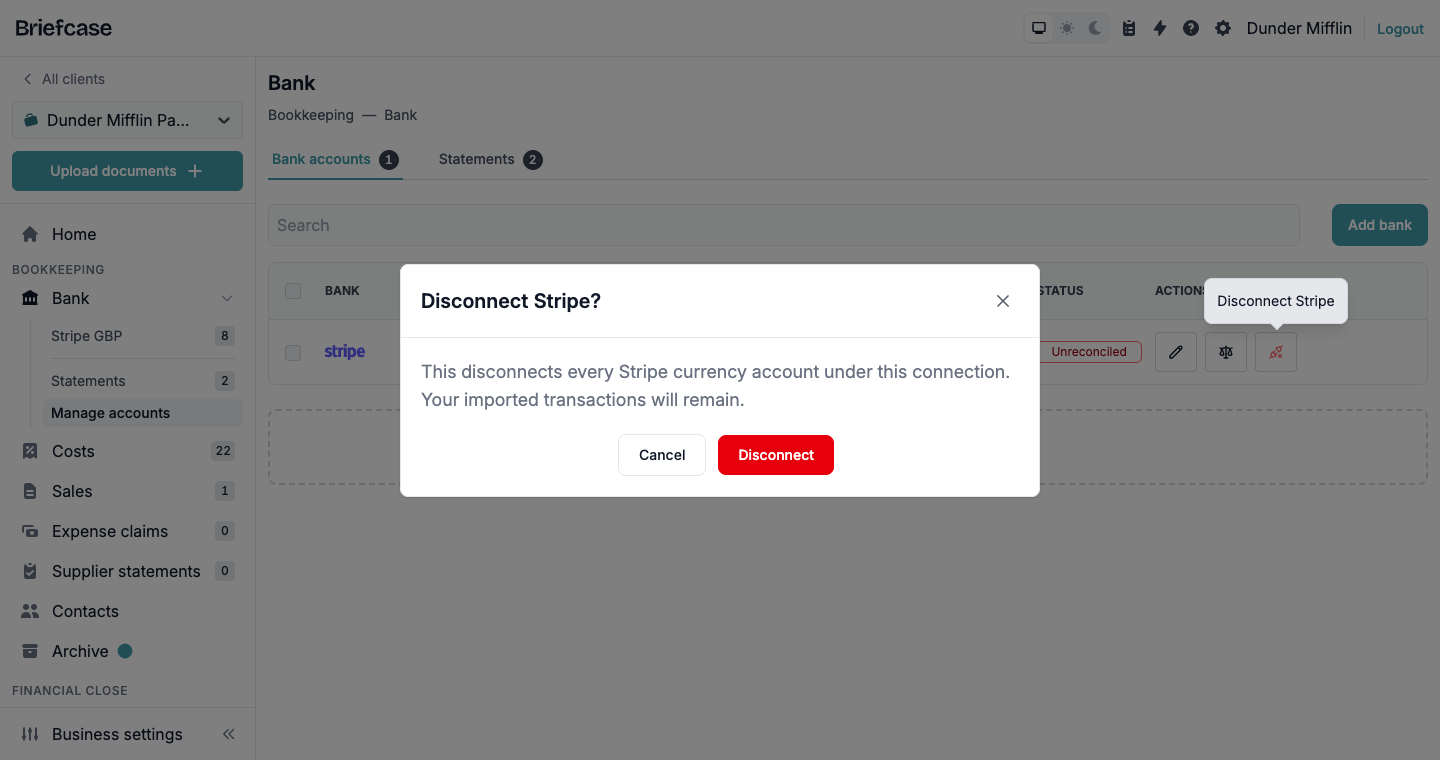
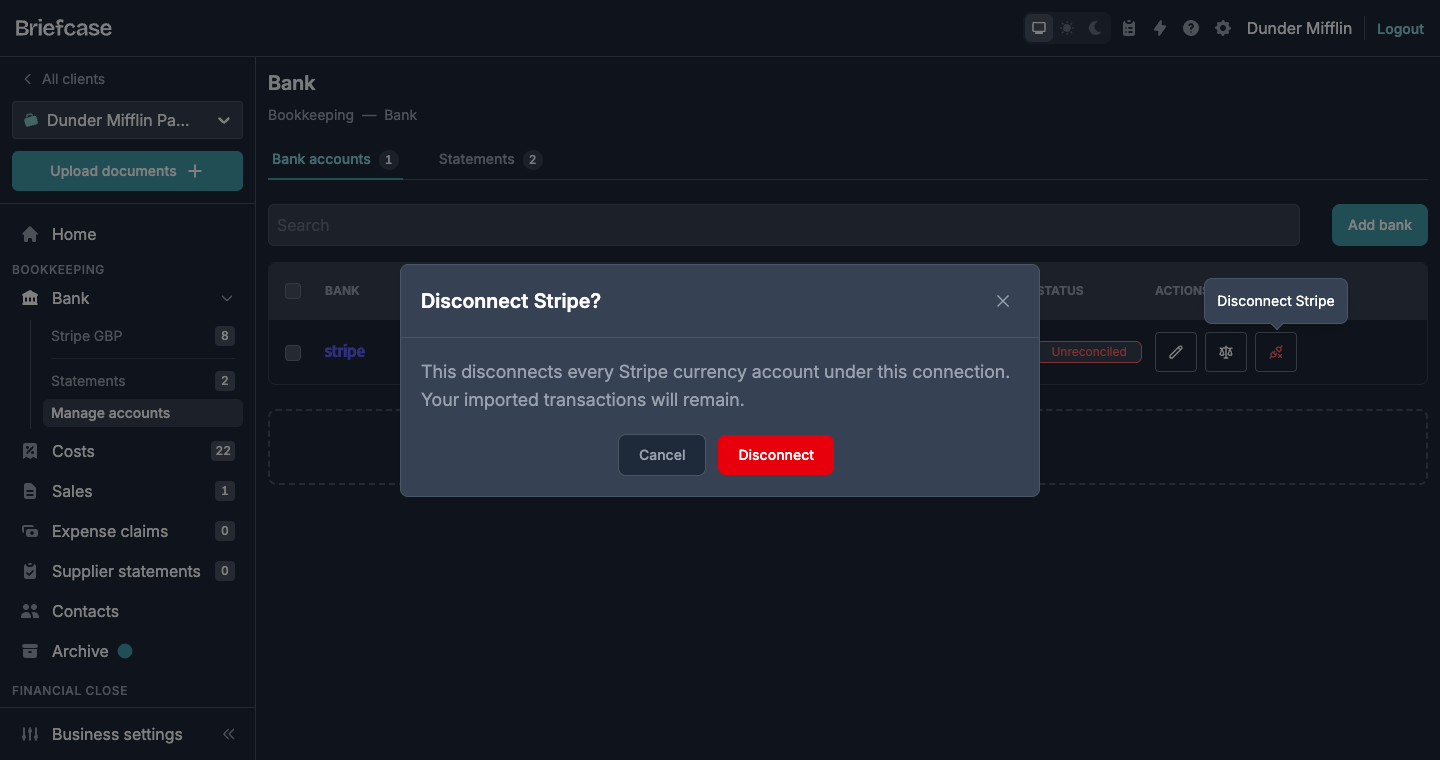
From Stripe: in your Stripe Dashboard, go to Settings → Installed apps, open Briefcase and uninstall it. Briefcase notices and stops syncing. Nothing already imported is removed.
To reconnect, click Reconnect on the Stripe account in Bank and install the app again. Briefcase carries on from your original import date and doesn't duplicate lines it already has.
If something goes wrong
Stripe won't let you install the app: ask the owner or an Administrator of the Stripe account to install it, or to give you a role that can.
"Could not connect Stripe. Please click Connect again.": the connection didn't finish. Start again from Add bank → Connect Stripe. If it keeps happening, contact us through the in-app chat.
Test data: Briefcase connects live Stripe accounts only. Stripe sandboxes and test mode can't be connected.