A payment on account is money you have paid a supplier, or received from a customer, that isn't matched to an invoice yet. Briefcase Ledger holds it as a credit against that contact. The credit shows on the Aged Creditors or Aged Debtors report until you allocate it to an invoice or refund it.
Use a payment on account when:
- A bulk payment covers invoices you don't have yet.
- You paid a deposit before the supplier sent an invoice.
- You paid more than you owed.
Don't create a placeholder invoice to make a payment balance. You can only reclaim VAT once you hold a valid VAT invoice, and a placeholder is easy to count twice when the real invoice arrives.
Reconcile a bulk payment with missing invoices
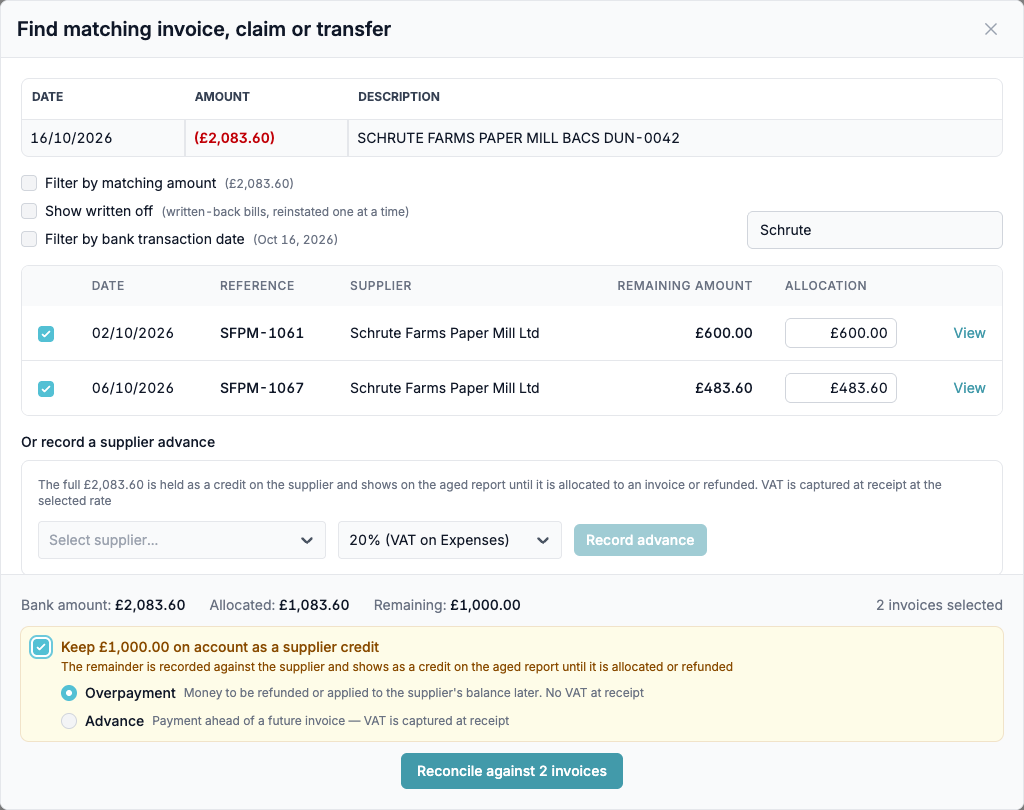
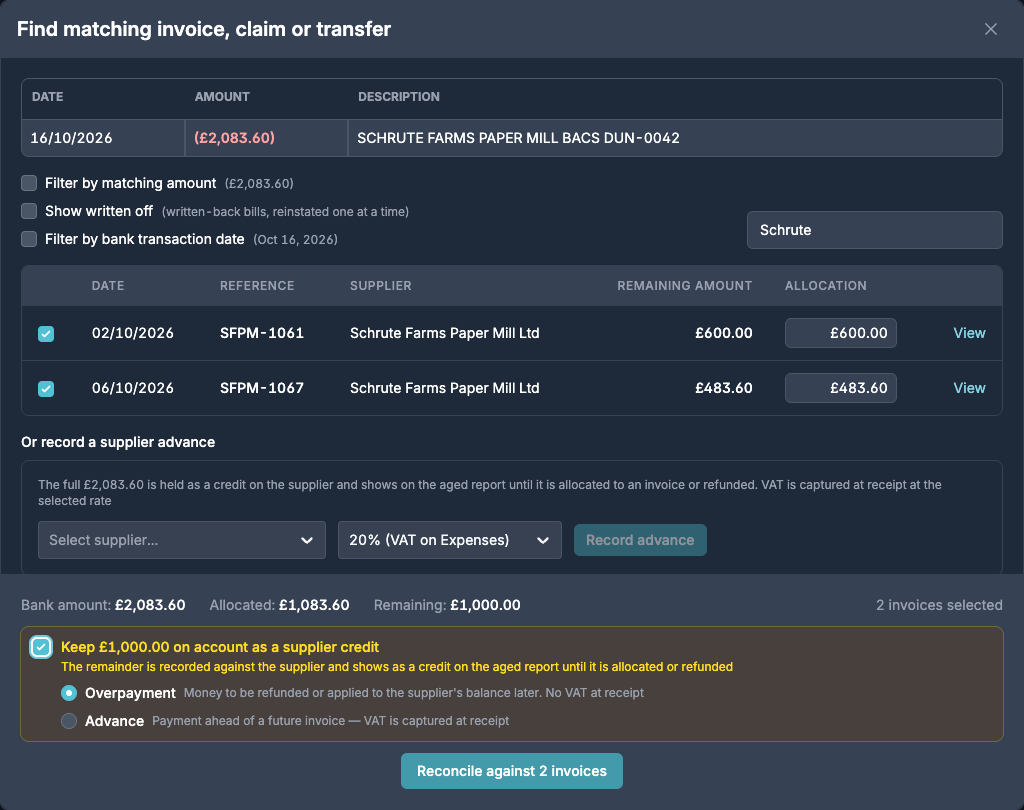
In this example, Dunder Mifflin paid Schrute Farms £2,083.60 but only has invoices for £1,083.60.
- Open the bank account, find the payment and choose Match.
- Untick Filter by matching amount, then search for the supplier.
- Tick the invoices you have. Remaining shows the amount they don't cover.
- Tick Keep £1,000.00 on account as a supplier credit and choose Overpayment.
- Choose Reconcile.
If you don't know which invoices are missing, ask the supplier for a statement. It lists every invoice the payment covered.
Overpayment or Advance?
- Overpayment: the payment covers invoices you haven't received yet, or you paid more than you owed. No VAT is recorded. You claim the VAT when you post the invoice.
- Advance: you paid before the supplier delivered anything, such as a deposit. VAT is recorded at the rate you choose, so choose No VAT unless the supplier has given you a VAT invoice for the deposit.
Allocate the credit when the invoice arrives
- Upload the invoice and approve it as usual.
- Go to Reports → Aged Creditors and open the supplier.
- Choose Allocate next to Payment on account.
- Pick the invoice, check the amount and date, then choose Allocate.
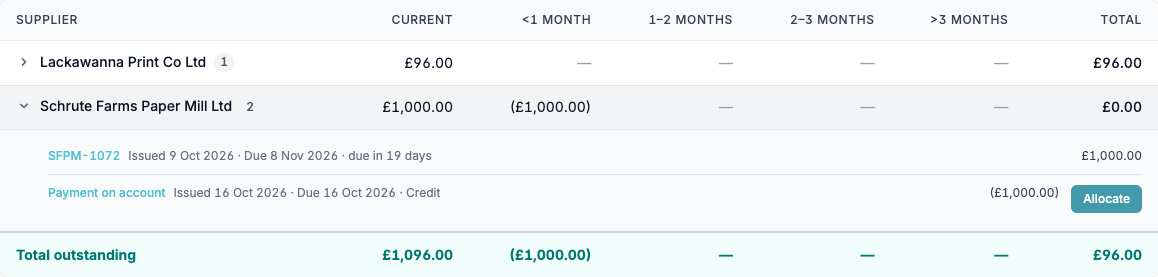
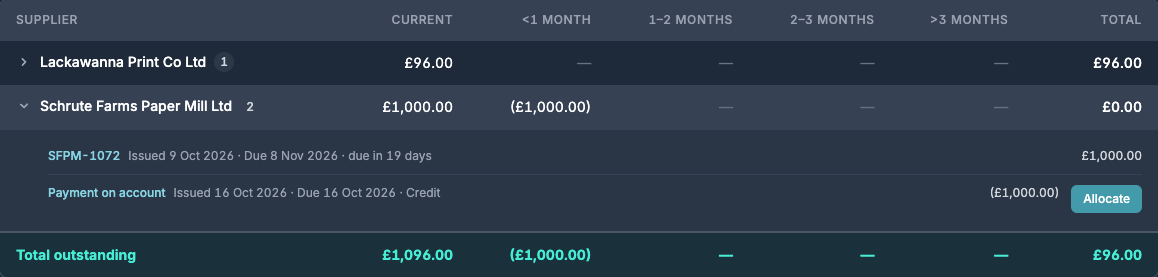
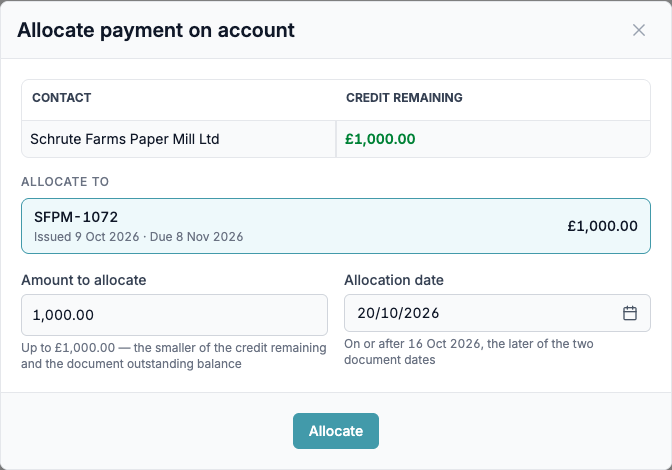
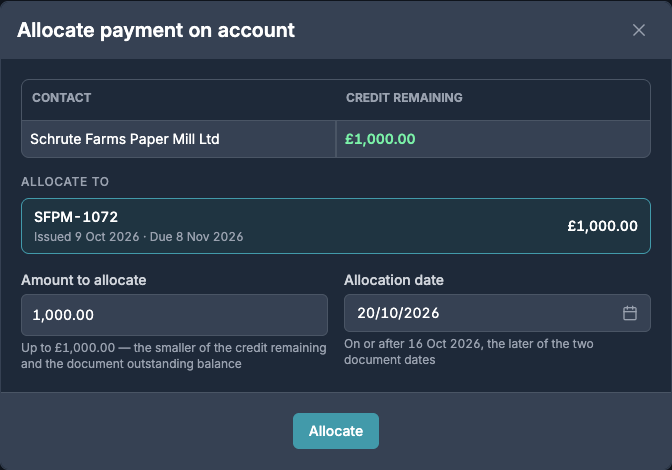
The invoice is settled and the credit goes down by the amount you allocate. If the credit covers several invoices, allocate it to each one in turn. You can also allocate credits from Working Papers → Creditors & Debtors Review.
Record a deposit paid before the invoice
- Open the payment and choose Match.
- Under Or record a supplier advance, choose the supplier.
- Choose No VAT, unless the supplier has given you a VAT invoice for the deposit.
- Choose Record advance.
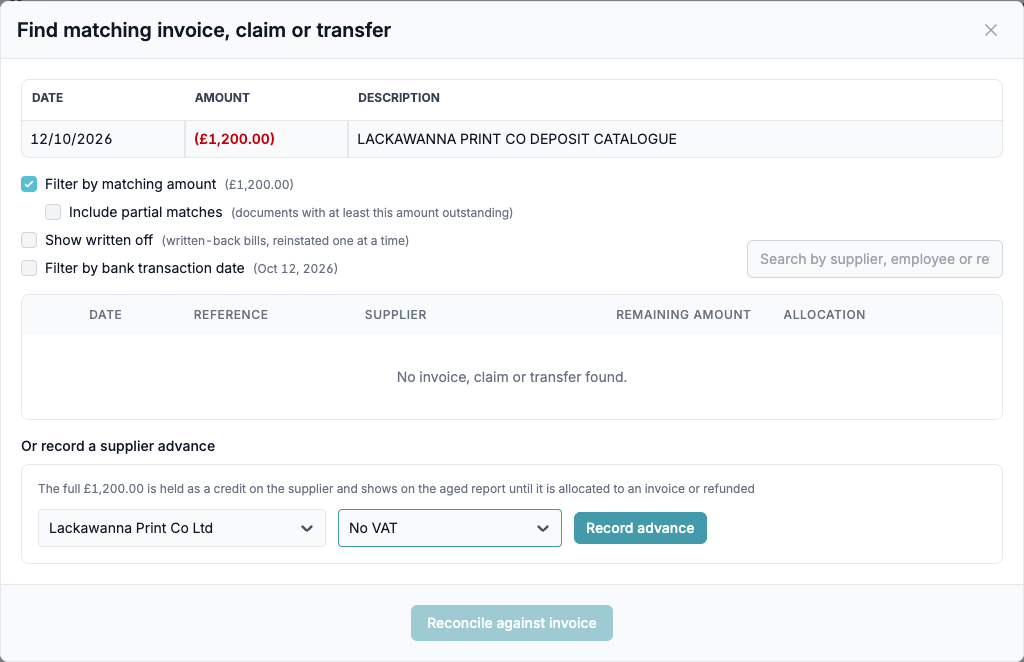
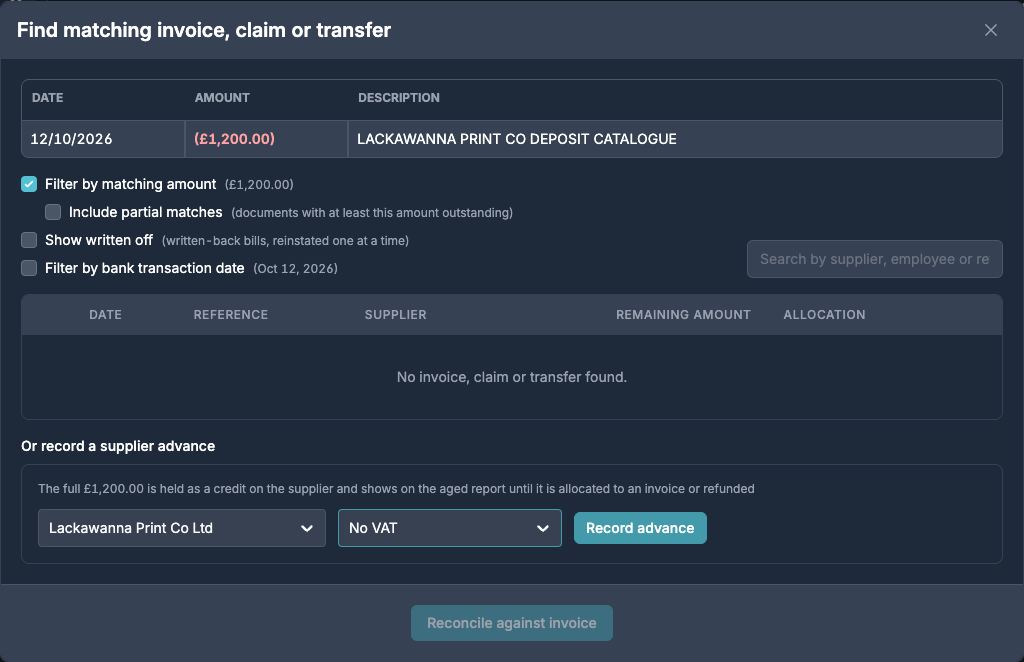
When the final invoice arrives, allocate the advance to it from Aged Creditors in the same way.
Refund a credit
If the supplier pays the money back, match the refund to the credit:
- Open the money received and choose Match.
- Under Or refund a supplier credit, choose Refund next to the credit.
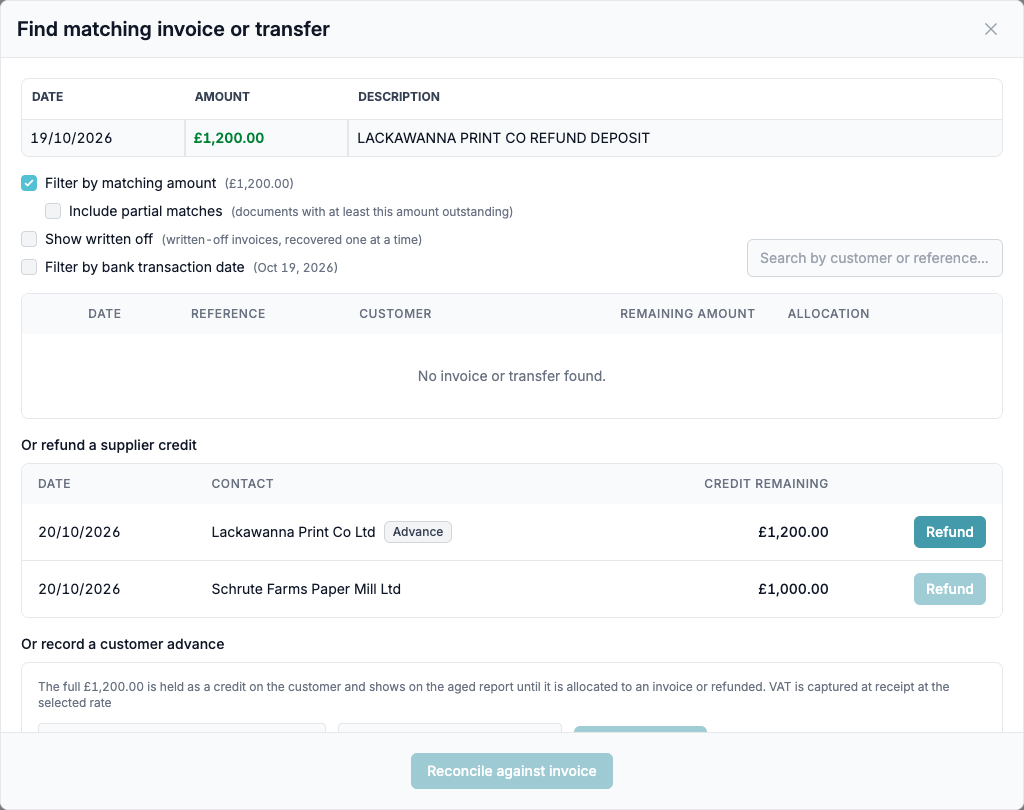
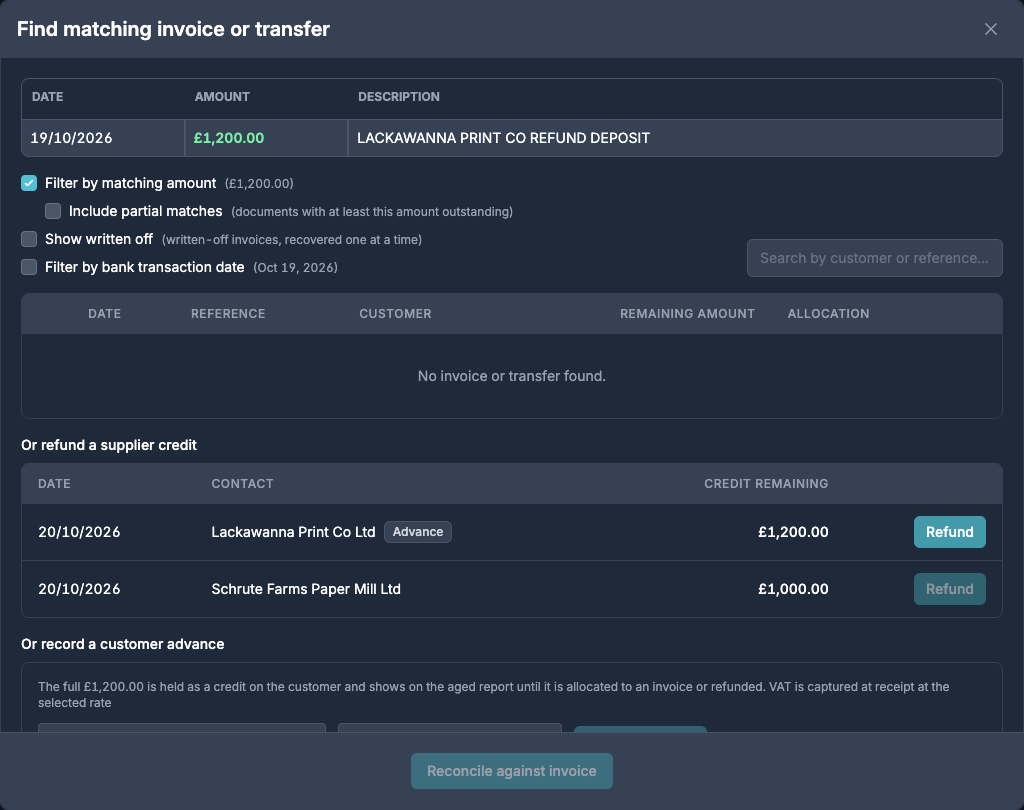
The refund must match the credit remaining exactly. Refund is greyed out for credits of a different amount.
Customers
Money you receive works the same way. When a customer pays more than their invoices, keep the remainder on account as a customer credit. Record a customer advance for a deposit, and refund a customer credit when you pay money back. Customer credits show on Aged Debtors.
Before you close the period
Open credits show on Aged Creditors, Aged Debtors and in Working Papers → Creditors & Debtors Review. Chase any missing invoices before you close the period.