Request missing invoices and bank statements directly from Briefcase Ledger. Briefcase emails the request, sends automatic reminders and processes the documents that come back. The recipient can reply with attachments without logging in.
Request invoices
Use an invoice request when a bank transaction is missing its supporting document.
- Open the bank account and select the unreconciled bank transactions you need invoices for.
- Choose Request to open the Request paperwork window.
- Select the assignee or enter their email address, set a due date and add an optional message.
- Check the recipient and selected transactions, then choose Send request.
If your selection includes a reconciled transaction, the Request button is disabled unless that transaction was reconciled as a cash payment.
Request a bank statement
- Add a bank account manually or connect a bank feed if you have not already done so.
- Select the checkbox next to the bank account and choose Request bank statement. You can select more than one account.
- Choose the months you need, select the assignee and set a due date.
- Add an optional message, check the request and send it.
What the recipient receives
The assignee receives an email naming the requester and business, the due date and the documents needed. This works for both existing Briefcase users and external clients without an account.
Invoice request email


Bank statement request email


Replying with documents
The recipient replies to the request email with the documents attached. Photos or PDFs are accepted for invoices; bank statements should be sent as PDFs. They can attach multiple documents to one reply.
Briefcase processes the attachments and matches invoices to the requested bank transactions, or assigns the statement's transactions to the bank account. Items complete as the documents are matched, and the task closes when all items are complete.
If a document is missing or the recipient has a question, they can reply with a note. The note is added to the request for the requester to review.
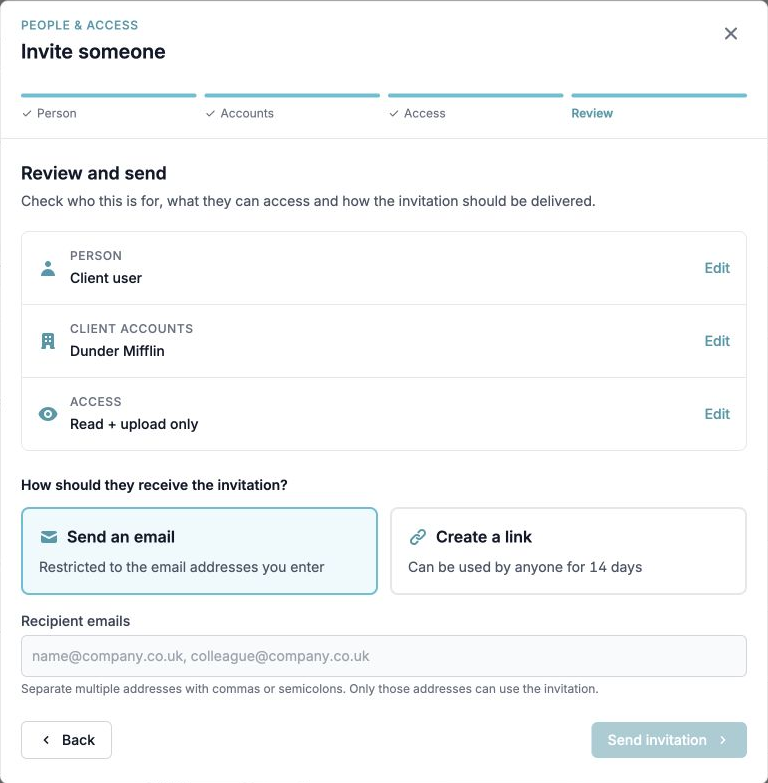
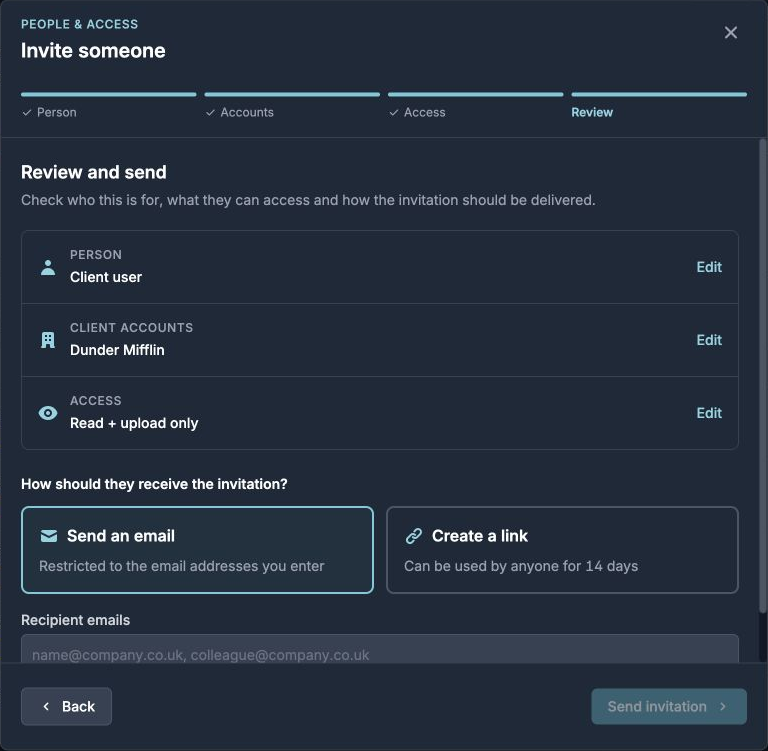
Clients who want to use other upload methods, including WhatsApp, can also be invited to Briefcase. Go to Settings → Organisation → Team → Your Clients → Invite client, choose the client account and access they need, then review and send the invitation. See how to invite team members and clients.
Automatic reminders
Briefcase sends reminders while the request is open. The reminder schedule includes:
- 1 day after the request is created.
- 14 days, 7 days, 2 days and 1 day before the due date.
- 1 day, 2 days and 7 days after the due date if the request is still outstanding.
Each reminder is recorded in the task's activity history.


Track, complete or close a request
Open Tasks to see requests, their status and due dates. Select a request to open its details. The Items tab shows the requested documents, and Activity shows the request's history.
Mark an item complete
If you have received and checked a document but its item has not completed automatically, open the request and choose Mark complete on that item. Completing the final outstanding item closes the task.
Close a request you no longer need
- Open Tasks and select the paperwork request.
- Choose Close task at the bottom of the details panel.
- On mobile, confirm by choosing Close task again.
Closing a task cancels its remaining items and stops future reminders. It does not mark missing documents as received. Use Mark complete when you want to record an item as fulfilled.
Closed requests remain on record with their activity history.
Watch the walkthrough
This video demonstrates requesting paperwork. The email examples above show the current email design.
Frequently asked questions
Who can send paperwork requests?
Team members with financial-close permission to create requests can send them for client accounts they can access. Client users cannot create paperwork requests.
Does the recipient need a Briefcase account?
No. They can reply to the request email with the documents attached without logging in. An account is needed to use the upload option in Briefcase or other account-based upload methods such as WhatsApp.
What if a document does not match automatically?
The outstanding item stays open for review. Check the document and the requested transaction or bank account. Once you have checked that the item has been fulfilled, you can choose Mark complete in Tasks.
Can I stop chasing a document I no longer need?
Yes. Open Tasks, select the request and choose Close task at the bottom of the panel. This cancels the remaining items and stops future reminders. On mobile, confirm the closure when prompted.
What is the difference between Mark complete and Close task?
Mark complete records an individual item as fulfilled. The task closes when every item is complete. Close task cancels the outstanding items when you no longer need to collect them.
Can I request an invoice for a reconciled transaction?
Transactions reconciled as cash payments can still have paperwork requested. Other reconciled transactions disable the Request button; remove those transactions from your selection before requesting paperwork.