You can ask your books questions from Microsoft 365 Copilot and Teams, such as who owes you money or which bills are waiting for review. The answers come from Briefcase, and each person signs in with their own Briefcase login.
Agent Builder in Microsoft 365 Copilot can't add tools from other services, so you can't add Briefcase to an agent there directly. Instead, copy your agent to Copilot Studio, add Briefcase there once, and publish the agent back to Microsoft 365 Copilot. Your team keeps using the agent in Microsoft 365 Copilot as before.
If you don't have an agent yet, create one in Copilot Studio and start at step 2.
Before you start
Your Microsoft administrator may need to allow Briefcase in your organisation before you can add it.
A published agent uses Copilot Studio capacity. Microsoft lists no charge for people with a Microsoft 365 Copilot licence who use the agent in Microsoft 365 Copilot or Teams. Everyone else uses your organisation's Copilot Credits or a pay-as-you-go plan.
Your Briefcase workspace needs assistant connections turned on. If the Briefcase sign-in page says they are not enabled, ask your Briefcase contact.
1. Copy your agent to Copilot Studio
In Microsoft 365 Copilot, open Agents in the left sidebar. Hover over your agent, select … and choose Edit.
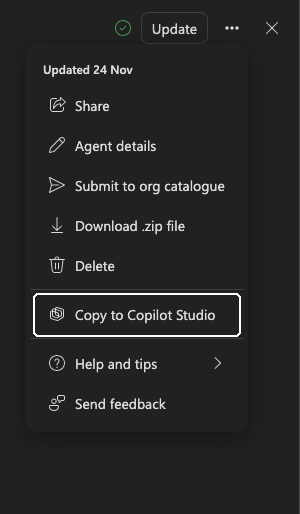
In Agent Builder, select … at the top right, next to Update, and choose Copy to Copilot Studio.
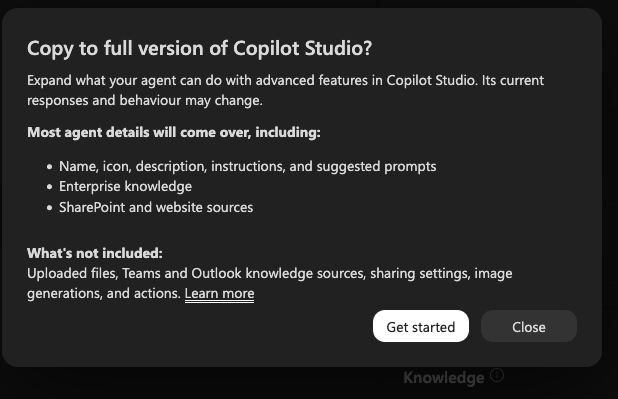
Select Get started, choose your environment and select Continue. Copilot Studio opens with a copy of your agent.
The copy keeps the agent's name, icon, description, instructions, suggested prompts, enterprise knowledge, and SharePoint and website sources. Uploaded files, Teams and Outlook knowledge sources, sharing settings and image generation don't come across, so add those again in Copilot Studio if you need them. Past chats stay with the original agent.
2. Add Briefcase
In Copilot Studio, open your agent's Tools tab and select Add a tool.
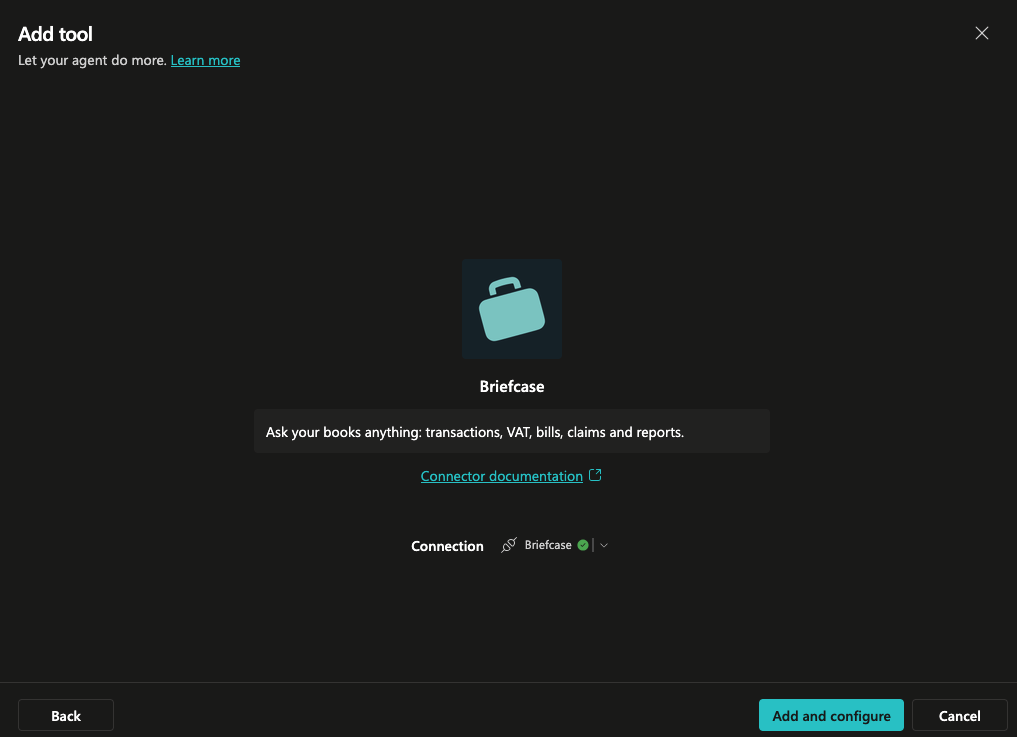
Filter to Model Context Protocol and choose Briefcase ("Ask your books anything: transactions, VAT, bills, claims and reports"). If searching for it finds nothing, scroll the list to B.
Under Connection, create a connection. Sign in to Briefcase, choose your businesses and approve. Then select Add and configure.
Leave the tool set to End user credentials, the default. Everyone who uses the agent then signs in with their own Briefcase login, and the agent sees only what they can see.
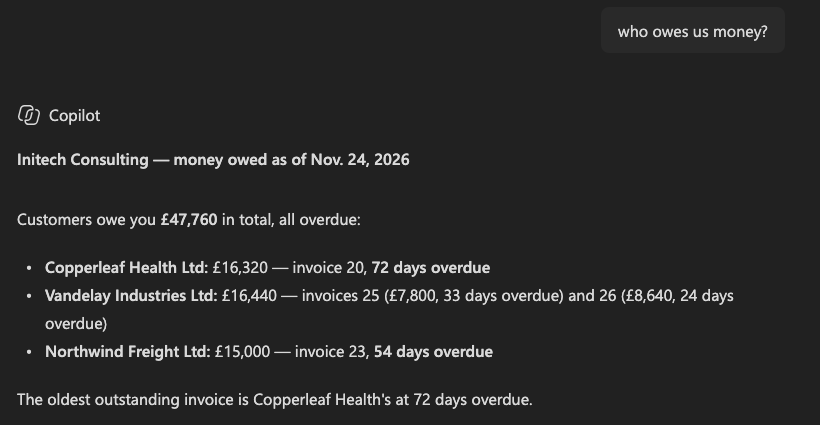
Open the Test pane and ask "Who owes us money?" to check the agent can reach your books.
3. Publish it to Microsoft 365 Copilot
Select Publish at the top right and confirm.
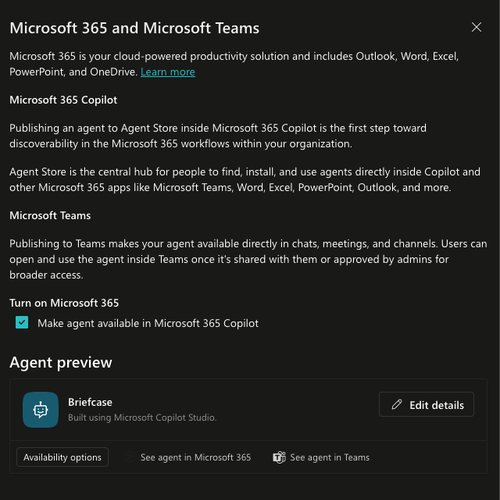
Open the Channels tab and choose Microsoft 365 and Microsoft Teams.
Tick Make agent available in Microsoft 365 Copilot and select Add channel.
Select See agent in Microsoft 365, then Add. The agent is now in Microsoft 365 Copilot and in Teams. Use Availability options to share it with colleagues.
After you change the agent in Copilot Studio, select Publish again so Microsoft 365 Copilot picks up the change.
4. Connect Briefcase in Microsoft 365 Copilot
The first time each person asks the agent something, it asks them to connect Briefcase. Microsoft 365 Copilot keeps its own connections, so you do this even if you already connected in Copilot Studio.
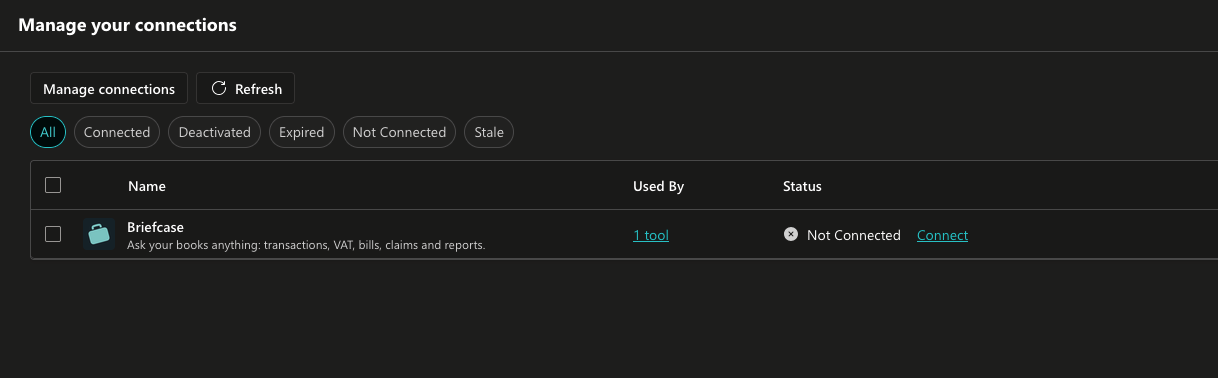
In the agent's reply, select Open connection manager.
Select Connect next to Briefcase. Sign in to Briefcase, choose your businesses and approve.
Go back to the chat and select Retry.
If something doesn't work
"This agent is currently unavailable. It has reached its usage limit." The Copilot Studio environment has no capacity for people without a Microsoft 365 Copilot licence. An administrator can buy Copilot Credits, or add a pay-as-you-go plan in the Power Platform admin center: Licensing → Billing Plans → New billing plan, tick the Copilot Studio meter and add your environment.
The agent keeps asking you to connect. Open the connection manager and check every connection shows Connected. If it lists a tool you don't use, remove that tool from the agent in Copilot Studio and publish again.
Briefcase isn't in the list of tools. Ask your Microsoft administrator to allow it.
Changes the agent makes in Briefcase work the same as from any other assistant: it shows a preview first and goes ahead only when you agree. You can see and disconnect the agent in Settings → AI assistants. To connect Claude, ChatGPT or another assistant instead, see How do I connect Claude, ChatGPT or Copilot Studio to Briefcase?
Anything the agent asks Briefcase for, including your businesses' financial data, is sent to Microsoft. Only connect it if your firm has approved Microsoft 365 Copilot for client data.