Under Making Tax Digital for Income Tax (MTD ITSA), every sole trade and property business sends HMRC an update each quarter. Briefcase Ledger builds the update from the books, shows you the figures to check, and files it with HMRC. This guide covers sole traders, landlords and jointly owned property.
The client must be connected to HMRC first. See Setting up your client for MTD ITSA if you are an accountant, or Setting up your business for MTD ITSA as a business owner.
Before you start
Bring the books up to date to the end of the quarter.
You need the Quarterly Submissions: Submit permission. See How do I manage user permissions in Briefcase?
Use a computer. These pages aren't available on a phone yet.
When each update is due
Each update is cumulative. It covers everything from 6 April to the end of the quarter, not just the last three months.
Quarter | Covers | Due |
|---|---|---|
Q1 | 6 April to 5 July | 7 August |
Q2 | 6 April to 5 October | 7 November |
Q3 | 6 April to 5 January | 7 February |
Q4 | 6 April to 5 April | 7 May |
Because updates are cumulative, a change to an earlier quarter's books is picked up by the next update. You don't send the earlier quarter again.
1. Open the quarterly update
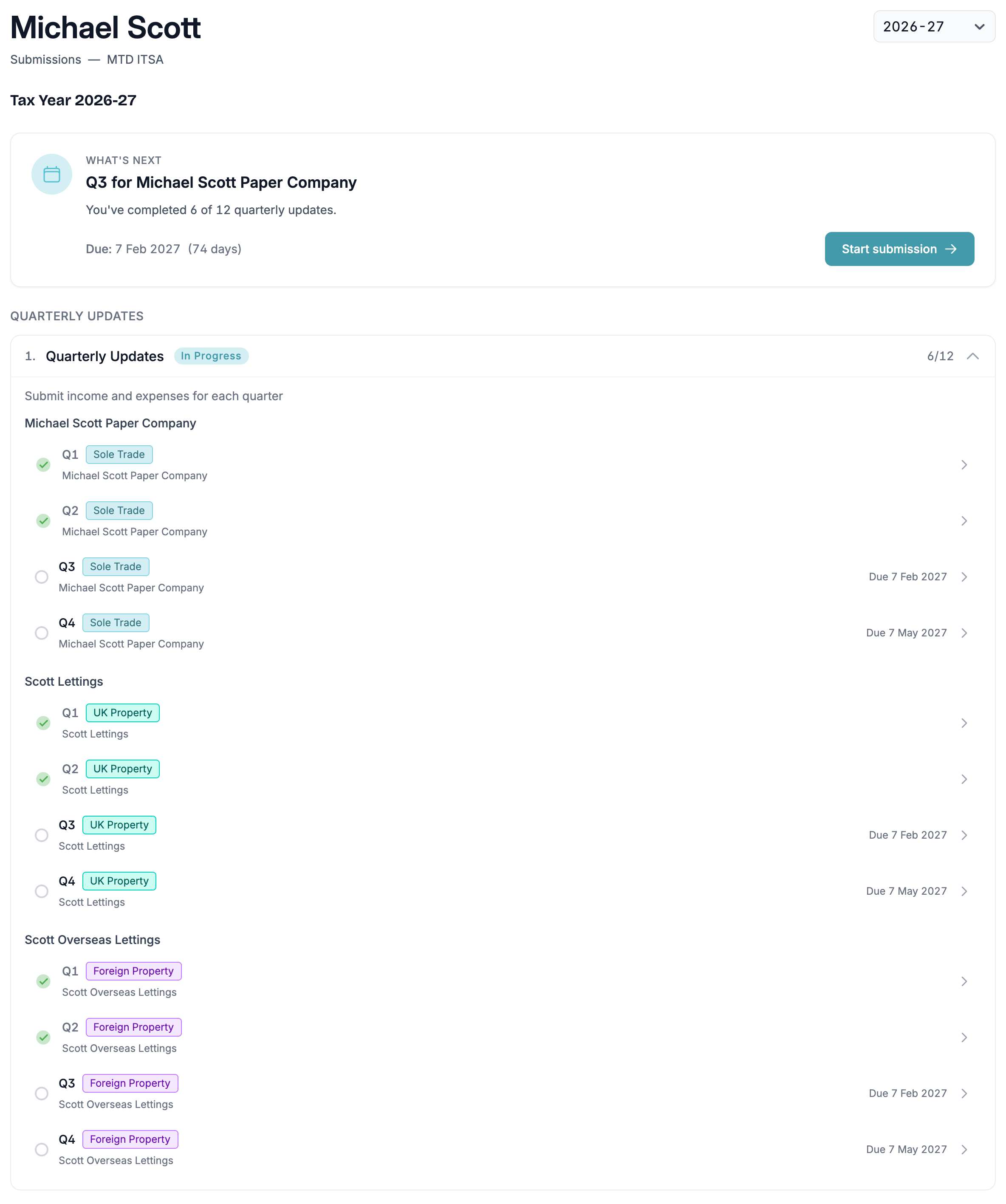
Open the client and choose MTD ITSA under Submissions in the left menu.
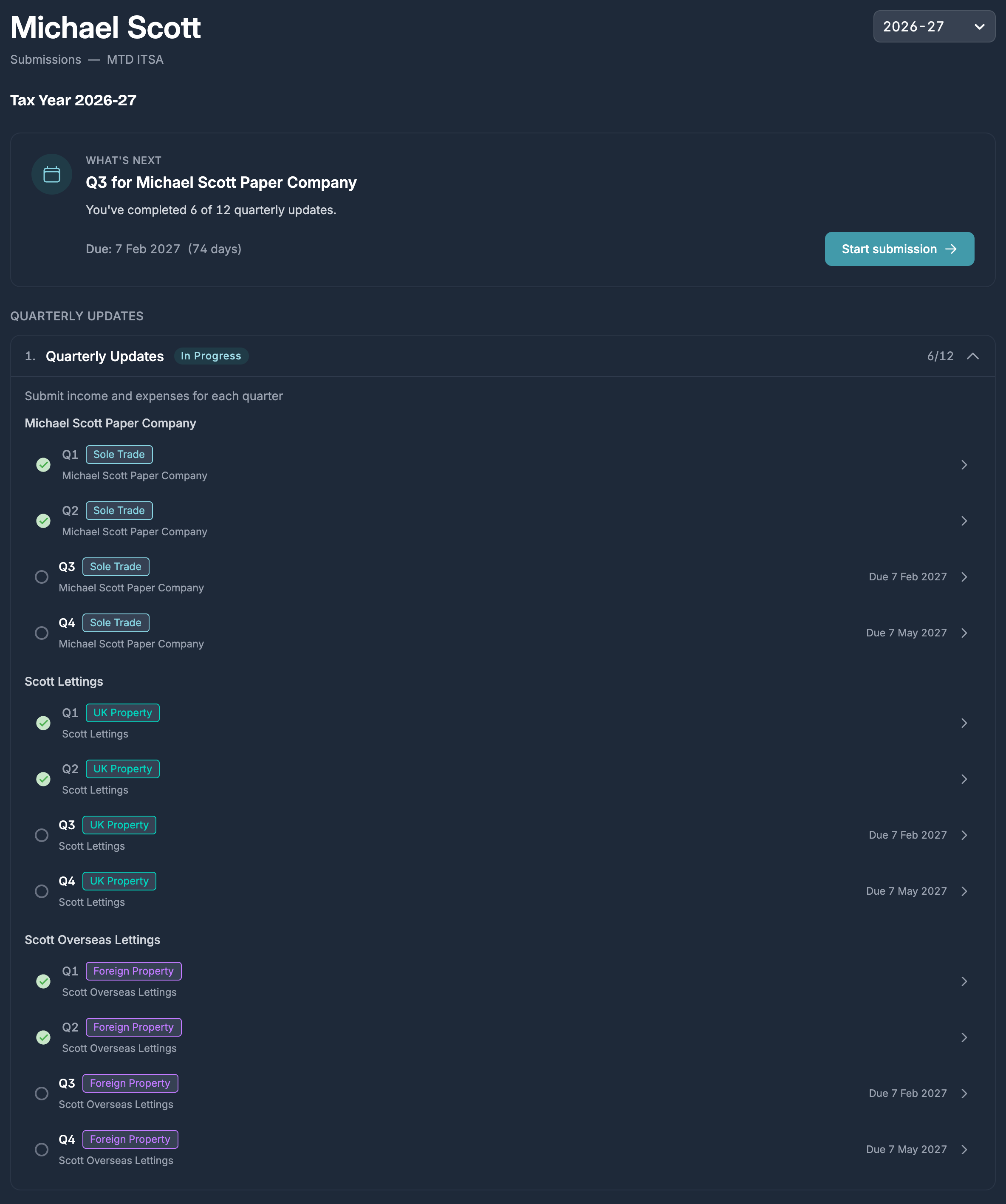
The page lists each business with its four quarters. A green tick means the quarter is filed. Open quarters show their due date.
Click a quarter to open it, or choose Start submission on the What's next card to open the next one due.
2. Check the figures
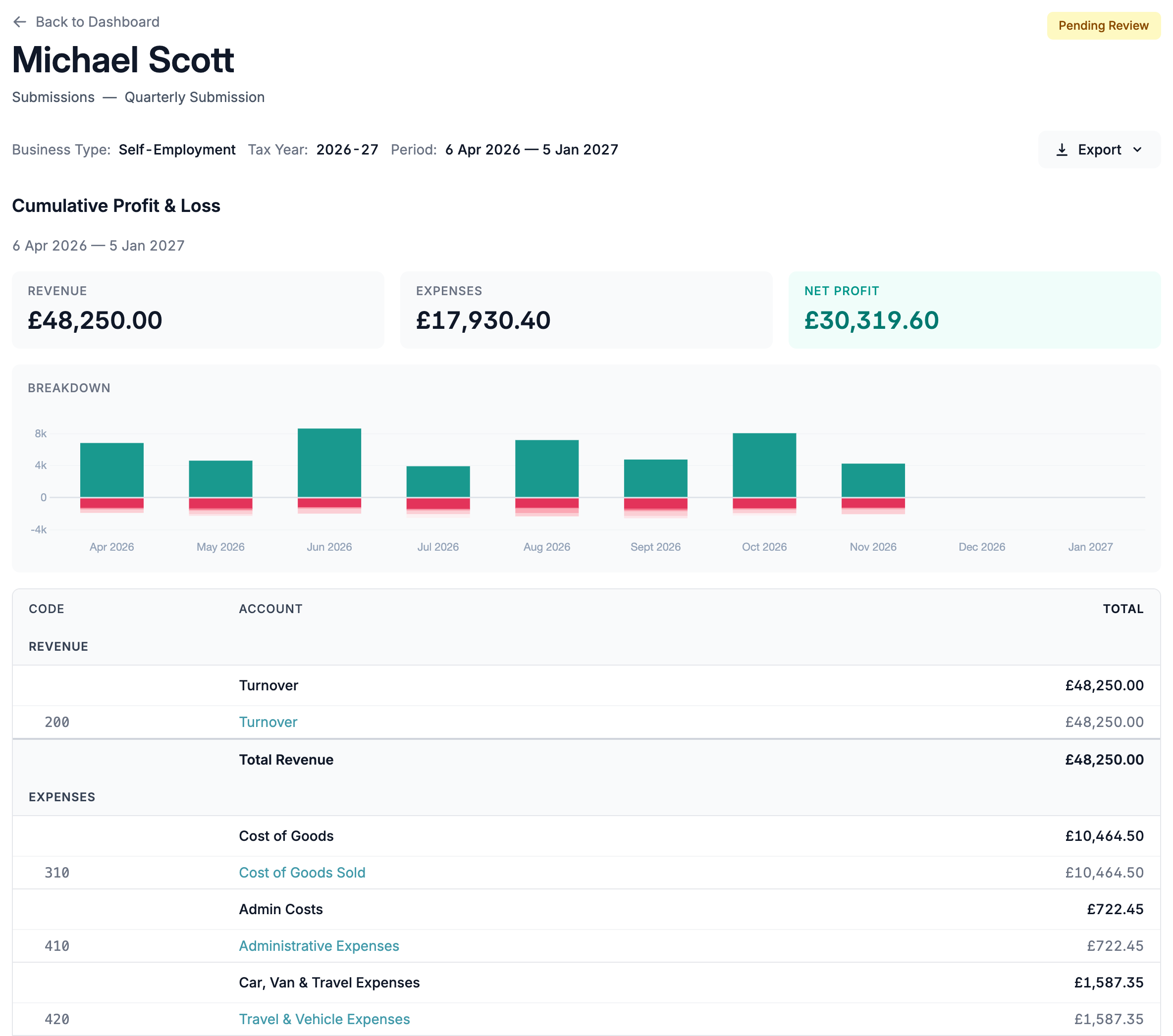
The page shows the figures as they will go to HMRC, worked out from the books each time you open it. The period at the top always starts on 6 April.
Sole traders
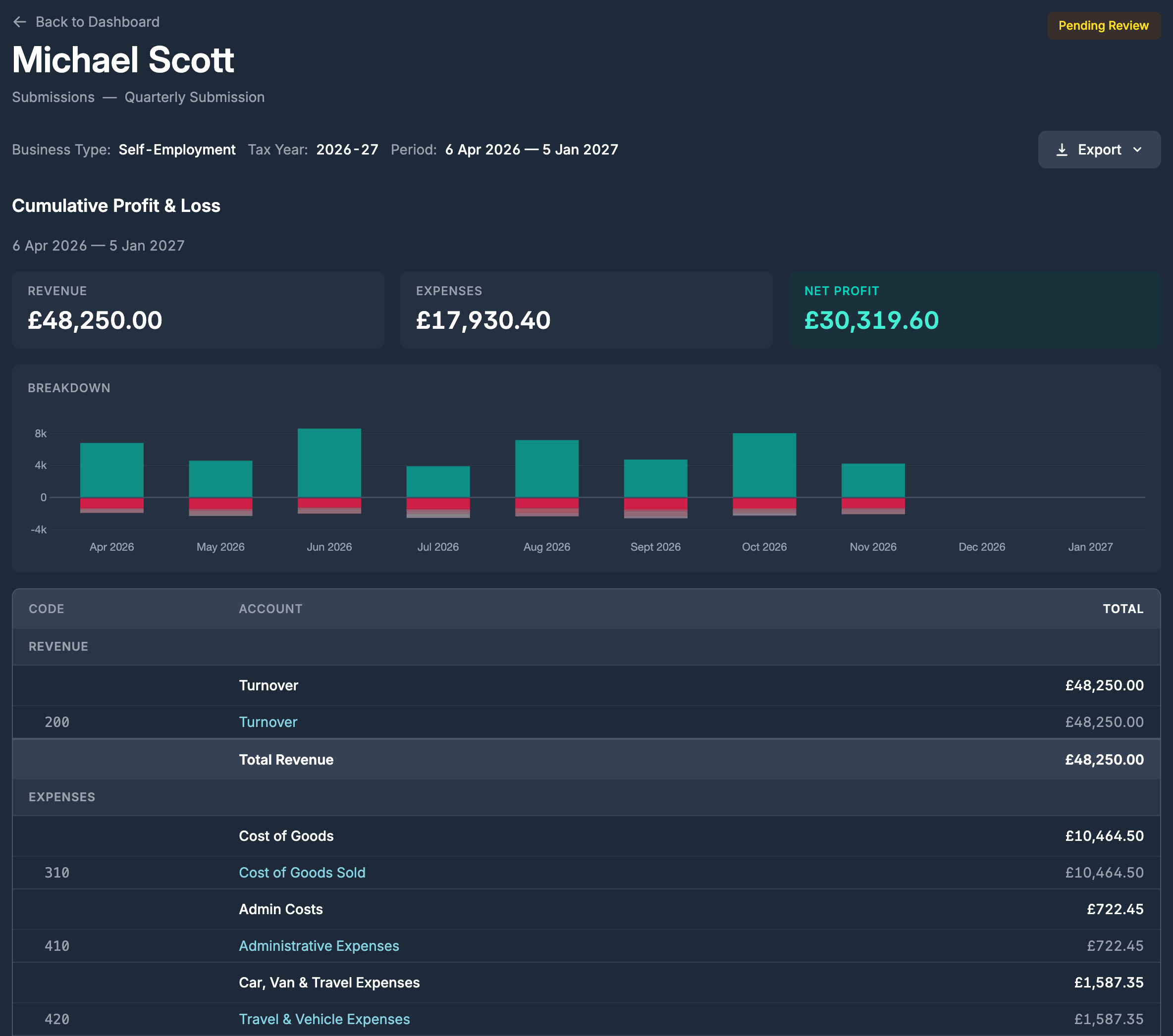
The Cumulative Profit & Loss shows Revenue, Expenses and Net profit. Below it, each HMRC category lists the accounts that make it up.
Click an account name to see the transactions behind its figure. Back to the quarterly update brings you back.
If tax was taken off the business's trading income, it shows on its own line, because HMRC receives it as a separate figure.
Landlords
The Cumulative Property Update shows Income, Deductible expenses and Property profit before adjustments, with a row for each HMRC category.
Click a category to see the transactions behind it.
Residential Finance Costs, such as mortgage interest, have their own section. They aren't deducted from the property profit. HMRC receives them as a separate figure and works out the tax relief in the year-end calculation.
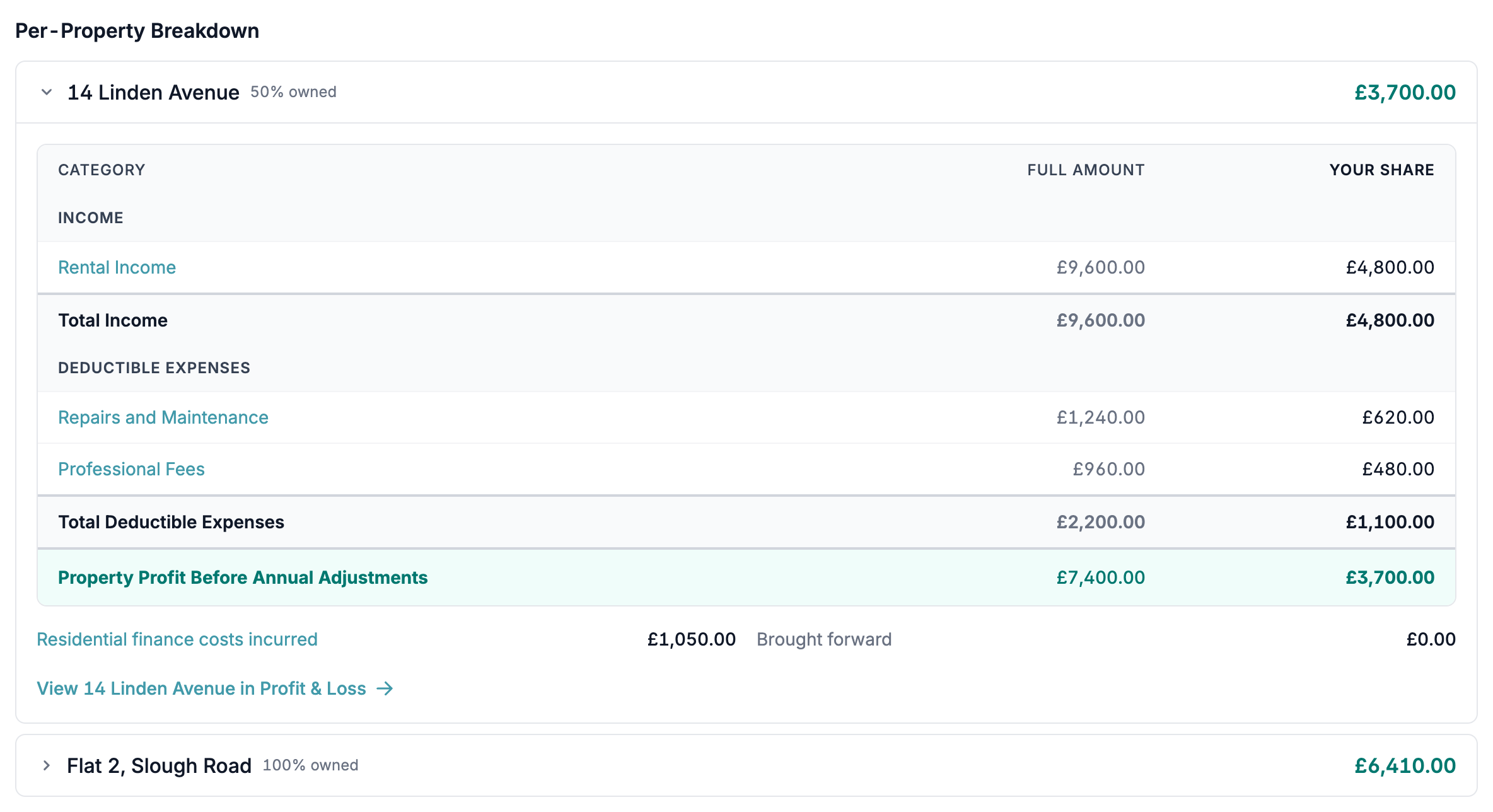
Per-Property Breakdown has a card for each property. Click a card to see that property's own figures and a link to its Profit & Loss.
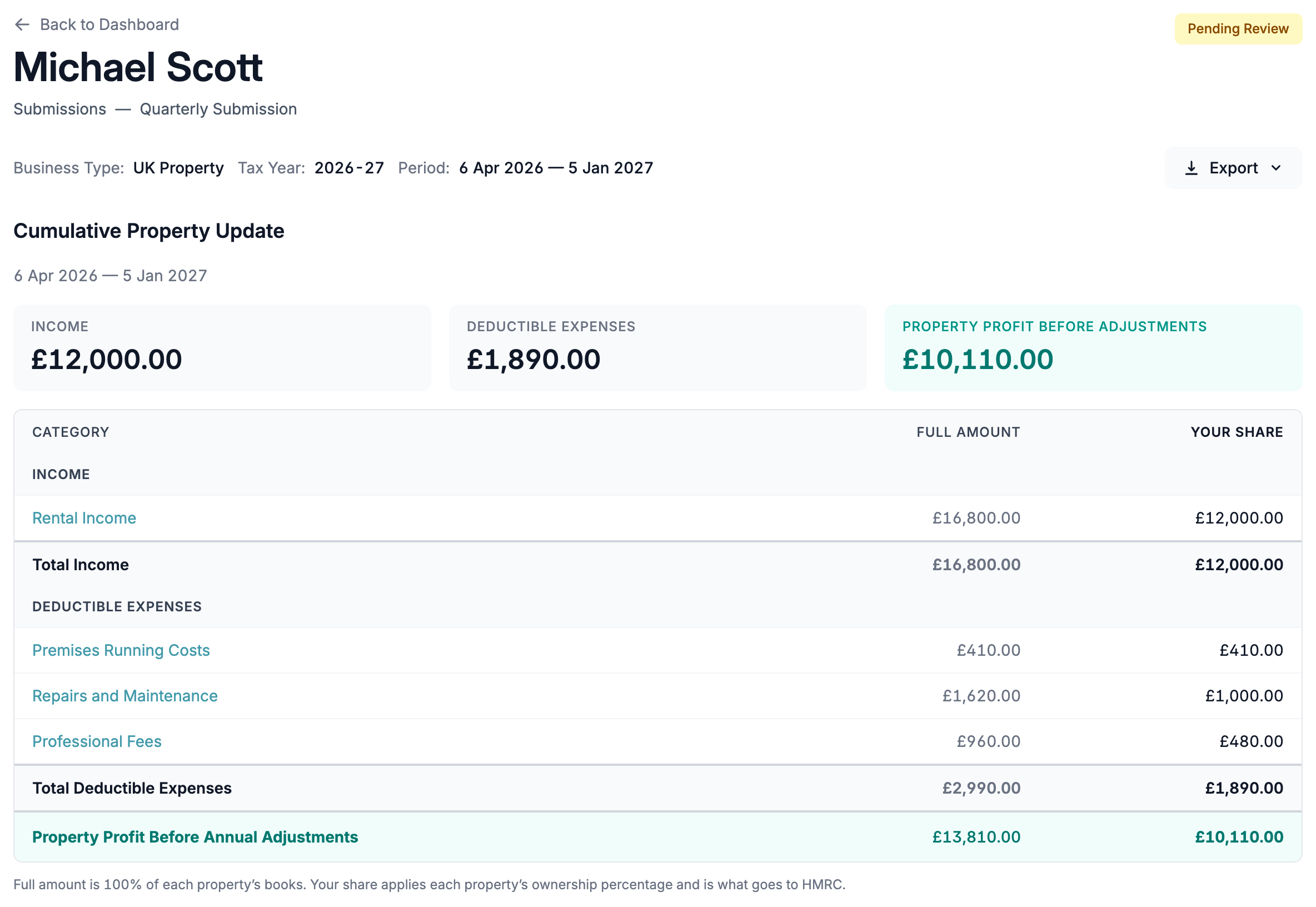
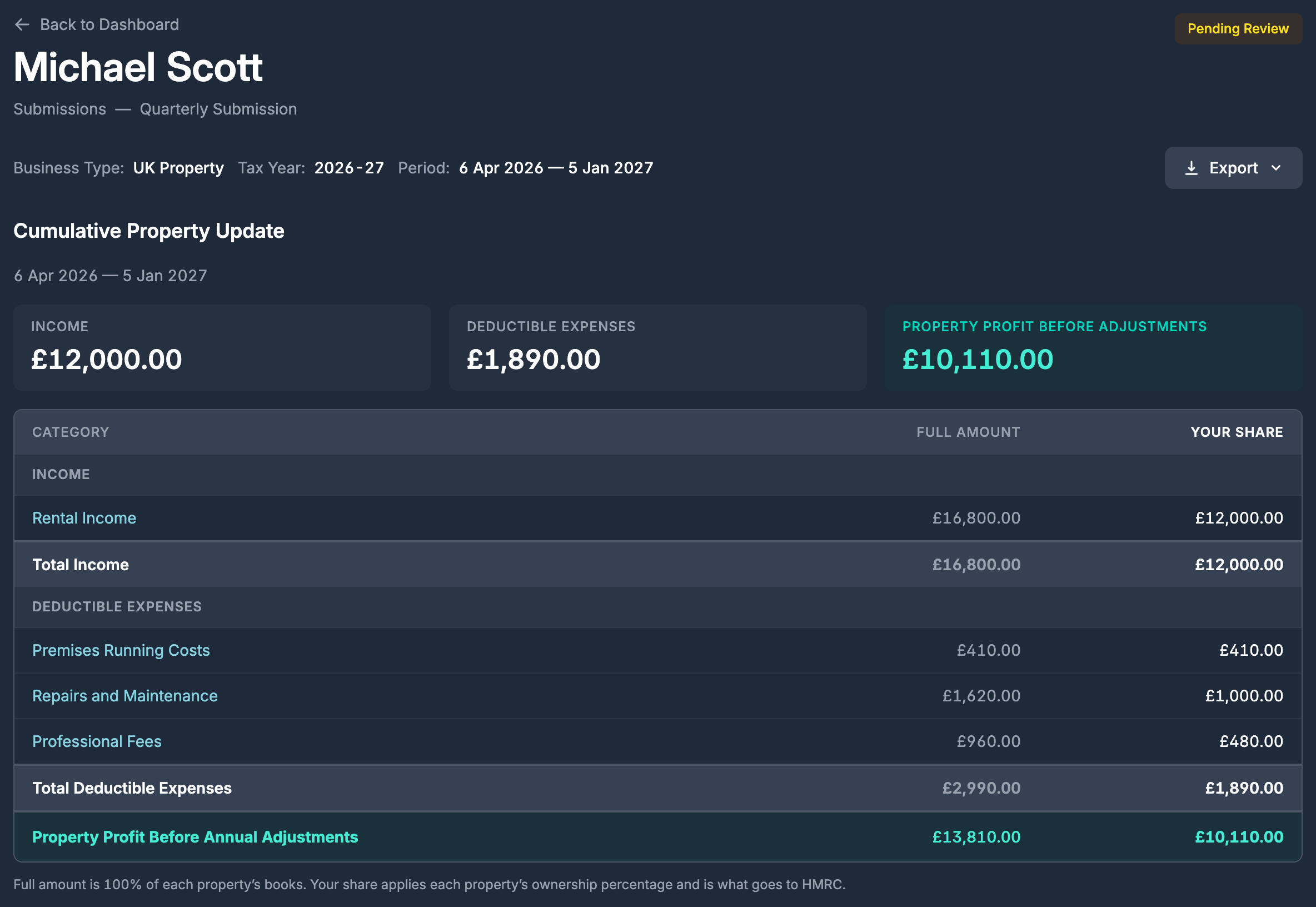
This landlord owns one property jointly, so the table has Full amount and Your share columns, explained in the next section. When every property is wholly owned, there is a single Total column.
A foreign property business has the same page, with a card for each property.
How the figures tie to the Profit & Loss
Under the table, How this ties to the Profit & Loss starts from the net profit in the Profit & Loss report and lists each difference down to the figure on this page. View in Profit & Loss opens the report for the same business and dates.
3. Jointly owned property
If the client owns a property with someone else, keep that property's books in full: all of the rent and all of the costs. Then tell Briefcase the client's share, and it works out the amounts to send.
Set the ownership percentage
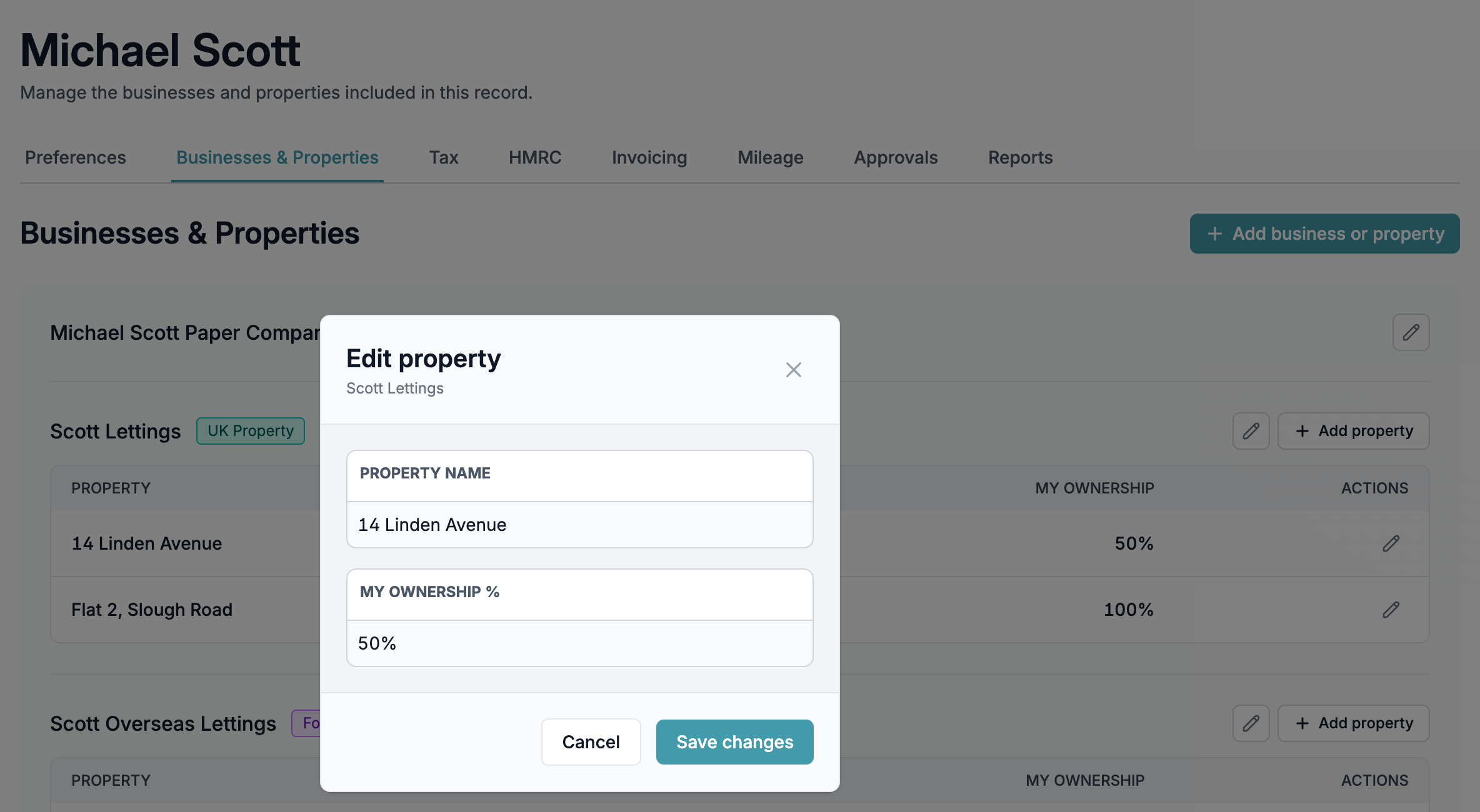
Go to Business settings → Businesses & Properties.
Click the pencil beside the property.
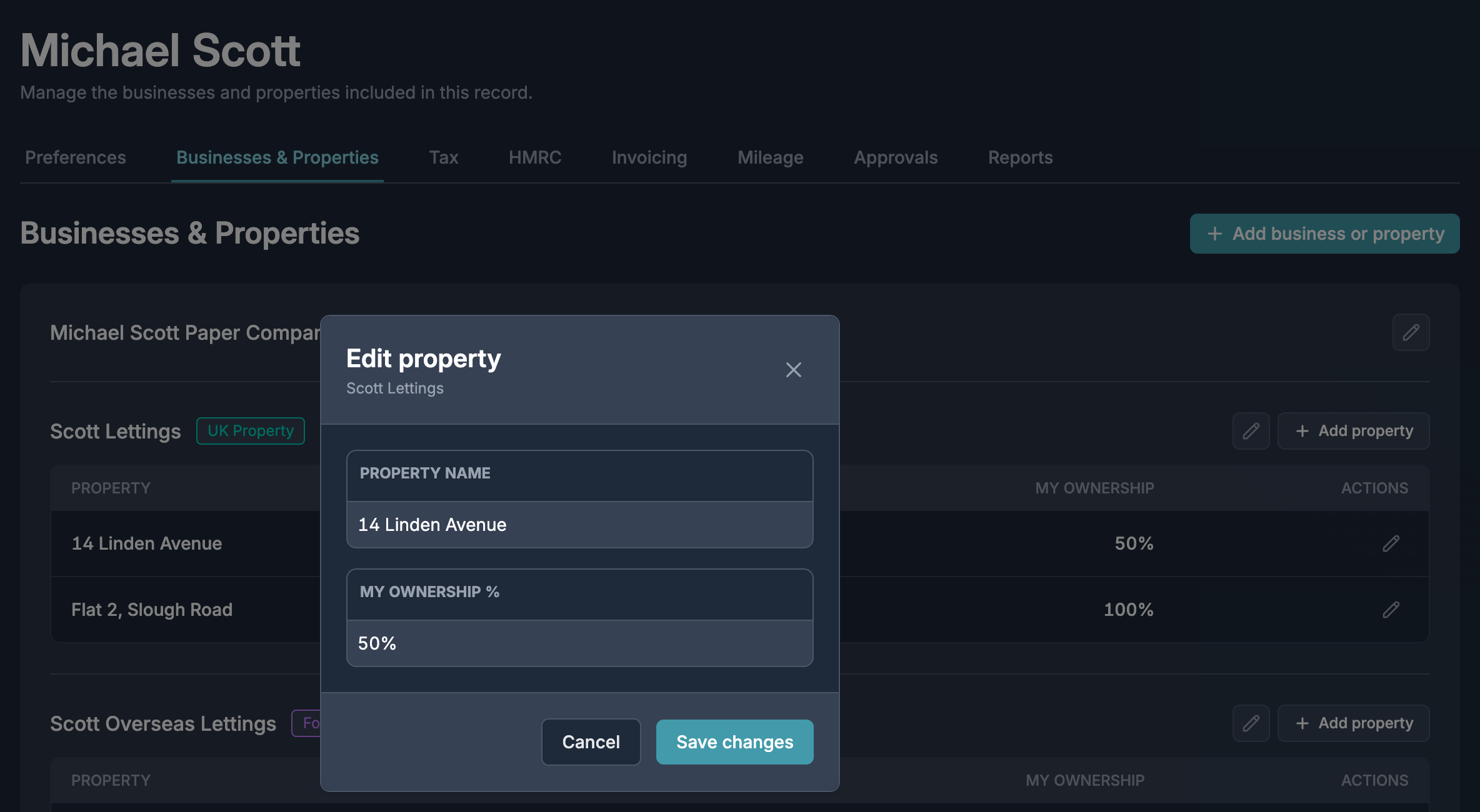
Enter the client's share in My ownership %, as a whole number from 1 to 100, and choose Save changes.
What the quarterly update shows
The tables gain two columns. Full amount is 100% of the property's books. Your share applies the ownership percentage, and is what goes to HMRC.
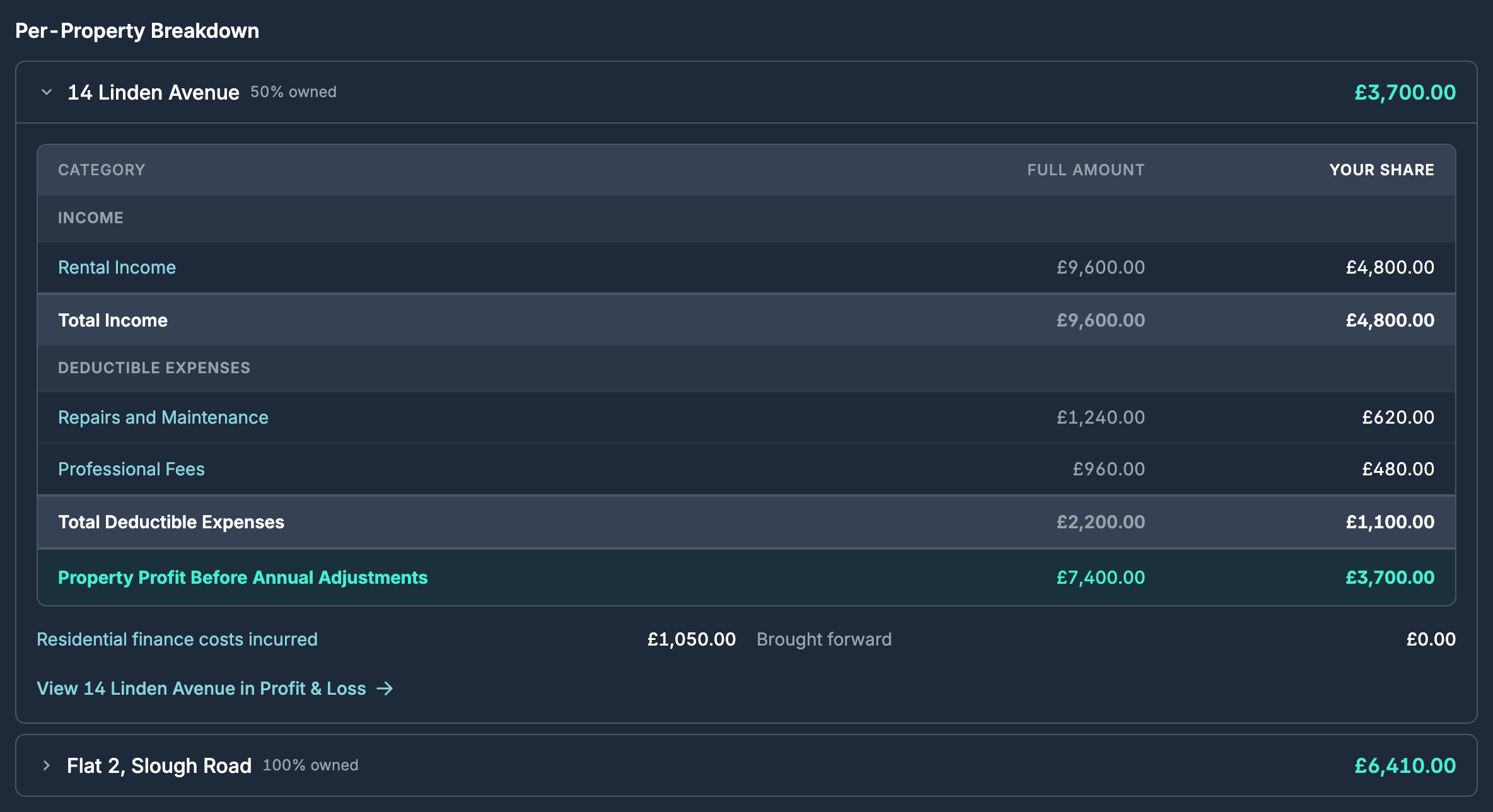
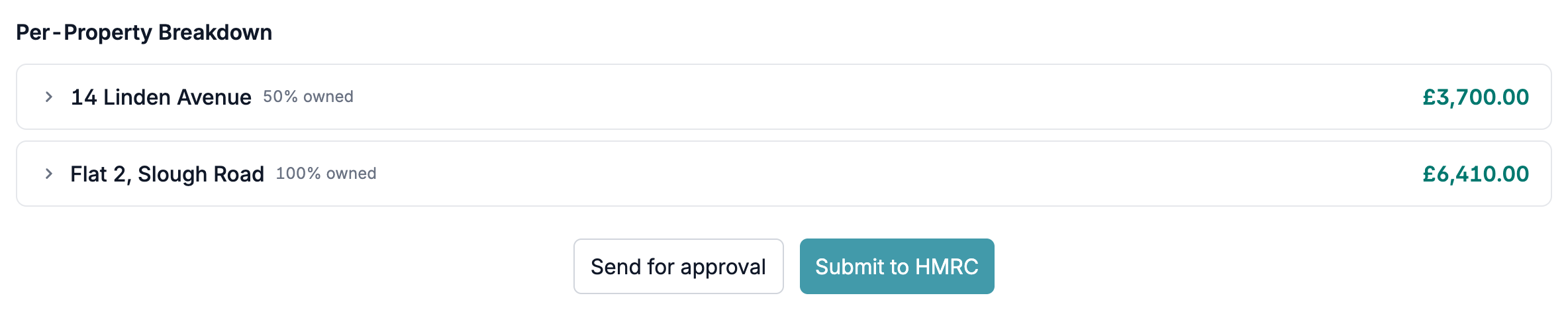
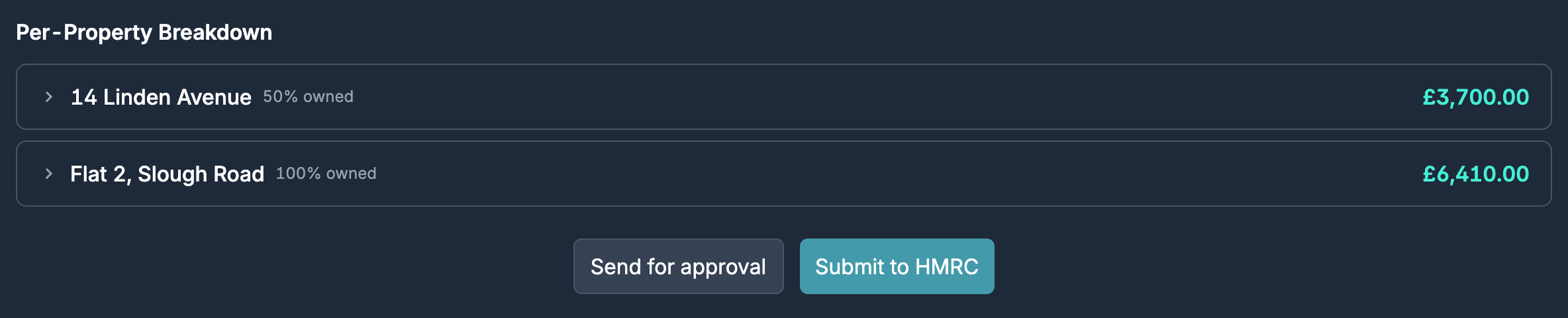
In the example below, 14 Linden Avenue is 50% owned. Its £9,600.00 of rent counts as £4,800.00, and its costs are halved in the same way. Flat 2, Slough Road is wholly owned, so its figures count in full.
Residential finance costs are shared in the same way.
Each property's card shows its percentage, such as "50% owned".
Why the Profit & Loss shows more
The Profit & Loss report stays the full books. The tie block explains the gap with a line such as "Less the other owners' share of 14 Linden Avenue".


Briefcase holds one percentage for each property, with no start date. Changing it changes every quarter that is still open, back to 6 April. Quarters already filed keep the figures HMRC holds.
4. Download a copy
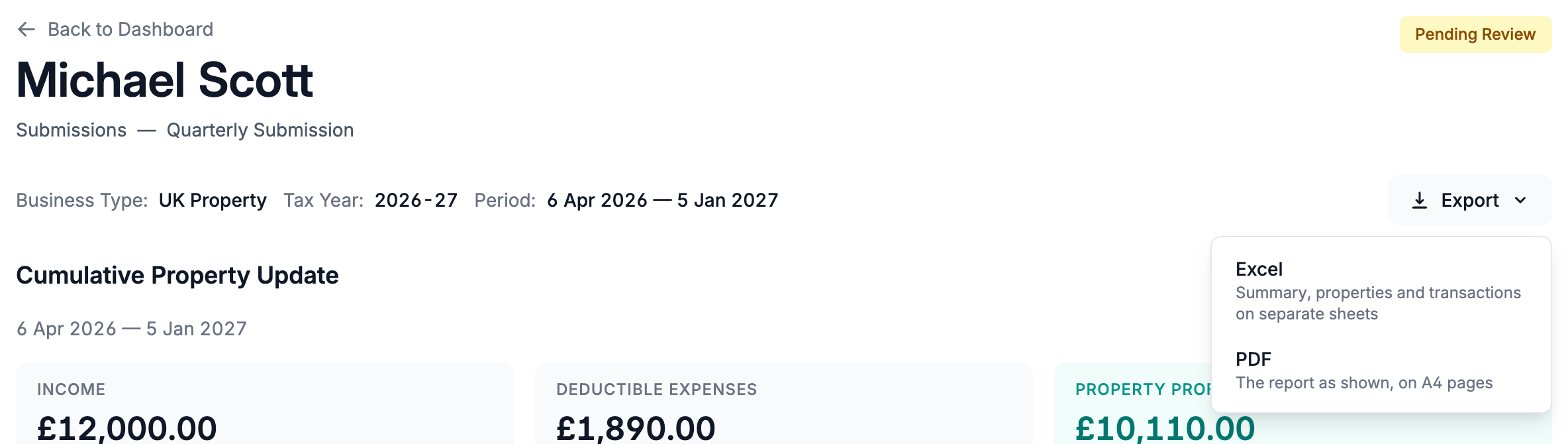
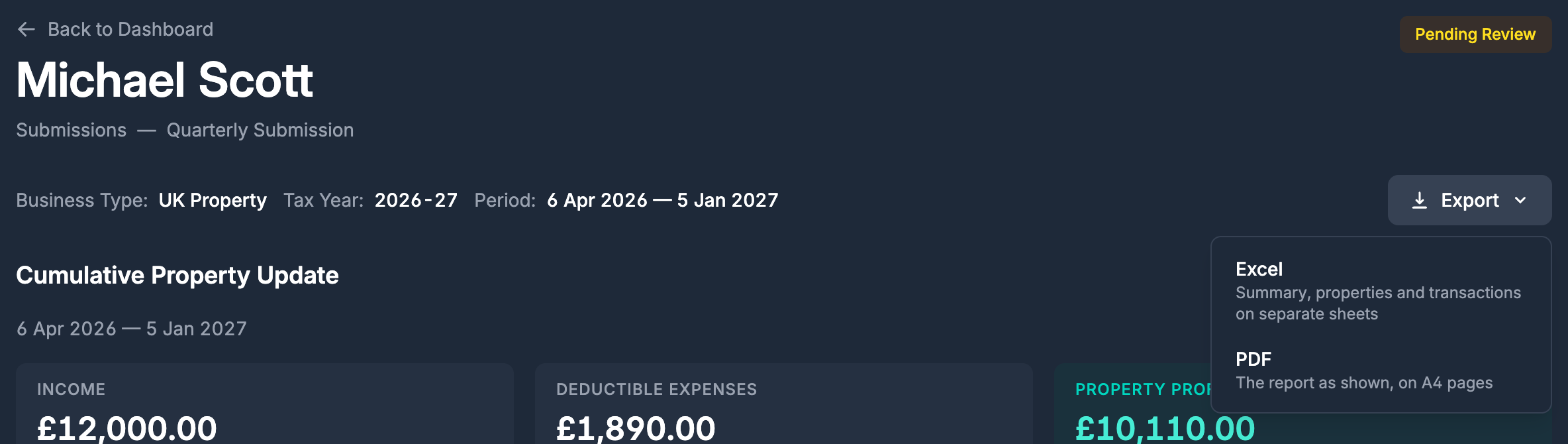
Export, at the top right of the quarter, gives you:
PDF: the update as shown, on A4 pages, with your practice's report branding.
Excel: the summary, the properties and the transactions behind the figures, on separate sheets.
Both work for open and filed quarters.
5. Ask for approval first (optional)
Use this when the client, or someone at your practice, should sign off the figures before they go to HMRC.
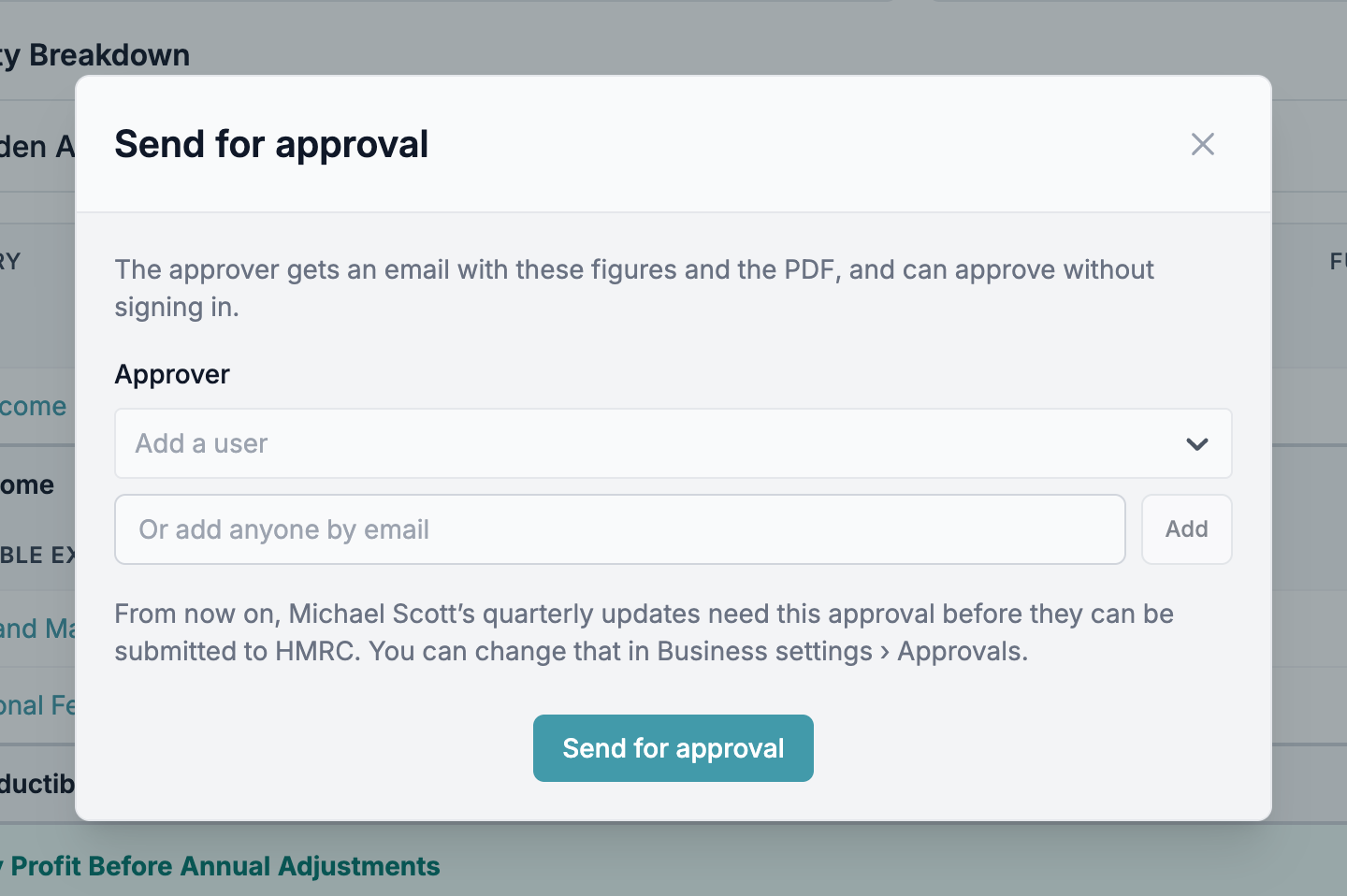
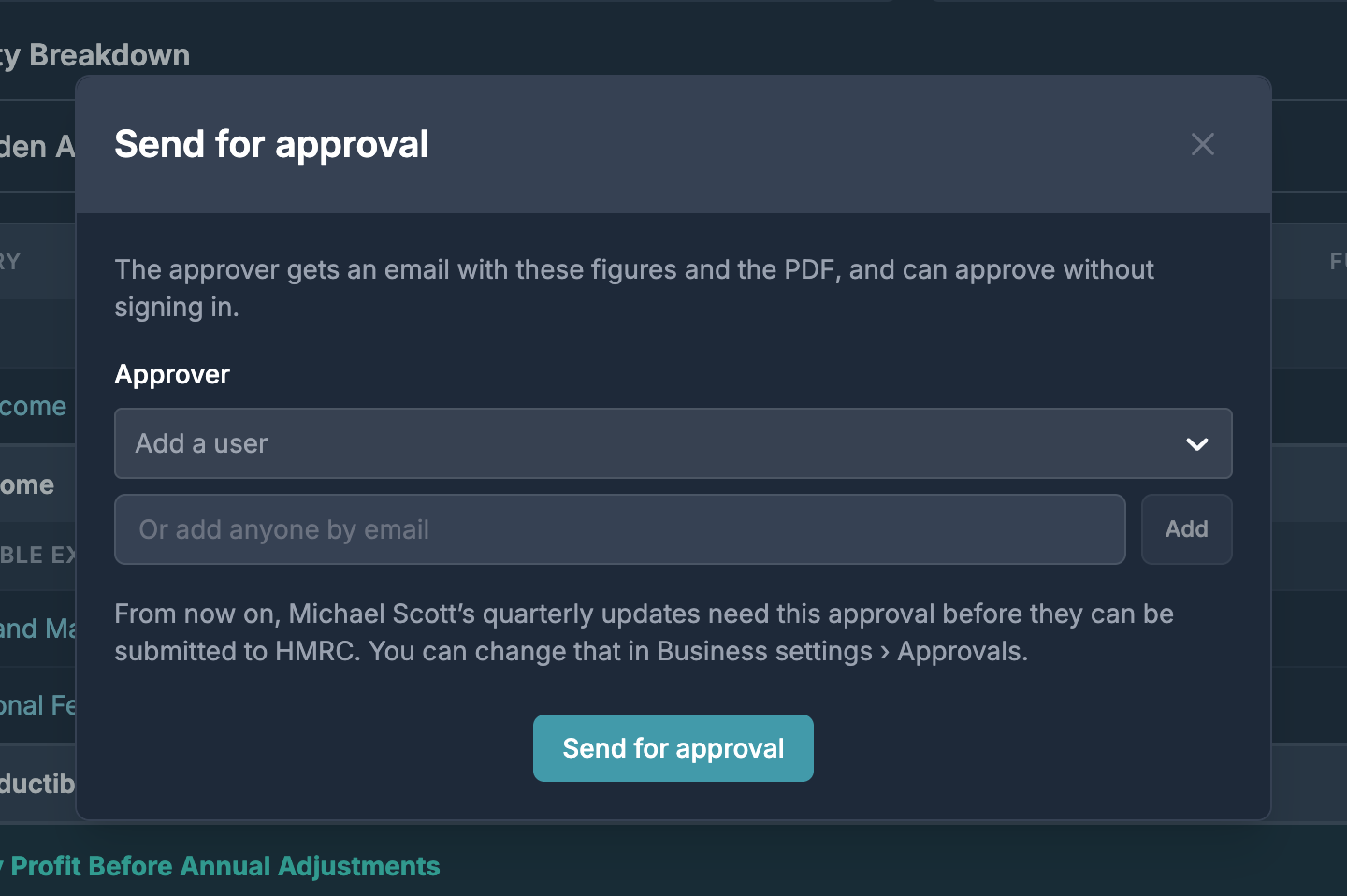
Choose Send for approval at the bottom of the quarter.
Pick a user from the list, or type any email address, such as the client's.
Choose Send for approval.
The approver gets an email with the figures. They can download the PDF and approve or reject without signing in.
From then on, this client's quarterly updates need approval. Submit to HMRC stays locked until the update is approved, and if the figures change after approval it has to be approved again. A request stays open until the filing deadline, or for seven days if that is later. To change the approvers or turn approval off, go to Business settings → Approvals.
6. Submit to HMRC
When the figures are right, choose Submit to HMRC at the bottom of the quarter.
Wait for Submission Successful. It confirms the period and tax year that were sent.
Back to Dashboard returns you to the MTD ITSA page, where the quarter now has a green tick.
There is no second confirmation. Clicking Submit to HMRC files the update straight away.
After you submit
You can open a filed quarter at any time. It shows Submitted, the figures as filed, and a Filed with HMRC card with when it was sent and by whom, and who approved it if approval was used.
If the books change afterwards, the card lists what moved. You don't need to do anything to the filed quarter: the next quarterly update carries the change.
A filed quarter can't be changed or sent again from Briefcase.
Q&A
Why is Submit to HMRC greyed out?
There are three possible reasons:
You don't have the Quarterly Submissions: Submit permission. Hovering over the button says so.
The client's updates need approval and this one isn't approved yet. The banner at the top of the quarter says what it is waiting for.
The page says "The quarterly update cannot be calculated". This happens when a property business has accounts that aren't assigned to a property. The page names the accounts to fix.
A figure looks wrong. How do I fix it?
Click the account or category to see the transactions behind it, correct them in the books, then open the quarter again. The figures are worked out afresh each time the page opens.
The submission failed. What now?
The reason shows in red above the buttons, including any message from HMRC. If it says the HMRC connection or consent has expired, reconnect under Business settings → HMRC and submit again. HMRC's authorisation lasts 18 months.
The MTD ITSA page shows no quarters. Why?
The quarters come from HMRC, so they appear once the client is connected. Choose Connect to HMRC on the page, or in Business settings → HMRC.
A quarter has a tick, but it wasn't filed from Briefcase. Is that right?
Yes. HMRC tells Briefcase which quarters it has received, so a quarter filed in other software also shows as filed. Briefcase doesn't hold the figures that were sent for it.
Does this cover the year end?
No. The year-end submission is separate, under Submissions → Year End.
Questions? Email support@briefcase.so.