Move a limited company from Xero by uploading reports you export from Xero. Briefcase Ledger takes over on your start date, with the balances, last year's history, unpaid invoices and bills, and customers brought across.
Before you start
Choose the start date. For a VAT-registered company, it's the day after the last VAT period Xero files. If Xero files the quarter to 30 June, Briefcase Ledger starts on 1 July. Run every report as at the day before the start date.
VAT: Briefcase Ledger supports standard (accrual) VAT accounting. A company on the cash accounting scheme or the Flat Rate Scheme can't be imported yet.
Permission: you need Financial Close → Create.
What to export from Xero
Report | Where to find it | How to run it |
|---|---|---|
Trial Balance (required) | Accounting → Reports → Trial Balance | As at the day before the start date. Export to Excel. |
Journal Report | Accounting → Reports → Journal Report | From the first day of last financial year to the day before the start date. Tick Description under Columns. Export to Excel. |
Customers | Contacts → Customers | Click Export to download a CSV. |
Aged Receivables Detail and Aged Payables Detail | Accounting → Reports | As at the day before the start date, ageing by due date. Export each to Excel. |
Only the trial balance is required. The Journal Report brings in last year's history, so monthly reports and comparatives work from day one. The aged reports bring in every invoice and bill still unpaid. Each step of the wizard shows the exact dates to use.
Run the trial balance and the two aged reports at the same time, so foreign currency items use the same exchange rate.
1. Start the import
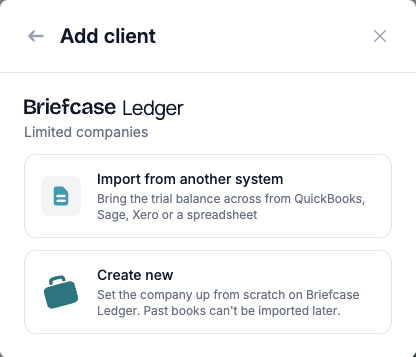
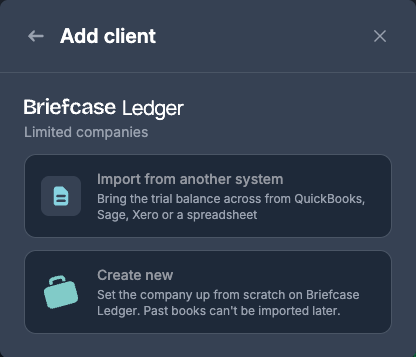
On the dashboard, click Add client, choose Limited companies, then Import from another system. The wizard saves your progress in this browser, so you can leave and come back.
2. Company
Enter the company name and its financial year end, and choose Xero.
3. Start date
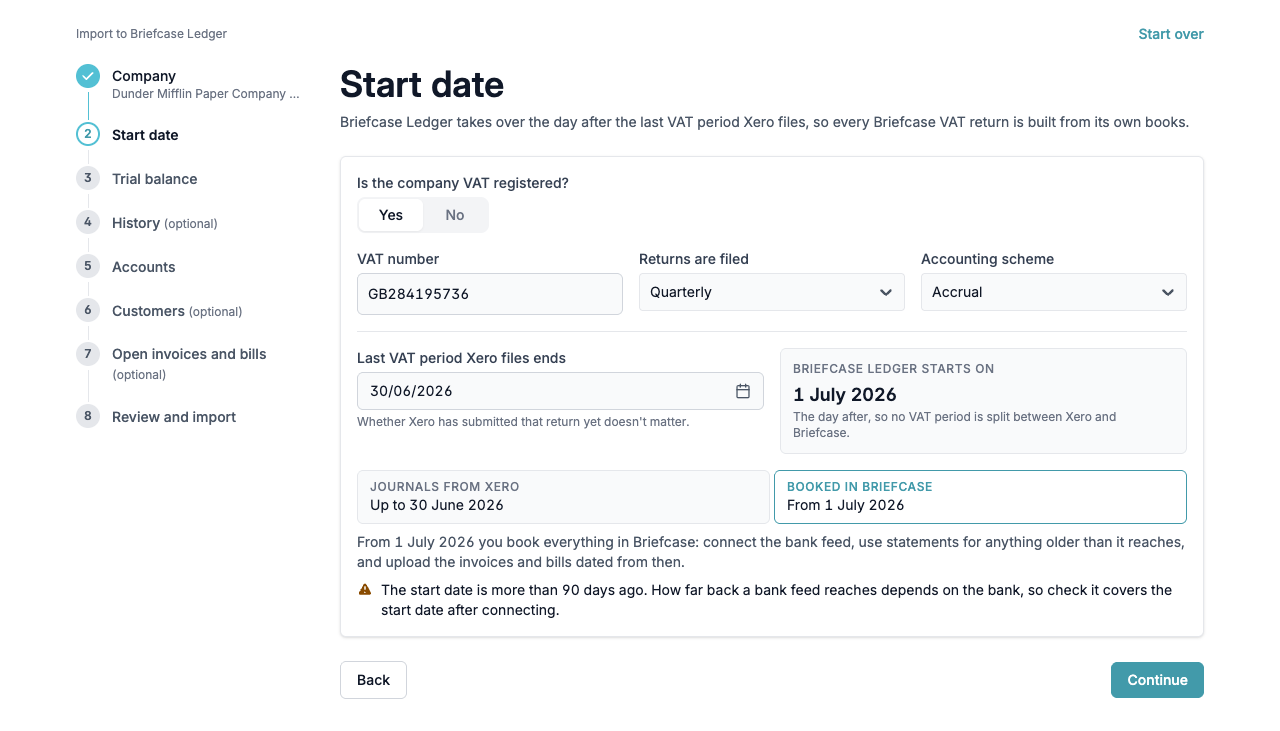
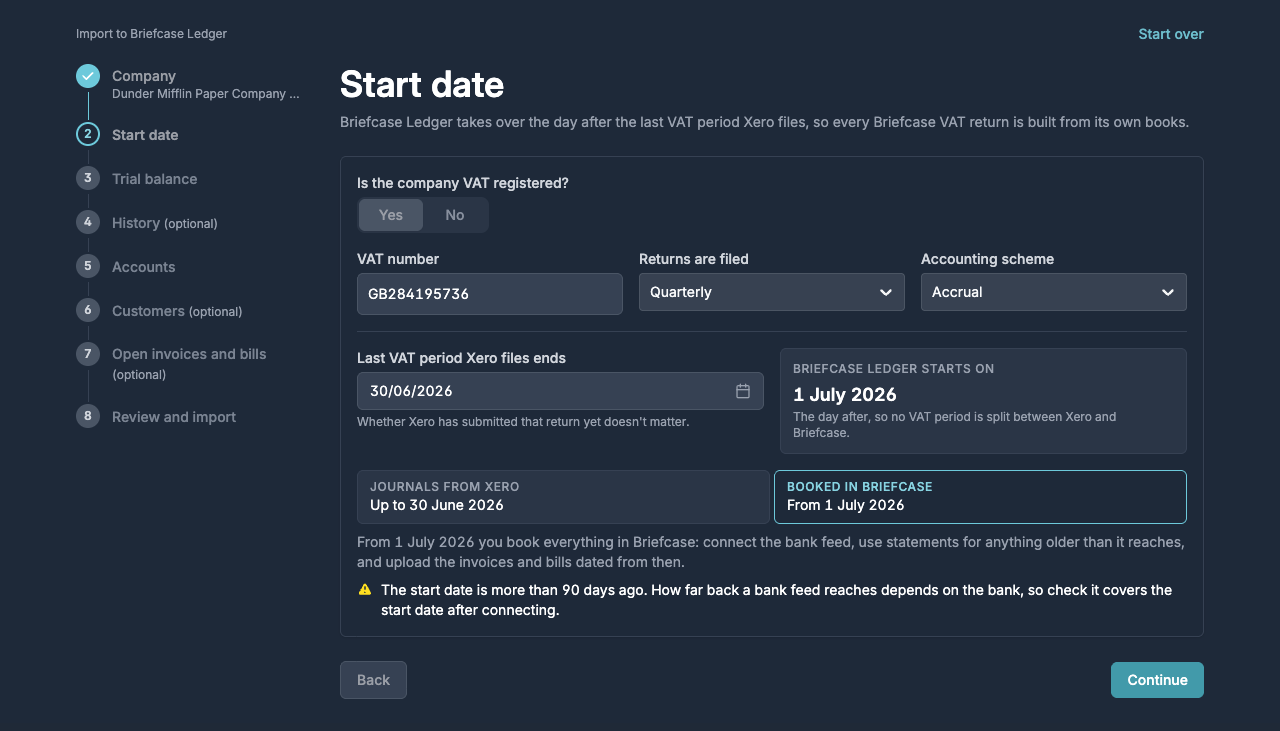
If the company is VAT registered, enter its VAT number, how often it files and when the last VAT period Xero files ends. Briefcase Ledger starts the next day, so no VAT period is split between Xero and Briefcase.
4. Trial balance
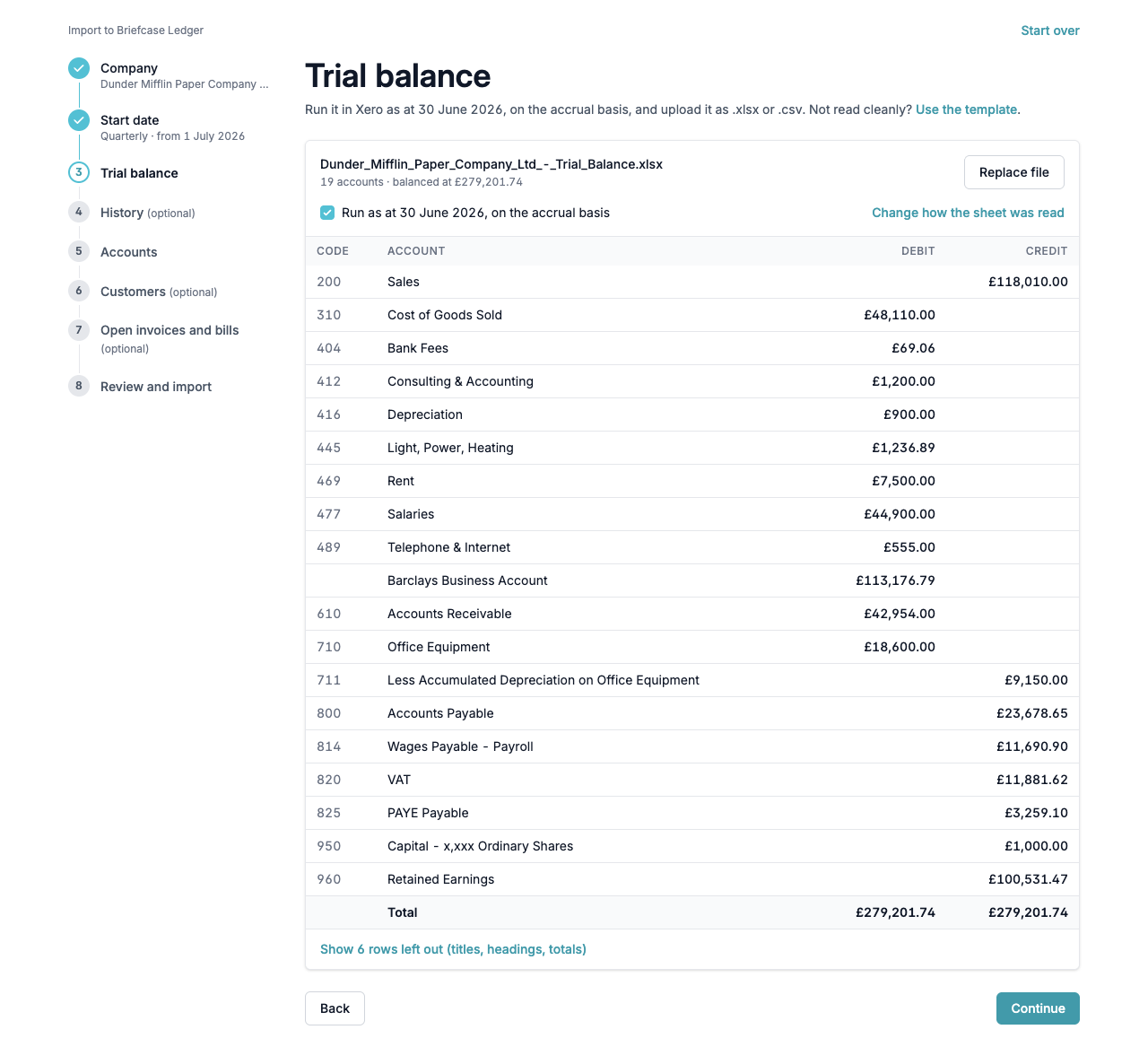
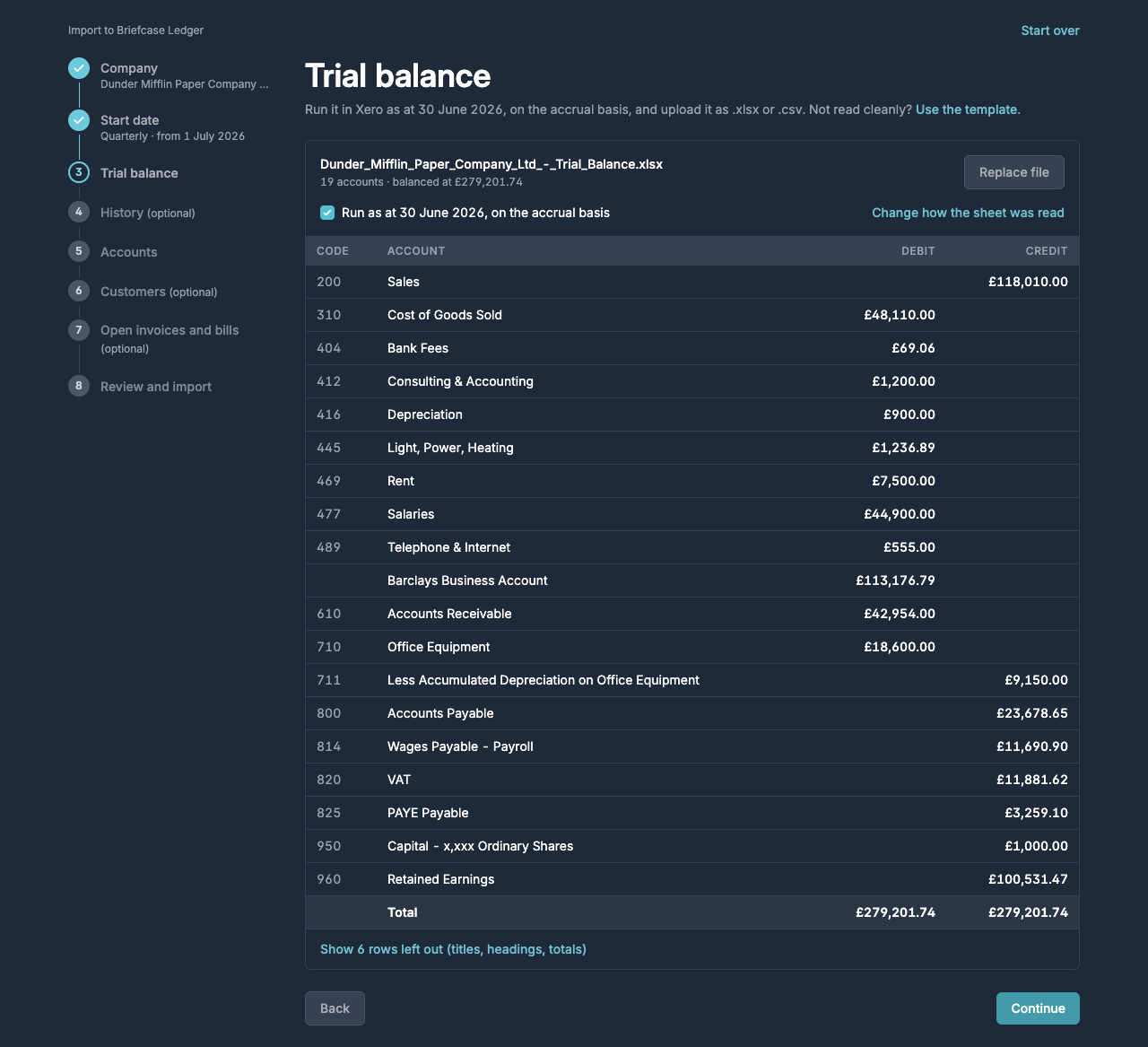
Upload the Trial Balance. Check that it says balanced, tick that it was run as at the date shown on the accrual basis, and click Continue.
5. History (optional)
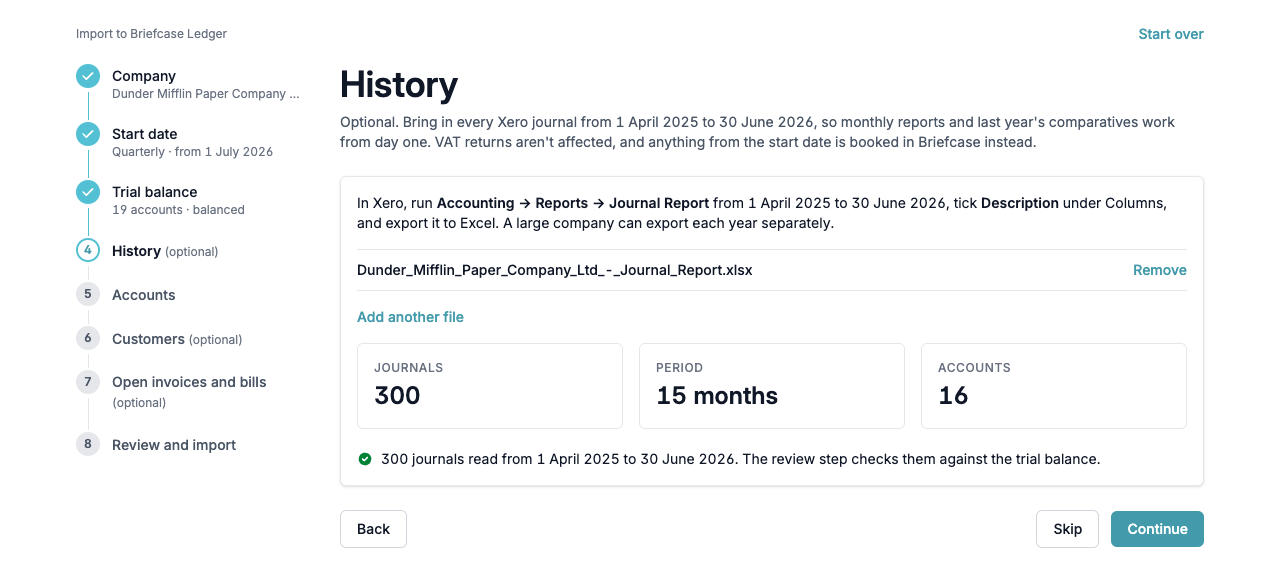
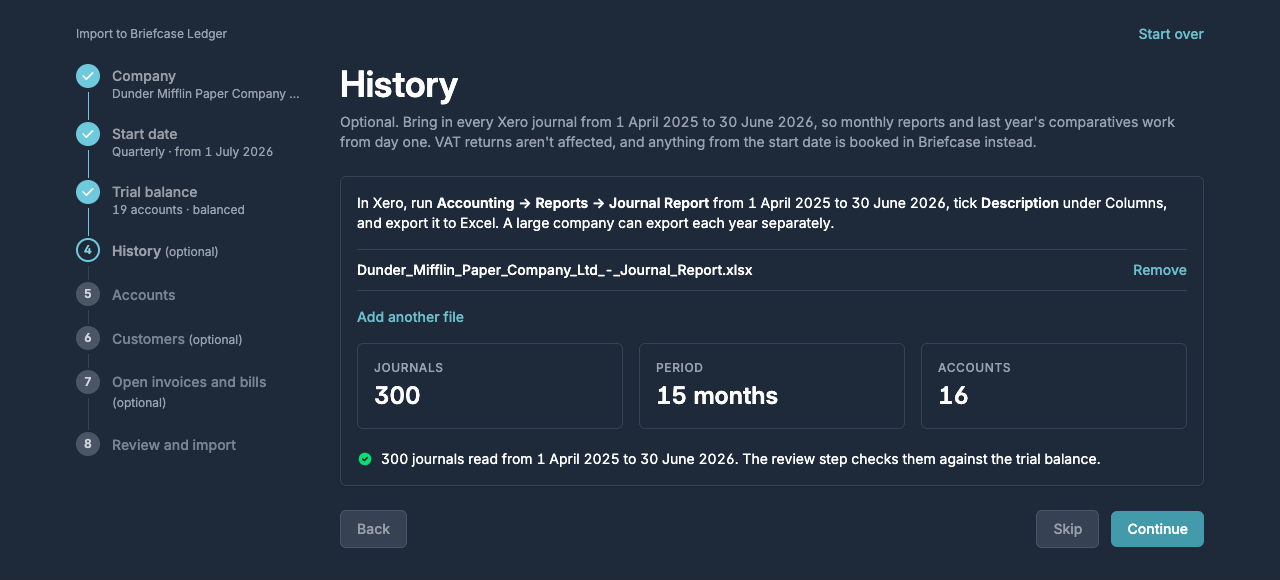
Upload the Journal Report. Briefcase reads every journal and checks them against the trial balance before anything is imported. History doesn't affect VAT returns.
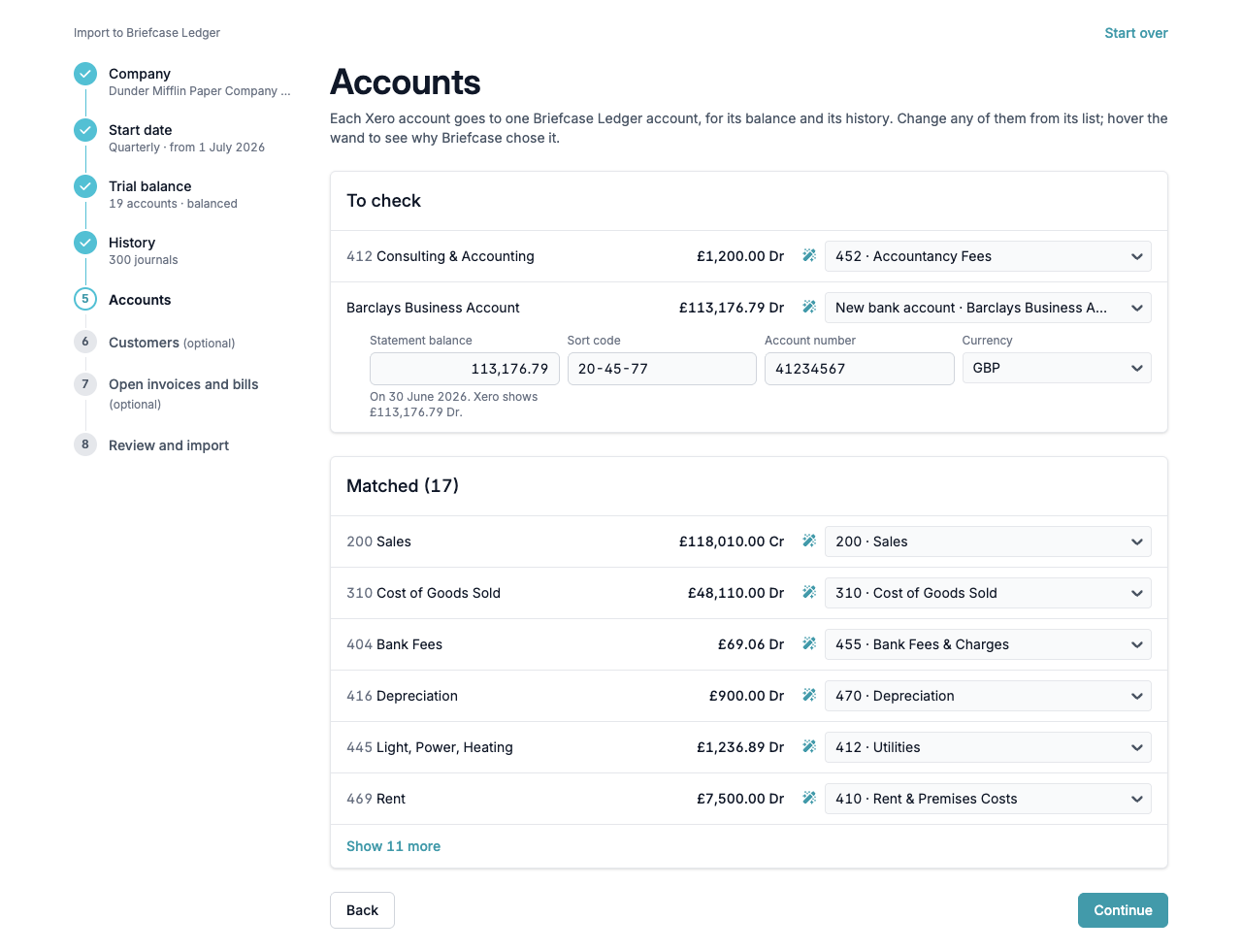
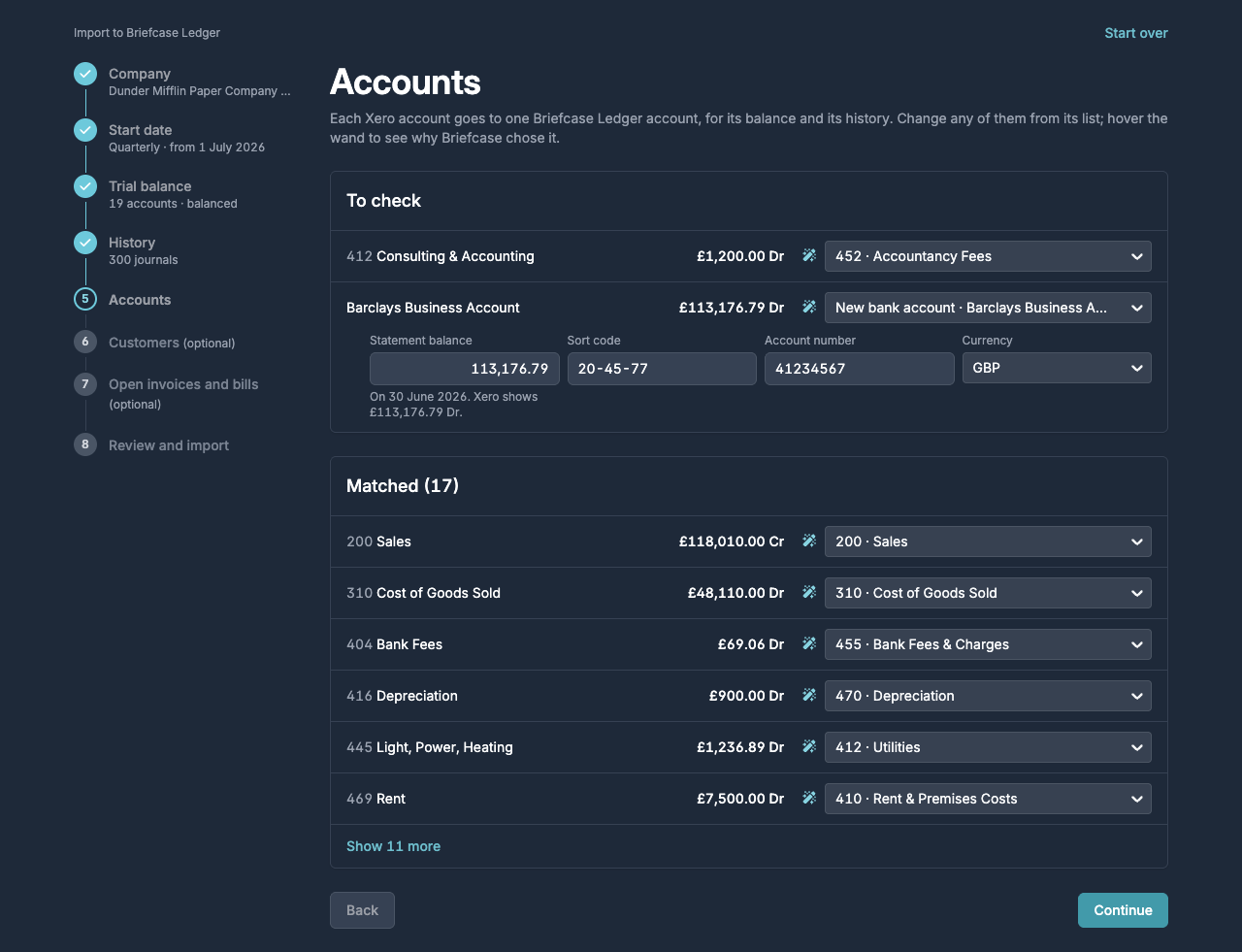
6. Accounts
Each Xero account is matched to a Briefcase Ledger account. Check anything under To check, and hover the wand to see why an account was chosen. For each bank account, enter its sort code and account number and check its statement balance.
7. Customers (optional)
Upload the customers CSV so you can invoice them from Briefcase straight away. You don't need suppliers: Briefcase picks them up from your bills.
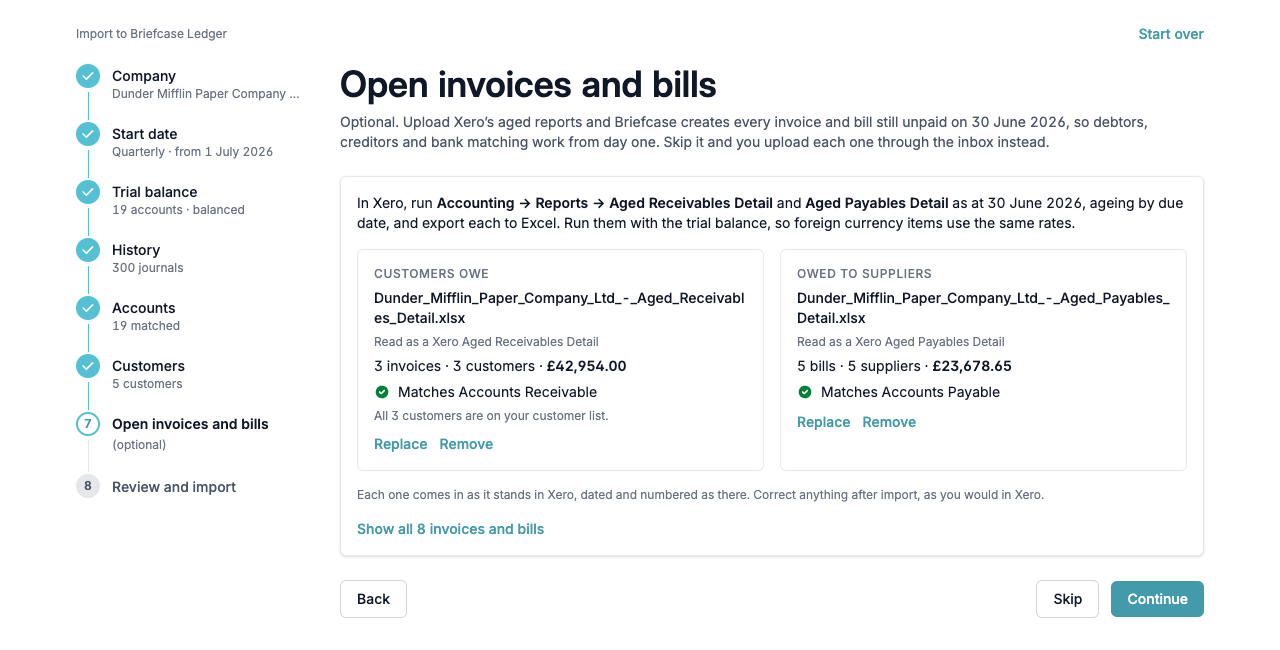
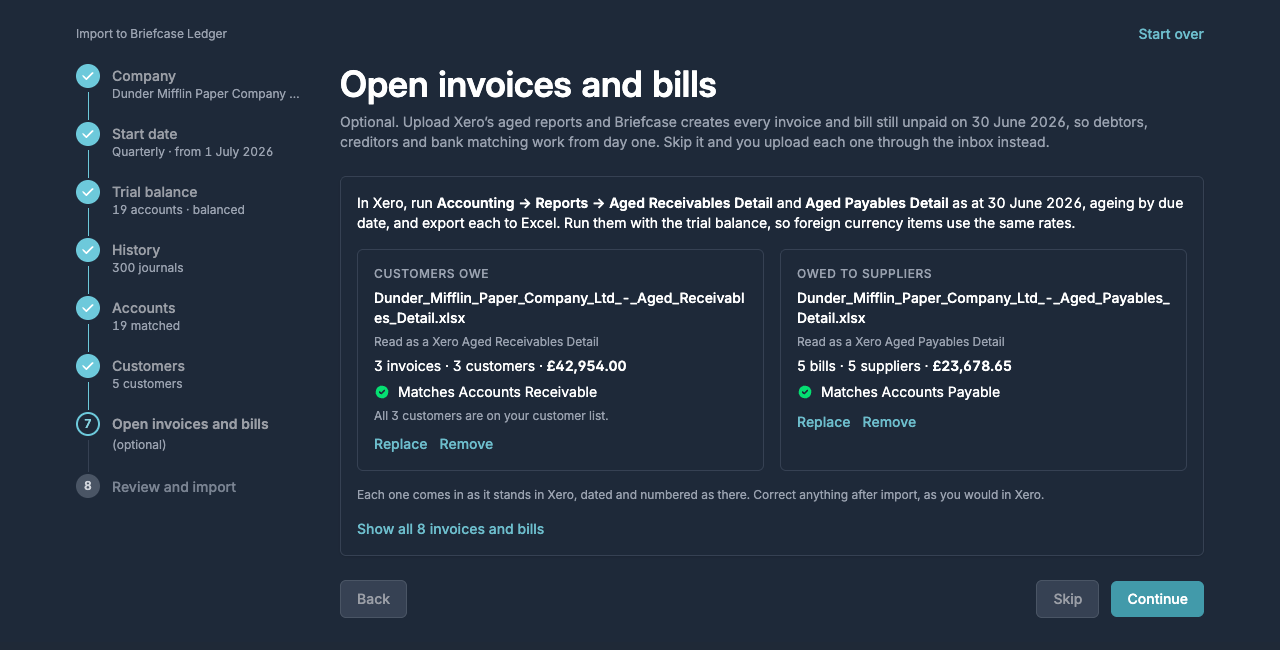
8. Open invoices and bills (optional)
Upload the Aged Receivables Detail and the Aged Payables Detail. Each should show Matches Accounts Receivable or Matches Accounts Payable.
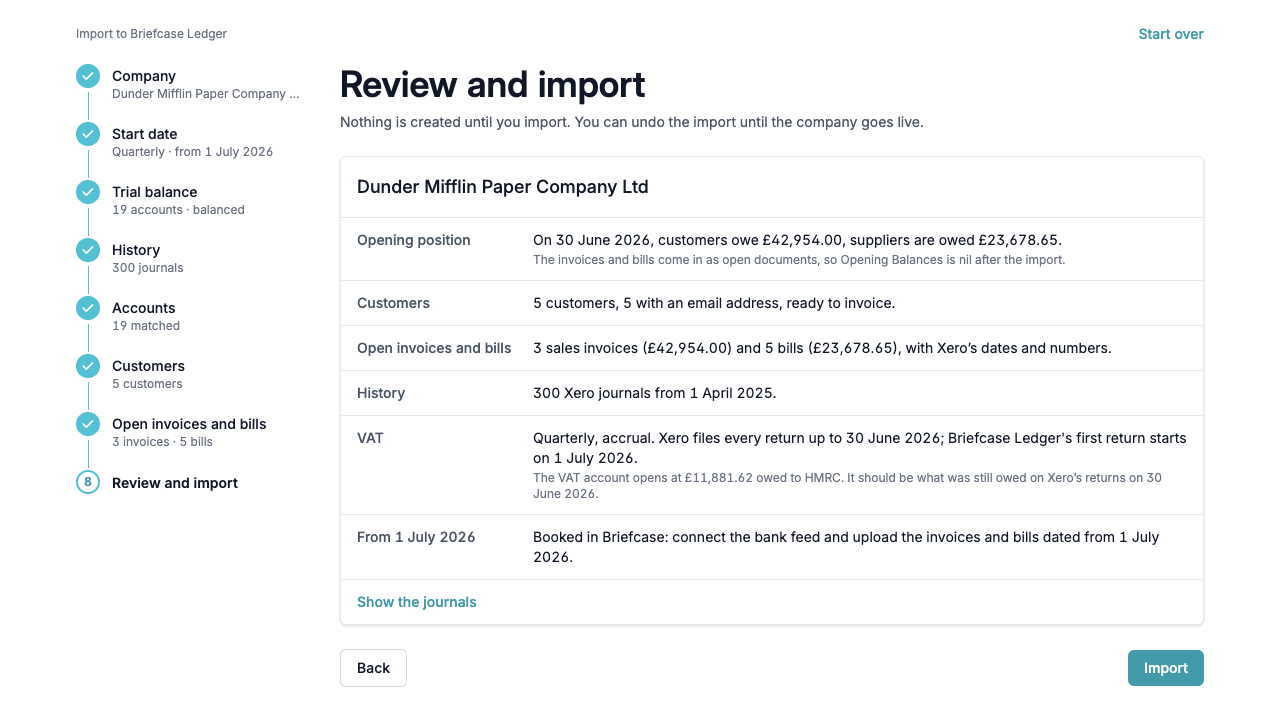
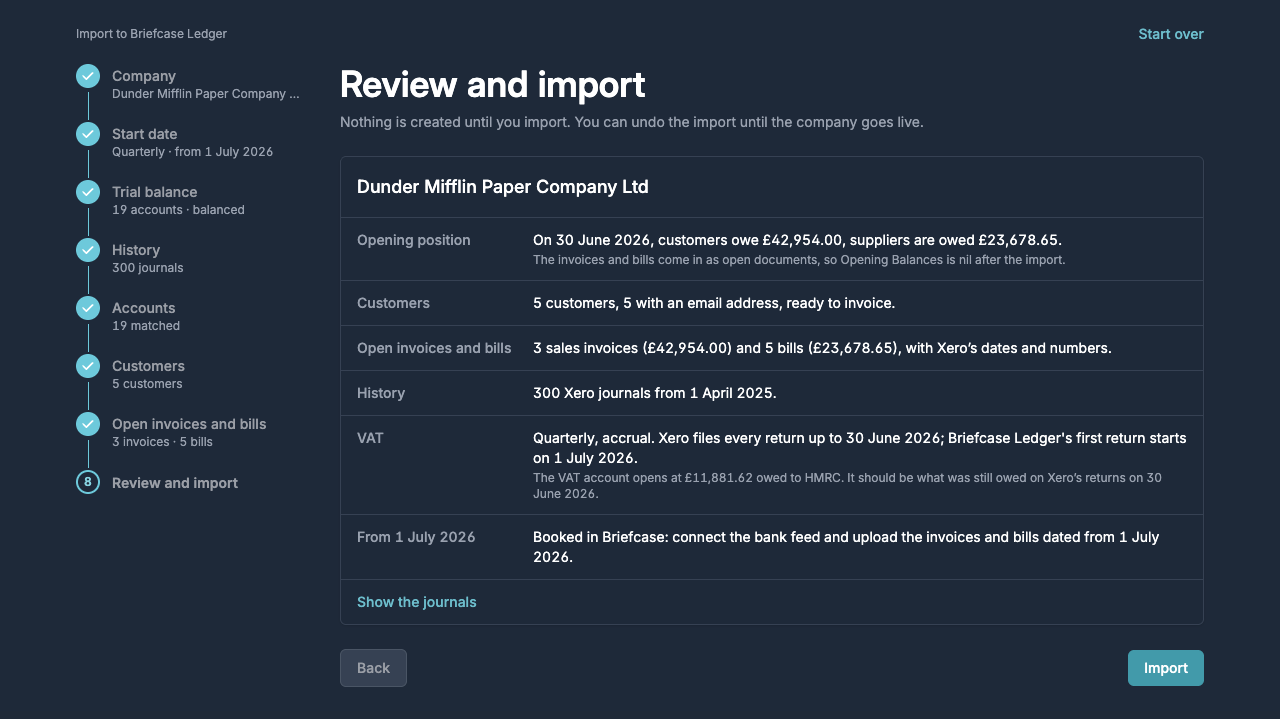
9. Review and import
Check the summary and click Import. Nothing is created until then, and you can undo the import until the company goes live. With history, posting takes a minute or two.
After the import
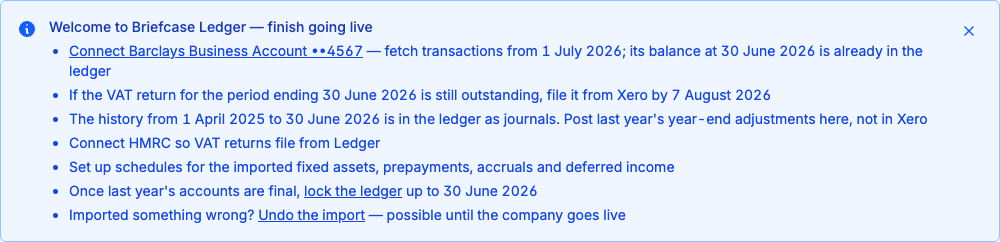
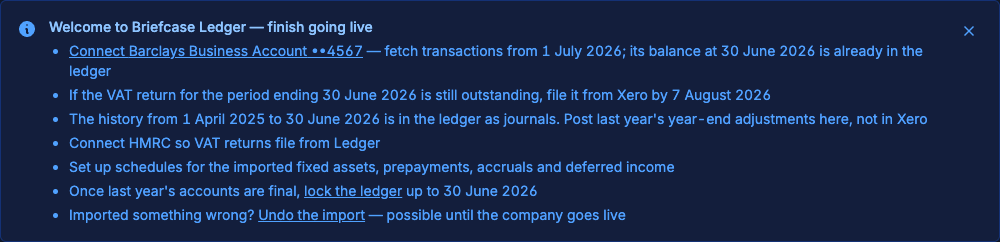
The company's home page shows a checklist for going live:
Clearing the unpaid invoices and bills
The invoices and bills from the aged reports come in with Xero's dates, numbers and amounts still owed, so they show on Aged Debtors and Aged Creditors.
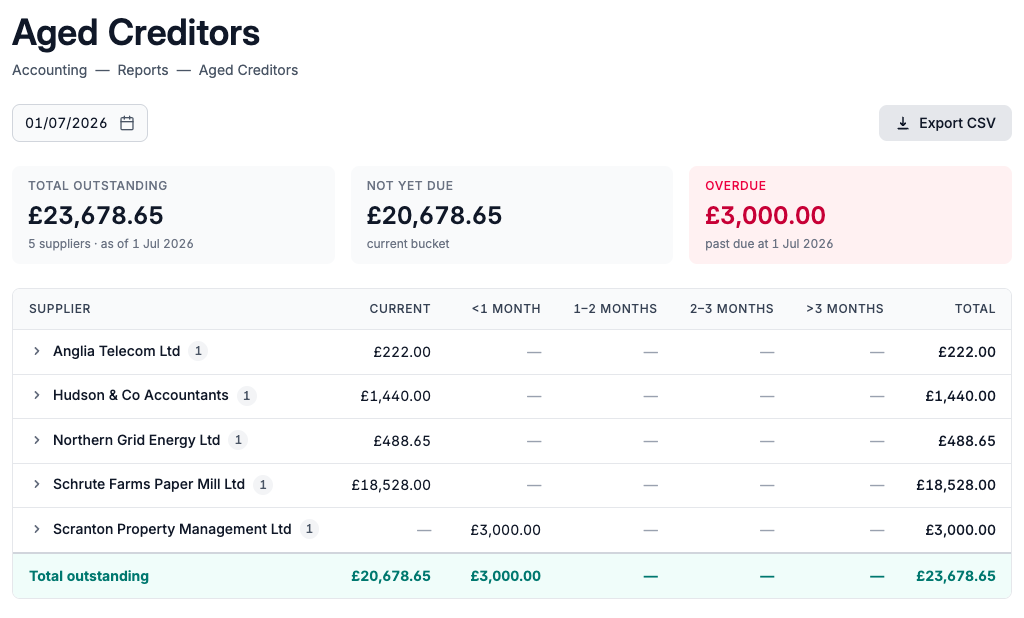
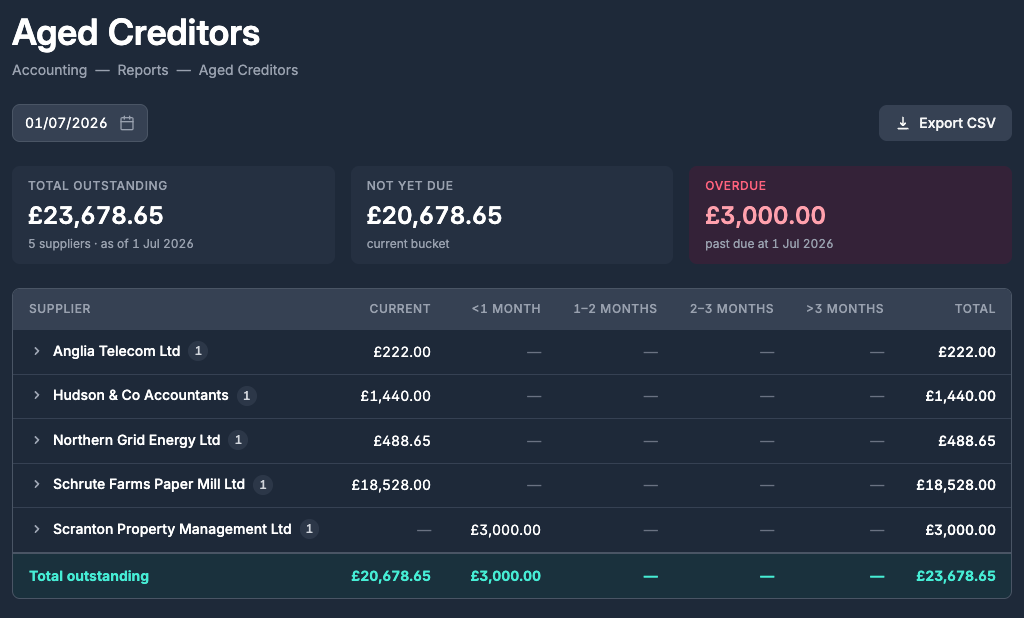
When the payment comes through the bank feed, Briefcase suggests the matching invoice or bill. Reconcile it and the item drops off the aged report, as with any other invoice or bill.
These invoices and bills are coded to Opening Balances on purpose: their sale or cost and VAT were already recorded in Xero, and they're in the trial balance and history you imported. Don't recode them to an income or expense account, or they'll be counted twice.