Moving a limited company to Briefcase Ledger from QuickBooks, Sage, Xero, FreeAgent or a spreadsheet? Import its trial balance. Briefcase Ledger posts one opening journal dated the day before your conversion date and keeps the books from then on. Open customer invoices and supplier bills are re-uploaded afterwards through the inbox, so payments can be matched to them.
Moving from Xero? You can also choose Replicate from Xero, which copies the Xero organisation across with its history.
Before you start
Choose a conversion date. This is the first day Briefcase Ledger keeps the books. Any day works, but the first of a month keeps each month in one system. The opening balances are posted the day before.
Export from the previous system, as at the day before the conversion date and before you close the old subscription:
the trial balance, on the accrual basis, as .csv or .xlsx (save an old .xls workbook as .xlsx first)
the aged receivables and aged payables reports, to re-upload the open invoices and bills
each bank account's statement balance
a customer and supplier list (optional)
VAT: Briefcase Ledger supports accrual VAT accounting only. A company on cash accounting must leave the scheme in the previous system first.
Permissions: you need the Financial Close → Create permission.
Import the trial balance when you add the company. A company set up with Create new can't import its past books later.
Start the import
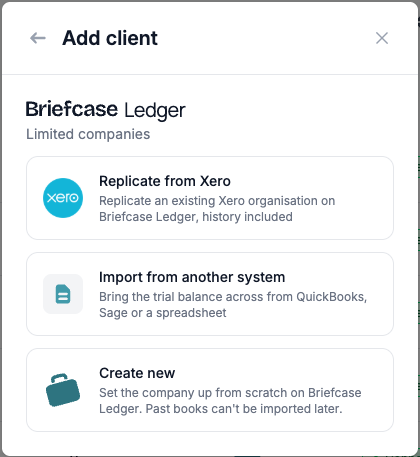
On the dashboard, click Add client, choose Limited companies under Briefcase Ledger, then Import from another system.
Setting up your own business? Choose Import from CSV when Briefcase asks how you want to start.
The wizard saves your progress in this browser as you go, so you can leave and come back. Start over clears it.
Company
Enter the company name, Companies House number and financial year end, and tick The company is VAT registered if it is. Then choose the previous system and the conversion date.
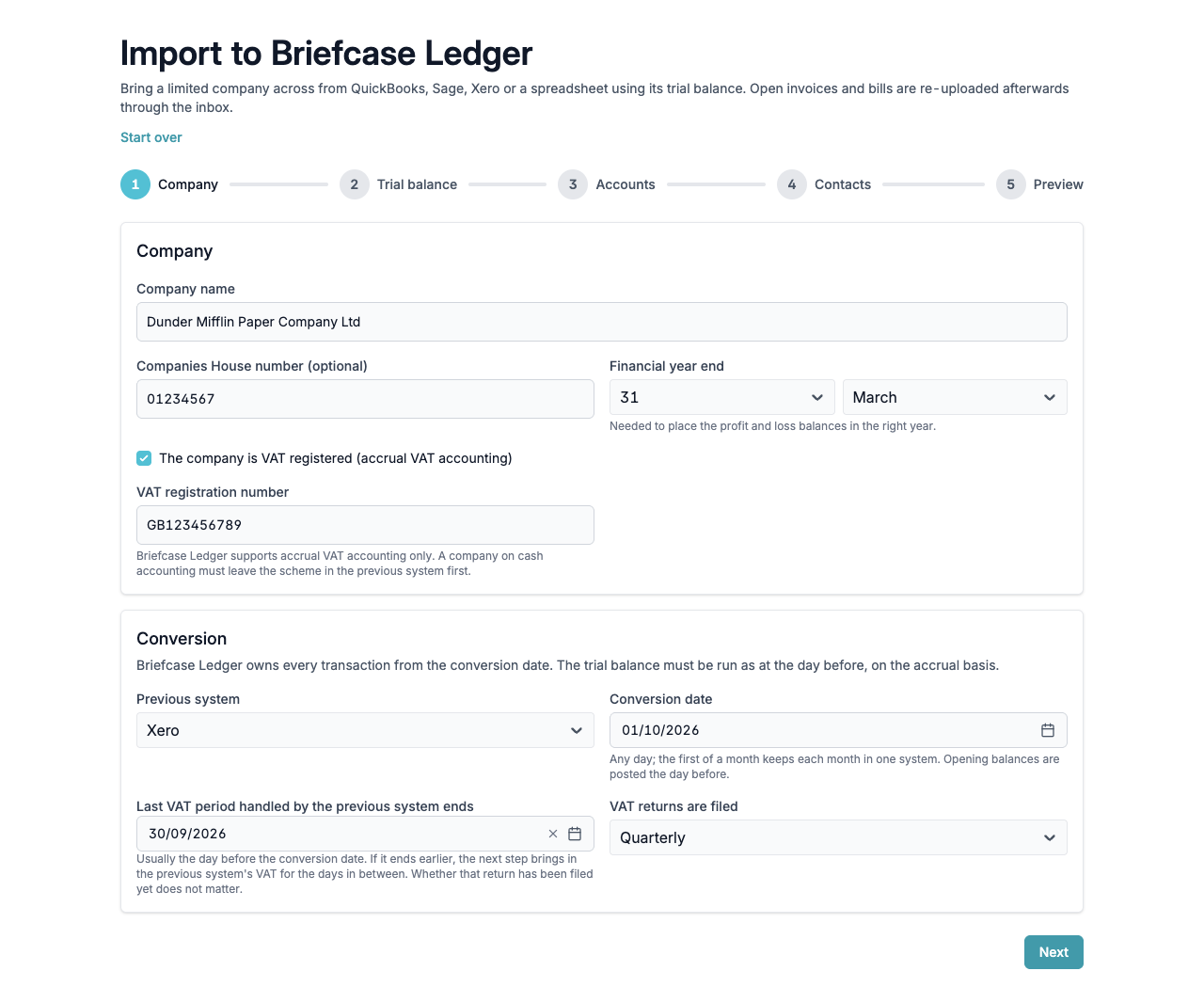
For a VAT-registered company, also enter when the last VAT period handled by the previous system ends (usually the day before the conversion date) and how often VAT returns are filed.
If the conversion date starts a new financial year, say whether the trial balance is pre-close (it still shows last year's sales and expenses, which Briefcase folds into Retained Earnings) or post-close (the profit and loss rows are zero and Retained Earnings already includes last year).
If the conversion date is more than 90 days ago, check that the bank feed reaches back that far once it's connected, or upload bank statements for the earlier weeks.
VAT (only when the conversion date falls inside a VAT period)
If the last VAT period handled by the previous system ends before the day before the conversion date, the first VAT return Briefcase Ledger files also has to cover the days in between. This step brings in the previous system's VAT figures for those days and adds them to that return. Nothing is posted to the accounts, because the trial balance already carries the VAT.
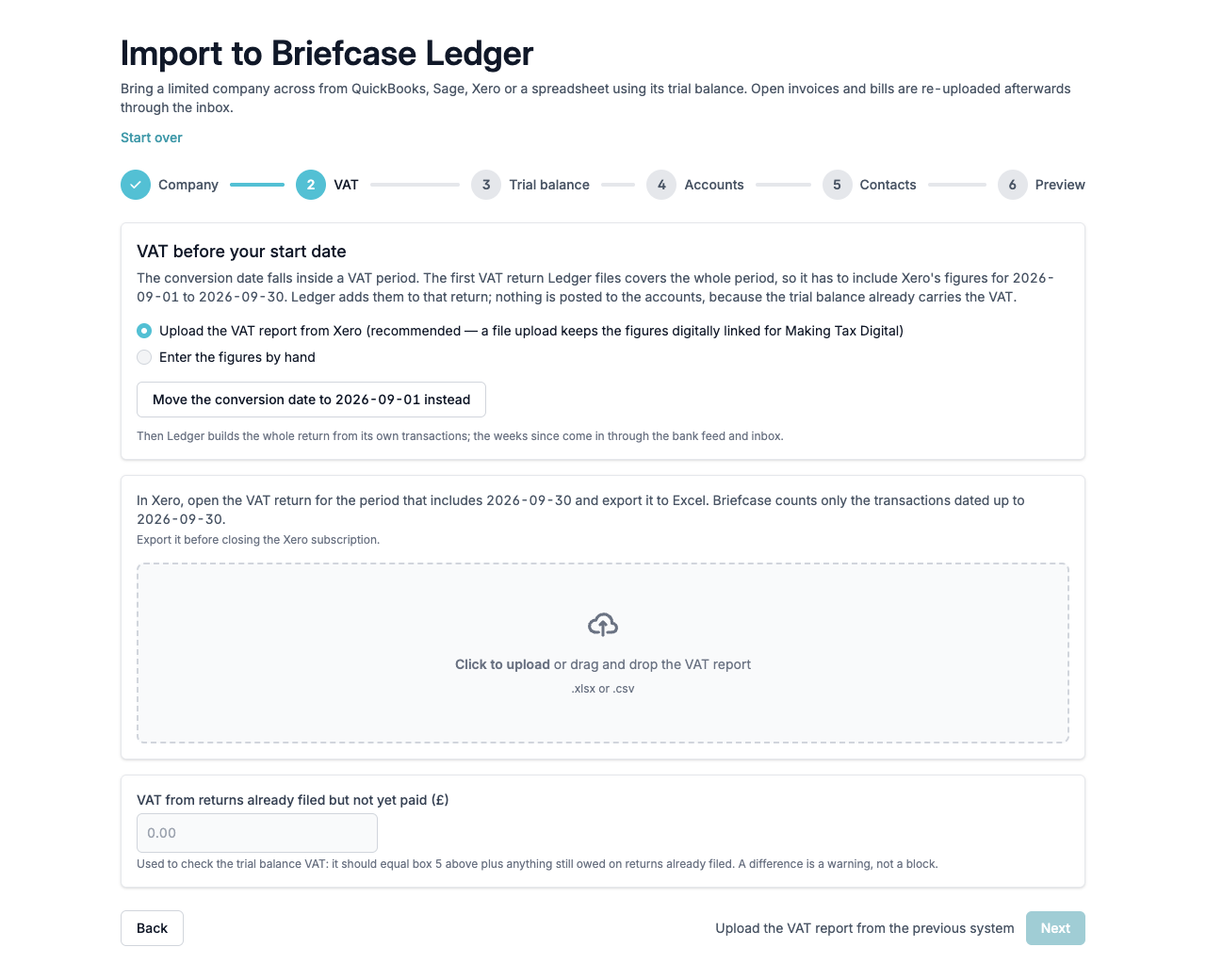
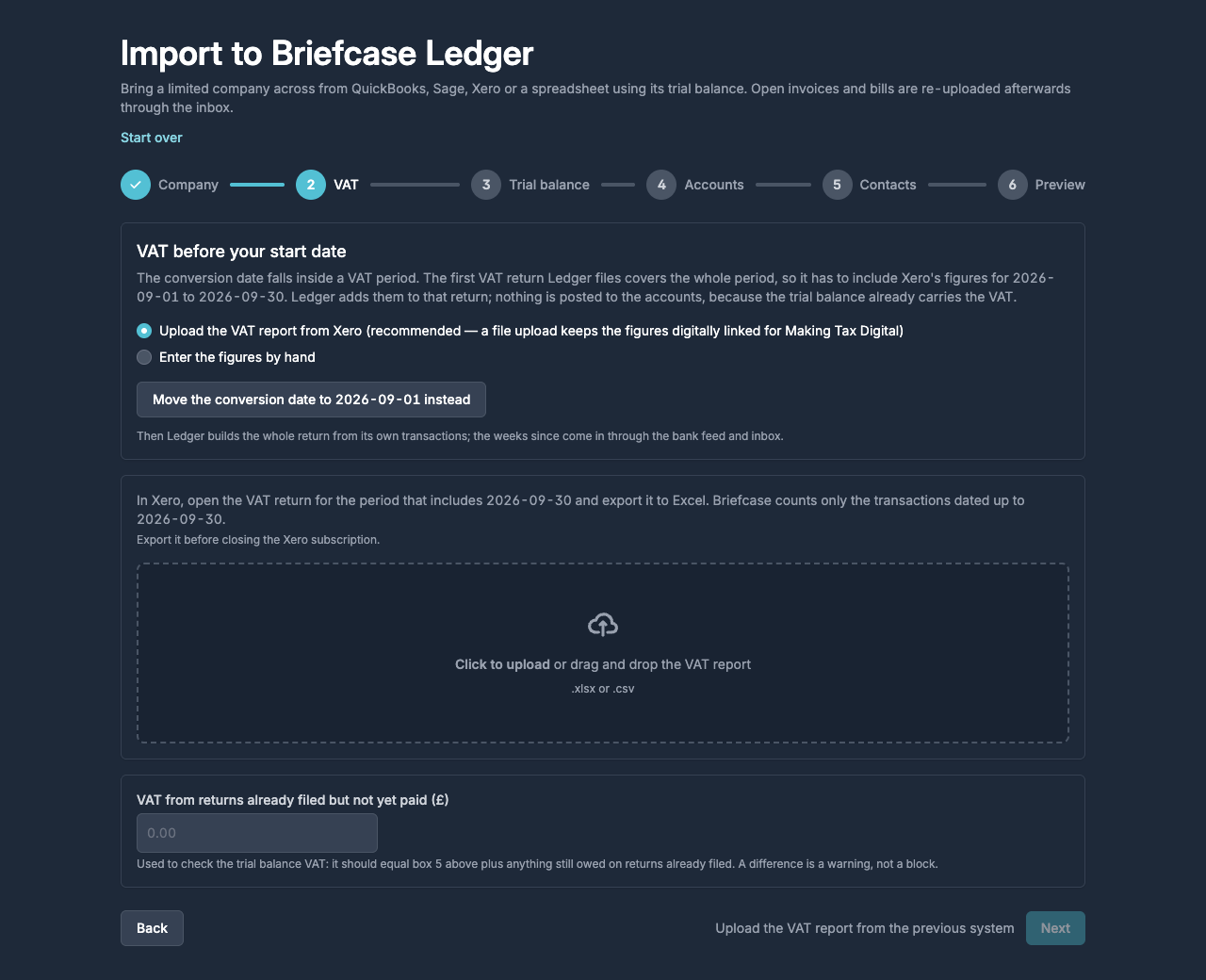
Upload the VAT report (recommended). The step tells you which report to export from QuickBooks, Sage, Xero or FreeAgent. A file upload keeps the figures digitally linked for Making Tax Digital. Briefcase counts only the transactions dated up to the day before the conversion date.
Enter the figures by hand. Type boxes 1, 2, 4 and 6 to 9 (boxes 3 and 5 are worked out for you) and say why they're typed.
Move the conversion date to the start of the VAT period instead. Briefcase Ledger then builds the whole return from its own transactions.
Also enter any VAT from returns already filed but not yet paid. Briefcase uses it to check the VAT on the trial balance. A difference is a warning, not a block.
Trial balance
Upload the trial balance. Briefcase finds the header row and the code, name, debit and credit (or signed balance) columns, and splits codes out of names such as "Sales (200)" or "1200 - Bank". It leaves out titles, headings, totals and calculated rows such as "Current year earnings". Click Show … rows left out to see them.
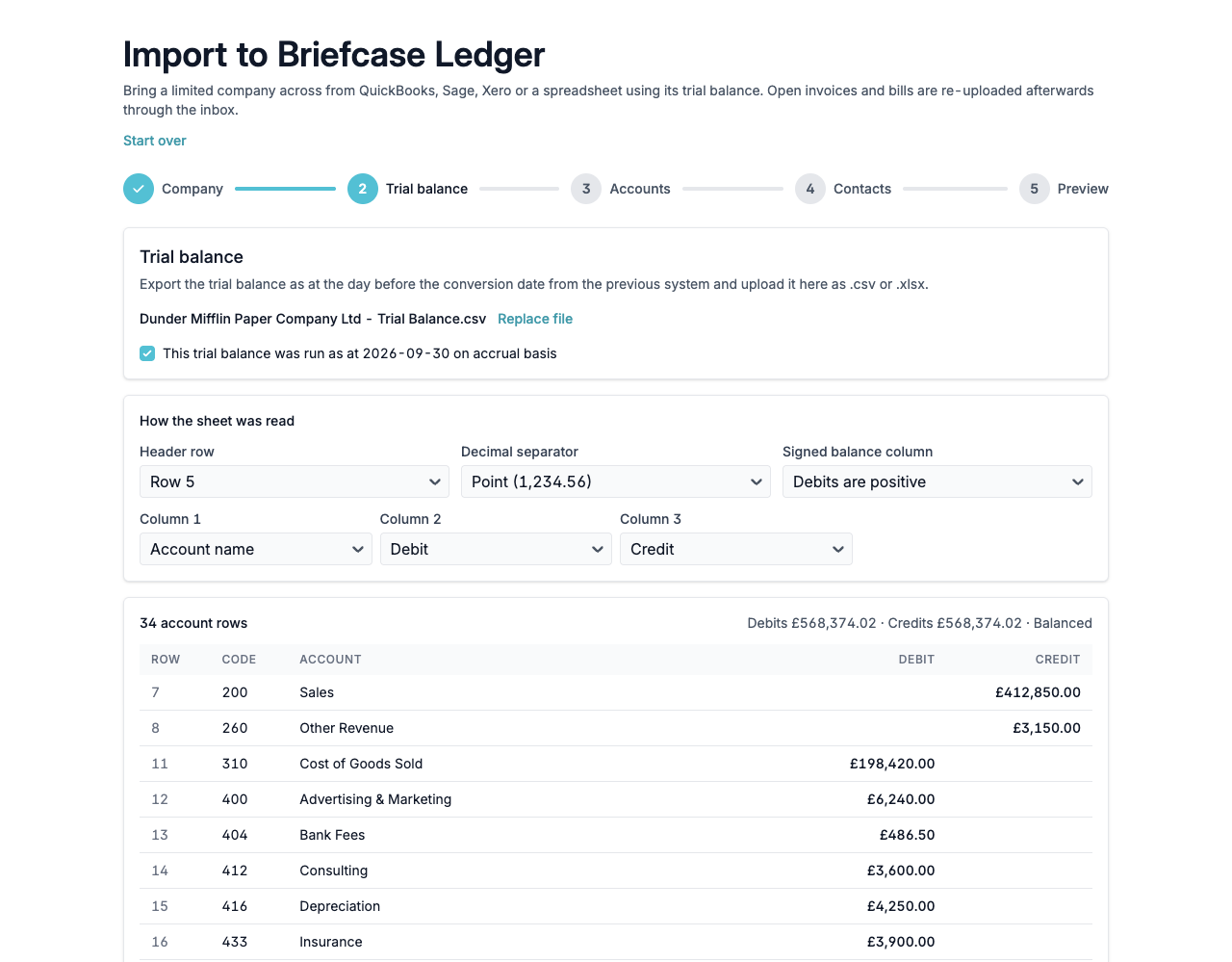
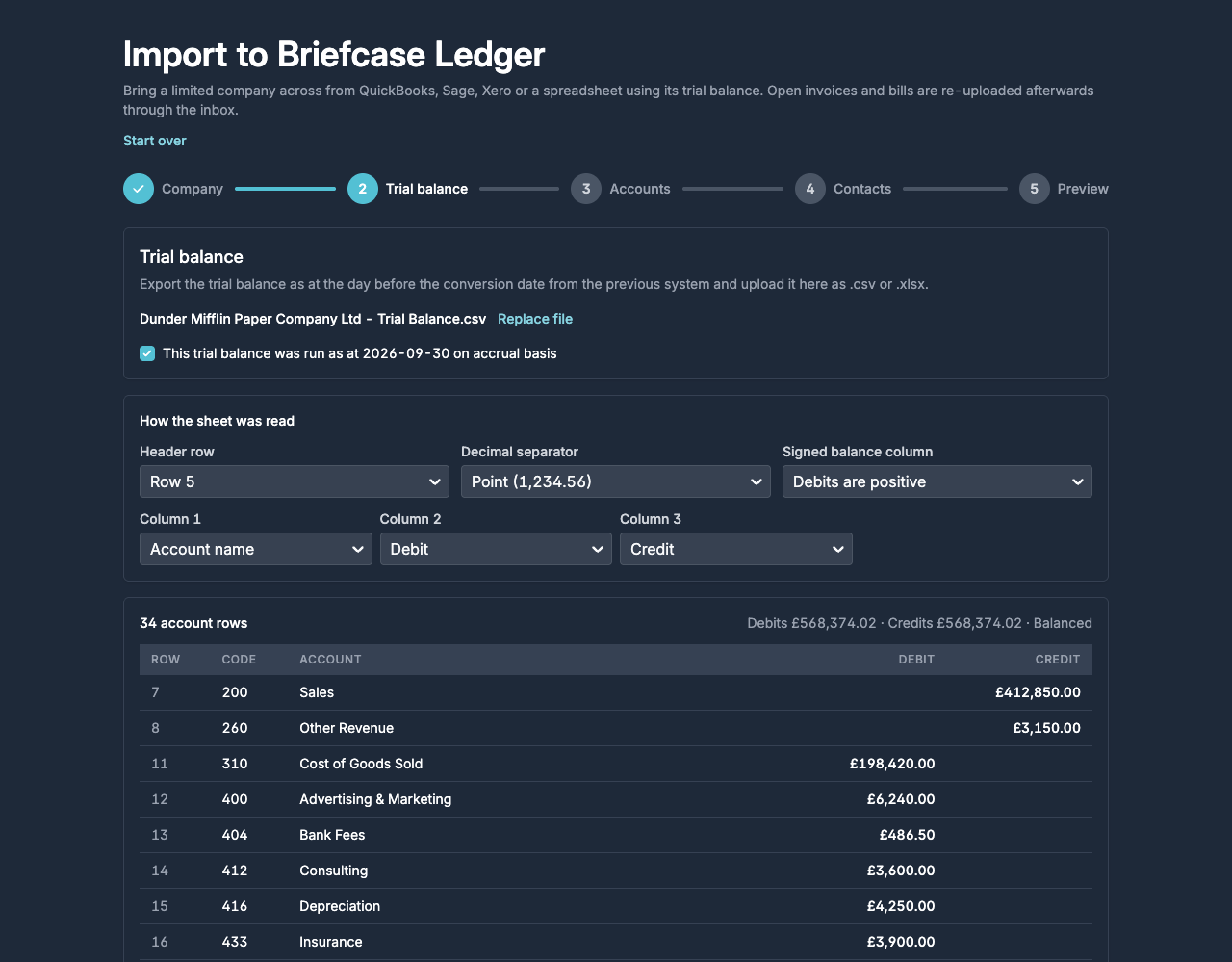
Check How the sheet was read. The debit and credit columns must hold each account's balance at the day before the conversion date. Columns headed YTD, opening or closing debit and credit start as Ignore, so if one of those holds the balances, set it to Debit or Credit yourself.
If the file has a single signed balance column, choose whether debits or credits are positive.
The line above the rows shows whether debits and credits balance. Does not balance usually means a wrong column or a missing row.
Tick This trial balance was run as at … on accrual basis and click Next.
Accounts
Each row of the trial balance goes to one Briefcase Ledger account. Briefcase suggests one for every row from the previous system's standard codes (Xero default codes, Sage nominal code ranges and QuickBooks account types) and from account names, and shows why and how confident it is. Check each suggestion, especially those with medium or low confidence. Rows highlighted in yellow still need an account.
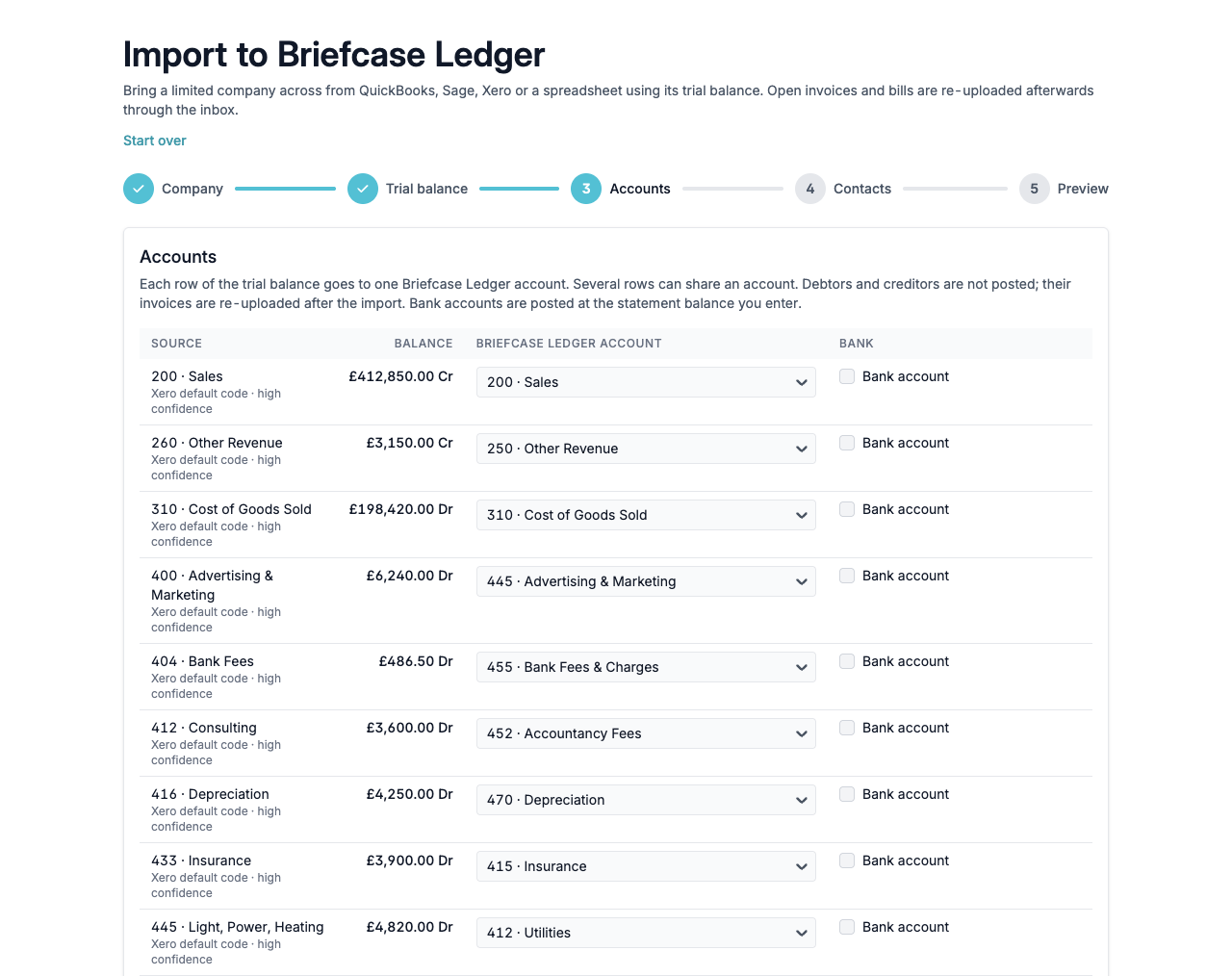
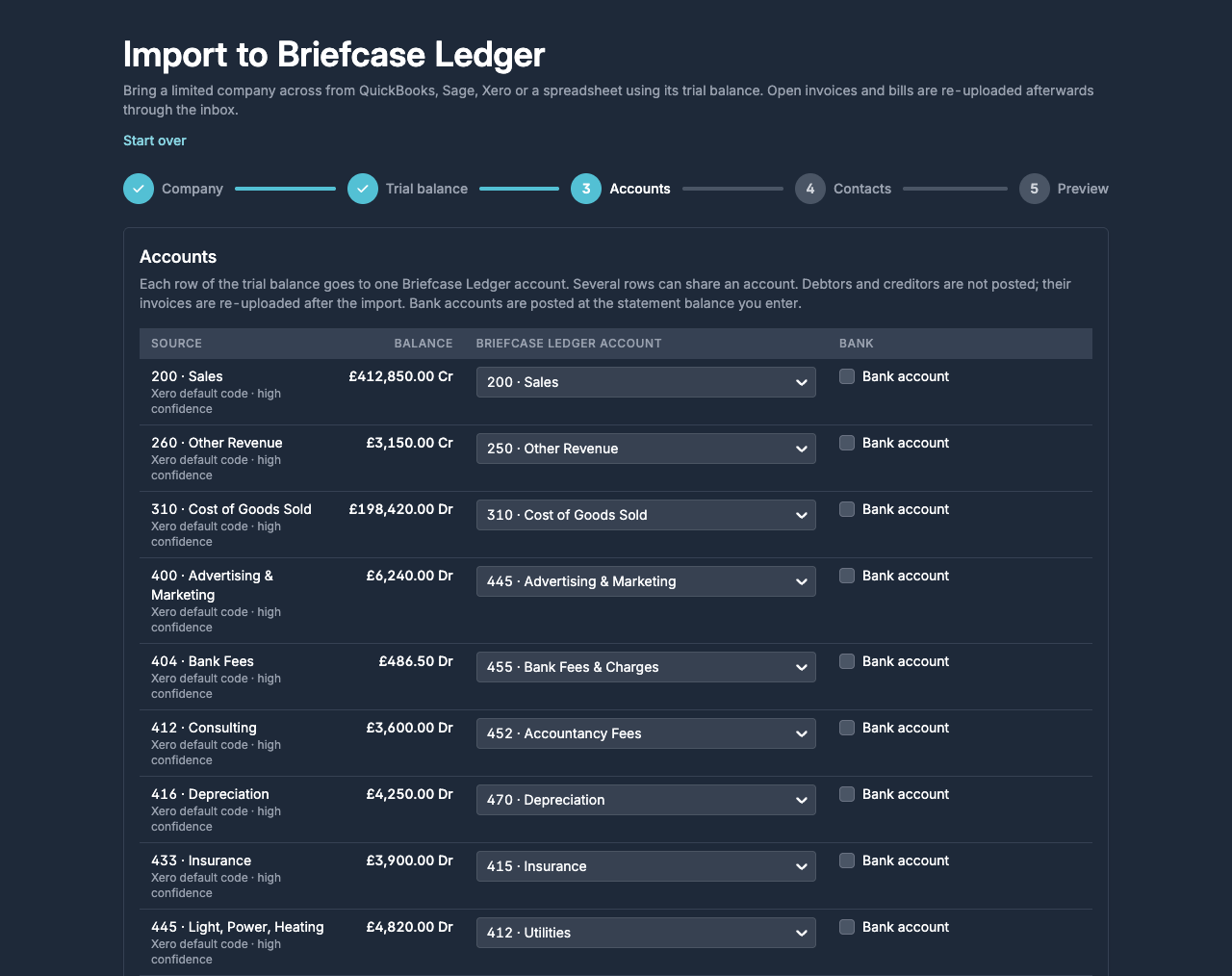
Several rows can share an account. To keep an account that has no match, choose Create a new account and set its name, code and type. A new accumulated depreciation account must be paired with the new fixed asset account it depreciates.
Map debtors to Accounts Receivable and creditors to Accounts Payable. Their balances aren't posted; the open invoices and bills are re-uploaded after the import instead.
For each bank account, tick Bank account and enter the statement balance at the day before the conversion date, the sort code and the account number.
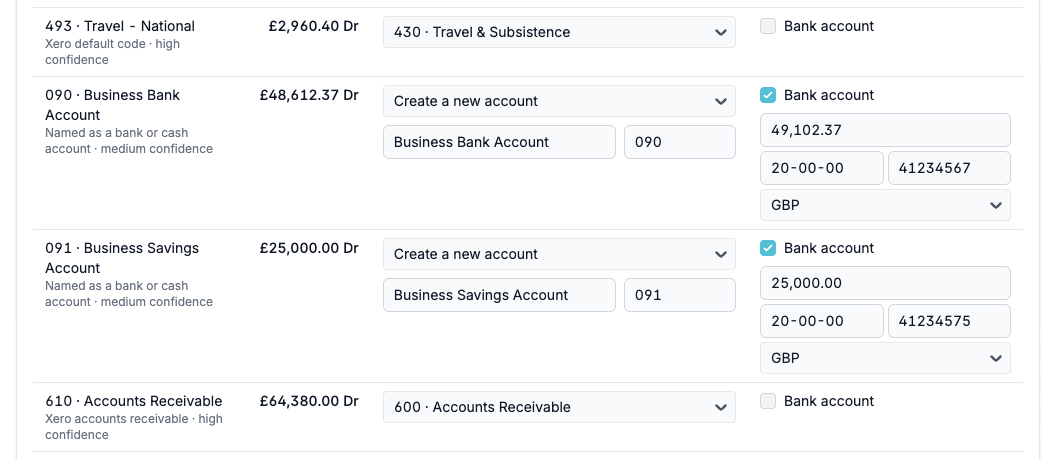
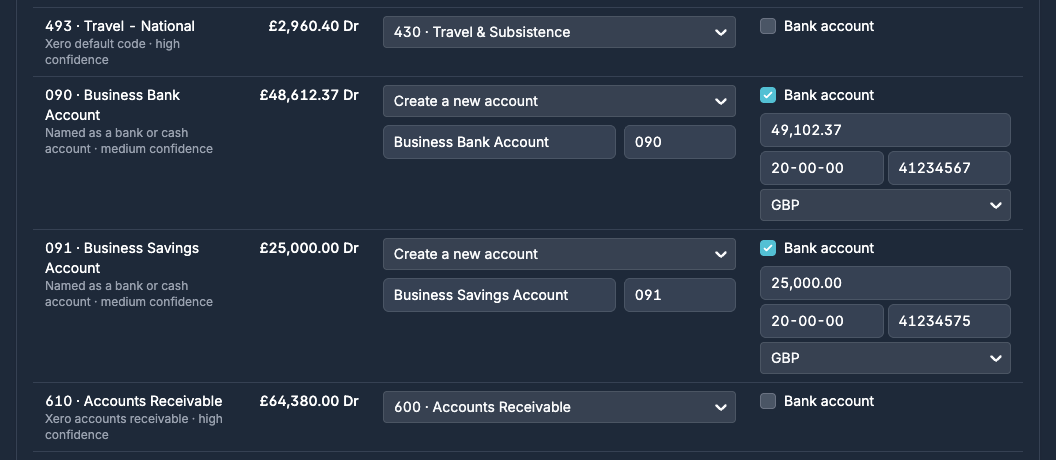
Bank accounts are posted at the statement balance, not the balance in the old books. Any difference is items that hadn't cleared the bank yet; they're picked up through Opening Balances (see below). Briefcase Ledger bank accounts are GBP only: untick Bank account for a foreign currency account, and it's imported as an ordinary asset at its trial balance figure, to be revalued by hand.
Contacts (optional)
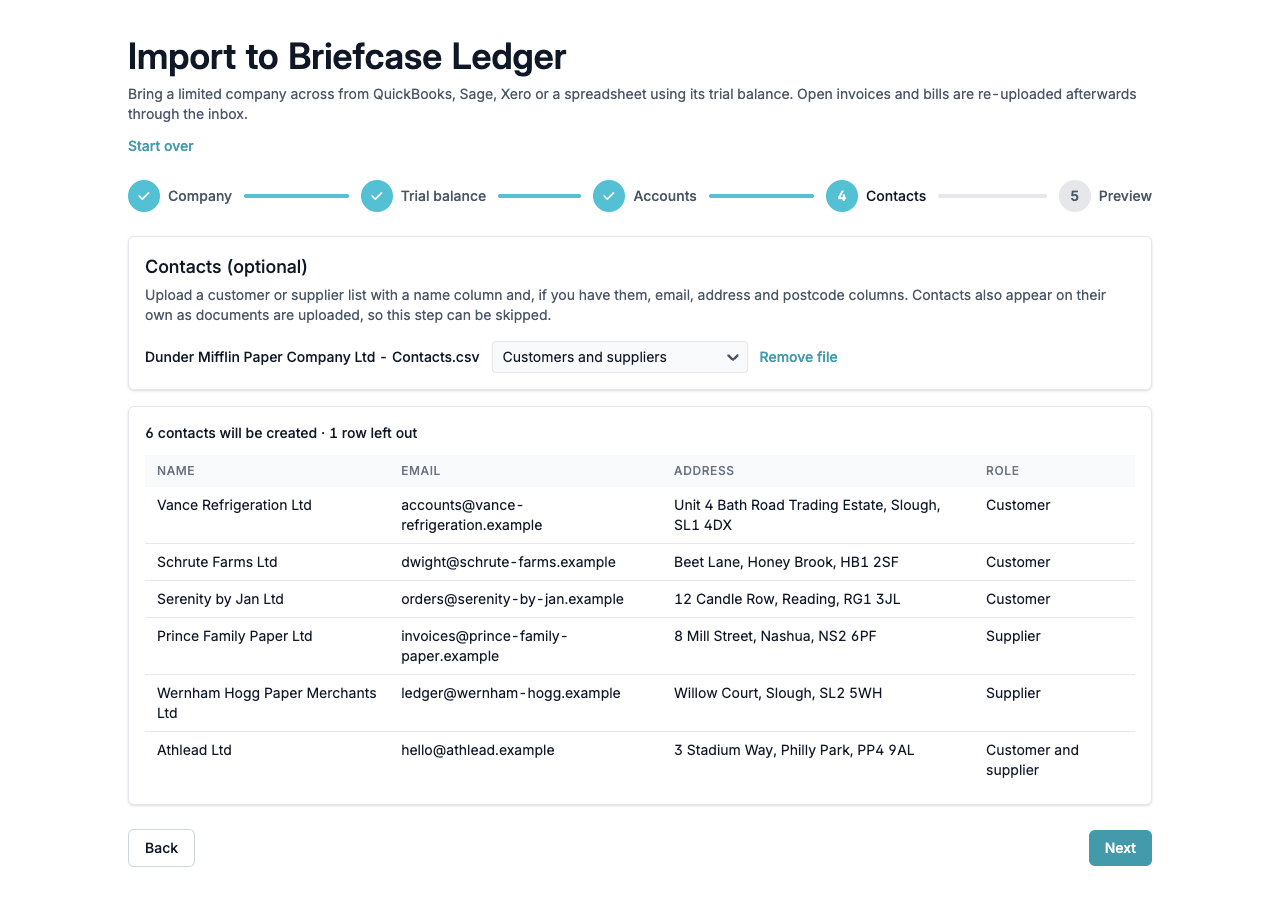
Upload a customer and supplier list with a name column and, if you have them, email, address, town, postcode and country columns. Choose who is in the file (customers, suppliers or both), or add a Type column saying customer, supplier or both for each row. You can skip this step: contacts are also created as documents are uploaded.
Preview
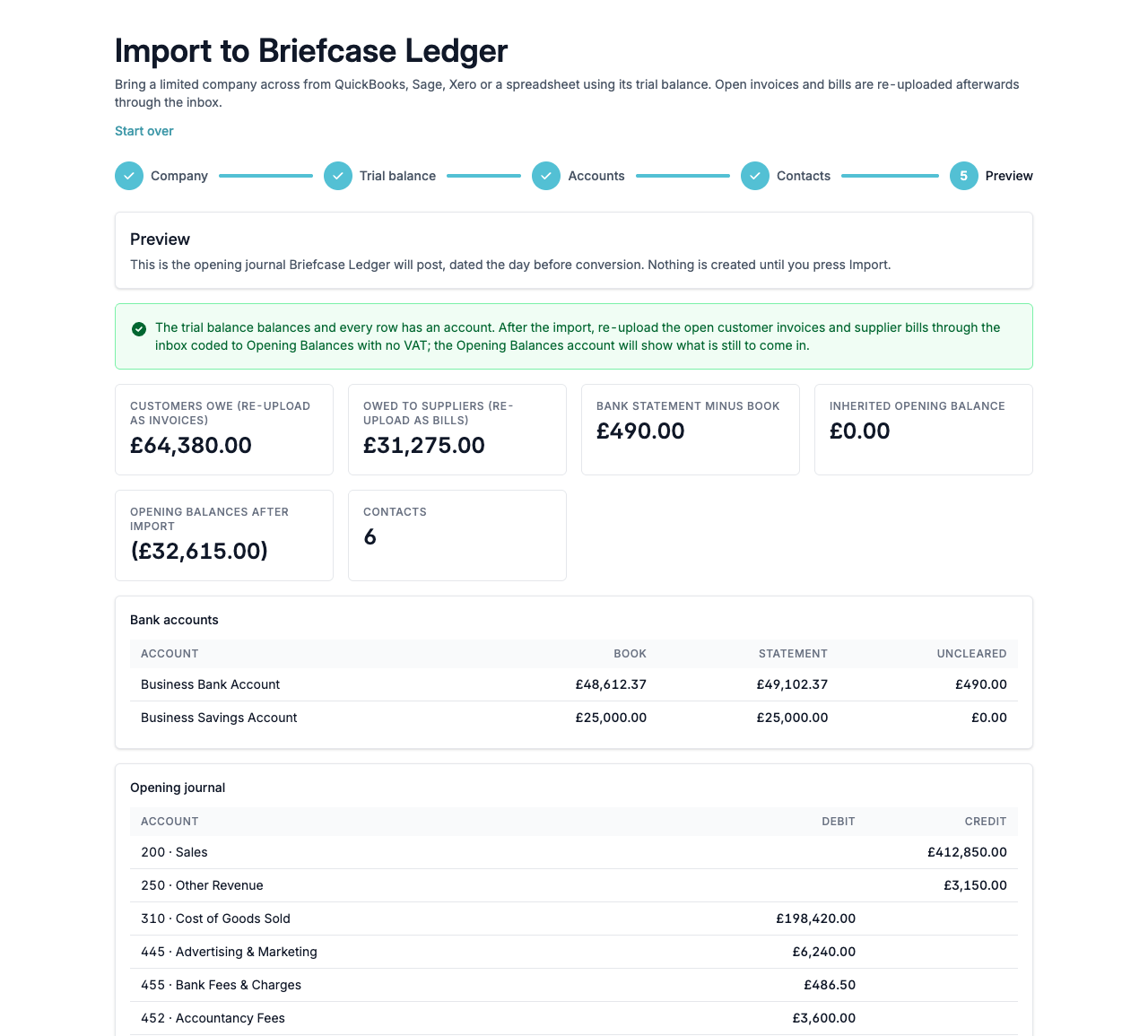
The preview shows the opening journal Briefcase Ledger will post, dated the day before the conversion date. Nothing is created until you click Import.
Fix these before importing lists anything that blocks the import, for example a trial balance that doesn't balance, a row without an account or a bank account without a statement balance.
Worth checking lists warnings that don't block it, for example VAT on the trial balance that doesn't match the VAT figures.
Click Import. Briefcase creates the company with the Briefcase Ledger chart of accounts, any new accounts, the bank accounts and contacts, and the opening journal, then opens the company's home page.
How the Opening Balances account works
Debtors and creditors aren't posted, and bank accounts go in at their statement balance, so the opening journal balances against Opening Balances. In the example above, customers owed £64,380.00, suppliers were owed £31,275.00 and the bank statement was £490.00 higher than the old books, so Opening Balances starts at £64,380.00 − £31,275.00 − £490.00 = £32,615.00.
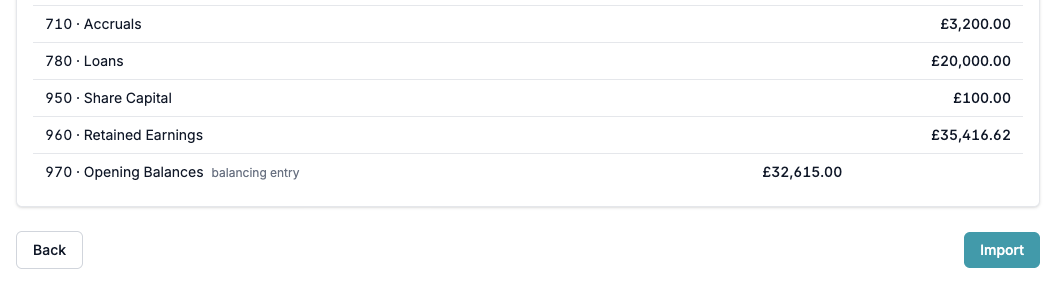
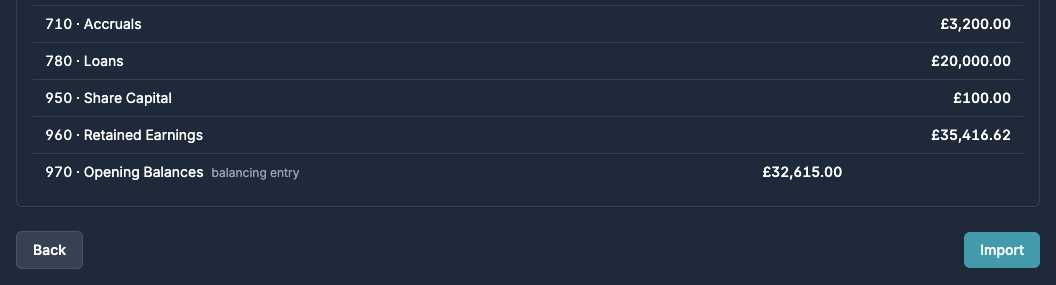
Each invoice and bill you re-upload, and each uncleared bank item you code to Opening Balances, brings that balance down. When it reaches nil, everything has come across.
After the import
The company's home page shows a checklist for going live:
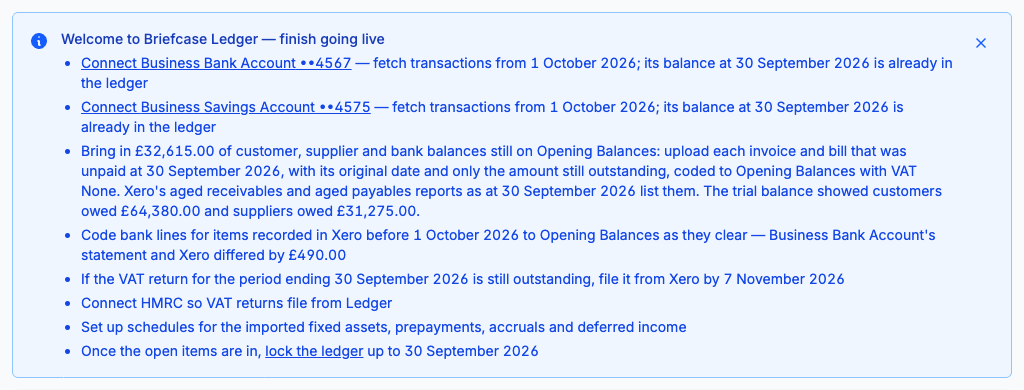
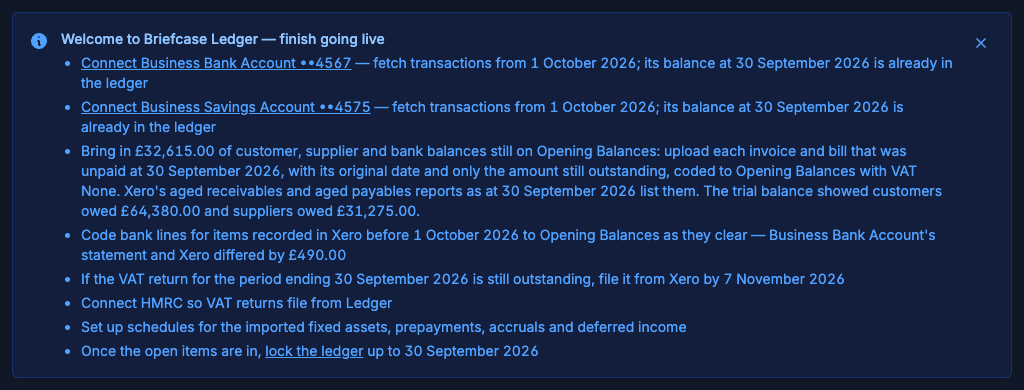
Connect each bank account and fetch transactions from the conversion date. The balance at the day before is already in the ledger.
Upload every invoice and bill that was unpaid at the day before the conversion date through the inbox, with its original date and only the amount still outstanding, coded to Opening Balances with VAT set to None. Use the aged receivables and aged payables reports from the previous system. Their VAT is already in the trial balance, so it isn't counted again.
As items recorded in the previous system before the conversion date clear the bank, code those bank lines to Opening Balances.
File any VAT return that is still outstanding from the previous system. If the first Briefcase Ledger return includes the previous system's VAT figures, re-upload documents dated in those days with VAT set to None, or their VAT is counted twice.
If the conversion date falls mid-month, post that month's depreciation, prepayment and accrual releases and payroll journal in one system only.
Connect HMRC so VAT returns file from Briefcase Ledger.
Set up schedules for the imported fixed assets, prepayments, accruals and deferred income. You can bulk upload fixed assets, prepayments, accrued expenses and deferred income from a CSV.
If the company also has a QuickBooks connection in Briefcase, turn off its autopilot and publishing, tell its users the new forwarding address, and archive it once its last VAT return is filed.
Once the open items are in, lock the ledger up to the day before the conversion date.